Driver Update Geforce: A Practical Guide to GeForce Driver Updates
Learn how to safely update GeForce drivers on Windows, compare GeForce Experience vs manual downloads, and verify post-update performance with troubleshooting tips and best practices.


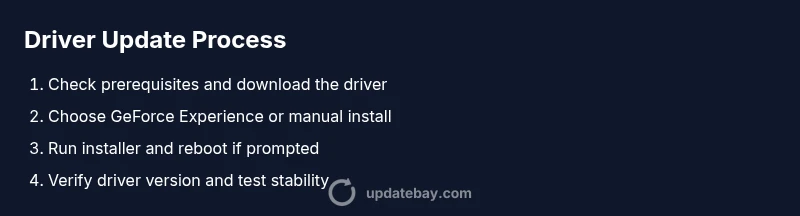
To update a GeForce driver, you’ll boost game stability and performance. Ensure internet access and admin rights, then choose an update path: via GeForce Experience or a manual NVIDIA download. Follow the steps below to complete the update safely and verify the new version. Quick tip: keep a backup of your previous driver and avoid interrupting the installer.
What a GeForce driver update does and why it matters
A GeForce driver update is more than a simple version bump. It is the software bridge between your NVIDIA graphics card and the rest of your system, influencing game performance, stability, and compatibility with new titles and graphics APIs. For many users, the right update reduces frame-time spikes, fixes rendering glitches, and unlocks optimizations for the latest DirectX or Vulkan features. In the context of driver update geforce, staying current is a key maintenance step for gamers, content creators, and professionals who rely on GPU acceleration.
According to Update Bay analysis, most users see measurable gains after a clean install, and you reduce the risk of performance regression when you install the driver that matches your exact GPU model and Windows version. That said, not every update offers a universal benefit; some releases may introduce new issues on older hardware. The safest approach is to read the release notes, confirm your system meets requirements, and choose the recommended installation option. Always ensure you have a rollback plan.
In practical terms, a driver update geforce typically includes bug fixes for rendering quirks in popular titles, performance optimizations for new games, security updates, and occasional changes to power management. If you use Studio drivers for creative workloads, the emphasis shifts toward stability and color accuracy rather than raw gaming performance. Understanding these distinctions helps you pick the right driver family for your use case.
Tools & Materials
- A computer with internet access(Stable connection; wired preferred for large downloads)
- GeForce Experience software (optional but recommended)(Can automate checks and updates)
- Administrative privileges on the PC(Needed to install drivers)
- Backup power / surge protector(Prevent interruption during install)
- NVIDIA driver installer package (manual path)(Choose the correct OS and GPU model)
- USB drive for backup drivers (optional)(Keep a copy of previous driver)
Steps
Estimated time: 15-25 minutes
- 1
Check prerequisites and prepare your system
Close active applications, save work, and ensure your PC is plugged into power. Confirm you have an admin account, and that your internet connection is stable before starting. Prepare a rollback plan in case you need to revert.
Tip: Save work and back up a driver installer or system restore point before updating. - 2
Choose your update path: GeForce Experience vs manual download
Decide whether to use GeForce Experience for an automated update or download the driver directly from NVIDIA for a manual install. GeForce Experience is usually faster and easier, while a manual path gives you precise control over the driver type (Game Ready vs Studio).
Tip: If you’re unsure, start with GeForce Experience to minimize steps. - 3
Update via GeForce Experience
Open GeForce Experience, go to the Drivers tab, and click Check for updates. Choose Express Install for a quick update or Custom Install if you want to deselect components. Allow the installer to run and reboot if prompted.
Tip: If you see a newer driver with fixes you care about, opt for Express Install to minimize steps. - 4
Install and reboot if prompted
Complete the on-screen prompts, then reboot to finalize the installation. Do not run heavy tasks during install to avoid conflicts. After reboot, verify that the new driver is active in GeForce Experience.
Tip: A clean restart helps ensure all components are properly loaded. - 5
Manual download path: download the correct driver
Visit NVIDIA’s driver download page, select your GPU model and Windows version, and download the latest Game Ready or Studio driver. Save the installer to your PC and run it with administrative rights.
Tip: Double-check the GPU model and OS to avoid mismatches. - 6
Run installer and choose installation type
Run the downloaded .exe. Choose Express Install for a quick update or Custom Install for a clean install that removes older components. Follow prompts and allow any required reboots.
Tip: A clean install helps remove legacy files that could cause issues. - 7
Verify installation and test stability
Open GeForce Experience or the NVIDIA control panel to confirm the driver version. Run a quick game or benchmark to ensure stability and compare performance against your baseline.
Tip: Keep a log of post-update performance for future reference. - 8
Post-update maintenance
Enable auto-update if desired, check for related software updates (overlay tools, recording software), and schedule regular checks for drivers. Maintain a rolling backup plan in case you need to rollback.
Tip: Set a monthly reminder to review driver releases and notes.
Frequently Asked Questions
Do I need GeForce Experience to update GeForce drivers?
No. You can update drivers directly from NVIDIA’s site without GeForce Experience. GeForce Experience simply makes the process easier for many users.
You can update without GeForce Experience, though the app helps automate checks and installs.
How do I know if the driver is the latest version?
Check the Driver tab in GeForce Experience or visit NVIDIA’s official driver download page to verify the latest release notes and version number.
Look at the version number and release notes on NVIDIA’s site or in GeForce Experience.
Will updating drivers improve performance?
Driver updates often include performance optimizations, bug fixes, and compatibility improvements that can positively affect gaming and workloads.
Yes, updates can boost performance and fix issues in many cases.
What if the update fails or causes problems?
Try rebooting, re-running the installer, or performing a clean install. If problems persist, rollback to the previous driver version via GeForce Experience or Windows Device Manager.
If it fails, reboot and try again; if issues continue, roll back to a known good driver.
Can I revert a driver update later on?
Yes, you can rollback to a previous driver version through GeForce Experience or Windows Device Manager if you encounter stability issues.
You can roll back to an earlier driver if needed.
Watch Video
What to Remember
- Update driver versions to improve stability and performance
- Choose the update path (GeForce Experience vs manual) based on control needs
- Verify the new driver version and test with a quick stability check
- Maintain backups and plan rollback options for safety