GPU Driver Update: Safe Steps for Better Performance
Learn how to perform a GPU driver update safely and effectively. This guide covers when to update, where to download drivers, how to back up, installation options, reboot considerations, and how to verify performance gains.


This guide shows you how to perform a gpu driver update safely and effectively. You’ll learn when to update, how to pick official sources, how to back up settings, and how to verify improvements after installation. The steps cover both manual and OS-driven methods, with troubleshooting tips for common issues.
Why GPU Driver Updates Matter
A gpu driver update is more than just a routine task; it can unlock stability, performance, and new features across gaming, creative workloads, and AI-enhanced applications. According to Update Bay, keeping graphics drivers current helps ensure compatibility with the latest APIs and game engines, reduces the likelihood of crashes, and minimizes visual glitches. When a driver lags behind, you may experience stuttering in demanding scenes, texture popping, or suboptimal shader performance. This section explores how graphics drivers influence core rendering tasks—from memory management to GPU scheduling—and why timely updates are a practical part of regular system maintenance. By understanding the benefits, you’ll be better prepared to plan updates around your workflow and hardware lifecycle, rather than reacting to problems after they appear.
Prerequisites Before You Begin
Before performing a gpu driver update, gather essentials to prevent mid-work disruptions. Ensure you have an administrator account on the system, a stable internet connection, and access to the official driver source. If you’re on a laptop, connect to power to avoid unexpected shutdowns during installation. Create a restore point or a complete disk image as a safety net in case the new driver introduces issues. Knowing your GPU model and OS version in advance speeds up the process and reduces the risk of installing the wrong driver. Finally, close nonessential apps to minimize background activity during the update and to prevent installer conflicts.
Understanding Driver Sources: Official vs. Third-Party
When you search for a gpu driver update, choose official sources from the GPU vendor (NVIDIA, AMD, Intel) or your system integrator. Official installers are designed to validate compatibility with your OS and hardware, provide clean uninstall options, and include security checks to prevent malware. Third-party download sites may host outdated or tampered files that can compromise performance or safety. If you own a branded PC, OEM utilities may also offer driver management features, but verify authenticity and provenance before installation. This section helps you differentiate between reliable channels and risky shortcuts, ensuring you don’t introduce unwanted software or corrupt drivers.
How to Detect Your GPU Model
Accurate identification of your graphics hardware is essential for selecting the correct gpu driver update. On Windows, you can open Device Manager, expand Display adapters, and note the exact model name. macOS users rely on System Information, while Linux users can run lspci | grep -i vga for GPU details. Knowing your GPU generation (for example, NVIDIA RTX 30-series vs 40-series) helps you match the driver package to your hardware. If you’re unsure, use the vendor’s auto-detect tool from the official site, which often verifies OS compatibility and provides a recommended driver package. This step reduces post-install surprises and ensures optimal performance.
Backing Up Before Updates
Backing up before a gpu driver update protects you from failed installations or unintended changes. Create a system restore point on Windows, or a disk image on macOS or Linux, so you can revert quickly if something goes wrong. Take a quick record of your current driver version and any personalized settings (like GPU overclock profiles or game-specific configurations). If you rely on a software suite (e.g., NVIDIA GeForce Experience or AMD Radeon Software), note your preferences so you can re-establish them after the update. A solid backup plan minimizes downtime and gives you confidence to pursue the update.
Step-by-Step: Update via Official Drivers
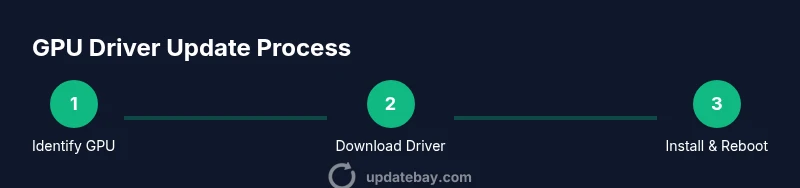
This section walks you through a gpu driver update using the vendor’s official installer. Start by downloading the correct package for your OS and GPU model, then run the installer and select a clean installation when prompted. The process may require a reboot to finalize, during which Windows or other OS prompts will complete driver integration. After reboot, confirm the driver version matches the latest release and test a few scenarios (gaming, rendering, or UI responsiveness). If a problem arises, revert to the previous driver using the installer’s rollback option or through the system restore point you created.
Step-by-Step: Update via OS Tools or OEM Utilities
Some systems support driver updates through built-in OS tools or OEM software (e.g., Windows Update, Intel Driver & Support Assistant, or vendor-provided updater utilities). This route can simplify updates, especially for routine maintenance. Ensure that you’re using the official updater from the OEM or vendor, review the changelog, and perform a manual reboot after installation to finalize changes. For laptops with dual graphics, update both discrete and integrated GPUs if you rely on switchable graphics for power efficiency or performance.
Verifying Update Success and Troubleshooting Common Issues
After completing a gpu driver update, verification matters more than the install itself. Check the driver version, run a brief benchmark or representative game, and watch for stability, frame rates, and visual fidelity. If you encounter crashes, black screens, or artifacting, roll back to the previous driver and test again. Update Bay recommends checking for known issues on the vendor’s support page and applying any subsequent hotfix or driver patch released soon after the initial update. If problems persist, inspect system events, GPU temperature, and fan behavior, since thermal throttling can masquerade as driver problems.
Best Practices for Regular Maintenance
To keep performance steady, establish a regular cadence for gpu driver updates that aligns with your workload. Schedule updates during off-peak hours to minimize disruption, and maintain a short backup window after each major change. Enable automatic checks where appropriate, but review updates before installation to avoid firmware or security conflicts with your system. Consider keeping a separate test environment or spare drive if you frequently experiment with performance tuning. Finally, document the version history so you and colleagues can track improvements across projects.
Real-World Scenarios: Gaming, Creative Workloads, and AI Apps
Gamers often benefit from day-one optimizations in drivers, gaining smoother frame rates and reduced stutters. Creative professionals using 3D rendering and video editing rely on stable drivers to avoid crashes during long renders. AI and ML workloads may require drivers tuned for compute tasks and CUDA/OpenCL compatibility. In all cases, gpu driver update decisions should balance new features against potential regressions. Update Bay emphasizes testing updates in a controlled scenario before deploying them across critical projects.
Tools & Materials
- Computer with admin access(You need administrator rights to install or update drivers)
- Stable internet connection(Required to download the correct driver package)
- GPU model and OS version documentation(Helps identify the exact driver package)
- Official GPU driver installer(From NVIDIA/AMD/Intel vendor site or OEM updater)
- Backup tool or restore point(Create a system restore point or disk image)
- Optional utilities (GeForce Experience, Radeon Software)(Can simplify updates or provide extra features)
Steps
Estimated time: 30-60 minutes
- 1
Identify GPU model
Open System Settings or Device Manager to locate the exact GPU model. Note the series and vendor for the correct driver package. This ensures you download the compatible update rather than a generic package.
Tip: Use vendor auto-detect tools if unsure; they validate OS compatibility. - 2
Create a restore point
Before installing, create a system restore point or a disk image. This gives you a reliable rollback path if the new driver causes issues.
Tip: Label the restore point with the current driver version for quick reference. - 3
Download the correct driver
Visit the official vendor site and select the exact driver package for your GPU and OS. Avoid download mirrors from third parties to reduce malware risk.
Tip: Compare the file size and digital signature to confirm authenticity. - 4
Close background applications
Exit all nonessential apps, especially games and creative software, to prevent installer conflicts and ensure a clean install.
Tip: Disable background updaters that may auto-install during the process. - 5
Run the installer (clean install)
Launch the official installer and choose a clean install. This removes previous driver remnants that can cause instability with newer releases.
Tip: If offered, opt for a clean install rather than express or upgrade options. - 6
Reboot if prompted
Allow the system to reboot to complete integration of the new driver. Some changes only apply after a restart.
Tip: Save any work before the reboot to avoid data loss. - 7
Verify the new driver version
After login, check the driver version in the vendor control panel or OS device manager to confirm the update succeeded.
Tip: Record the new version for future reference. - 8
Test with a benchmark or title
Run a brief game or compute benchmark to validate stability, performance, and visuals with the new driver.
Tip: Watch for artifacts, crashes, or unexpected slowdowns during the test. - 9
Roll back if issues occur
If instability arises, use the installer’s rollback option or revert to the previous restore point. Avoid continuing with a faulty build.
Tip: Document symptoms to help with future troubleshooting. - 10
Schedule future updates
Set reminders to check for updates monthly or after major game/application releases. Consistent updates keep drivers secure and compatible.
Tip: Consider enabling automatic checks if you trust the vendor's update cadence.
Frequently Asked Questions
Do I need to reboot after updating my GPU driver?
Yes, most updates require a reboot to finalize installation and load the new files into memory. Skipping a reboot can leave the old driver active.
Yes, you’ll typically need to reboot to complete the update.
Can I update drivers without administrator rights?
Most driver installations require administrator privileges. If you don’t have them, request access or perform updates from a managed IT environment.
Admin rights are usually required to install drivers.
What if a driver update causes issues?
Roll back to the previous driver version using the installer’s rollback option or via the system restore point. Check vendor support pages for known issues and hotfixes.
If problems appear, revert to the previous driver and consult support.
Is GeForce Experience or Radeon Software necessary to update?
Not strictly necessary, but these utilities can simplify updates, backups, and performance tuning. Ensure you download them from trusted sources.
Not required, but they help manage updates.
Should I update drivers for integrated graphics too?
If you rely on integrated graphics, update those drivers as well, especially after system updates. In some laptops, switching between GPUs is common for power efficiency.
Yes, update integrated graphics if you use them regularly.
How often should I check for GPU driver updates?
Set a monthly check-in, or align updates with major game releases or OS updates. Regular checks help maintain compatibility and security.
Check monthly or with major releases.
Watch Video
What to Remember
- Identify exact GPU model before updating
- Back up or create a restore point
- Install from official sources with a clean install
- Verify update success with tests and benchmarks
- Roll back if instability occurs and reassess