Windows Update White Screen Troubleshooting Guide
Urgent, practical guide to diagnose and fix the Windows update white screen with safe steps, troubleshooting flow, and prevention tips from Update Bay.


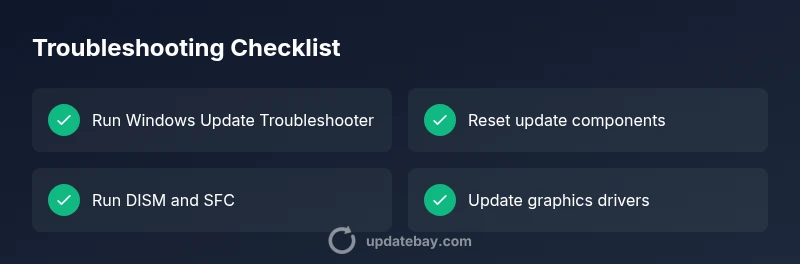
Most often, a Windows Update white screen stems from corrupted update components or a display driver hiccup. Start with safe mode, run the Windows Update Troubleshooter, then reset Windows Update components. If needed, run DISM and SFC, and update or rollback your graphics driver. If the problem persists, consider an in-place repair upgrade rather than a full reinstall.
What Causes the Windows Update White Screen
The Windows update white screen typically signals a disruption in the update pipeline or a rendering issue in the OS shell. According to Update Bay, the most common causes are corrupted update components, driver conflicts, or insufficient disk space during installation. External peripherals can also interfere if they draw power or bandwidth during an update. Open processes may stall, leaving the screen blank while the system sifts through logs and tries to complete a background task. Understanding these triggers helps you prioritize fixes and avoid unnecessary steps. In many cases, a simple restart combined with targeted troubleshooting resolves the problem without data loss, especially if you act quickly and methodically.
Immediate, Safe-Fix You Can Try Now
First, save any open work and disconnect nonessential peripherals (external drives, USB hubs, printers) to rule out peripheral interference. Then perform a hard reboot if the screen is fully unresponsive. If you can access the desktop or sign-in screen, boot into Safe Mode with Networking to limit drivers and services. Run the built-in Windows Update Troubleshooter and choose to reset/update components. These steps are safe, quick, and often resolve the issue without affecting your files. If the screen remains white, proceed to more advanced checks without panic.
Diagnostic Checklist: What to Verify Before Deeper Troubleshooting
Before diving deeper, verify basics that commonly trigger a white screen: adequate free disk space (at least a few gigabytes), stable power, and a reliable network connection. Check for recent driver updates or software installed around the time of the issue. Use Event Viewer and Reliability Monitor to spot error codes or failed update packages. Ensure your system isn’t running out of memory and that the display adapter isn’t experiencing overheating. Document any error messages to guide subsequent steps.
How to Reset Windows Update Components
Resetting Windows Update components clears corrupted data that often causes a white screen. Open an elevated Command Prompt and run commands to stop services, rename update folders, and restart services. The typical sequence includes: net stop wuauserv, net stop cryptSvc, ren C:\Windows\SoftwareDistribution SoftwareDistribution.old, ren C:\Windows\System32\catroot2 catroot2.old, then net start wuauserv and net start cryptSvc. After a restart, retry Windows Update. This cleanup is safe and frequently resolves stubborn update loops.
Run DISM and SFC, Plus Windows Update Troubleshooter
If the issue persists, run DISM /Online /Cleanup-Image /RestoreHealth and SFC /Scannow to repair corrupted system files. These commands repair the OS image and fix missing or corrupted files that could cause the white screen during updates. Then re-run the Windows Update Troubleshooter and try the update again. If you still see the white screen, consider updating graphics drivers or performing a repair upgrade. These steps do not erase personal data and are standard recovery practices.
Graphics Drivers and Display Settings: Fixing the White Screen
Display issues often trigger a white screen during Windows Update. Update or rollback the graphics/display driver to resolve compatibility problems. If you can access Safe Mode, install the latest driver from the manufacturer’s site or revert to a stable version. Also check for monitor firmware updates if you’re on a newer setup. In some cases, a clean boot helps identify if a third-party program is causing rendering problems. Keep your BIOS and chipset drivers current to reduce compatibility issues.
When to Consider Reinstall or Roll Back the Update
If none of the above steps resolve the white screen, you may need to roll back to a previous build or perform an in-place repair upgrade. A repair upgrade preserves apps and data while refreshing Windows components. A full clean install is a last resort and should be planned with data backup. Evaluate the risks and ensure you have recovery media before proceeding. This option is only recommended when other troubleshooting methods fail and the system remains unstable.
Prevent Future Incidents: Best Practices to Avoid White Screens
Proactively prevent white screens by keeping Windows and drivers up to date, enabling automatic updates, and periodically scanning for disk errors. Regular backups ensure data safety if you need to revert. Create a system restore point before major updates and avoid installing multiple updates simultaneously. Maintain a clean boot configuration to isolate potential software conflicts. Finally, monitor system temperatures and power stability to minimize hardware-triggered failures during updates.
Steps
Estimated time: 60-90 minutes
- 1
Boot into Safe Mode with Networking
Power down, then restart and press the appropriate key to enter advanced startup options. Choose Safe Mode with Networking. This minimizes driver conflicts and makes troubleshooting safer. From here, perform initial checks and run the troubleshooter.
Tip: Safe Mode limit drivers, helping you isolate the problem. - 2
Run Windows Update Troubleshooter
Open Settings > Update & Security > Troubleshoot > Additional troubleshooters. Run the Windows Update troubleshooter and apply recommended fixes. If prompted, allow the troubleshooter to reset Windows Update components automatically.
Tip: Let the tool apply fixes automatically when suggested. - 3
Reset Windows Update Components
Open an elevated command prompt. Stop services, rename update folders, then restart services. This cleans corrupt update data that often causes a white screen.
Tip: Renaming SoftwareDistribution and Catroot2 resets cached data cleanly. - 4
Run DISM and SFC
In an elevated PowerShell or CMD, run DISM /Online /Cleanup-Image /RestoreHealth followed by SFC /Scannow. These utilities repair the Windows image and system files that the update relies on.
Tip: If DISM fails, retry after a fresh restart. - 5
Address Display/Driver Issues
Update or rollback the display driver from the manufacturer, and check for monitor or BIOS updates. If the white screen appears only after a driver change, try a rollback.
Tip: Always back up current driver before changing. - 6
Attempt a Repair Upgrade
If problems persist, perform an in-place repair upgrade to refresh Windows without removing apps or data. Follow the on-screen prompts or create installation media to start the repair.
Tip: This is safer than a full reinstall and preserves software.
Diagnosis: Windows update results in a white screen during installation or on reboot
Possible Causes
- highCorrupted update components
- mediumGraphics/display driver conflicts
- mediumInsufficient disk space or disk errors
- lowBackground services blocked or misconfigured
Fixes
- easyRun Windows Update Troubleshooter and reset update components
- mediumRun DISM and SFC to repair system image and files
- mediumUpdate or rollback graphics/display drivers
- hardPerform an in-place repair upgrade or, if necessary, a clean reinstall with backups
Frequently Asked Questions
What causes the white screen during Windows Update?
Common causes include corrupted components, driver conflicts, and display rendering issues. Hardware limits or busy background tasks can also contribute. Identifying the trigger helps focus fixes without needless steps.
Common causes are corrupted update components, driver conflicts, or display rendering problems.
Can data be lost when this happens?
Generally, update-related white screens do not erase personal files, but update repair steps can alter system files. Back up important data before making changes to be safe.
Usually no data loss, but back up first.
Is Safe Mode necessary for troubleshooting?
Safe Mode helps isolate drivers and services that may cause the white screen. It's a recommended first step, but you can still troubleshoot from a normal boot if Safe Mode isn’t accessible.
Safe Mode can help isolate the issue.
Should I perform a repair install?
An in-place repair upgrade refreshes Windows without removing apps or data, offering a safer path than a clean reinstall if the problem persists.
A repair upgrade keeps your data.
What if the white screen returns after patching?
If the issue recurs, consider rolling back to a previous build or waiting for a cumulative patch. Reevaluate hardware drivers and perform an in-place repair upgrade as needed.
If it comes back, you may need a patch.
When should I contact professional help?
If you cannot boot or the system remains unstable after multiple attempts, professional support can help prevent data loss and guide deeper repairs.
If you can't boot, seek help.
Watch Video
What to Remember
- Back up data before major changes
- Start with Safe Mode and built-in troubleshooters
- Reset update components to clear stale data
- Run DISM and SFC for system integrity
- Prefer repair upgrade over full reinstall when possible