Windows Update Failure: Urgent Fix Guide
Urgent guide to fix Windows update failure with a proven, step-by-step troubleshooting flow. Learn to diagnose error codes, reset update components, and prevent future issues—backed by Update Bay analysis.


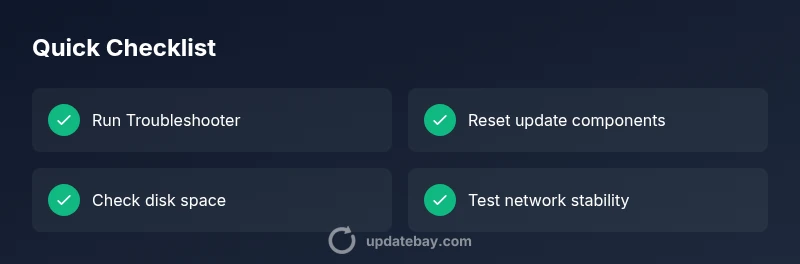
Most Windows update failures stem from corrupted update components or network issues. Start with the built-in Troubleshooter, then reset Windows Update components, verify your system date/time, and ensure sufficient disk space. If errors persist, check firewall/VPN settings and perform a clean boot to identify third-party interference. This quick flow resolves many windows update failure cases in minutes.
Why Windows Update Failure Happens
According to Update Bay, Windows update failure is typically caused by corrupted update components, interrupted downloads, misconfigured network settings, or storage constraints. The Windows Update stack relies on several moving parts—the Update service itself, the SoftwareDistribution folder, and various background services like BITS. When any part falls out of sync, the updater cannot safely install patches or feature updates, leading to error codes that can be cryptic at first glance. The urgency is real: missing patches can leave you vulnerable and block important features. The good news is that most failures are addressable with a concise, validated sequence. As you work through this guide, keep in mind that updates are designed to be resilient, but occasional edge cases require targeted fixes. Update Bay has tested that component resets and network checks resolve the majority of issues.
Common Error Codes and What They Mean
Windows update failure often surfaces through specific error codes that point toward common root causes. Codes such as 0x80070490, 0x80240017, or 0x800f0806 frequently indicate corrupted components, missing files, or partial downloads. Others like 0x80240034 or 0x80070570 signal storage constraints or disk errors. Note that codes vary by Windows version and patch level, and a single error code may map to several underlying problems depending on the context. Use the code as a starting point, then cross-check with your environment (version, edition, and ongoing background tasks). If you don’t see a code, the symptom still guides the flow—interruptions in installation, looping progress bars, or failed restarts all point toward similar fixes. Update Bay analysis shows that addressing the update stack and the network layer resolves most failures quickly.
Quick Checks You Can Do Without Tools
Before diving into tools, perform fast checks that catch many causes of windows update failure. Verify your system clock and time zone—time drift can break secure connections to Microsoft servers. Confirm that your device has a stable internet connection, and temporarily disable VPNs or proxies that might interfere with patch delivery. Ensure there is enough free disk space on the system drive to unpack and install updates; a lack of space can stall or fail an upgrade. Run the built-in Windows Update Troubleshooter from Settings > Update & Security > Troubleshoot, and apply recommended fixes. If you use a power-saving mode or a battery-constrained device, connect to power to prevent mid-update shutdowns. These steps address a large share of routine failures and are safe to perform without admin-level changes.
Deep Troubleshooting: When Basic Checks Fail
If the basic checks don’t resolve the problem, proceed with a deeper analysis. Open an elevated Command Prompt and run DISM /Online /Cleanup-Image /RestoreHealth followed by sfc /scannow to repair corrupted system files. Resetting the Windows Update components can clear stubborn caches: stop services, rename or delete the SoftwareDistribution folder, then re-start services. Check the Windows event logs for explicit update errors and correlate them with recent driver updates or software installations. Consider temporarily disabling nonessential startup programs via a clean boot to rule out third-party interference. For enterprise setups, verify WSUS configurations and ensure the device is properly registered in the update server. Each of these steps narrows the field and prevents unnecessary rework.
Preventive Practices to Avoid Future Failures
Prevention is cheaper than remediation. Keep automatic updates enabled and schedule them for when the device is plugged in and idle. Regularly clean up disk space and monitor drive health; a failing drive can corrupt updates mid-download. Maintain a stable network, limit VPN use during updates, and ensure essential services like BITS and Windows Update are allowed through the firewall. If you routinely deploy patches in a managed environment, adopt a test lane for updates and use group policy or mobile device management to stagger rollout. Finally, document error codes and outcomes to build a rapid response playbook for future Windows update failure scenarios.
What to Do If Everything Fails
When all else fails, consider a repair install (in-place upgrade) using the Windows ISO to refresh the OS components without removing apps and data. This should be a last resort after exhausting troubleshooting steps. Before proceeding, back up important files and note your product key if applicable. If you’re within a corporate or managed environment, contact IT support with the error code, logs, and steps you’ve tried. Gather Event Viewer logs and the WindowsUpdate.log to share with support. In many cases, a supported repair path will restore update functionality with minimal risk to your data. Update Bay recommends documenting the exact sequence you used and the results for future reference.
Steps
Estimated time: 60-90 minutes
- 1
Open Windows Settings and run Troubleshooter
Go to Settings > Update & Security > Troubleshoot. Run the Windows Update Troubleshooter and apply any recommended fixes. This step catches many common issues without requiring admin rights and helps identify the next best action.
Tip: Have your device plugged in and connected to the internet before starting. - 2
Reset Windows Update components
Stop the update services (wuauserv, cryptSvc, bits, msiserver), then rename the SoftwareDistribution and Catroot2 folders. Restart services and retry update. This clears corrupted caches that often derail installations.
Tip: Do this only if the Troubleshooter suggests a component issue. - 3
Repair system files with DISM and SFC
Run DISM /Online /Cleanup-Image /RestoreHealth to fix component store corruption, then run sfc /scannow to repair protected system files. A clean file system improves update reliability.
Tip: Run these commands in an elevated command prompt and reboot afterward. - 4
Check disk space and network stability
Ensure the system drive has enough free space and that the network connection is stable. If you’re on Wi-Fi, try a wired connection or a faster network, and temporarily disable VPNs or proxies.
Tip: Aim for at least 15-20% free space on the system drive. - 5
Try a manual upgrade if needed
If updates still fail, use Windows Update Assistant or an ISO for an in-place upgrade. This can refresh the update stack without wiping apps or data, preserving your setup while restoring patching capability.
Tip: Backup important data before proceeding with an ISO-based update.
Diagnosis: Windows update fails to install or keeps looping, often with error codes
Possible Causes
- highCorrupted update components
- highNetwork connectivity or DNS issues
- mediumDate/time out of sync
- mediumInsufficient disk space or permissions issues
Fixes
- easyRun Windows Update Troubleshooter
- easyReset Windows Update components and clear SoftwareDistribution
- mediumRepair system image with DISM and SFC
- easyPerform a clean boot to isolate software conflicts
Frequently Asked Questions
What is the most common cause of Windows update failure?
The most common causes are corrupted update components and network issues, leading to stalled or failed installations. System integrity problems can also trigger failures, especially after a failed patch.
The most common causes are corrupted update components and network issues, which stall or stop installations.
Can I fix Windows update failure without reinstalling Windows?
Yes. Most failures can be resolved with built-in troubleshooters, resetting update components, repairing system files, and ensuring network stability. A repair upgrade is a last resort that preserves apps and data.
Most failures can be fixed without a full reinstall, usually with troubleshooters and component resets.
Should I disable antivirus to fix updates?
Temporarily disable antivirus or add exceptions for the update process rather than turning off protection entirely. Some security software can interfere with patch delivery, so testing with protections enabled is important.
Temporarily disable antivirus only if needed, and re-enable after testing.
How long do DISM or SFC scans take?
DISM and SFC scans can take 10-30 minutes or longer depending on system size and disk speed. Plan for a quiet window and avoid multitasking during the scans.
DISM and SFC scans may take 10 to 30 minutes or more depending on your PC.
When should I contact support for Windows update failure?
If the issue persists after following the troubleshooting flow, gather logs and contact support with the error codes, steps tried, and results. This speeds up diagnosis.
If it still fails after trying steps, contact support with logs and error codes.
What about corporate deployments using WSUS or SCCM?
For managed devices, verify WSUS settings, group policy, and update approvals. Collaboration with IT can streamline patch rollouts and fix update errors across devices.
In corporate environments, coordinate with IT to review WSUS or SCCM settings and approvals.
Watch Video
What to Remember
- Run the built-in troubleshooter first
- Reset update components to clear corruption
- Repair system files with DISM/SFC if needed
- If all else fails, perform a repair upgrade rather than a full reinstall