How to Prevent Update to Windows 11
Learn safe, practical methods to delay Windows 11 updates using built-in tools, policies, and best practices. Balance control with security and plan a responsible deferral strategy.


To prevent update to Windows 11, start with built‑in deferral methods like Pause updates, setting a metered connection, and using Windows Update for Business policies on supported editions. These options let you control when updates install while keeping your system secure. For long‑term control, combine device‑level settings with careful update scheduling and backups.
Understanding Windows Update architecture
Windows Update is designed to keep your system secure and functional by delivering patches, feature updates, and driver improvements. For many users, the question of how to prevent update to Windows 11 starts here: updates can be delivered automatically, on a schedule, or in response to problems. In Home and Pro editions, the update flow includes active hours, restart reminders, and optional previews. By understanding the update channels (stable, insiders, or enterprise), you can plan deferments without disabling protection entirely. According to Update Bay, the default behavior favors seamless protection, but user control is possible through built-in tools. The goal is to help you manage updates without compromising reliability. This section explains the default behavior and the built-in controls you can use to delay or defer updates responsibly. We’ll discuss practical methods, their limits, and how to balance update discipline with your needs.
Reasons to delay updates and when it's reasonable
There are several legitimate reasons to delay or defer updates: compatibility with legacy software, ongoing tasks like a major presentation, or testing new configurations in a controlled environment. You might also delay to allow more time for software vendors to certify their products against Windows 11. Update Bay analysis shows that many users prefer a planned update window rather than automatic installations, especially on machines that run critical workloads. However, delaying updates is not a free pass; missing patches can leave systems vulnerable or unstable. The best practice is to schedule a window for updates, inform users, and ensure backups exist before applying changes. We'll explore safe, reversible approaches that minimize risk while giving you control over when updates occur.
Security and compliance: risks of delaying updates
Delaying updates increases exposure to known vulnerabilities and can impact compliance with organizational policies. Even when you pause updates, you should have a documented plan for patching critical security issues. The Update Bay team recommends balancing risk: protect essential services while validating updates on a test device before broad deployment. This section outlines how to limit exposure by timely but controlled release and how to rotate deferral periods to avoid long-term gaps.
Built-in deferral options: Pause updates, Active Hours, metered connections
Windows 11 provides several built-in controls to manage when updates are installed. You can pause updates through Settings > Windows Update, set Active Hours to silence restarts during peak work times, and mark network connections as metered to curb background downloads. We'll walk through each option, explain when it makes sense to use it, and show how to combine them for a cohesive deferral strategy. Note that pausing updates is not a permanent solution; it should align with your security plan and maintenance calendar.
Using Group Policy and Windows Update for Business to gain control
On Windows 11 Pro and Enterprise, Group Policy or Mobile Device Management (MDM) policies let you further control the update process. The Configure Automatic Updates policy can be set to notify for download and install instead of automatic, or to defer feature updates for as long as the policy allows. We’ll outline practical steps to access Group Policy Editor, locate the Windows Update settings, and apply a policy that matches your risk tolerance. If you’re in a managed environment, coordinate with your IT team to ensure policy alignment with security baselines.
Metered connections and network limits
Setting a network as metered signals Windows to limit background data usage, including most Windows Update traffic. We’ll show how to designate a Wi‑Fi or Ethernet connection as metered, explain the caveats (such as missing certain driver updates), and provide a plan to re‑evaluate metered settings after major releases. This approach gives you more predictable update timing, especially on devices with limited bandwidth or data caps. Remember to test critical updates on a backup device before applying them to primary machines.
Registry and advanced options (use with caution)
Some power users consider registry flags or service tweaks to delay updates further. This is not recommended for casual users due to potential stability and security risks. If you choose to explore advanced options, back up the registry, create a restore point, and proceed with caution. We’ll explain the concepts at a high level and point to official documentation rather than providing step-by-step registry edits here, so you can make informed decisions with your own risk tolerance.
How to manage updates for multiple devices in a home network
Deferring updates on a single PC is straightforward; scaling to several devices requires a centralized approach. Windows Update for Business, Group Policy, or a lightweight MDM can synchronize policy across PCs, laptops, and tablets. We’ll outline a simple home-network strategy: define a maintenance window, apply uniform settings, test widely on a subset, and monitor status through the Update history. This ensures consistency while reducing the chance of mixed configurations.
Troubleshooting when updates keep re-enabling themselves
If updates reappear after you’ve paused them, there may be a conflicting policy, a pending restart, or a background task resetting the state. Use the built-in Troubleshooter for Windows Update, verify the update history, and check for third‑party software that might trigger updates. We provide a checklist to identify common culprits, perform clean reboots, and verify that the deferral settings persist after a restart.
Alternatives and best practices: testing, staging, and planned rollout
Delaying updates should be part of a broader strategy, not a permanent stance. Consider testing updates on a non‑production device, using virtual machines for compatibility checks, and scheduling a stated end date for deferrals. Keep a rolling plan: a quarterly evaluation of your deferral thesis, alignment with security patches, and a rollback plan if issues arise. We'll end with a practical 2‑week plan that outlines key actions and milestones to stay secure while holding off non‑critical updates.
Tools & Materials
- Windows 11-capable PC with admin access(You may need admin rights to adjust update policies.)
- Stable internet connection(Needed to apply updates when you choose.)
- Backups (system image or file backup)(Backup before changing update behavior.)
- Group Policy Editor access (gpedit.msc) or MDM/Intune(Pro/Enterprise users benefit; Home users may rely on other options.)
- System restore point(Helpful before applying deferral policies.)
Steps
Estimated time: 30-60 minutes
- 1
Pause updates from Settings
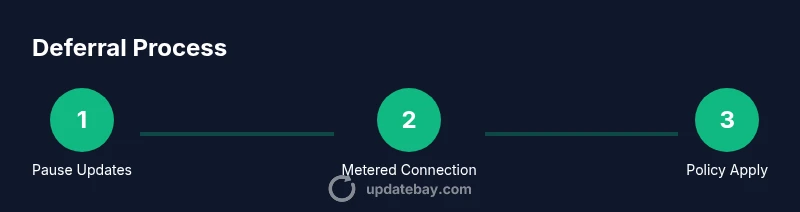
Open Settings > Windows Update and click Pause updates to defer forthcoming updates for now. This gives you immediate control while you assess compatibility with current tasks.
Tip: Remember: pausing is temporary and should be part of a broader maintenance plan. - 2
Set a metered connection
Go to Settings > Network & Internet > Wi‑Fi (or Ethernet) > your network, and enable Metered connection. This signals Windows to limit nonessential background downloads including most updates.
Tip: Note that some drivers or critical updates may still download; plan accordingly. - 3
Configure automatic updates via Group Policy
Open gpedit.msc, navigate to Computer Configuration > Administrative Templates > Windows Components > Windows Update, and set Configure Automatic Updates to Notify for download and notify for install.
Tip: This is available on Pro/Enterprise editions; Home users may need alternative methods. - 4
Apply Windows Update for Business policies
Use policy or MDM to defer feature updates and tailor restart behavior to your maintenance window. Ensure the policy aligns with security baselines.
Tip: Coordinate with IT if you are in a managed environment to avoid policy conflicts. - 5
Create a restore point and backups
Before making deeper changes, create a system restore point and verify you have recent file backups. This protects you if a deferral strategy causes issues.
Tip: Restore points are your safety net for quick rollback. - 6
Verify and monitor update status
Check Update History and monitor for any automatic reversion or unexpected downloads. Adjust settings if necessary and document the outcomes.
Tip: Keep a simple log of when you defer and when you install critical updates.
Frequently Asked Questions
What are the safety implications of delaying Windows 11 updates?
Delaying updates can reduce exposure to problematic changes, but it may leave your device vulnerable to known security issues. Always have a plan to install critical patches and a defined deferral window. Regularly review updates and revert delays if new risks emerge.
Delaying updates can help with stability, but it increases security risk if critical patches are skipped. Have a clear deferral window and a plan to apply important patches.
How do I pause updates in Windows 11?
Open Settings, go to Windows Update, and select Pause updates. Choose a deferral period that fits your schedule. After pausing, set a reminder to resume updates and install critical patches.
Go to Settings > Windows Update and pause updates. Remember to resume before the deferral period ends.
Can I block updates permanently?
Permanent blocking is not recommended because Windows regularly delivers security patches. Use deferral strategies for non‑critical updates and ensure you re‑evaluate periodically to apply essential security fixes.
Permanent blocks aren’t advised. Consider deferring non-critical updates and review security patches regularly.
Will delaying updates affect device performance?
Delays generally don’t improve performance and can lead to mismatches with software requirements. Some features or drivers may not install properly if updates are skipped for long periods. Always test compatibility on a backup device.
Delaying updates can cause compatibility issues with software. Test on a backup device when possible.
How can I manage updates for multiple devices at home?
Use Windows Update for Business, Group Policy, or a lightweight MDM to apply consistent settings across devices. Start with a small subset, monitor results, and roll out updates gradually to the rest of the network.
For several devices, apply consistent policies and test on a few machines before broad rollout.
Watch Video
What to Remember
- Plan a deferral window with backups.
- Use built-in controls to pause or limit updates.
- Apply policy-based controls for multiple devices.
- Monitor status and be prepared to install critical patches.
- Balance security with workflow needs.