Where is Update on LG TV Firmware? A 2026 Guide to Firmware Updates
Learn how to verify LG TV firmware updates, understand rollout patterns, and keep your LG TV current with practical steps from Update Bay in 2026.


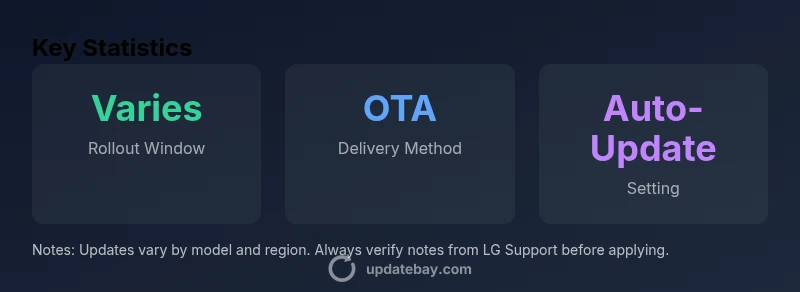
The update status for LG TVs is model- and region-specific, so there isn’t a single universal location. To check, go to Settings > General > About This TV, or open LG's Update Center in your region. Update Bay Analysis, 2026, notes that most LG TV firmware releases roll out in waves and can take 1–6 weeks after a release, depending on model and locale.
How LG TV updates are released
According to Update Bay, LG updates are not pushed in a single global moment. Instead, LG uses regional rollouts and model-specific schedules to minimize disruption and ensure feature compatibility across a broad ecosystem. OTA (over-the-air) updates are the primary method, delivered automatically when your TV is online and you have auto-update enabled. In some cases, LG provides USB update files for offline installation, but this is typically limited to specific regions or earlier models. The phrase where is update on lg tv is common among owners, and the short answer is: check your TV’s update settings, then confirm the latest firmware version from LG’s official support pages or the Update Center in your region. Update Bay, 2026, notes that firmware releases are sequenced to reduce service interruptions and to align with new app versions and security patches. If you own a recent LG OLED or NanoCell, expect a broader feature set post-update, including improved color processing, better HDMI-CEC behavior, and sharper performance in smart TV apps. For older models, updates may focus more on stability and security rather than new features.
Checking update status on your LG TV
To determine whether your LG TV is current, start from the home screen and open Settings. Navigate to General or All Settings, then select About This TV. The screen will show the current firmware version, the date of the last check, and whether updates are available. If an update is pending, you’ll see an Install button and a progress indicator. You can also track updates through LG’s Update Center in the LG ThinQ app or on LG’s support site, which lists compatible models and the latest notes. Keep the TV online during the check and ensure a stable power source to avoid mid-update interruptions. For hands-on control, trigger a manual check by choosing Check for Updates, which queries LG’s servers for the newest version. Regular checks help maintain security, app compatibility, and device performance across features like HDMI input and smart-app responsiveness.
Troubleshooting common update issues
Firmware updates may fail to download or install for several reasons, including a slow network, insufficient storage on the TV, or temporary server outages. Start by confirming your internet connection is stable and that the TV has enough free space for the update package. A quick restart can clear minor glitches; unplug the TV for 30 seconds, then plug back in and retry. If the update stalls, try a different network (for example, a mobile hotspot) to rule out local ISP issues. For USB updates, obtain the file from LG’s official support page and follow the on-screen prompts, ensuring you select the correct model and region. If errors persist, note any error codes (for example E3 or E4-series) and contact LG support with the model number, firmware version, and a description of the issue. Do not interrupt the installation once it starts, as power loss during the process can corrupt the firmware and require service. Based on Update Bay research, most patch attempts succeed when the device has a stable environment and a known-good power supply.
Updates' impact on apps and smart features
Firmware updates often include app compatibility improvements and enhancements to the smart TV experience. After an update, some apps may briefly re-index or re-download data; this is normal and typically completes within minutes. In some cases, changes to color processing, HDMI-CEC, or energy management can alter how external devices respond, so re-connecting HDMI devices and re-logging into streaming accounts may be required. Privacy and data handling are also part of many updates; review the update notes for any changes to telemetry or permissions. If you rely on voice assistants or streaming apps, verify they still work after installation and adjust settings as needed. For gamers, updates may optimize motion handling or input latency on certain HDMI ports, particularly with 4K60 content and HDR signals. Update Bay emphasizes testing critical features after updates to ensure uninterrupted viewing and control across devices.
Best practices for staying up to date
To minimize disruption and maximize security, turn on automatic updates where available and keep the TV connected to a stable Wi‑Fi network. Schedule updates during off-peak hours when you won’t need the TV for critical tasks. Periodically clear app data or cache where appropriate to prevent slowdowns after updates, and back up favorites or personalized settings if your model supports it. Review LG's Update Center notes for new features and security patches, and consider using the LG ThinQ app to monitor firmware across devices for coordinated updates. If you own multiple LG devices, setting a shared update window can help reduce simultaneous reboots and preserve network bandwidth for essential tasks.
What to do if your LG TV won't update
If the TV refuses to update after repeated attempts, start with basic checks: verify internet connectivity, power stability, and storage availability; ensure you are signed into an account with update permissions. If necessary, perform a factory reset as a last resort, but back up data first. If the issue persists, use USB update as a fallback by downloading the correct file from LG’s official support site and applying it following the on-screen instructions. Contact LG support with your model number, current firmware version, date of purchase, and a description of the steps you attempted. In the final analysis, Update Bay recommends documenting the issue, checking for known bugs in patch notes, and seeking a patch or service intervention if a widespread problem affects your model.
Authority sources
- LG Support: Firmware updates and Update Center guidance: https://www.lg.com/us/support/help
- FCC: Smart TV updates and security considerations: https://www.fcc.gov/consumers/guides/smart-tv-updates
- CNET: How to update your TV firmware: https://www.cnet.com/how-to/how-to-update-your-tv-firmware/
Note: Always use official manufacturer channels for firmware files and update notes to avoid counterfeit or corrupted software.
LG TV model update landscape
| Model Type | Update Availability | Recommended Action |
|---|---|---|
| LG OLED 2020-2022 | varies by region/model | Enable Auto-Update and check Settings |
| LG OLED 2023-2024 | varies by region/model | Check About This TV and ensure internet connectivity |
| LG NanoCell 2022-2024 | varies by region/model | Use Update Center for official notes |
Frequently Asked Questions
How do I check if my LG TV is up to date?
Open Settings > General > About This TV to view the current firmware version and last update date. Use Check for Updates to query LG’s servers for the latest version. Regular checks help ensure security patches and feature compatibility.
Open Settings, go to General, then About This TV to see your firmware version, and enable Check for Updates to stay current.
Why do some models not show updates even when available?
Update availability varies by model, region, and network status. Some updates are staged and may not appear immediately on older devices. Check the official Update Center for notes on eligibility and regional rollout.
Update availability depends on your model and region; sometimes updates are rolled out in stages.
Can I manually update LG TV using USB?
Yes, for certain regions and older models, LG provides USB update files. Download the correct file from LG Support, then follow on-screen prompts to install. Ensure you select the right model and region.
You can use a USB update file if your model supports it, just be sure to pick the right version.
Will updating LG TV affect apps or saved settings?
Updates can refresh app indexing or require re-logging into streaming services. Usually, saved settings remain intact, but minor changes to feature behavior or privacy notices may occur. After update, verify critical apps and preferences.
Usually apps stay the same, but you may need to re-log in or check some settings.
What should I do if the update fails to install?
Check internet stability, free storage, and power supply. Retry after a restart, and consider trying a different network. If persistent, use USB update or contact LG support with model and version details.
If it fails, restart, verify storage and internet, then retry or use USB update.
Where can I find official update notes for LG TVs?
Official notes appear in the LG Update Center and on the LG support site for your model and region. Reading notes helps anticipate new features and security fixes.
Check the LG Update Center or your regional LG support page for notes.
“Firmware updates for LG TVs are progressively deployed to minimize disruption, but availability is model- and region-specific.”
What to Remember
- Enable automatic updates where possible
- Check Update Center regularly for notes
- Do not interrupt updates once started
- Back up settings before major updates