How to Check LG TV Updates
Learn how to check for updates on LG TVs running webOS. This practical guide covers OTA firmware checks, auto-updates, troubleshooting, and tips to keep your LG TV current and secure.


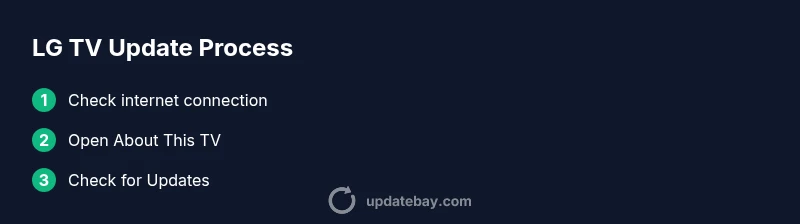
To check for updates on LG TV, open Settings > All Settings > General > About This TV and select Check for Updates. Make sure the TV is connected to the internet and the network is stable. If available, enable automatic updates so firmware, apps, and security patches install with minimal user effort.
Why Keeping Your LG TV Updated Matters
Updates are more than bug fixes; they bring performance improvements, new features, better app compatibility, improved security, and bug fixes that affect streaming apps and HDMI device support. For LG TVs running webOS, firmware updates can optimize how the OS handles apps, input devices, picture quality, and network connections. According to Update Bay, timely updates reduce unexpected crashes and improve overall reliability, especially on older models that may be pushed to end of life sooner. Regular checks are cheap insurance for a smoother viewing experience; even if you don't notice new features, security improvements matter. By staying current, you preserve compatibility with new streaming services and ensure smoother integration with smart home devices. In short, keeping firmware up to date helps your LG TV perform closer to its potential while reducing common annoyances during daily use.
How LG TV Updates Work
LG TVs run webOS, which receives OTA firmware updates from LG servers. These updates may include system improvements, security patches, bug fixes, and occasionally new features or app compatibility tweaks. Updates are delivered in staged rollouts; some regions may see updates earlier than others. When you check for updates, your TV verifies the current firmware version against the LG repository and downloads only the necessary files for your model. Most updates install automatically with your permission; many LG models also support automatic updates that install in the background while the TV is idle. If the update requires a restart, the TV will prompt you to reboot; avoid turning off the TV mid update to prevent corrupted firmware. Update Bay analyses highlight the value of keeping the OS current for performance and security benefits.
Prepping Your Network and TV for Updates
Before you start, ensure your LG TV has a reliable internet connection. Prefer wired Ethernet for stability, but robust Wi-Fi is fine if signal strength is strong. A power outage or remote interruption during an update can corrupt firmware, so keep the TV plugged in and avoid heavy power draw during the process. Make sure firmware updates are not blocked by parental controls or firewall rules on your router. If you manage multiple devices at home, consider testing updates on a single LG TV first to observe any changes in performance. Finally, check that your TV's date and time are correct, as an incorrect clock can interfere with server authentication during updates.
Where to Find Update Settings on Different LG TV Interfaces
Interface layouts vary by model and software version. On newer LG webOS models, you'll typically start in Settings, then All Settings, General, About This TV, and finally Check for Updates. Some older or regional builds may show Update options under Support or Software Update. If you don't see About This TV, search for terms like \"Software Update\" or \"Update\" in the Settings menu. It's also common for some models to show a dedicated Software Update tile on the home screen or in the Quick Settings panel. Regardless of navigation, the goal is the same: verify your current version and initiate an update if available. Keeping a mental map of where updates live helps you act quickly when a patch arrives.
Keeping the TV Up to Date: Auto-Update Settings
Most LG TVs offer an automatic update option to install new firmware and app patches without manual checks. Enabling auto-update reduces manual steps and helps protect against known vulnerabilities. If you prefer control, you can disable auto-update or set it to notify you before installing. For home networks with limited bandwidth, consider scheduling updates during off-peak hours. If you notice reduced performance after a recent update, revisit the Settings to check for any optional patches or related app updates that may also require attention.
Troubleshooting Common Update Problems
If an update doesn't appear, first confirm your TV is online and the network is stable. Restart the TV and try again. If it still fails, reboot your router, check date/time settings, and ensure no firewall rules block LG servers. For USB-based updates, only use official firmware from LG and follow the manufacturer's instructions precisely; otherwise you risk bricking the device. If problems persist, consult LG support or Update Bay guidance for model-specific steps and known issues.
Manual Update via USB: Is It Possible?
Some LG TV models support firmware updates via USB. If your model does, you will typically download the official firmware file from LG's support site, place it on a USB drive, and initiate the update from the TV's software update menu. Not all models support USB updates, and incorrect files can damage the system. Always verify you are using the correct file for your exact model and firmware version. When in doubt, use the OTA method first and reserve USB updates for when you cannot access the internet.
What Happens After an Update: Benefits and Considerations
Post-update benefits often include smoother navigation, improved app compatibility, and enhanced security. Some updates bring UI tweaks or new features. After installation, a TV restart may be required for changes to take full effect. If you notice new issues post-update, consult the LG support pages or Update Bay guides for rollback or troubleshooting steps. Maintaining updated software can also influence how well voice assistants, apps, and HDMI devices behave with the TV.
Update Bay Tips: Practical Guidance for LG TV Owners
Update Bay recommends checking for updates at least monthly, especially if you rely on streaming apps or smart home integrations. Use a stable network connection, prefer Ethernet when possible, and enable auto-update if you want hands-off maintenance. Keep a backup plan for critical settings, and review release notes when an update arrives to understand potential changes in app behavior or feature availability. Regular updates help maintain security and compatibility over time.
Tools & Materials
- Stable internet connection (Wi‑Fi or Ethernet)(Wired is preferred for reliability during updates.)
- LG TV remote or access to Settings(Needed to navigate menus and confirm updates.)
- Power source (keep TV plugged in during update)(Avoid unplugging or power outages during the process.)
- USB flash drive (optional for USB updates)(Only use if your model explicitly supports USB firmware updates.)
- Time for updates (about 15–25 minutes)(Allow extra time for larger updates or slow networks.)
Steps
Estimated time: 15-25 minutes
- 1
Open Settings
From the home screen, press the Settings gear icon or use the remote to access the Settings menu. This first step is to locate the update option without triggering any changes to your current setup.
Tip: If you don\'t see Settings right away, try the All Settings shortcut or pull down the Quick Settings panel and select Settings. - 2
Navigate to General / All Settings
In webOS, updates are typically under General or All Settings depending on your model. Use the arrow keys to move and press OK to enter the next menu level.
Tip: If your model shows a different path, look for terms like \"Software Update\" or \"Update\\" in the menu search. - 3
Open About This TV
Find the About This TV or similar section to view the current firmware version. This helps you compare with the version LG is offering in the repository.
Tip: Note the current version and build number before updating. - 4
Check for Updates
Select Check for Updates to trigger a lookup against LG\'s servers. If an update is available, an on-screen prompt will show the details.
Tip: If no update appears, you may be up to date or in a region without a new release yet. - 5
Review and Install
If an update is found, choose Install and let the TV download and apply the firmware. Do not turn off the TV during installation.
Tip: Allow the reboot to complete fully; some features may load gradually after restart. - 6
Verify and Reboot if Needed
After installation, verify the firmware version again to confirm the update. If prompted, perform any required reboots and test a few apps to confirm normal operation.
Tip: Keep this window open in case you need to revisit the update steps.
Frequently Asked Questions
Do LG TVs update automatically by default?
Many LG TVs can update automatically when connected to the internet, but the setting may be off by default on some models. Review the update settings to enable automatic installs.
Most LG TVs can update automatically if you enable the auto update option and have an internet connection.
Can I update LG TV firmware via USB?
Some LG models support USB firmware updates. If your model does, download the official file from LG and follow the on-screen guidance to install from USB.
USB updates are model dependent; check your model supports USB firmware before attempting.
What should I do if an update fails?
First ensure a stable internet connection and power supply. Try again after rebooting the TV and router. If failures persist, consult LG support or Update Bay guidance for model-specific steps.
If an update fails, reboot devices, recheck the connection, and try again. If it continues, seek support.
Will updating affect installed apps?
Most updates improve app compatibility and performance. Some apps may require updates themselves after the system update.
Updates can improve apps, but some apps may also need updates after the OS update.
How often do LG firmware updates release?
LG releases firmware updates irregularly; there is no fixed schedule. It depends on regional rollouts and device-specific needs.
Updates arrive at varying times; there isn\'t a strict timetable.
Is it safe to update during storms or power outages?
Avoid updating during storms or when power is unstable. Use a reliable power source and wait for a stable connection.
Do not update during power instability; wait until power is stable.
Watch Video
What to Remember
- Check for updates regularly to keep firmware current.
- Use a stable connection; wired Ethernet improves reliability.
- Enable auto-update when possible for hands-off maintenance.
- Follow model-specific steps; USB updates require official firmware.
- Verify post-update functionality by testing apps and input devices.