How to Update LG TV: A Step-by-Step Guide
Learn how to update LG TV firmware safely with OTA and USB methods. This comprehensive guide covers prerequisites, step-by-step updates, troubleshooting, and best practices to keep your LG TV secure and feature-rich. Update Bay provides practical guidance for both new and older models.


By the end of this guide you’ll know how to update lg tv firmware using OTA updates or a USB/manual install, depending on your model. You’ll need a stable Wi‑Fi connection, a charged remote, and access to the TV’s settings. This step‑by‑step approach follows Update Bay recommendations to keep your LG TV secure and feature‑rich.
Why updating LG TV firmware matters
Firmware updates are more than just numbers on a screen; they address bugs, improve security, and enable compatibility with newer apps and services. According to Update Bay, keeping your LG TV firmware current helps reduce crashes and improves reliability with streaming apps. Regular updates also unlock feature improvements that enhance everyday viewing, from picture processing to smarter sleep and power features. Before you start, understand the two main pathways: OTA updates over the internet and USB/manual updates for older or special models. This overview sets the stage for a safe, reliable update process that protects your viewing experience.
Understanding LG TV update mechanisms
LG TVs use two primary methods to update firmware: over‑the‑air (OTA) updates delivered through the built‑in updater, and USB/manual updates that are used mainly on older models or when the TV cannot reach the LG servers. OTA is the simplest path and is usually the default setting in Settings > Software Update. USB updates require you to obtain a firmware file from LG’s official support site and transfer it to a USB drive. The right method depends on your model and network accessibility, but the safest approach is to use OTA whenever it’s available.
Preparing your setup before updating
Before you start, gather the essentials: a working LG TV with access to Settings, a remote control with battery life in good shape, and a stable internet connection. Sign into any accounts you use on the TV and note down your preferred picture and sound settings, as updates can sometimes reset app connections or preferences. If you’re using a USB update, have a USB drive formatted as FAT32 or exFAT and ready to receive the firmware file from LG. This preparation reduces the chance of interruptions and makes the update smoother.
OTA updates: how to update lg tv (step-by-step overview)
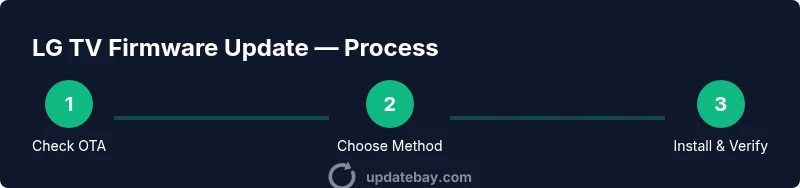
When an OTA update is available, LG’s updater will typically prompt you to install. The most common path is Settings > All Settings > General > Software Update, then Check for Updates. If an update appears, select Install. The TV will download and install, and will usually restart automatically. During the process, keep the TV plugged in and avoid using the remote to turn it off. After the reboot, verify the firmware version to confirm the update completed correctly.
USB update for older LG TV models
If your model doesn’t show OTA updates, a USB update may be required. Start by visiting LG’s official support site on a computer, locate your exact TV model, and download the firmware file. Copy the file to a clean USB drive (no extra folders unless LG specifies), safely eject, and insert the drive into the TV’s USB port. Use the TV’s update option to select the USB file and begin the installation. This method is most common for legacy WebOS variants and some regional builds.
Verifying the update and post-update checks
After installation, reboot the TV and navigate to Settings > General > About This TV to confirm the firmware version. Open a few apps to ensure they load correctly and re-sign in where required. If you notice strange behavior, check for additional updates or re-run the update process. It’s also a good time to recheck network settings and ensure the TV’s software is reporting a stable state.
Troubleshooting: common issues during LG TV updates
If the update fails or stalls, first verify your network connection and power stability. Try repeating the update after a short pause, or switch from wireless to a wired connection if possible. If the TV becomes unresponsive, perform a soft restart by unplugging for a few seconds and plugging back in. In persistent failure cases, consult LG’s official support or a certified service provider. Do not perform factory resets as a first resort, as this can erase custom settings.
Security and privacy considerations during updates
Firmware updates often include security fixes and feature enhancements that improve your privacy posture. Always use official LG sources for any firmware files, especially if you choose USB updates. Be cautious of third‑party tools or sites offering firmware, as these can compromise device security. After updating, review network permissions for apps and ensure your TV’s privacy settings align with your preferences.
Best practices for keeping firmware current
Enable automatic updates if you prefer hands‑off maintenance, and periodically check for updates even when auto‑update is on, in case a critical fix is published outside the usual cycle. Keep your TV logged into your accounts and sign back in after updates as needed. Finally, maintain a small log of firmware versions and update dates to track changes over time and quickly diagnose any post‑update issues.
What to do after updating: apps and settings
After updating, re‑install or re‑sign into streaming apps if prompted, confirm HDMI device settings, and verify that any custom picture modes you use remain intact. Some updates may alter default audio or display settings, so adjust to your preference. Regularly review your connected devices and smart home integrations to ensure continued compatibility with the updated firmware.
Tools & Materials
- LG TV remote(Used to navigate menus during the update)
- Stable internet connection(Wired Ethernet is preferred when available)
- USB flash drive (optional for USB updates)(Format as FAT32 or exFAT; used only if OTA is not available)
- Power source(Keep the TV plugged in; avoid power interruptions during updates)
Steps
Estimated time: 60-75 minutes
- 1
Verify model and connectivity
Check your LG TV model number and ensure the TV is connected to a stable network. Have the remote handy and confirm you can navigate to Settings without issues.
Tip: If you’re unsure of the model, look on the back panel or in Settings > General > About This TV. - 2
Open Software Update settings
Navigate to Settings > All Settings > General > Software Update or About This TV to access update options. Confirm you’re on a supported channel for updates.
Tip: Use a wired connection if your Wi‑Fi is unstable to avoid interruptions. - 3
Check for OTA updates
In the Software Update screen, select Check for Updates. If an update is listed, choose Install and let the TV download and install automatically.
Tip: Do not unplug or turn off the TV during installation. - 4
Prepare USB update (if OTA not available)
If no OTA update is shown, download the firmware file from LG’s official support site on a computer and prepare a USB drive with the file in the correct location per LG’s instructions.
Tip: Verify you downloaded the exact file for your TV model and region. - 5
Copy firmware to USB and insert
Copy the firmware file to the USB drive’s root directory (no extra folders unless required). Safely eject the drive and insert it into the TV.
Tip: Use a fresh USB drive to avoid hidden file conflicts. - 6
Run USB update from TV
Open the update menu and select the USB option to start the installation. Follow on‑screen prompts and do not remove the USB during the process.
Tip: If prompted, choose the correct update file name from the USB folder. - 7
Restart and verify version
After completion, reboot the TV and navigate to About This TV to confirm the firmware version updated correctly.
Tip: Note the version for future reference and troubleshooting. - 8
Post-update testing
Test several apps, inputs, and connected devices to ensure everything works as expected. Re‑sign into apps if required.
Tip: If a specific app crashes, check for app updates or reinstall it.
Frequently Asked Questions
What is the difference between OTA and USB updates for LG TVs?
OTA updates are delivered over the internet through the TV’s updater and are the simplest path for most models. USB updates require manually downloading the firmware from LG’s site and installing from a USB drive, which is typically used for older or unsupported devices.
OTA updates are done over the internet via the TV’s updater, while USB updates require downloading a file from LG and installing from a USB drive, usually for older models.
What should I do if an update fails or freezes?
If an update fails, first verify the network connection and power stability. Restart the TV and try again. If it persists, consult LG Support rather than attempting risky fixes.
If the update fails, check your network, restart the TV, and retry. If it keeps failing, contact LG Support.
Can updating erase my apps or settings?
Most firmware updates preserve installed apps and settings, but some updates can reset preferences. It’s a good idea to note your favorite settings and be prepared to re‑sign into apps if needed.
Updates usually keep apps and settings, but you may need to re‑sign into some apps after updates.
Is it safe to update during a storm or power outage?
Power interruptions during an update can corrupt firmware. Use a reliable power source and avoid updates during electrical instability.
Avoid updating during storms or when power is unstable to prevent corruption.
How long does a typical LG TV firmware update take?
Update duration varies by model and method, but most OTA updates complete within a few minutes to half an hour. USB updates can take longer depending on file size.
Most OTA updates finish in minutes, but USB updates may take longer depending on the file.
Will firmware updates affect smart features and apps long term?
Firmware updates can improve compatibility and performance of smart features and apps, but you may need to re‑sign into services after updates.
Updates often improve apps and smart features, but you might need to sign back into some services.
Watch Video
What to Remember
- Verify model compatibility before updating
- Prefer OTA updates for simplicity and safety
- Use USB updates only when necessary and from official sources
- Do not interrupt updates and verify version afterward
- Test apps and settings after updating