LG TV Update Guide: Safe Firmware Upgrades for 2026
Learn how to safely update LG TV firmware with a step-by-step guide, check status, use OTA or USB, and verify apps after updating.


This guide helps you safely update your LG TV firmware, covering model checks, a reliable internet connection, and a clear step-by-step installation. You’ll learn to use OTA updates or USB offline methods, handle prompts, and verify that features and apps run smoothly after updating. We also highlight model-specific notes and common pitfalls to avoid.
What is an LG TV update and why it matters
LG TV updates, often referred to by users as an lg tv update, are firmware upgrades designed to improve performance, fix bugs, and strengthen security. They can introduce new features, refine image processing, and boost app compatibility. According to Update Bay, keeping your LG TV current reduces vulnerability exposure and helps the device work more reliably with other smart devices on your home network. The Update Bay team found that regular updates contribute to smoother navigation, better app stability, and fewer crashes during streaming or gaming sessions. While updating is typically straightforward, understanding what happens during an update helps you prepare for a seamless experience. A successful update downloads a software package, validates its integrity, and restarts the TV to apply changes. This section explains what to expect from an lg tv update, how LG delivers updates, and the prerequisites you should check before starting.
How firmware updates are delivered by LG
LG distributes firmware updates primarily through two channels: over-the-air (OTA) updates and USB-based offline updates. OTA updates are delivered automatically when the TV is connected to the internet and LG’s update server. The TV will typically prompt you to install when a new version is available; you can also initiate the check manually. USB offline updates are useful if your network is unstable or if your model supports USB-based install. In this method, you download the firmware package from LG’s official site using another device, copy it to a USB drive, and mount it on the TV to install. Regardless of method, LG validates the package to ensure it hasn’t been tampered with and will guide you through any required steps. The goal is to minimize disruption while ensuring you get security patches and feature improvements.
How to check your LG TV update status
Keeping an eye on update status helps you plan, avoid unnecessary downtime, and ensure compatibility with current apps. On most LG TVs, navigate to Settings > All Settings > Support > Software Update or Software Update Status to see the current version and the availability of newer builds. If an update is pending, you’ll see an option to Install Now. Update Bay analysis shows that staying current with these checks improves long-term compatibility with streaming apps and smart home devices. If your model supports automatic updates, you can enable them to reduce manual checks. After updating, verify the firmware version displayed in the same menu to confirm the update completed successfully. Remember to test key features like app launches, HDR performance, and any voice assistant integrations to ensure everything behaves as expected.
Safe update prerequisites and precautions
Before you start an lg tv update, confirm several safety prerequisites. Ensure the TV is plugged into a reliable power source and that you have a stable internet connection, preferably via Ethernet for larger updates. Use a surge protector to guard against power outages; interruptions during flashing can cause bricking. If you’re using a USB offline update, format the drive to FAT32 and copy only the official firmware package. Sign in to your LG account if prompted, and have your model number handy for reference. By preparing in advance, you minimize the risk of partial installations or post-update instability. A calm, uninterrupted update session is the best path to a successful lg tv update.
Step-by-step overview (high-level flow)
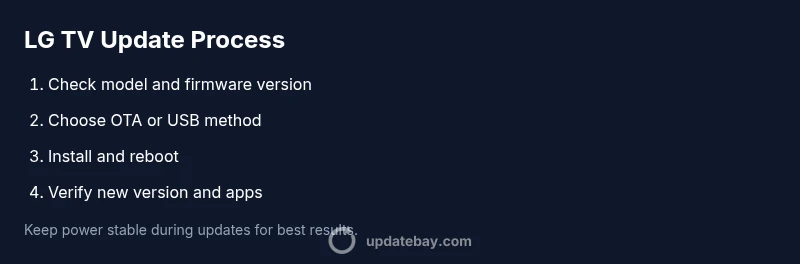
A successful lg tv update follows a predictable flow: verify model and current firmware, choose an update method (OTA or USB), initiate the update, allow the process to complete without interruption, and finally verify the new version and re-validate apps. This overview helps you understand what to expect and how to respond to on-screen prompts. If a reboot occurs, give the TV time to finish the boot sequence and re-check the software version afterward. In some cases, you may need to re-sign into streaming services, reconfigure picture settings, or reset specific preferences after a major update. Overall, the goal is to minimize downtime while ensuring you gain the latest security patches and features.
Troubleshooting common update issues
Update issues can arise from unstable networks, power interruptions, or corrupted firmware packages. If an update fails, first verify your internet connection and power stability. Restart the router and retry the update, or switch to a USB offline method if OTA continues to fail. Check the LG support page for the exact firmware file corresponding to your model to avoid installing an incompatible package. If the problem persists, consult LG customer support or the Update Bay guidance for model-specific steps. Remaining calm and methodical helps you recover quickly without risking data loss or bricking the TV.
Best practices for LG TV updates and feature previews
Adopting best practices keeps your lg tv update experience smooth and predictable. Turn on automatic updates if your model supports it, but consider scheduling updates during low-usage periods to reduce disruption. Use a wired connection for larger updates to improve reliability. After updating, review any new features or redesigned menus, and revise your picture presets if automatic color management has changed defaults. Keep a log of firmware versions and dates to monitor how updates affect performance over time. By staying proactive, you’ll enjoy improved stability and new capabilities without surprises.
What to expect after updating: features and changes
Firmware updates can bring notable improvements, such as faster app launches, refined picture processing, and enhanced UI experiences. Depending on the update, you may notice changes in optimization for HDR, new settings for sound, or expanded compatibility with streaming services. It’s common for manufacturers to adjust default settings after an lg tv update, so take a moment to re-check color, contrast, and audio levels. If you rely on apps or smart home integrations, test those connections to ensure continued compatibility. Document any changes that impact your daily usage to help you readjust quickly if needed.
Monitoring update history for your LG TV
Keeping a record of updates helps you track stability and behavior over time. After each lg tv update, note the firmware version, date, and any observed improvements or issues. If a new issue appears after an update, you can compare with previous versions to identify whether the problem is related to the latest build. Some LG models offer an update history log in Settings, which can be valuable for troubleshooting or when seeking support. By maintaining an update log, you empower yourself to make informed decisions about future upgrades and when to seek assistance.
Tools & Materials
- Stable internet connection (Wi‑Fi or Ethernet)(Prefer wired Ethernet for larger updates to maximize reliability.)
- LG TV with remote control(Remote needed to navigate menus during update.)
- Power source with surge protection(Keep TV plugged in during the entire process.)
- USB flash drive (optional for offline updates)(Format to FAT32 and use only official LG firmware files.)
- LG account credentials(Needed if prompted during update or for account-based features.)
- Second device for offline firmware (optional)(Use a computer or phone to download firmware if USB method is planned.)
Steps
Estimated time: 25-40 minutes
- 1
Identify your LG TV model and current firmware
Check the model number and current firmware version so you download the correct update. On most LG TVs you can find this information in Settings > General > About This TV or Settings > All Settings > Support > About. Writing down the model and version helps you compare against LG’s official release notes.
Tip: Having the exact model and version prevents accidental installs of incompatible firmware. - 2
Prepare a stable internet connection and power source
Ensure the TV has a reliable connection to the internet and is plugged into a stable power source. If possible, use a surge-protected power strip. Unstable power or a weak network can corrupt the update and require a manual recovery.
Tip: If your Wi‑Fi is flaky, switch to a wired Ethernet connection. - 3
Open the Software Update menu and check for updates
Navigate to the software update area in Settings and choose Check for updates. If an update is available, read the release notes to understand what’s included before proceeding. If you’re using a USB offline method, skip to the USB procedure instead.
Tip: Review the update notes to anticipate changes in features or controls. - 4
Install the available update
Proceed with the installation. Do not interrupt the update once it starts. The TV may reboot automatically as part of the process. Allow the full installation to complete before using the TV again.
Tip: Avoid power interruptions; use a stable outlet or UPS if available. - 5
Allow the reboot to finish and re-check the version
After the reboot, re-enter the software update section to verify the new firmware version. New features or fixes should be listed in the update notes. Sign back into apps if prompted.
Tip: If you don’t see the new version, retry once after a few minutes. - 6
Verify functions and reconfigure if needed
Test essential functions: streaming apps, HDMI inputs, smart assistants, and color/audio settings. Some updates reset certain preferences, so you may need to re-tune picture modes or app logins.
Tip: Note any changed defaults so you can re-adjust quickly. - 7
If OTA fails, consider USB offline update
If the built-in updater fails, use the USB offline method. Download the official firmware package from LG on a computer, copy it to a USB drive, then install from USB via Settings.
Tip: Ensure you select the correct model and file to avoid incompatibility.
Frequently Asked Questions
What is the purpose of LG TV firmware updates?
Firmware updates fix bugs, improve security, and add features. They also help maintain compatibility with apps and connected devices. Regular updates reduce stability issues and keep your TV running smoothly.
Firmware updates fix bugs, improve security, and add features, keeping your TV compatible with apps and devices.
How do I know if my LG TV needs an update?
Check Settings > Support > Software Update to see if a newer version is available and read the release notes to understand what changes are included.
Open Settings, go to Support, and check Software Update to see if you have the latest firmware.
Can I update LG TV without internet?
Yes, using the USB offline update method. Download the official firmware file from LG on another device, copy it to a USB drive, and install from USB on the TV.
You can update via USB by downloading the file on another device and installing from the USB on the TV.
What should I do if the update fails?
First verify power and network, then retry. If it still fails, try the USB method or contact LG support for model-specific guidance.
If it fails, check power and network and retry, or use USB update and contact support if needed.
Will updates erase my settings?
Most updates preserve user settings, but some defaults can change. Be prepared to re-tune picture settings or re-sign into apps if prompted.
Most updates don’t erase settings, but you may need to reconfigure some preferences after updating.
How long does an LG TV update take?
Update duration varies by model and connection, but most updates take a few minutes to complete, with a reboot included. Plan for a short window.
Most LG TV updates finish in a short window, typically after a reboot.
Watch Video
What to Remember
- Check model and firmware before updating
- Use a stable connection and power source
- Follow on-screen prompts and avoid interruptions
- Verify post-update functionality and apps