Block a Windows Update: Practical Step-by-Step Guide
Learn how to block a windows update safely, pause updates, set metered connections, and re-enable updates with practical, reversible methods. Update Bay provides expert guidance for testing, bandwidth management, and security-conscious maintenance.


Blocking a Windows update can be useful for testing or bandwidth control, but it carries security risks. This guide covers practical, safe ways to block a windows update temporarily or deferrable, including built-in pause options, metered connections, and policy-based settings. Learn when to block, how to implement, and how to re-enable updates to stay secure.
What blocking a Windows update means
According to Update Bay, blocking a Windows update means preventing or delaying the installation of new patches and feature updates on a Windows PC. For many users, temporarily blocking updates helps avoid unexpected reboots, conserve bandwidth, or test software compatibility before wider deployment. However, blocking a Windows update also postpones security fixes and bug patches, which can increase exposure to known vulnerabilities. The Update Bay team emphasizes that blocking should be treated as a temporary measure, paired with a clear re‑enable plan and a monitoring routine to ensure systems stay protected. This section lays out the implications, including how to block a windows update safely using built‑in controls rather than risky hacks.
When you might want to block updates
There are legitimate reasons to delay Windows updates. If you’re performing critical work on a device or a lab environment, blocking updates can prevent reboots or compatibility disruptions. In bandwidth‑constrained locations, delaying updates helps manage network usage. For IT admins, staged testing across devices may require controlled postponement of feature updates before a full rollout. The goal is to balance system stability with timely security fixes. Update Bay analysis shows that most users block updates occasionally and for short windows, prioritizing a quick return to standard patching schedules to minimize risk.
Safe methods to block updates (temporary vs permanent)
Blocking updates should always be done with reversible methods and awareness of security tradeoffs. Safe options include pausing updates for a defined period in Settings (where available), configuring a metered network connection to restrict automatic downloads, and using policy controls on Windows Pro/Enterprise editions to reduce automatic behavior. For advanced users, registry tweaks can change update behavior, but these carry higher risk and should be performed with backups and documentation. Always document your plan and set reminders to re‑enable updates after a testing or maintenance window. This section focuses on methods that can be reversed and audited, rather than hacks that disable essential services.
How to re-enable updates correctly
Re‑enabling updates promptly after the desired pause or test window reduces security risk. Return to your previous settings, run a manual check for updates, and install any critical patches that may have become available during the pause. If you used Group Policy or registry changes, revert those settings to their default states and verify that Windows Update resumes normal behavior. Establish a routine to monitor updates and ensure devices are brought back into an up‑to‑date state on a regular cycle. Regular re‑enabling is essential to maintain protection against known threats.
Risks and tradeoffs to consider
Blocking updates trades current protection for control over timing. The most significant risk is missing security patches, which can expose devices to malware and exploits. There’s also the potential for compatibility issues if software relies on the latest OS features. In managed environments, inconsistent patching can complicate compliance and support. If you must block, pair it with a documented plan, clear end dates, and rapid re‑enable procedures. The Update Bay team notes that disciplined, reversible approaches minimize risk while preserving the ability to work without constant patch churn.
Tools & Materials
- Windows PC with admin access(Admin privileges required for configuration changes (Group Policy, Registry).)
- Internet connection(Needed to verify update status and recheck after re-enabling.)
- Access to Group Policy Editor (gpedit.msc)(Only available on Windows Pro/Enterprise.)
- Registry Editor (regedit)(Use with caution; export backups before changes.)
- Documentation/backup plan(Record current settings and changes for audit.)
Steps
Estimated time: Total time: 20-40 minutes
- 1
Open Windows Update settings
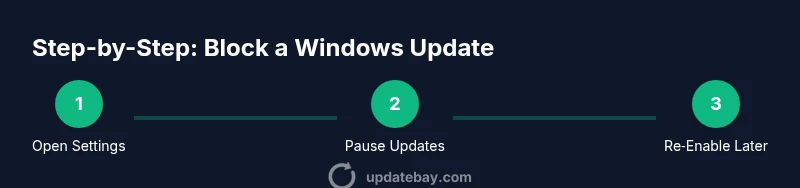
Navigate to Settings > Update & Security > Windows Update. This is your primary control panel for pausing updates, changing restart behavior, and checking for updates. Confirm you have administrator access before making any changes.
Tip: If you’re on Windows 11, you can search for 'Windows Update' in the Start menu to reach the same page quickly. - 2
Pause updates for a defined period
In the Windows Update settings, select Pause updates. Choose a duration that fits your maintenance window. Use this option for short testing periods or to avoid interruptions during critical tasks.
Tip: Remember to set a reminder to re‑enable updates before the pause expires. - 3
Set a metered connection
Go to Network & Internet > Wi‑Fi (or Ethernet) > your network > Metered connection and turn on Metered. This signals Windows to limit data used for updates, reducing automatic downloads on slower links.
Tip: A metered connection is not a permanent solution; it’s best for short, controlled windows. - 4
Configure Automatic Updates (Group Policy)
On Windows Pro/Enterprise, run gpedit.msc. Navigate to Computer Configuration > Administrative Templates > Windows Components > Windows Update. Set 'Configure Automatic Updates' to 'Notify for download and notify for install' to prevent automatic downloads.
Tip: Only apply this if you understand the consequences; revert when ready to patch. - 5
(Advanced) Modify the AUOptions registry key
As an advanced option, you can edit HKLM\Software\Policies\Microsoft\Windows\WindowsUpdate\AU to set AUOptions. This controls update behavior and should be backed up beforehand.
Tip: Registry edits can impact system stability; proceed with caution and backup. - 6
Re‑enable updates after testing
To resume normal operation, revert all configured changes: clear pauses, reset the metered flag if used, and revert Group Policy/Registry changes. Then perform a manual update check to install pending patches.
Tip: Keep a log of changes to simplify future maintenance.
Frequently Asked Questions
Is it safe to block updates on my Windows PC?
Blocking updates can be safe for testing or bandwidth management, but it increases the risk of missing security patches. Always have a clear re‑enable plan and limit the duration of any block.
Blocking updates can be useful for testing, but it carries security risks. Re‑enable updates as soon as your testing window ends.
Can Home edition users block updates without Group Policy?
Yes, Home edition users can pause updates and use a metered connection, but the full suite of policy controls isn’t available. They should still re‑enable updates promptly and monitor for security patches.
Home users can pause updates or set a metered connection, but they should re‑enable updates as soon as possible.
How do I re‑enable updates after blocking them?
Return to the same settings where you paused or blocked updates, reset Group Policy or Registry changes, and perform a manual update check to install any pending patches.
Just go back to the settings, undo the block, and run a check for updates.
Will blocking updates affect software compatibility?
Blocking can delay compatibility improvements that come with updates, potentially causing conflicts with current software. Plan re‑enablement to minimize such risks.
Delaying updates can slow compatibility improvements; re‑enable in a controlled window.
What’s the best practice for managing updates in a small business?
Use a Managed Update policy (e.g., Windows Update for Business) with clear testing windows, staged rollouts, and a defined patch cycle to balance stability and security.
For small businesses, set a controlled patch cycle and test updates before deployment.
Are there risks when using registry tweaks to block updates?
Registry changes can destabilize the system if done incorrectly. Always back up the registry and document changes, and prefer safer methods first.
Registry edits can be risky; back up first and use safer options when possible.
Watch Video
What to Remember
- Block updates only temporarily and with a documented plan
- Use built‑in controls (Pause, Metered, Group Policy) rather than hacks
- Re‑enable updates promptly to maintain security
- Document all changes and revert steps for auditability
- Regularly check for and install critical patches after testing