Can Windows Update Be Stopped? A Practical How-To for 2026
Learn how to pause or stop Windows Update safely, when to do it, and how to reinstate updates. A practical, expert guide from Update Bay.


Yes—Windows Update can be paused temporarily or disabled longer-term, but this carries security risks. You can pause updates from Settings > Update & Security > Windows Update for a limited period, or set a metered connection. For a permanent stop, you’d disable the update service or use Group Policy/Registry changes, which can prevent essential patches. Update Bay cautions: disabling updates may expose your device to vulnerabilities.
Why you might want to stop Windows Update
Knowing whether can windows update be stopped is a practical question for many users. In some cases, limited bandwidth, business-critical software, or gaming sessions make uninterrupted updates undesirable. According to Update Bay, a controlled update cadence helps you balance security with compatibility. You may want to pause updates while you run large data transfers, test new drivers, or install essential software that conflicts with patches. Pausing can also help administrators schedule updates during off-peak hours, reducing impact on teams and families. However, there are security implications to stopping Windows Update. Unpatched systems are more vulnerable to malware and exploit kits, and missing feature updates can affect compatibility with apps or devices. Before you proceed, map out a reinstate plan: know when you will re-enable updates, how you will monitor patch notes, and how you will verify that your device remains protected. In this scenario, the central question can windows update be stopped is most workable when you recognize the risks and set a clear window for reactivation. The Update Bay team emphasizes that timely reintegration keeps systems secure while giving you control over when changes occur.
How Windows Update works under the hood
Windows Update is a layered system that coordinates checks, downloads, and installations. It relies on services such as the Windows Update service, Background Intelligent Transfer Service, and components that validate patch integrity. Understanding this stack helps explain why stopping updates can be tricky: even if one component is paused, others may still operate and trigger a restart cycle. The Update Bay team notes that updates are designed to be incremental and auditable, so tampering with a single step can create instability or missed patches. When you ask can windows update be stopped for a period, you are effectively interrupting the automatic flow that supplies security fixes, driver updates, and feature improvements. You will see Windows queue pending updates, manage restarts, and verify patch integrity. If you disable a service without stopping dependent tasks, Windows may still attempt to resume at the next startup. In practice, most users should pause or defer updates rather than permanently disabling every component, so they can regain control without permanently sacrificing protection. The architecture is interconnected, and disciplined changes preserve safety during a temporary constraint.
Quick ways to pause updates (short-term)
If you need a short pause, Windows offers several built-in options that are simple to apply and reversible. Open the Settings app, go to Update & Security or Windows Update, and choose Pause updates for a limited period. For many Windows versions, you can extend the pause for several weeks by returning later and selecting a new window. If you need a low-friction approach that doesn’t interrupt ongoing work, set your network as metered. This signals Windows to restrain downloads and can delay nonessential updates. On enterprise devices, you may also defer updates through management tools that control the update cadence. Each pause buys time to complete critical tasks, test applications, or schedule a maintenance window. Remember that a pause is temporary, and planning a reinstate of updates is essential to a secure posture. The practical effect is that can windows update be stopped for short periods without turning off protections, as long as you re-enable updates later and stay informed about urgent patches.
How to stop updates long-term (with caveats)
Stopping updates permanently is not recommended for most users, but there are legitimate reasons to reduce automatic behavior on specialized devices. If you operate Windows Pro or Enterprise, you can adjust settings via Group Policy: locate the Configure Automatic Updates policy under the Windows Update node and set it to a mode that suits your workflow, such as notify-only updates. For Home edition users, Group Policy isn’t available by default, so registry-based tweaks or third-party tools with caution can help, but they carry risk. The goal is to reduce automatic behavior without breaking system integrity. Another long-term approach is to configure AUOptions through the registry to require manual approval for updates or to suppress automatic installation entirely. Whichever method you choose, document the change, test its impact, and ensure you have a plan for urgent security fixes when needed. The Update Bay team recommends keeping a short rollback plan and monitoring vendor advisories to anticipate any security risk while the system remains paused.
Safety, risks, and how to reinstate updates
When you decide to stop updates, you must weigh risks against your needs. The most material risk is exposure to security vulnerabilities that could be exploited by malware. You should only stop updates for the shortest reasonable time and have a clear reinstate date. To reinstate, reverse the steps you used to pause or disable updates: re-enable the Windows Update service, revert group policy or registry changes, and run a manual check for updates. After reinstating, reboot as required to complete the installation of pending patches. Regularly review the update status and verify that critical security updates are installed promptly. Window Bay recommends documenting your reinstate plan and keeping an eye on official advisories from Microsoft. In many cases, a well-planned pause is acceptable, but a persistent pause invites growing risk and may violate enterprise policy. If you manage multiple devices, schedule a centralized reinstate calendar to ensure teams stay protected.
Troubleshooting if updates keep installing despite your best efforts
If Windows keeps installing updates despite your attempts to stop them, start by confirming you followed the correct steps for your edition and version. Check which services are running, review the update history, and verify that a metered connection is still in effect if you rely on that method. Some updates may be installed as part of a feature upgrade or a maintenance task that cannot be easily blocked. In such cases, you may need to temporarily suspend the device from the network, apply stricter policies, or escalate to IT support. Always monitor restart behavior and ensure that you have an approved restart window. The Update Bay team advises testing with a single device before rolling changes across a larger fleet, as inconsistent behavior can signal policy conflicts or software conflicts. If you need to revert a policy change, follow the documented steps in reverse and confirm success by performing a fresh update check.
Authority sources
To provide guidance you can verify, this article references official documentation and security guidance. See the Microsoft Windows Update support resources for authoritative steps and latest recommendations. In addition, national security and IT guidance provide context on risk when delaying patches. The Update Bay team emphasizes cross-checking advisories and testing changes on a small set of devices before broader deployment. For readers seeking deeper validation, the following sources offer reliable information and best practices.
Tools & Materials
- Windows PC (Windows 10/11)(Admin access recommended)
- Stable internet connection(For downloading updates)
- Backup plan or system image(Before registry/group policy changes)
- Access to admin tools (gpedit.msc or Regedit)(Windows Pro/Enterprise only)
- Documentation journal(Record changes and reinstate dates)
Steps
Estimated time: 60-120 minutes
- 1
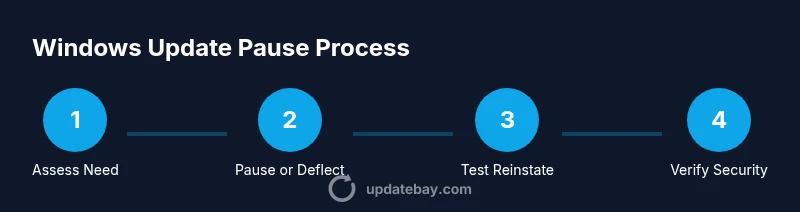
Assess the need and prepare
Define why you want to stop updates, identify the maintenance window, and back up essential data. This reduces risk if something goes wrong during the change process.
Tip: Document the exact date and expected duration of the stop; this makes reinstate easier. - 2
Pause updates temporarily via Settings
Open Settings, go to Update & Security, select Windows Update, and choose Pause updates for a limited period. Note the pause duration and the date you will revisit the status.
Tip: Use this first if you only need a short interruption and want a quick rollback. - 3
Set a metered network or defer updates
On your active network, mark the connection as metered to limit background downloads, or use enterprise management tools to defer updates.
Tip: Metered connections are reversible; you can toggle back when ready to resume patches. - 4
For long-term changes, adjust policy (Pro/Enterprise)
If you have Group Policy access, configure Automatic Updates to reduce automatic installs or switch to manual approval. This reduces automatic behavior while keeping control.
Tip: Document policy changes and test on one device before wider rollout. - 5
For Home editions, consider registry tweaks with caution
Advanced users may modify registry values related to Windows Update to reduce automatic behavior. Proceed only with a backup and clear rollback steps.
Tip: Back up the registry before editing and verify changes with a test update check. - 6
Test reinstate and monitor
After changes, run a manual update check, reboot if prompted, and verify that critical security patches can install when needed.
Tip: Schedule a follow-up check to confirm updates resume as expected.
Frequently Asked Questions
Can Windows Update be paused temporarily?
Yes. You can pause updates via Settings for a limited time. It is considered a temporary measure and should be followed by a reinstate plan.
Yes, you can pause updates from the Settings menu for a short period and then resume later.
Is it safe to disable Windows Update completely?
Disabling updates completely is not generally safe; it exposes devices to vulnerabilities. Use this only for specific, temporary needs and ensure a rapid reinstate path.
Completely disabling updates is risky; re-enable as soon as possible.
What happens to security patches if I pause updates?
Pausing can delay security patches, increasing risk. Monitor advisories and reinstate promptly when threats or vulnerabilities are addressed.
Pausing can delay patches; resume to stay protected.
How do I re-enable updates after pausing?
Return to the original settings or policy, then run a manual check for updates. Reboot if prompted to complete installations.
Go back to your settings and check for updates to resume.
Will updates install automatically after a restart?
Some updates may install automatically after a restart; you can schedule or choose reboot times to minimize disruption.
Updates may auto-install after a reboot; plan restart windows.
Can Windows Update be stopped on Windows Home edition?
Windows Home offers limited policy controls; you can pause updates or set a metered connection, but a permanent stop is not straightforward.
Home edition has fewer controls; pausing is possible.
Watch Video
What to Remember
- Pause updates only when necessary and set a clear reinstate date.
- Understand update architecture before changing settings.
- Use policy controls on Pro/Enterprise to minimize risk.
- Document changes and monitor for security advisories.