Can You Take a Update Off Your Phone? A Practical Guide
Learn how to manage, pause, or safely remove downloaded updates on iPhone and Android, with clear steps, backup tips, and expert guidance from Update Bay.


In short, you generally can’t remove a core OS update once it’s installed. You can delete the downloaded iOS update file to reclaim storage, and on Android you can delay future updates or uninstall certain app updates. The exact options depend on your device and OS version. This guide walks you through safe, practical steps for both ecosystems.
Why removing a problematic update might be needed
In today’s mobile ecosystems, updates are meant to improve security, stability, and features. However, a faulty, overly large, or misbehaving update can disrupt daily use. If you’re pondering the question can you take a update off your phone, you’re not alone—many users want to reclaim storage, avoid buggy behavior, or simply reset their update state. According to Update Bay, understanding the difference between OS-level updates and app updates is the foundation of any removal strategy. The OS itself is typically not erasable, but downloaded artifacts and future update behavior can often be adjusted. Starting with a clear goal—freeing space, stopping auto-install, or removing a specific downloaded file—helps you choose the safest path and minimizes risk to data or security. Remember that removing an update is not the same as downgrading, which most devices do not support for security reasons. This distinction matters as you navigate iPhone versus Android options and decide how aggressive you want to be in managing updates.
How OS updates are delivered on iOS and Android
On iOS, updates are distributed as a downloaded package that is stored temporarily before installation. If you have a stubborn or failed download, deleting the file can reclaim space and prevent re-downloading. Once the OS update is installed, you cannot roll it back in the traditional sense. On Android, update delivery varies by manufacturer and Google’s policy: some devices allow you to uninstall a downloaded update artifact, while others lock the OS update after installation. The ability to remove or delay updates often depends on the device’s recovery mode, storage state, and the version of the operating system you’re running. Update Bay’s current analysis notes that many users misunderstand these nuances and end up inadvertently removing app data or affecting security settings. Distinguishing between OS updates and app updates is crucial for choosing the right approach.
What you can safely remove or reset
The most common removable component is the downloaded OS update file. Deleting it is safe and can free several hundred megabytes to a few gigabytes, depending on the size of the update. This action does not remove the installed OS and will not revert to a previous version. For Android devices, you can often remove updates to individual apps if an app update caused issues, but not the entire OS update. If you’re determined to revert to an older version, you’ll usually need a factory reset or official downgrade support, which is rarely offered by modern devices and can compromise security if not done through official channels. Always back up before making changes, so you don’t lose photos, messages, or settings.
Pausing and delaying updates (iOS and Android)
Pausing updates is a practical middle ground when you’re not ready to install the next release. On iOS, you can toggle Automatic Updates in Settings > General > Software Update > Automatic Updates. On Android, you can disable auto-update for apps in the Google Play Store settings and use the device’s Software Update menu to postpone system updates. These steps don’t remove installed updates but prevent new ones from installing automatically, giving you control over when you update and how often. Update Bay emphasizes that delaying updates is a reasonable, low-risk strategy if you’re troubleshooting performance or storage issues, provided you keep an eye on critical security patches.
Backing up before making changes
Before you intervene in updates, back up your data. On iOS, use iCloud or a local computer backup. On Android, back up to Google Drive or your preferred cloud service and consider exporting important files to a computer. Backups protect you if something goes wrong—whether you delete a file or cancel an update, you’ll still have your photos, messages, and app data intact. The simplest safety net is to perform a full device backup the day you plan to adjust updates, then verify the backup completion.
Troubleshooting common pitfalls
If you delete the downloaded update file but the system reinstall starts automatically, disable Wi‑Fi or data usage for the update process temporarily, or perform the change from a different network. Some devices require a restart after removing the downloaded update or pausing auto-updates to ensure settings take effect. Avoid attempting a downgrade or factory reset unless you’ve confirmed official downgrade paths for your device; these routes can void warranties or compromise security. If you’re unsure, consult official support pages or the Update Bay guide, which outlines device-specific steps and safeguards.
When to seek professional help
If your device is unstable after an attempted update removal, or you’re unsure about the steps for your specific model, don’t hesitate to contact official support or a trusted technician. Firmware updates can affect boot behavior, encryption, and network configurations; missteps can lead to data loss or bricked devices. A professional can help you recover data, restore stability, and advise on a safe update or downgrade plan tailored to your device.
Realistic expectations and next steps
Removing an update is typically about managing storage and update behavior rather than downgrading the OS. Expect that most devices will not roll back to the previous version after an update, but you can control when the next update happens and remove downloaded artifacts. If you value long-term security, plan to install the latest supported update after stabilizing your device. As Update Bay’s guidelines indicate, balancing practicality and security is key when deciding whether to remove or postpone updates.
Tools & Materials
- Smartphone (iPhone or Android)(Having the latest OS is not required to perform removal steps, but you need access to Settings.)
- Stable internet connection(Wi‑Fi is preferred to avoid data charges during large downloads or re-downloads.)
- Backup solution(iCloud/Google Drive or a computer backup to preserve data before changes.)
- Account credentials(Apple ID or Google account to sign in and verify changes.)
- Charged device(Ensure battery is above 50% or keep the device plugged in during steps.)
- Optional computer(Useful for more advanced management or data transfer when the device is not behaving.)
Steps
Estimated time: 40-75 minutes
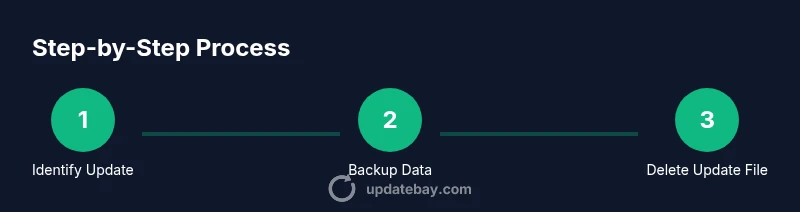
- 1
Identify the update you want to remove
Open Settings and check the software update history to identify the specific update package. Make a note of its date and size, because you’ll need to decide whether deleting the download is appropriate and safe for your device.
Tip: Document the exact update version before making any changes to avoid confusion later. - 2
Back up your data
Create a full backup on iOS or Android so you can recover files if something goes wrong. This backup should include photos, messages, apps data, and settings. A backup is your safety net when removing or delaying updates.
Tip: Back up on a trusted Wi‑Fi network to speed up the process and preserve bandwidth. - 3
Delete the downloaded update file (iOS)
If the update file is still present, you can delete it from Settings > General > iPhone Storage, locate the downloaded software update, and delete it. This frees space and prevents re-downloading the same update encounter. It does not revert the OS.
Tip: If you don’t see the update, reboot and check again after a moment; the system may clear cached items after a restart. - 4
Pause automatic OS updates (iOS)
Disable Automatic Updates in Settings > General > Software Update > Automatic Updates. This stops automatic downloads and installations until you manually approve them. You’ll still get critical security patches, but you control timing.
Tip: Set a reminder to review updates weekly so you don’t miss important security fixes. - 5
Pause or delay updates (Android)
In Google Play, turn off auto-update for apps. Then go to Settings > System > Software Update to postpone system updates if your device supports delaying updates. The goal is to regain control over timing while keeping security in view.
Tip: Some manufacturers offer an official beta or staged rollout option; consider using those channels to test updates without full deployment. - 6
Manage apps rather than OS to fix issues
If the problem stems from a single app, try uninstalling that app’s updates or clear its cache. This preserves the OS while addressing the source of the issue. Don’t remove updates that affect core functionality unless you’ve backed up first.
Tip: Check app permissions and data usage after removing updates to ensure stability. - 7
Test device after changes
Restart the phone, then test core functions: calls, messaging, wifi, and battery behavior. Verify the change’s impact on performance and storage. If issues persist, revert to previous settings or re-enable updates on a schedule that suits you.
Tip: Document observed issues and timing to help support teams diagnose more quickly. - 8
Plan for a safe upgrade
When you’re ready, re-enable updates and install the latest supported version. Ensure your backup is current before reinstalling any OS update so you can recover quickly if something goes off track.
Tip: Choose a time with stable internet and ample battery for the actual upgrade to minimize potential problems.
Frequently Asked Questions
Can I delete a downloaded iOS update file without affecting my current iPhone version?
Yes. Deleting the downloaded update file only frees space and prevents re-downloads of the same update. It does not uninstall the current iOS version.
Yes, you can delete the downloaded iOS update file without affecting your current iPhone version.
Is it safe to disable automatic updates on Android and iPhone?
Disabling automatic updates is generally safe as a temporary measure to troubleshoot, but you should re-enable updates to stay protected with security patches.
Disabling auto updates is safe temporarily, but re-enable updates soon to stay secure.
What should I do if the update removal causes performance issues?
If performance suffers, revert to the previous settings, re-enable updates, and consider performing a fresh backup before trying another approach. Contact official support for device-specific guidance.
If removal causes issues, revert changes and seek official support for your device.
Can I downgrade my OS after an update?
Downgrading an OS is rarely supported on modern devices and can void warranties or compromise security. Use official downgrade paths if offered.
Downgrading is often not supported; check official options before attempting.
Should I remove only downloaded update files or also apps with buggy updates?
If an app update causes issues, you can uninstall that app’s updates or the app itself, but avoid interfering with core OS components.
If an app is buggy after an update, consider removing that app’s updates or the app.
Where can I find official guidance for my device?
Consult the device manufacturer’s support pages and official OS help centers for model-specific steps. Update Bay provides general guidance, but official sources reduce risk.
Check your device’s official support pages for model-specific steps.
Watch Video
What to Remember
- Identify which piece of update to manage before acting
- Back up data to safeguard against accidental loss
- Deleting a downloaded update does not roll back the OS
- Pause updates to gain control over timing while preserving security
- Always test device stability after making changes