Can You Remove an iPhone Update? A Practical Guide
Learn how to delete a downloaded iPhone software update, pause automatic updates, and understand downgrade options. Practical steps, safety tips, and recommendations from Update Bay to manage iPhone updates effectively.


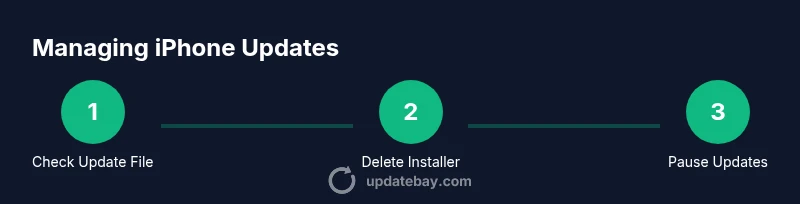
You can remove a downloaded iOS update from your iPhone by opening Settings > General > iPhone Storage, selecting the update file named like 'iOS [version] Update', and tapping Delete Update. If you want to stop future updates, disable Automatic Updates in Settings > Software Update. This only removes the download; it does not uninstall an already installed update. For downgrades or to pause updates entirely, follow the steps in the sections below.
Why you might want to take an update off your iPhone
According to Update Bay, managing when and how updates install is a practical way to balance security with stability and personal preference. Some users experience storage pressure after a major update or encounter compatibility quirks with specific apps or devices. By taking an update off your iPhone, you regain control over when changes occur and reduce the risk of immediate reboot cycles or feature changes at inconvenient times. This section will explore why you might want to remove a downloaded update, and what that means for your device’s security and performance. You’ll learn how to delete a stale update file from storage, how to pause automatic downloads, and how to weigh the option of downgrading if necessary. The goal is to empower you to make updates work for you, not the other way around.
Can you uninstall a installed iOS update?
Unsurprisingly, removing an update that’s already been installed isn’t as simple as deleting a file. Apple signs only certain iOS versions for a limited time, and downgrading typically requires using a computer and a manually downloaded IPSW file while the older version is still being signed. In most cases, once the upgrade completes and the device has rebooted, the old version isn’t easily reversible. This means you should plan ahead if you rely on your device for critical tasks. If a downgrade is essential, you’ll need to carefully follow official instructions and consider backing up data first. Update Bay emphasizes that downgrading carries risks, including potential data loss or incompatibilities with apps and features that were updated in the newer version.
Deleting a downloaded update file from iPhone storage
Your first and easiest option is to remove the downloaded update file, freeing space and preventing an automatic install. To do this:
- Open Settings
- Tap General
- Tap iPhone Storage
- Look for a file named something like 'iOS [version] Update'
- Tap Delete Update and confirm
This action only removes the downloaded installer; it does not affect the currently installed iOS version. If you don’t see an Update file, you haven’t downloaded the installer, or it has already been removed. For users with limited storage, deleting large temporary files can help improve device performance and free space for photos, apps, or media. Visually, you may notice the storage indicator drop after the download file is deleted.
How to pause automatic updates to control when updates install
If you want to avoid surprise updates, you can temporarily pause automatic download and installation of iOS updates. The path varies slightly by iOS version, but the general steps are:
- Open Settings
- Tap General
- Tap Software Update
- Tap Automatic Updates
- Turn off both 'Download iOS Updates' and 'Install iOS Updates'
With automatic updates paused, you retain full control over when to download and install new software. This is a conservative approach that helps you schedule maintenance during a convenient window and ensures you can back up data and test app compatibility before updating. If you rely on mission-critical apps or devices, plan a dedicated maintenance day each month to review pending updates.
Downgrading: is it possible?
Downgrading an iPhone is generally only possible while Apple is still signing the older version. This means downgrades are time-bound and not guaranteed. If downgrading is still feasible, you would typically:
- Back up your data
- Download the IPSW file for the desired iOS version on a computer
- Use Finder (macOS) or iTunes (Windows) to restore the device to the older version
Keep in mind that downgrading can erase data or cause compatibility issues with apps that require newer APIs. Update Bay advises caution and recommends testing essential apps after any downgrade before returning to normal use.
Managing storage after removing the update
Deleting the update file helps, but you may also want to free additional space to minimize performance hiccups and ensure smooth operation after an update. Consider:
- Reviewing photo and video libraries; offload or back up large media to iCloud or external storage
- Checking app caches and large apps that you rarely use
- Enabling iPhone Optimized Storage for photos and messages
- Clearing Safari data to reclaim space
After you remove an update and free space, monitor iPhone performance for a week to confirm there are no lingering issues related to the earlier update. Regular maintenance can prevent future storage bottlenecks when updates arrive.
Beta profiles, supervised devices, and enterprise controls
On devices enrolled in beta programs or managed by an organization, update controls may be restricted. Removing a beta profile or adjusting supervision settings can delay or block updates, but doing so may violate device policies. If you’re using a work device, consult your IT administrator before making changes. Update Bay notes that smart device management often prioritizes security and compliance, so ensure you understand any policy implications before altering update behavior.
Security and privacy considerations
Skipping or delaying updates can leave your iPhone exposed to known security vulnerabilities or software incompatibilities. If you choose to pause updates, plan a proactive review schedule—ideally monthly—so you re-evaluate security updates, bug fixes, and feature improvements. Always ensure you have a recent backup before applying updates or downgrades, and verify you’re connected to a trusted network during any install or restore process. Update Bay emphasizes balancing risk with convenience, not neglecting essential protections.
When to keep an update vs postpone
Deciding whether to keep or postpone an update depends on your usage patterns and risk tolerance. If your apps are stable, and you rely on critical features, postponing is reasonable while you test compatibility. However, if security improvements address vulnerabilities that affect you, plan a timely update with a tested backup. A practical approach is to set a firm maintenance window every 4–6 weeks to review pending updates and perform installations when convenient.
What Update Bay recommends
The Update Bay team recommends a practical, user-focused strategy: delete downloaded installers when storage is tight, pause automatic updates when you need control, and consider downgrades only when necessary and feasible. Regularly review settings to keep your device secure while aligning with your schedule. This balanced approach helps you stay on top of changes without sacrificing usability.
Tools & Materials
- iPhone with charged battery(Ensure battery is at least 50% before performing updates or downgrades)
- Stable internet connection (Wi-Fi preferred)(Required for downloading or verifying IPSW files if downgrading)
- Apple ID credentials(Needed for some account-related update actions)
- Computer with iTunes or Finder (optional for downgrades)(Only if you plan to attempt a downgrade to an older iOS version)
- Recent backup(Back up before downgrading or major updates)
Steps
Estimated time: 25-35 minutes
- 1
Open Settings on iPhone
Unlock your iPhone and open the Settings app. This is the starting point for deleting a downloaded update or adjusting update behavior.
Tip: If you don’t see the update options here, you may not have downloaded the installer yet. - 2
Delete the downloaded update file
Navigate to General > iPhone Storage. Locate a file named something like 'iOS [version] Update', tap it, and select Delete Update. This frees space and prevents the installer from auto-installing.
Tip: If the file isn’t visible, you likely haven’t downloaded the update or it’s already removed. - 3
Pause automatic updates
Go to Settings > General > Software Update > Automatic Updates. Turn off 'Download iOS Updates' and 'Install iOS Updates' to delay future installations.
Tip: Pause updates only if you need more time for backup and testing; remember to re-enable updates later for security. - 4
Assess downgrade feasibility
If you truly need to revert, check whether Apple is still signing the older iOS version. If yes, follow a computer-based restore using Finder/iTunes with the appropriate IPSW file.
Tip: Downgrading can erase data—back up first and test essential apps after the process. - 5
Free up storage after removing the update
Use storage recommendations to reclaim space: review large apps, photos, and caches; enable optimized storage if appropriate; back up extra media to cloud or external storage.
Tip: Regular maintenance reduces risk of future storage-related update failures. - 6
Review beta and management settings
If you’re on a beta profile or enrolled in device management, check with your administrator before removing profiles; policies may enforce updates.
Tip: Documentation and approval from your IT team helps avoid policy violations.
Frequently Asked Questions
Can you uninstall an iOS update after it has been installed?
Generally, you cannot uninstall an iOS update once it's installed. Downgrading is only possible if Apple is actively signing the older version, and it often requires a computer and careful steps.
Usually not. Downgrading is only possible if Apple is still signing the older version and you follow a specific restore process.
How do I delete a downloaded iOS update on my iPhone?
Go to Settings > General > iPhone Storage, locate the update file named like 'iOS [version] Update', and tap Delete Update. This frees space and prevents automatic installation.
Open General, then iPhone Storage, find the update file, and delete it.
Will turning off automatic updates affect my security?
Yes. Delaying updates can leave security vulnerabilities unpatched. It’s best to re-enable updates after testing and scheduling a safe installation window.
Pausing updates can raise security risks, so set a plan to re-enable updates after your testing period.
What should I do if my device is on a managed or beta profile?
Consult your IT administrator before removing profiles or changing update settings, as policies may enforce updates for security and compliance.
Check with your IT admin before removing beta or management profiles.
Is restoring from a backup a safe way to revert to an older iOS version?
Restoring from a backup can revert some changes, but it won’t change a missing iOS downgrade. It’s best to follow Apple’s official downgrade path if available and ensure backups are recent.
Restoring may help with data, but it won’t always downgrade the OS. Use official downgrade paths if offered.
Watch Video
What to Remember
- Delete downloaded update files to reclaim storage
- Pause automatic updates to control install timing
- Downgrades are possible only if Apple is still signing the older version
- Back up before any major update or downgrade