Can You Remove an iPhone Update? A Practical Guide
Learn whether you can remove an iPhone update, how to delete downloaded update files, and safe alternatives to manage iOS updates. Includes steps, safety tips, and when downgrading is even possible.


Yes—you can manage or remove a downloaded iPhone update, but you cannot reverse an already installed iOS version through regular means. If the update is only downloaded (not installed), you can delete it to reclaim space. Downgrading to a previous iOS version is only possible if Apple is still signing that version, which is uncommon. This guide covers safe options to stop future updates and remove downloaded files.
Understanding the request: can you remove update from iphone
People often ask can you remove update from iphone to reclaim storage or avoid automatic installs. The short answer is that you can remove a downloaded update file if it hasn't been installed yet, but you cannot reverse an already installed iOS version through standard tools. In this article, we’ll cover what you can do safely and what isn’t possible.
Throughout this guide, we’ll refer to the process of managing iOS updates, why you might want to remove a downloaded update, and practical steps you can take without risking data loss.
How iPhone updates are delivered and installed
Apple devices receive iOS updates through a structured process: a software update is prepared by Apple, then pushed to eligible devices. Updates can be downloaded automatically or manually by the user, and the installation occurs in stages to minimize disruption. Understanding this flow helps you know where the option to remove an update fits. If an update has already completed installation, removing it is not supported through conventional methods. Keeping the device secure means weighing the benefits of updating against the desire to control when it happens.
Device storage, network conditions, and account settings influence how updates arrive and how much space they require. If you’re trying to manage updates for storage or performance reasons, start by checking what has already been downloaded on the device and whether installation has begun.
Deleting a downloaded update file (when it’s not installed)
If an update has been downloaded but not installed, you can reclaim space by deleting the update file. Open Settings, go to General, then iPhone Storage. Look for an entry labeled something like “iOS Update” and select Delete Update. If the option is not visible, the update may have already begun installation or it wasn’t downloaded in the first place. Deleting the file does not affect any data on your apps or files. This step is quick, reversible, and safe as long as the installation hasn’t started.
Note that deleting the update file only affects the pending download. It does not “uninstall” anything that has already been installed. If you’ve already updated, you’ll need to consider other options for downgrading or staying on the current version.
Stopping automatic updates on iPhone
To prevent future automatic downloads and installations, turn off Automatic Updates. Navigate to Settings > General > Software Update > Automatic Updates, then disable both “Download iOS updates” and “Install iOS updates.” This gives you control over when updates occur. If you rely on critical apps or devices that require specific iOS versions, this setting can reduce surprise reboots. Note that you should recheck updates periodically for security patches.
You can also set a reminder to review updates manually every few weeks. This approach keeps security in mind while reducing automatic changes that might disrupt your workflow.
Downgrading: is it possible?
Downgrading a device to an earlier iOS version is not a standard feature and is only feasible when Apple is actively signing the older version. Even then, downgrades carry risks such as data loss or app compatibility issues. If downgrading is not signed, the downgrade process will fail. Because firmware signatures change, you should confirm current Apple support policies before attempting. If the older version is still signed, you may restore via a computer using a signed IPSW file, but this will erase your device.
In most cases, users are better off staying on the latest supported version and planning updates around maintenance windows rather than attempting a downgrade. Upgrading settles performance improvements and security fixes, while downgrading can reintroduce vulnerabilities.
What to do instead of removing updates
If your goal is stability, consider these alternatives instead of removing updates:
- Schedule updates for a time when you don’t need critical apps.
- Disable automatic updates and review updates before installing.
- Back up your data regularly so you can recover quickly if an update causes issues.
- Use iOS beta profiles with caution if you’re testing features, but know this carries its own risks.
- Monitor storage usage and clear cache or unused apps to improve performance without blocking updates.
By focusing on controlled scheduling and backups, you can maintain device performance without risking compatibility or security.
Common pitfalls and safety tips
- Do not attempt dubious downgrade methods or third-party tools that claim to bypass Apple’s signing checks.
- Always back up before making major changes to iOS or performing restores.
- Verify the source and integrity of any IPSW file before downloading.
- If space is the main issue, delete only the downloaded update file, not actual app data.
- If you feel uncertain, seek official guidance from Apple Support or Update Bay resources to avoid mistakes.
Troubleshooting if you can’t delete the update
If you cannot find the update to delete, it may indicate the update has already installed or never downloaded in full. Try a hard restart, then recheck iPhone Storage. If that fails, connect your device to a computer and use Finder (macOS) or iTunes (Windows) to review updates and storage usage. If you continue to have trouble, reaching out to Apple Support is advised.
Real-world scenarios and examples
Scenario A: A user wants to reclaim 2 GB of space before a big photo import. They find an iOS Update entry and delete it from iPhone Storage. No data is lost, and the device remains on the same OS version. Scenario B: A user wants to downgrade after noticing bugs in the latest update. They discover Apple is not signing the older version, so the downgrade is not possible without significant risk. They decide to stay on the current version and monitor updates for fixes.
Additional considerations and planning ahead
If you anticipate future updates, plan your device maintenance around a low-usage period. Keep a recent backup, ensure your computer has the latest software, and stay informed about which updates you are skipping or postponing. The ability to remove or control updates is limited by Apple’s policies, so the best long-term approach is to manage updates proactively rather than attempting frequent downgrades.
Tools & Materials
- iPhone with sufficient battery(Battery ideally above 50% to avoid shutdown during steps)
- Computer with latest macOS/Windows and iTunes/Finder(Needed for potential restore to earlier iOS versions)
- USB-C or Lightning cable(Stable connection between iPhone and computer)
- Stable Wi-Fi or Ethernet connection(For downloading any required IPSW or updates)
- Access to Settings app on iPhone(needed to delete downloaded updates if present)
- IPSW file for desired iOS version (optional)(Only if downgrading and if Apple is signing that version)
- Recent iPhone backup(Prepares for recovery if downgrading or restoring is attempted)
Steps
Estimated time: 60-120 minutes
- 1
Check for a downloaded update
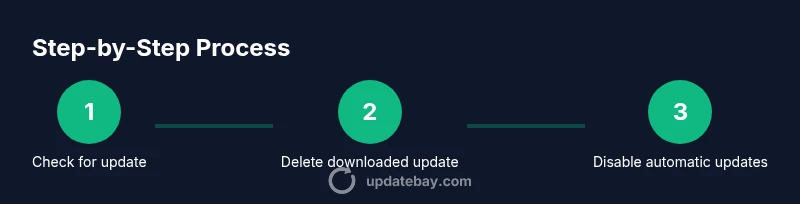
Open Settings > General > iPhone Storage and look for an entry labeled iOS Update. If present, confirm whether the update has been fully installed or still waiting to install. This check helps determine whether deletion is possible without risking an in-progress installation.
Tip: If you see only a small storage figure and no iOS Update entry, there is nothing to delete. - 2
Delete the downloaded update
Tap the iOS Update entry and select Delete Update. Confirm the action. This frees space and stops any pending installation from proceeding, provided installation hasn’t begun.
Tip: Deleting while installation is in progress can interrupt the update and cause issues. - 3
Disable automatic updates
Go to Settings > General > Software Update > Automatic Updates and turn off both options: Download iOS Updates and Install iOS Updates. This prevents future downloads and unexpected installations.
Tip: If you rely on certain feature deployments, schedule manual checks instead. - 4
Assess downgrading viability
Check whether Apple is still signing the older iOS version you’d consider. If not signed, downgrading isn’t officially possible. This determines whether you should pursue this option.
Tip: Only proceed with a downgrade if you are comfortable with data loss risks and have a full backup. - 5
Prepare for a potential downgrade
If downgrading is viable, download the appropriate IPSW file for your device on a trusted source and verify its integrity before use. Save it to your computer.
Tip: Use the exact device model and region when selecting the IPSW to avoid brick risk. - 6
Restore using a computer
Connect iPhone to the computer and open Finder (macOS 10.15+) or iTunes (Windows or older macOS). Put your device in recovery/configuration mode and select the IPSW to restore. This process erases the device.
Tip: Ensure you have a recent backup; this step will erase all data. - 7
Restore from backup and verify
After the restore completes, set up the iPhone from your backup and verify app compatibility and data integrity. Check for stability and confirm that the desired iOS version is in place.
Tip: Test essential apps and settings before resuming normal use.
Frequently Asked Questions
Can I remove an iOS update that's already installed?
No—once an update is installed, you cannot remove it through official means. Downgrading is only possible if Apple is still signing an older version, which is not guaranteed.
An installed update can’t be removed; downgrading only works if Apple signs the older iOS version.
Delete downloaded update?
Yes, if the update is downloaded but not installed, you can delete it via Settings > General > iPhone Storage > iOS Update.
Yes, delete the downloaded update under iPhone Storage if it’s not installed.
Can I stop automatic updates on iPhone?
Yes. Go to Settings > General > Software Update > Automatic Updates and disable both Download iOS updates and Install iOS updates.
Turn off automatic updates to prevent unexpected installations.
Is downgrading safe?
Downgrading is risky and not officially supported. It can lead to data loss and compatibility issues; proceed only with full backups and official guidance if Apple signs an older version.
Downgrading is risky and not commonly supported; back up fully first.
What if I can’t delete the update?
If you can’t delete, the update may have installed or not downloaded properly. Try a restart and recheck, or contact Apple Support for guidance.
If deletion isn’t possible, restart and recheck, or reach out to Apple Support.
Where can I learn more about update management?
Consult official Apple support pages and trusted tech guides from Update Bay for practical, up-to-date guidance.
Check Apple Support and Update Bay for more details.
Watch Video
What to Remember
- Delete downloaded iOS updates to reclaim space
- Downgrades depend on Apple signing older versions
- Disable automatic updates to control timing
- Always back up before major update actions