Can You Uninstall an iPhone Update? A Practical Guide
Learn whether you can uninstall an iPhone update, how to delete the installer, and what downgrading involves. This practical guide covers safety steps, backup strategies, and alternatives for managing iOS updates in 2026.


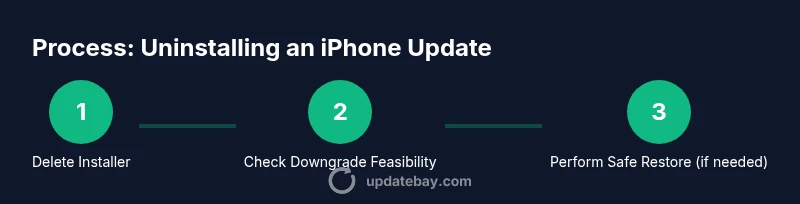
You can delete the downloaded update installer from Settings > General > iPhone Storage to reclaim space, but you cannot uninstall an update that’s already installed. Downgrading to a previous iOS version is only possible if Apple is still signing that version and you perform a full restore with a signed IPSW. For most users, this means removal of the installer is easy, while downgrading is less predictable and time-consuming.
Can you uninstall an update on iPhone? What this means
If you’ve been wondering can you uninstall an update on iphone, the quick takeaway is that you cannot simply “uninstall” an installed iOS release. iOS updates are designed as system upgrades, and once the update is installed, the only reliable way to revert is through a controlled restore process. What you can do, however, is remove the downloaded update installer from your device to reclaim storage and, if Apple is still signing an older version, attempt a downgrade using a signed IPSW on a computer. This distinction matters for understanding why some people ask about uninstalling an update versus downgrading. In practice, the option to revert hinges on Apple’s signing window and the availability of a compatible IPSW. According to Update Bay, most users should plan for removal of the installer first and then evaluate downgrade feasibility if signing remains open. This is a common point of confusion for tech enthusiasts and everyday users alike, and the steps below will guide you through the safe, supported path.
Understanding how iOS updates are delivered
iPhone updates are delivered OTA (over the air) through Apple’s servers and installed directly on the device. When you download an update, your iPhone stores an installer package in its local storage. This installer is what you can delete if you want to free space. The actual operating system update, once installed, becomes part of the device’s system state. Apple signs iOS versions, controlling whether you can downgrade. If a previous version is no longer signed, restoring to that version isn’t possible through official channels. This creates a practical boundary: you can clear the installer, but you may not be able to revert unless the older version is still being signed.
Deleting the downloaded update installer from iPhone storage
To reclaim space, you should locate and delete the downloaded iOS update installer. Go to Settings > General > iPhone Storage. Scroll to the iOS update entry (it will be labeled with the version number), tap it, and choose Delete Update. This frees device storage without affecting the installed OS. This action is safe and recommended if you’re running low on space, about to install a new app, or plan to perform a different maintenance task. If you’ve already decided you don’t want the update file, deleting it is a straightforward, low-risk step.
Downgrading to an older iOS version: is it ever possible?
Downgrading means returning to a previous iOS version after an update. This is only possible if Apple is still signing the target version and you can obtain a valid IPSW file for your specific iPhone model. Even when signing is open, downgrading is involved and carries risks (data loss, failed restore, compatibility issues). Always back up before attempting a downgrade. If the older version is not signed, restoring to it is not supported by Apple and may not be feasible. Update Bay recommends verifying signing status before starting any downgrade process and preparing for a full restore in case the downgrade path fails.
How to check if downgrading is still an option
Start by checking Apple’s signing status for the iOS version you want. If Apple is still signing that version, you can proceed with a restore using Finder (on macOS Catalina and later) or iTunes (on Windows). You’ll need a computer, a stable USB connection, and the IPSW file for the exact device model and iOS version. The IPSW must match your device’s model number to avoid brick risks. If signing has ended, there is no supported downgrade path through official channels; you’d be limited to trying to troubleshoot the current update or waiting for future fixes.
Preparing safely: backups, compatibility, and prerequisites
Before attempting any downgrade, back up your data. Downgrading can erase content, and even when successful, you may be prompted to set up as new or restore from a backup. Ensure you have a recent iCloud or computer backup of all critical data, including photos, messages, and app data. Verify that your device is compatible with the target iOS version and that you have enough battery life or connected power. Confirm you have a reliable internet connection for downloading the IPSW and the necessary time for the restore process.
Step-by-step path forward if you can’t downgrade
If downgrading isn’t possible because the older version isn’t signed, you still have several options. You can try troubleshooting the current update by checking battery health, disabling background apps, and resetting settings (without erasing data). You can also perform a clean restore to the current version if you’re encountering persistent issues, or wait for incremental fixes via patches. Update Bay emphasizes patience: most iPhone users stabilize after a few days or with a minor iOS update that follows.
Practical alternatives and best practices
When the downgrade path is blocked, focus on practical fixes and maintenance. Clear storage, update apps, reduce background activity, and manage widgets that drain battery. Keep a current backup strategy, and use iCloud backups or computer backups to protect your data. If an update causes severe issues (boot loops, freezes, or battery drain), contact Apple Support or visit an Apple Store for diagnostic help. Update Bay’s guidance is to proceed deliberately and avoid risky, unofficial tools that claim to downgrade without proper signing or official IPSWs.
Troubleshooting and next steps after an update
Post-update issues are common but manageable. If you’re stuck with a problematic update, try basic steps like a forced restart, closing apps, and resetting network settings. Check for any pending updates that fix reported issues, and monitor battery health. If you still face problems after attempting these steps, consult official resources or the Update Bay team for a tailored plan. The objective is stability and data safety, not quick fixes that risk device integrity.
Tools & Materials
- iPhone with a charged battery(Aim for at least 50% - 80% before downgrading to avoid interruptions.)
- Reliable computer (Mac or Windows)(Finder (macOS) or iTunes (Windows) will be used for the restore.)
- USB cable(Use a working cable to ensure a stable connection.)
- IPSW file for target iOS version(Only needed if downgrading is possible and you can obtain a signed file.)
- Recent backup (iCloud or computer)(Protects data if something goes wrong during downgrade.)
Steps
Estimated time: Total time: 60-120 minutes depending on download speed and hardware
- 1
Prepare the device
Charge the iPhone to a comfortable level, back up data, and ensure you have a stable internet connection before starting any downgrade process.
Tip: Backups are essential; verify the backup completed successfully. - 2
Check iOS signing status
Visit a reputable source or Apple documentation to confirm whether the target iOS version is still being signed. If not signed, downgrade isn’t supported officially.
Tip: If you’re unsure, opt for safer maintenance or wait for a future update. - 3
Download the correct IPSW (if applicable)
Download the IPSW for your exact iPhone model and the desired iOS version from a trusted source. Ensure the file matches your device’s model number.
Tip: Double-check the model and version to avoid bricking the device. - 4
Connect to computer and start restore
Connect the iPhone, open Finder or iTunes, and initiate the restore by selecting the IPSW file or using the Restore option with a built IPSW.
Tip: Use the Option (Mac) or Shift (Windows) key to select the IPSW manually. - 5
Complete the setup
Follow on-screen prompts to complete the setup. Restore from backup if you want data from the previous state, or set up as new if you prefer a clean start.
Tip: If the restore asks to update, decline unless you want the latest version. - 6
Verify device health after restore
Check essential functions, apps, battery health, and network performance. Ensure everything runs smoothly before re-enabling services.
Tip: Run a full battery test to ensure no abnormal drain occurs after the downgrade.
Frequently Asked Questions
Can I delete the downloaded iOS update installer from my iPhone?
Yes. You can delete the downloaded update installer via Settings > General > iPhone Storage. This frees space but does not uninstall the installed iOS update.
Yes, you can delete the installer in settings to free space, but it won’t remove the installed update.
Can I downgrade to an earlier iOS version on iPhone?
Downgrading is only possible if Apple is still signing the older version and you can obtain the correct IPSW for your device. If signing has ended, downgrading isn’t officially supported.
Downgrading is only possible if Apple signs the older version and you have the correct IPSW.
Will downgrading erase my data?
Downgrading can erase data. It’s essential to back up before starting, and you may need to restore from a backup after the process.
Downgrading can erase data, so back up beforehand.
What should I back up before attempting a downgrade?
Back up your iPhone to iCloud or a computer to protect photos, messages, apps, and settings in case the downgrade requires a restore.
Back up your data to iCloud or a computer before downgrading.
What if the older iOS version isn’t signed anymore?
If Apple isn’t signing the older version, a downgrade isn’t officially possible through standard methods. You may need to wait for future updates or use official fixes.
If the old version isn’t signed, downgrading isn’t officially possible.
Watch Video
What to Remember
- Delete the installer to reclaim space after an update.
- Downgrading depends on Apple signing the older version.
- Back up before attempting any downgrade.
- A full restore with a signed IPSW is required for downgrades.
- If downgrading isn’t possible, troubleshoot within the current iOS version.