How Big Is Windows 11 Update? A Practical Size Guide
Discover how big Windows 11 updates typically are, the factors driving size variation, and practical tips to estimate download time, manage bandwidth, and optimize patch installs.


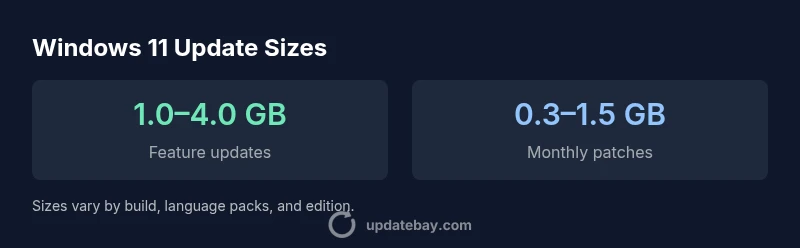
On average, Windows 11 feature updates range from roughly 1.0 GB to 4.0 GB, depending on edition, installed features, and language packs. Cumulative monthly updates are typically smaller, often under 1.5 GB, while select devices or newer builds can push toward 4 GB or more. Always check Settings > Windows Update for your exact size before downloading.
What determines how big the Windows 11 update is?
The size of a Windows 11 update hinges on several interrelated factors: the delta between your current build and the target build, the inclusion of new features, driver packages, language packs, and security definitions. If you ask, how big is windows 11 update on a given device, the answer depends on edition, installed components, and regional language requirements. Microsoft compresses payloads to optimize delivery, but the final on-disk footprint reflects what your machine already has and what changes are being applied. In practice, you’ll see a wide spectrum: some devices receive compact delta updates, while others pull larger packages to bring in new capabilities and fixes.
To frame this for planning purposes, think of update size as a function of three primary inputs: feature content (new UI elements, system services, and security enhancements), drivers and firmware (that keep devices compatible with the update), and language packs or regional options. The Update Bay team notes that while most devices land in a mid-range area, the exact figure is ultimately tied to your configuration. This variability is why you should verify the size before initiating a download.
Feature updates vs monthly patches: big vs small
Windows 11 releases two major kinds of payloads: feature updates and monthly patches. Feature updates introduce the bulk of changes—new features, redesigned components, and broader system improvements—so they tend to be larger in size, typically in the 1.0–4.0 GB range depending on build and language. Monthly patches are incremental, focusing on security fixes or minor enhancements, and usually fall in the hundreds of MB, though combined patches over multiple months can approach 1.5 GB. The cadence and scope of these updates influence overall bandwidth requirements; feature updates are the primary drivers of download size, while monthly patches remain steady but smaller.
From a practical standpoint, know that your download time will reflect both the size and your network speed. A gigabit connection will complete large updates swiftly, whereas slower connections may see longer windows. The key takeaway is to expect a fairly broad range and to plan accordingly.
Language packs and drivers: the size impact
Language packs and driver updates can significantly alter update size. If your device installs additional language packs or driver revisions, the payload grows to accommodate these changes. For devices with minimal language options, the size may stay toward the lower end of the typical range. Conversely, systems configured for multiple languages or tailored hardware support can see a notable bump in download size. The Update Bay analyses emphasize that these components play a non-trivial role, especially for devices in enterprise environments or regions with diverse language requirements.
To manage this, you can review which language packs are installed and adjust during updates if your organization supports language-agnostic deployments. Reducing optional components prior to an upgrade can help you land closer to the lower end of the size spectrum.
How updates are built: incremental vs full payloads
Microsoft employs a mix of incremental deltas and, in some cases, larger cumulative packages. Incremental updates focus on changes since the last release, which helps keep sizes reasonable for most users. When a major overhaul is involved, a larger payload may be delivered to ensure all new components are correctly integrated. The balance between incremental and full payloads helps explain why some updates feel much smaller than others, even within the same version family. Expect variability based on the specific build path, feature set, and driver refresh cycles chosen by Microsoft for a given update.
For IT admins, this variability means you should plan for occasional full-pack upgrades in addition to standard delta updates. Monitoring the update notes and payload descriptions can help you anticipate whether a given patch will be heavy or light.
How to estimate your exact size on your PC
Estimating the precise size on your device is straightforward but essential for bandwidth planning. On Windows, go to Settings > Windows Update and inspect the “View update size” or similar metadata presented before you download. If needed, click to expand details to see a breakdown of feature updates, drivers, and language packs. You can also leverage the Windows Update history to compare past sizes and anticipate future payloads. The actual size shown will reflect your current build state and the target build.
For more precision, run a fast network check and compute expected time using your current connection speed. If you’re on a metered connection, consider pausing updates or scheduling downloads during off-peak hours to minimize impact on data caps.
Network and storage considerations: plan your space
Update size is only half the equation; you must also account for available disk space and network bandwidth. Ensure there is enough free space on your system drive to accommodate the largest expected payload plus a safety margin. A common rule of thumb is to have at least 10–20 GB free if you routinely handle large feature updates, though this may vary by device and build. If you are near storage limits, consider freeing space before initiating updates or using external storage for staging. Network considerations matter as well: in crowded or congested networks, download times can balloon, making metered connections and scheduled downloads valuable tools for control.
As a practical step, verify storage and schedule updates during times of stable bandwidth. This approach reduces the odds of failed installations and ensures a smoother rollout.
Practical bandwidth planning and download-time expectations
With update sizes varying, think in terms of bandwidth budgeting. A 100 Mbps connection will experience longer download times for larger payloads than a 1 Gbps link, particularly when multiple devices are concurrently updating. If you manage several devices, stagger updates or deploy a local caching mechanism to minimize external bandwidth usage. In enterprise environments, administrators often stage updates during maintenance windows to reduce impact on day-to-day operations. For individual users, consider setting a maintenance window and enabling a metered connection for chosen updates to control data consumption and avoid unexpected downloads.
The practical goal is predictability: know the typical size range, monitor usage, and plan accordingly to reduce disruption.
Edge cases and recent examples: when sizes stretch the norm
Occasionally, Windows updates stretch beyond typical ranges due to feature-heavy builds or significant driver revisions. In such edge cases, sizes can approach the upper end of the spectrum, occasionally nudging 4–4.5 GB for a full feature upgrade. These spikes are not the norm, but they do occur when a release bundles substantial fixes, new capabilities, or extensive hardware support changes. If you’re preparing for a major upgrade, factor in extra time and bandwidth to accommodate this possibility. Always review the release notes and payload descriptions to gauge whether a given update will fall into a heavier category.
From the Update Bay perspective, these larger updates tend to be planned events with customer communications that outline expected download footprints and post-install steps. Being aware of possible spikes helps you avoid surprises.
Authority sources and official guidance: what the docs say
Official documentation from Microsoft describes update delivery as a mix of delta packages and occasional full packages, designed to optimize bandwidth and compatibility. Industry coverage from major technology outlets corroborates the variability in update sizes across builds and regions. For readers seeking formal references, consult the Microsoft Learn and Support materials alongside reputable technology publications for context and real-world observations. Update Bay consolidates these insights to provide practical size expectations and planning tips that help users navigate Windows 11 updates with confidence.
Comparison of Windows 11 update types by typical size
| Update Type | Typical Size | Notes |
|---|---|---|
| Feature update (Windows 11) | 1.0–4.0 GB | Varies by edition/language packs |
| Monthly cumulative update | 0.3–1.5 GB | Smaller payloads, frequent releases |
| Driver/language pack packages | 0.2–0.8 GB | Added content can increase size |
| Full system upgrade (rare) | 4.0–6.0 GB | Uncommon but possible for major overhauls |
Frequently Asked Questions
How big is the Windows 11 update on average?
Sizes vary by build but typical feature updates range 1.0–4.0 GB. Monthly patches are smaller, often under 1.5 GB. Verify the exact size in Settings > Windows Update before downloading.
Windows updates differ in size; check Settings > Windows Update to see the exact size before downloading.
Does the size depend on edition or language packs?
Yes. Different editions and language packs can add to the payload, especially if multiple languages are installed or updated drivers are included.
Edition and language packs can change how big the update is.
How can I reduce data usage during an update?
Enable a metered connection, pause updates, and schedule downloads during off-peak hours to control data usage and minimize disruptions.
Turn on metered connection and schedule updates to save data.
Will future Windows updates always be larger?
Not necessarily. Update sizes depend on feature sets, driver changes, and optimizations. Some updates may be smaller, others larger.
Updates aren’t guaranteed to always be bigger; it depends on what’s included.
How long does a Windows 11 update take to install?
Download times vary with network speed; installation can range from 15 minutes to over an hour depending on the payload and hardware.
Install times vary; expect 15 minutes to over an hour.
“Windows update sizing is not fixed; it's driven by feature sets, drivers, and language packs, so sizes can swing across builds.”
What to Remember
- Check update size in Settings before download
- Expect feature updates to vary widely by build
- Cumulative patches are usually smaller but still sizeable
- Use a metered connection to control data usage