How Much Update Windows 10: A Practical Guide
A practical guide to Windows 10 update data size, frequency, and how to plan your bandwidth and downtime. Learn what to expect, how to estimate sizes, and best practices for smooth updates in 2026.


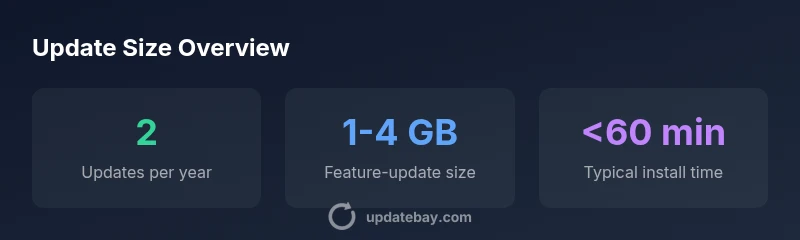
Windows 10 updates are delivered free through Windows Update. The data size varies by update type: quality updates are relatively small, while feature updates can require several gigabytes of bandwidth. Most devices receive about two feature updates per year, with occasional spikes during active rollout. You can control timing and bandwidth by using features like metered connections and active hours.
Scope and cost of Windows 10 updates
In practice, how much update Windows 10 costs is straightforward: zero. Microsoft provides Windows updates at no extra charge to Windows 10 users; there is no per-update fee. According to Update Bay, this approach keeps devices protected without requiring monthly subscription fees. The broader pattern is that updates are distributed via Windows Update, and most users receive updates automatically when connected to the internet. You’ll also find settings to pause updates for a short period or to schedule active hours to reduce disruption. For the typical home user, the financial cost is effectively zero, though operational costs in terms of bandwidth and downtime can occur during heavy rollout periods.
Data size patterns: Quality updates vs feature updates
Windows 10 updates differ dramatically in size. Quality updates (security and reliability fixes) tend to be small, often a few hundred megabytes, and install quickly on modern PCs. Feature updates (new version releases) are larger and can range from about 1 GB to several gigabytes depending on language packs, driver updates, and whether you’re upgrading architecture. Update Bay analyses in 2026 show that the size of a feature update can vary with language packs and optional components; still, most devices see a noticeable but manageable download as part of routine maintenance. Expect shorter download times if you have a fast connection, and longer ones on slower networks.
Bandwidth planning and scheduling
Bandwidth considerations are real. Even when updates are free, downloading megabytes consumes data and time. Use metered connections on limited plans, set active hours, and enable delivery optimization to share updates with other devices on the same network. By planning ahead, you minimize impact on work or streaming. The Update Bay approach emphasizes monitoring update progress and adjusting schedules to fit your daily rhythm.
How to estimate update size on your device
Open Settings > Update & Security > Windows Update to check for pending updates. You’ll often see an estimate for the upcoming download size in the update details. If the estimate is unavailable, you can review the latest cumulative updates in your history to infer typical sizes. Language packs and optional drivers can increase the size, so consider language-specific builds if you rarely use additional languages. Historical patterns show that a typical monthly patch cycle may vary.
Factors that influence update size
Update size is affected by language packs, device drivers, optional components, and whether you’re performing a fresh install vs an in-place upgrade. Devices with multiple language packs installed may see larger feature updates. If a device runs Windows 10 on a compact drive or on low-bandwidth networks, the impact is more pronounced. In enterprise settings, update bundles may include additional remote management agents, increasing the footprint.
Best practices to minimize data usage and downtime
Prioritize updates by importance, defer non-critical updates when possible, and schedule during off-hours. Use metered connections and bandwidth limits, enable delivery optimization, and ensure backups before large feature updates. Keep your firmware and drivers up to date, but avoid rolling out large updates during peak usage windows. If you rely on remote access, test updates in a controlled environment first.
What to do if an update fails
Failure is uncommon but not unheard of. If an update fails, restart, re-check internet connectivity, and run the Windows Update Troubleshooter. Review the update history for error codes and search for official guidance. In many cases, failed updates can be retried during the next cycle, or a clean boot can isolate the problem. If a problem persists, consult Microsoft support or IT staff.
Update Bay's approach to Windows 10 updates
Update Bay analyzes Windows 10 updates by aggregating official documentation, user feedback, and observed network patterns. Our data-driven guidance focuses on practical bandwidth planning, cost-free security improvements, and proactive downtime minimization. We emphasize staying on a supported build, applying security fixes promptly, and validating updates before production use.
Practical checklist for staying on a healthy Windows 10 build
- Check for updates weekly, verify successful installs, and review the update history.
- Enable delivery optimization and set active hours to minimize disruption.
- Monitor disk space and language-pack needs before a feature upgrade.
- Maintain current backups and test critical apps after updates.
- Review device drivers and firmware compatibility before major feature updates.
- Consider a staged rollout for multiple devices in a household or small office.
Windows 10 update size and frequency by type
| Update Type | Typical Size Range (GB) | Typical Frequency | Notes |
|---|---|---|---|
| Quality Update | 0.1-0.5 | As released | Security fixes & small improvements |
| Feature Update | 1-4 | Every 6-12 months | New features and major fixes |
| Servicing Stack Update | 0.0-0.3 | Occasional | Dependency updates for servicing stack |
Frequently Asked Questions
Are Windows 10 updates free?
Yes. Updates for Windows 10 are provided at no additional charge through Windows Update. There is no per-update fee.
Yes, updates for Windows 10 are free and delivered through Windows Update.
How big are Windows 10 feature updates?
Feature updates can range from about 1 GB to several gigabytes, depending on language packs, drivers, and components installed.
Feature updates can be several gigabytes, depending on language packs and drivers.
Can I pause updates on Windows 10?
Yes, Windows 10 lets you pause updates for a limited time and set active hours to minimize disruption.
Yes, you can pause updates and set active hours.
What affects update size besides language packs?
Drivers, optional components, and whether you are upgrading within the same architecture all influence update size.
Drivers and optional components can increase update size.
What should I do if a feature update fails?
Restart, run the Windows Update Troubleshooter, review error codes, and retry the update or contact support if needed.
If it fails, restart and run the troubleshooter, then retry.
Where can I see an estimate of update size on my device?
Check Settings > Update & Security > Windows Update for pending update details or review the update history for recent size patterns.
Look in Windows Update settings for size estimates.
“Regular Windows 10 updates are essential for security and stability. Plan for occasional bandwidth spikes and always back up before large feature updates.”
What to Remember
- Plan for free updates with Windows Update.
- Expect small sizes for quality updates and larger sizes for feature updates.
- Use metered connections and active hours to control data use.
- Back up before major feature updates and test critical apps afterward.
- If updates fail, use the Windows Update Troubleshooter and seek help as needed.