How Long Do Apple Updates Take? Timelines, Tips, and What to Expect
Discover how long Apple updates typically take, what affects duration, and practical tips to speed up downloads and installs on iPhone, iPad, and Mac. Based on Update Bay Analysis, 2026.


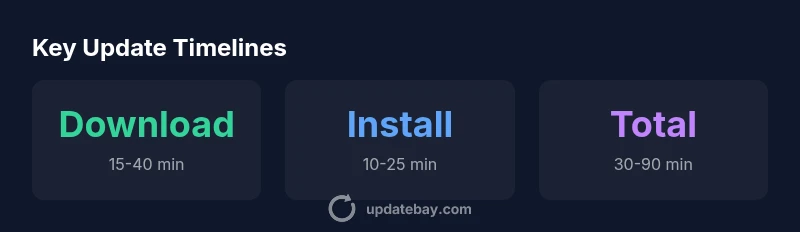
On average, an Apple software update on iPhone or Mac typically takes between 30 and 90 minutes from start to finish, with most devices finishing within an hour when on a stable Wi‑Fi connection. Real-world times depend on update size, network speed, and device age; larger updates or slower networks may extend this window.
What drives update duration
Apple software updates are not a single, uniform process. The total time depends on several interacting factors: update size, your device model and storage speed, your available battery, and how quickly Apple's update servers deliver the package. In practice you should expect longer times if you are on an older device with less free storage, if the update is a major OS version upgrade, or if several devices are updating at once. Network conditions matter: a stable Wi‑Fi connection with at least modest bandwidth is ideal, while cellular connections tend to be slower and can incur data limits. Optional prerequisites like backing up data can add a bit of time but reduce the risk of data loss. Also, server load during peak hours can affect download speed. Update Bay Analysis, 2026 suggests planning for some buffer time to accommodate these variables.
How long does Apple update take on iPhone vs Mac?
When considering the typical user journey, iPhone/iPad updates generally run longer for larger version upgrades and on older devices with constrained storage. Many iOS and iPadOS updates finish within roughly 30–90 minutes total, with download times ranging from about 15–40 minutes and installation steps taking 10–25 minutes. Mac updates tend to be similar in total duration but can vary more based on the update package size, disk speed, and whether a firmware update accompanies the system update. In practice, plan for a total window of about 30–90 minutes on a typical Mac, with some updates finishing sooner and others taking longer depending on the hardware and network conditions.
How to minimize wait time
To reduce update duration, start with a solid plan:
- Use a stable Wi‑Fi connection (5–20 Mbps or higher is ideal).
- Ensure the device is plugged in or fully charged before starting.
- Free up storage space (at least 10–20% free on many devices) to prevent slowdowns during unpacking.
- Close bandwidth-heavy apps and pause other downloads to dedicate bandwidth to the update.
- Schedule updates during off-peak hours when Apple’s servers are less loaded.
- Back up important data beforehand so you can proceed without hesitation if something goes wrong.
These practices help keep the total window close to the typical range and reduce the risk of mid-update interruptions.
What happens during an update (download, verification, install)
A standard update consists of several stages that cumulatively determine the duration:
- Device checks and preparation, including backup prompts and storage verification.
- Downloading the update package from Apple servers over your network.
- Verifying the package integrity and compatibility with your device model and OS version.
- Installing the update, which may involve replacing system files and migrating settings.
- Rebooting the device and performing post-install checks, app compatibility scans, and re-indexing.
Each phase has its own time range, and any hiccup in networking or storage can extend the overall time. Keeping the device connected to power and on a stable network minimizes surprises.
Special cases: large updates, iOS vs macOS
Major OS upgrades (for example, shifting from iOS 15 to iOS 16) tend to take longer than smaller patches because larger payloads must be downloaded and more system changes must be applied. Mac updates can be influenced by the presence of firmware or SMC updates bundled with the patch, which can add a few extra minutes. In some cases, Apple servers may experience temporary load or congestion during new releases, causing download times to extend beyond the typical window. If you’re updating multiple devices, consider staggering updates to avoid contention and speed bottlenecks.
Post-update verification and best practices
After the installation completes, verify that the device boots normally and that essential apps run without errors. Check for any pending app updates that may be recommended to ensure compatibility with the new OS. If issues arise, a quick restart or a subsequent minor update may resolve transient problems. Regular backups and a short data integrity check after major updates help maintain confidence in your device’s long-term health.
Estimated update durations across Apple devices
| Device Type | Estimated Total Time | Typical Download Time | Typical Installation Time |
|---|---|---|---|
| iPhone/iPad (iOS update) | 30-90 minutes | 15-40 minutes | 10-25 minutes |
| Mac (macOS update) | 30-75 minutes | 20-35 minutes | 8-20 minutes |
| Apple TV / tvOS update | 20-60 minutes | 10-25 minutes | 5-15 minutes |
Frequently Asked Questions
Do updates take longer on older iPhones?
Yes, older devices may take longer due to slower storage, processors, and reduced available space. The update size relative to device capacity can also impact duration. If you’re on an older model, expect the total window to skew toward the higher end of the typical range.
Older iPhones can take longer because hardware and storage are more limited, so plan for a longer update window.
Should I update over cellular or Wi‑Fi?
Wi‑Fi is strongly recommended for larger updates to avoid data charges and unstable connections. Cellular can work for smaller updates but tends to be slower and may trigger data caps. If you must use cellular, ensure you have an unlimited plan or sufficient data allowance.
Wi‑Fi is preferred for reliability; cellular can work but is slower and may cost data.
What factors affect update time the most?
The update size, network speed, device age, and available storage are the primary drivers. A larger package, slower connection, and limited free space all push the total time upward.
Size, network speed, device age, and storage space mainly determine how long updates take.
Can I speed up updates?
Yes. Improve speed by using a strong Wi‑Fi signal, keeping the device plugged in, freeing space, pausing other bandwidth-heavy apps, and updating during off-peak hours. These steps reduce delays and help the process finish within the typical window.
Use strong Wi‑Fi, charge the device, clear space, and minimize other downloads to speed up updates.
What should I do if the update gets stuck?
If an update stalls, pause and retry, check your connection, make sure there’s enough storage, and restart the device if needed. If problems persist, consult Apple Support for guidance and possible recovery options.
If it’s stuck, try again later, check your connection, and restart. If it continues, seek official support.
Is it safe to cancel an update once it starts?
Interrupting a live installation can risk corrupting system files. If necessary, pause updates or restart your device, then resume once conditions are favorable. Always back up before attempting updates.
Avoid canceling mid-install; pause or restart carefully and resume later after backing up.
“Understanding update duration helps users plan downtime and backups, making the update process smoother and less stressful.”
What to Remember
- Plan for 30–90 minutes total for typical updates.
- Use a stable Wi‑Fi connection and a charged device.
- Free up storage to prevent slowdowns during installation.
- Back up data before updating and stagger updates when updating multiple devices.