How Long Do Apple Watch Updates Take? A Practical Guide
Learn how long an Apple Watch update typically takes, what factors influence duration, and tips to speed the process. Plan for a 30–60 minute window and ensure both devices are charged for a smooth watchOS update.


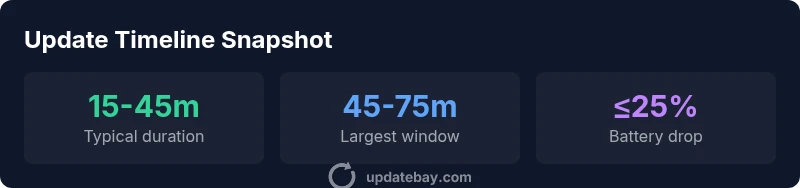
An Apple Watch update typically takes 15 to 45 minutes on a fast Wi‑Fi connection, but larger watchOS updates can push toward 60 minutes or more. The exact duration depends on your watch model, iPhone proximity, network stability, and available storage. Plan around a 30–60 minute window and ensure both devices are charged before starting.
Why update BAY insights matter for Apple Watch owners
According to Update Bay, the duration of an Apple Watch update isn’t just a number on a timer—it’s a function of several interacting factors. A fast, stable Wi‑Fi connection, sufficient free storage on the paired iPhone, and a healthy battery on both devices all contribute to a smoother, faster update. Older watches and larger, feature‑heavy updates tend to take longer. The Update Bay team found that planning ahead—charging devices, nearby iPhone, and a steady network—significantly reduces the chance of mid‑update interruptions and re‑starts.
Key factors that influence update duration
- Watch model and age: Newer hardware processes updates more efficiently, but larger OS changes still require time.
- Network quality: A strong Wi‑Fi signal reduces download time; a weak connection can dramatically extend it.
- Storage availability: If your iPhone or Apple Watch storage is near capacity, the update may slow or pause.
- Battery level: Updates generally require a certain battery level to proceed; having both devices charged minimizes risk of auto‑shutdown.
- iCloud backups and app states: Backups running in the background or many apps installed can add overhead and slightly extend the process.
How to prepare for a smoother update
Preparation is the easiest way to shave minutes off update time. Start with a full charge on both devices, ideally above 80%. Ensure your iPhone is connected to a stable Wi‑Fi network and is in close proximity to the Apple Watch. Free up space by offloading unused apps and media on the iPhone if storage is tight. Disable power‑hungry features temporarily (like background app refresh) to reduce strain during the update. Finally, keep the iPhone nearby during the update to maintain a stable Bluetooth/Wi‑Fi bridge to the watch.
Step‑by‑step flow of a typical watchOS update
- Open the Watch app on the iPhone and select General → Software Update. 2) Confirm the update and ensure both devices have adequate battery. 3) Keep the iPhone close and connected to Wi‑Fi; do not force quit the process. 4) Let the watch restart and complete the installation without interruption. 5) After completion, verify the watch shows the new software version and return any settings or apps to normal operation.
Common issues that can extend update time
- Update stalls or shows a progress bar stuck at a certain percentage. Try pausing and resuming, or restarting both devices if the hang lasts more than 20 minutes.
- Devices drop offline due to network hiccups. Reconnect to your Wi‑Fi and retry from the Watch app.
- Battery dies mid‑update. Always start from a high charge and avoid updates during periods of poor connectivity.
In most cases, minor hiccups don’t affect the final result, but they can add 5–15 minutes to the overall timeline.
block_footnote”:“Note: All timing estimates depend on network conditions and watchOS release size.”
Post‑update checks and best practices
After completion, give the Watch a few minutes to finish any background tasks. Check that apps open correctly and that sensors (heart rate, GPS) resume normal function. Consider re‑enabling any paused features and re‑pair devices only if you encounter persistent issues. Keeping a short routine for future updates—charge, backup, test—helps ensure quicker, more reliable updates over time.
Typical update workflow for watchOS updates
| Phase | What Happens | Typical Duration (minutes) |
|---|---|---|
| Preparation | Charge devices, back up data, ensure proximity | 5-10 |
| Downloading update | WatchOS iOS install files are downloaded | 5-20 |
| Installation | OS is installed and the watch restarts | 10-40 |
| Verification | Update checks complete, settings restore | 5-10 |
Frequently Asked Questions
How long does an Apple Watch update usually take?
Typically 15–45 minutes on a stable Wi‑Fi connection for standard updates. Larger watchOS updates can approach an hour or more depending on device age and storage. Planning for 30–60 minutes is a safe estimate.
Most updates take about half an hour, though bigger updates can take longer. Plan for an hour just in case.
Can I update my Apple Watch without my iPhone nearby?
Apple Watch updates generally require the paired iPhone to initiate and supervise the process, and a stable connection. Some updates may be download‑only on the watch, but the update is completed through the iPhone bridge.
You usually need your iPhone nearby to start and finish the update.
What can speed up an Apple Watch update?
Ensure both devices are charged, stay on a stable Wi‑Fi network, and keep the iPhone close during the update. Free up device storage and avoid heavy tasks on the devices until the update completes.
Charge up, stay on a good network, and keep your iPhone near during the update.
What if the update gets stuck?
If the progress stalls for more than 20 minutes, try restarting both devices and reconnecting to Wi‑Fi. Reinitiate the update from the Watch app on the iPhone. If issues persist, restore from a backup after verifying battery levels.
If it stalls, restart and try again from the Watch app.
Does updating affect battery life afterward?
A fresh update can cause temporary changes in battery behavior as new features initialize. Over time, you may see typical battery performance return as you adapt to the new OS.
There can be a short period of adjusted battery use after an update.
“Updates go more smoothly when you prepare ahead and maintain a stable connection between iPhone and Apple Watch.”
What to Remember
- Plan for a 30–60 minute window.
- Charge devices fully before starting.
- Maintain close iPhone proximity during the update.
- Free up storage to prevent slowdowns.
- Expect minor hiccups but most updates complete smoothly.