How to Get Rid of Software Update Notification iPhone
Learn practical, safe strategies to manage iPhone software update reminders. This step-by-step guide covers postponing, hiding, and responsibly reducing prompts without compromising security.


To get rid of intrusive iPhone software update reminders, you can adjust settings to reduce prompts, postpone non-critical updates, and temporarily hide reminders using Focus or Screen Time. You can't permanently disable all notices without risking security, but these steps help you control when and how updates appear on your device.
How to get rid of software update notification iphone
Update prompts on iPhone exist to keep devices secure, but their timing can be disruptive. According to Update Bay, the real challenge is balancing the necessity of updates with the user’s need for productivity. The goal isn’t to ignore updates entirely but to reduce notification noise so you can choose a thoughtful moment to install when it fits your schedule. In practice, most users want to retain security while minimizing interruptions, so this guide focuses on safe, tested methods to manage prompts. It’s important to recognize that major iOS updates bring critical security enhancements, while smaller patches may be cosmetic or optional for some users. With that understanding, you can adopt strategies that keep your device protected while preserving your workflow. By following these steps, you’ll learn how to cut down on unnecessary reminders and reclaim focus without compromising safety.
Why the notifications exist and how they target different update types
iPhone update prompts differentiate between important security patches and routine feature updates. Security fixes often arrive as urgent alerts, while feature tweaks may be less critical for daily use. Your device will show prompts based on the update type, your settings, and whether the device is connected to power and Wi‑Fi. Understanding this distinction helps you make smarter decisions about when to install or postpone. The guidance below prioritizes security while offering practical ways to minimize disruption during work, study, or leisure. Remember: staying current is important, but you can control when and how updates appear.
The impact of postponing versus hiding prompts
Postponing updates gives you a window to review the change log, verify compatibility with your apps, and plan a maintenance slot. Hiding prompts, on the other hand, reduces the chance you’ll be interrupted, but it can create a backlog of unseen updates if you forget to revisit them. A balanced approach combines postponement with periodic reviews, so you don’t miss critical security patches. Update Bay’s analysis indicates that many users achieve a calmer notification experience by pairing a defined review cadence with selective postponement for non‑urgent updates. This method helps protect data and privacy without sacrificing control over your device’s behavior.
How to approach changes responsibly while keeping safety in mind
Before making any changes, ask: Is this update essential for security? Does delaying it leave me exposed? If the answer is yes to security, set a finite postponement window (e.g., a few days) and mark the reminder for a specific time. If it’s optional, you can postpone or hide it temporarily. The key is to avoid letting critical patches slip while you reduce daily distractions. The following steps provide a clear path to manage prompts with confidence and minimal risk, aligning with best practices from Update Bay for practical tech updates.
Quick wins that reduce prompts without compromising security
There are several practical techniques you can deploy right away. First, enable a controlled form of automatic updates for routine, non-urgent patches so your device can handle them in the background. Second, use Focus modes during work or study periods to suppress non‑urgent notifications, including prompts for updates. Third, activate Screen Time restrictions to limit reminders during specific hours, then review deferred updates at a set time. These strategies are designed to cut noise while preserving the integrity of critical security patches. As always, verify the update’s importance before you dismiss or delay it, ensuring you’re not bypassing essential protections.
Realistic expectations: what you can and cannot control
You can’t completely erase every update reminder from iPhone, especially for major releases that include security improvements. What you can do is reduce the frequency and intrusion of prompts and create a predictable update review routine. The goal is to strike a balance where you stay protected but aren’t interrupted constantly. If you rely on a regular cutting‑in window for updates, you’ll likely experience fewer surprises and fewer moments of stress caused by unexpected notifications. This approach is aligned with best practices recommended by Update Bay for modern device maintenance.
Steps to start reducing prompts today (overview)
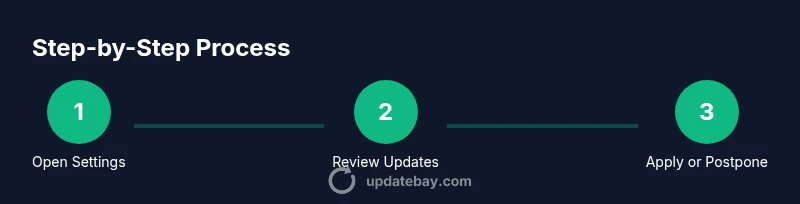
Begin by opening Settings and assessing which update controls you want to adjust. Then decide whether to postpone, hide, or enable automatic updates for low‑risk patches. Use Focus or Screen Time to suppress prompts during critical hours, and set a reminder to revisit updates later. Finally, consistently review the update log and install security patches promptly when feasible. These actions create a calmer notification environment while keeping your device secure.
Tools & Materials
- iPhone with current iOS(Any model with access to Settings and Notifications)
- Stable internet connection(Wi-Fi preferred for large updates and to avoid cellular data use)
- Access to Settings app(You’ll modify update controls here)
- Screen Time passcode (optional)(Needed if you plan to use Screen Time restrictions to hide prompts)
- Focus mode setup (optional)(Helps silence prompts during specific times)
- Apple ID credentials (for some changes)(May be needed to adjust related settings on some devices)
Steps
Estimated time: 15-30 minutes
- 1
Open Settings
Launch the Settings app on your iPhone and navigate to General. This is the first step to access Software Update controls and notification behavior. Having quick access makes it easier to review prompts when you choose.
Tip: If you use a long passcode, consider enabling Face ID/Touch ID for faster navigation. - 2
Check for available updates
Go to General > Software Update to view the current update status, note any pending prompts, and determine if the update is critical. This is the moment to decide whether postponement is appropriate or if an immediate install is warranted.
Tip: If you rely on essential apps, check the compatibility notes before delaying. - 3
Disable automatic updates (careful)
If you prefer control, disable automatic updates by going to Settings > General > Software Update > Automatic Updates and toggle off Install Updates. This reduces automatic installs and prompts but may delay security patches.
Tip: Only disable auto-updates if you’re ready to review updates manually on a routine basis. - 4
Hide update notifications with restrictions (optional)
Use Screen Time or Restrictions to limit when prompts appear. This can reduce interruptions, but you might miss updates unless you set a reminder to review later.
Tip: Balance restrictions with a weekly reminder to check for updates. - 5
Postpone updates using Focus or Downtime
Configure Focus modes or Downtime to suppress update prompts during work or study hours. This helps maintain focus while keeping a plan to revisit updates later.
Tip: Schedule a specific time block for review so postponement is intentional. - 6
Review each update’s importance
Before dismissing prompts, assess whether the update is critical for security or compatibility. Prioritize security patches and treat cosmetic changes as optional postponements.
Tip: If in doubt, install a security update rather than delaying it.
Frequently Asked Questions
Can I permanently stop iPhone update notifications?
No, you cannot permanently disable update prompts without risking security. You can reduce interruptions by adjusting settings and postponing when appropriate.
You can't permanently stop iPhone update prompts, but you can minimize them by adjusting settings and postponing when safe.
Will turning off automatic updates affect security?
Yes, turning off automatic updates may delay essential security patches. Manage prompts to install critical updates promptly.
Turning off automatic updates can delay security patches; review updates regularly.
Is there a risk in hiding notifications via Screen Time?
Hiding prompts can reduce interruptions but might cause you to miss important updates. Use cautiously and set reminders to check updates.
Hiding prompts can cause you to miss important updates; use cautiously.
Can Focus mode help with update prompts?
Yes, Focus modes can minimize prompts during work or sleep hours, but you'll still have to review updates later.
Focus modes can cut down prompts; review updates later.
What should I do if I see a phishing update prompt?
Do not click any links. Verify the prompt is from Apple by checking Settings directly and avoiding any suspicious messages.
Don't click links in suspicious prompts; verify via Settings.
Watch Video
What to Remember
- Reduce prompts safely without skipping security updates
- Use Focus and Downtime to minimize interruptions
- Review update importance before delaying
- Verify updates through official sources