How to Stop iPhone Automatic Updates: A Practical Guide
Learn safe steps to disable automatic iOS updates, delay non-critical patches, and choose when your iPhone installs new features and security fixes.


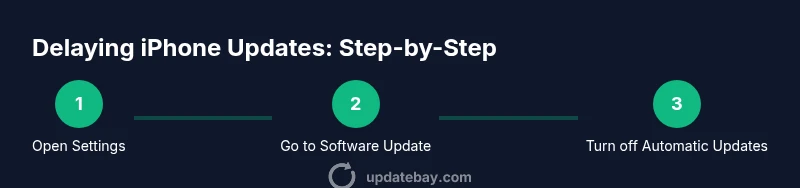
To stop automatic iPhone software updates, disable Automatic Updates in Settings. Open Settings > General > Software Update and toggle off Automatic Updates, then choose to check for updates manually when you’re ready. If you rely on cellular data or battery while updating, you may want to postpone updates further by keeping the device plugged in and connected to Wi‑Fi until you're prepared.
Understanding why people want to delay or avoid updates
Reasons to delay iPhone software updates vary widely. Some users want to avoid temporary bugs that can affect battery life or app compatibility, while others prefer to test updates on a smaller group of devices before rolling them out widely. In many cases, people simply want more control over when new features appear or how updates impact device performance. According to Update Bay, delaying updates is a common approach among tech enthusiasts who balance new features with stability and reliability. Keep in mind that delaying updates can expose devices to known security vulnerabilities over time, so it’s not a long-term strategy for most users.
When you pause updates, you gain predictability and time to plan. You can back up important data, review release notes, and schedule a convenient window to install the update. The key is to have a clear plan: decide how long you’ll wait, what conditions will trigger an update, and how you’ll verify system stability after installation.
Apple’s update model: automatic vs manual
Apple’s software update model centers on delivering new iOS versions with features, performance improvements, and security patches. Updates can be installed automatically if the device settings permit; otherwise, the user receives a notification to install at a later time. Automatic updates are designed to minimize manual maintenance, but some users prefer manual control to ensure they’re ready for potential changes to app behavior, storage usage, or battery impact. Understanding this model helps you decide whether to pause updates temporarily or adopt a manual update schedule. The Update Bay team notes that a balanced approach—reviewing updates and choosing a planned installation window—often yields the best mix of security and stability.
How to disable automatic updates safely
Disabling automatic updates is a multi-step process that protects you from unexpected installations. Start by opening the Settings app and navigating to General > Software Update. If you see Automatic Updates, toggle it off. It’s wise to back up your iPhone before making any changes, so you can recover data if something goes wrong. After turning off automatic updates, regularly check for updates at a time you designate. This helps you stay informed about new features and security fixes without sacrificing control over when your device changes.
If your iPhone is shared or has screen-time restrictions, ensure those settings don’t re-enable updates unexpectedly. Consider writing a short reminder or using a calendar event to prompt a manual check.
Alternatives to avoid updates while preserving security
Delaying updates doesn’t mean ignoring security. You can maintain reasonable protection by focusing on app updates, which often come with their own security improvements. Regularly review app permissions and remove unused apps that may introduce risk. For users who must stay on an older iOS version for compatibility, monitor trusted security advisories and risk indicators. When in doubt, schedule a dedicated maintenance window to install critical patches and test essential apps for stability. Remember, long-term avoidance of iOS updates increases exposure to vulnerabilities that are addressed in later versions, so plan timely upgrades when feasible.
Managing update prompts and notifications
Managing how and when you’re reminded about updates helps reduce anxiety about unexpected changes. Check your notification and Focus settings to reduce nuisance alerts while keeping a clear channel for important updates. You can also set aside a fixed daily or weekly time to check for updates, review notes, and assess compatibility with essential apps. This approach preserves control while ensuring you don’t miss critical security fixes.
Step-by-step: check for updates manually while delaying
- Open the Settings app and tap General. 2) Tap Software Update to view the latest iOS version available. 3) Read the Release Notes to understand new features and potential issues. 4) If you’re ready, press Install to begin the update; otherwise, resume delaying and set a reminder for your next planned check. 5) After updating, verify that your key apps behave as expected and note any new storage or battery implications. 6) If problems arise, consult support resources or restore from a backup before attempting another update.
Tip: Always back up before you apply updates, so you can recover quickly if things don’t go as planned.
Common scenarios and decision trees
- If you depend on critical apps that aren’t guaranteed to work on the newest iOS, delay up to a planned date while testing compatibility.
- If battery life worsens after an update, consider postponing future updates until you’ve verified battery performance or adjusted settings.
- If you rely on security features only available in newer versions, set a firm timeline and update when you can meet that requirement with a safe maintenance window.
- For devices used in business contexts, align your update policy with your organization’s security and compliance guidelines. The goal is to minimize downtime while preserving security.
- If a major bug appears after an update, check for official patches or quick workarounds before deciding whether to re-apply the update.
Risks of delaying updates
Delaying updates can leave your device exposed to known vulnerabilities that developers fix in later releases. In addition, some apps may require newer iOS versions to function correctly, leading to compatibility issues or degraded performance over time. Frequent or extended postponement can complicate support, limit access to new features, and increase the effort needed during a future upgrade. The decision to delay should be time-boxed and revisited at regular intervals to avoid prolonged exposure to risk.
Best practices for staying secure while delaying updates
- Schedule regular checks for updates and apply them within a planned window.
- Back up data before applying updates and test critical apps beforehand.
- Monitor security advisories from trusted sources and consider micro-updates that address high-severity issues.
- Keep all essential backups up to date and ensure your device is protected by strong authentication and screen lock settings.
- Avoid downloading unverified updates or beta builds outside official channels, as these can introduce new risks while you delay.
When to finally update: a practical checklist
Before performing the final update, confirm you have a recent backup, sufficient storage, and a stable power source. Review release notes for potential changes that could affect your routine or key apps. Verify that crucial apps work as expected in a controlled test environment. If everything looks good, schedule the update for a low-traffic time and monitor the device for performance changes after installation. This approach helps you re-enter the update cycle with confidence.
Bonus: other tips for iPhone maintenance
- Keep your iPhone organized by regularly deleting unused apps and clearing cache data where appropriate.
- Review app permissions to limit data access to only what’s necessary.
- Use Find My iPhone and device protection features to secure your device in case of loss or theft.
- Regularly review storage usage and offload unused apps or media to maintain performance.
- Maintain good charging habits and avoid extreme battery cycles to maximize longevity.
Tools & Materials
- iPhone with sufficient battery(Battery should be >20% for updates or keep charging during installation)
- Stable Wi‑Fi connection(Prefer 5 GHz network for faster downloads)
- Recent backup(Backup to iCloud or computer before delaying or applying updates)
- Access to Settings(You’ll need to navigate to Software Update and related menus)
- Planned maintenance window(Optional but helpful for scheduling updates)
Steps
Estimated time: 20-40 minutes
- 1
Open Settings and navigate to General
Launch the Settings app, then tap General to access system-wide options. This is the first necessary step before managing updates or changing how your device installs them.
Tip: If you share your device, ensure screen time or family controls won’t override your settings. - 2
Tap Software Update
In General, select Software Update to view the current version and available updates. This screen is where you’ll see the “Install” option and the status of automatic update settings.
Tip: Take a quick look at the Release Notes to assess impact before proceeding. - 3
Turn off Automatic Updates
If the option is available, switch off Automatic Updates to prevent automatic installation. This step is critical for keeping control over when changes occur.
Tip: Back up your data first in case the update affects configuration or apps. - 4
Back up your iPhone
Create a fresh backup to protect your data in case the update introduces issues or you need to roll back.
Tip: Use iCloud or a local backup to ensure you can restore quickly. - 5
Plan a manual update schedule
Decide a specific day or time frame for checking and applying updates, so you stay in control.
Tip: Set a calendar reminder to review notes and start the update window. - 6
Check for updates on your schedule
When your window arrives, open Settings > General > Software Update to see if a new version is available and read the release notes.
Tip: If you find a blocker (compatibility issue, app crash), pause and reconsider timing. - 7
Review notes and app compatibility
Read the update notes and verify critical apps behave as expected in a test session before installing.
Tip: Test essential apps with a small data task to confirm stability. - 8
Install update during low-traffic period
If you proceed, install during a time with minimal activity to reduce disruption and monitor performance afterward.
Tip: Keep the device plugged in; avoid battery drain surprises mid-update.
Frequently Asked Questions
Can I completely disable updates forever on iPhone?
In most cases you can disable automatic updates, but iOS may eventually require updates for security. Plan a controlled update window to stay protected while maintaining uptime.
You can turn off automatic updates, but you should still check for security patches regularly and update on a planned schedule.
Will delaying updates affect security?
Yes, delaying updates can leave your device vulnerable to issues fixed in newer versions. Consider a defined delay with a timetable for security patches.
Delaying can increase risk; set a clear plan to install security fixes on a scheduled basis.
How often should I check for updates while delaying?
Check for updates at a regular cadence, such as weekly, and install when you’ve verified compatibility and stability.
Check once a week and install when it fits your plan and app compatibility.
What if an update is mandatory for apps I rely on?
Some apps work best on newer iOS versions. If essential apps require an update, you may need to upgrade or seek alternatives, weighing risks.
If critical apps require a newer iOS, plan the upgrade carefully or look for alternatives.
Does Airplane mode stop iOS updates from installing?
Airplane mode won’t reliably stop updates that are scheduled. Use the official settings approach to disable automatic updates for consistent control.
Airplane mode isn’t a reliable method for controlling updates; use the settings approach instead.
Watch Video
What to Remember
- Disable automatic updates to regain control.
- Back up before delaying or installing updates.
- Check for updates on a planned schedule and review release notes.
- Delaying updates carries security risk; balance with maintenance windows.
- Reassess periodically and update when feasible.