How to Manage Updates on Windows 11
Learn how to manage Windows 11 updates effectively—locate Update settings, pause and defer updates, configure active hours, review history, and troubleshoot issues with confidence.


Today you’ll learn how to manage updates on Windows 11: locate Windows Update in Settings, control automatic updates, pause and resume, set active hours, defer feature and driver updates when appropriate, select delivery optimization options, review update history, and troubleshoot common issues so your device stays secure and stable.
Why Update Management Matters on Windows 11
Keeping Windows 11 up to date is essential for security, stability, and access to new features. Regular updates patch security vulnerabilities, fix bugs, and improve performance. In practice, most updates include security improvements that close gaps attackers could exploit and improve hardware compatibility for peripherals you rely on daily. For individuals, timely updates reduce crash risk and firmware conflicts that disrupt work or play. For organizations, disciplined update management helps maintain standard configurations and reduce downtime.
According to Update Bay, proactive update governance saves time and avoids surprise restarts during critical tasks. The modern Windows update framework is designed to deliver patches with minimal user disruption, while still allowing you to tailor how and when updates occur. Understanding the lifecycle of updates—the way security patches, cumulative quality updates, and optional feature updates flow through your device—helps you plan around compatibility windows and backup cycles. A thoughtful approach balances security with productivity. When you control updates, you can test compatibility before rollout to multi-user devices, reducing the risk of software conflicts.
Key takeaway: good update hygiene translates to a more reliable, secure computing environment, whether you’re at home, studying, or managing a small business. Update Bay's guidance emphasizes clarity and consistency over aggressive update schedules.
Where to Find Windows Update Settings in Windows 11
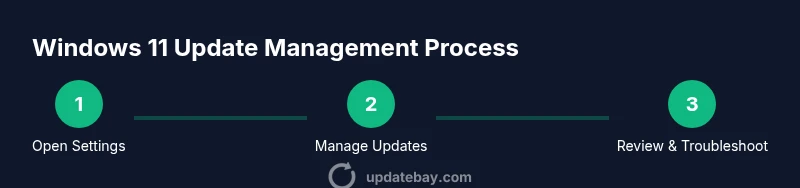
To manage updates, start from the desktop and open Settings. Navigate to Windows Update on the left-hand panel, then click Check for updates to see the current patch status. In this area you can pause updates, resume, and configure active hours so restarts occur when you're not actively using the device. You’ll also find options for feature updates, driver updates, and delivery optimization under Advanced options. If you’re using a managed device, many of these controls may be restricted by policy, in which case contact your IT administrator.
For quick access, you can also start typing Windows Update in the Start menu search and select the Windows Update settings result. Once inside, review your update history to confirm installations and identify any failed attempts. Regular checks help you stay informed about update quality and security improvements. Remember to enable automatic updates if you want the system to handle patches without manual prompts, but you can still intervene when needed for stability.
Basic Update Controls: Pause, Resume, and Active Hours
Windows Update offers several core controls that you’ll use regularly. Start by selecting Pause updates to temporarily stop downloading and installing, which is helpful during busy work periods or when you’re troubleshooting other issues. When you’re ready, choose Resume updates to continue patching. Set Active Hours to define a window during which restarts won’t occur, minimizing disruption to work or study. You can adjust these hours to reflect your daily schedule.
Delivery Optimization lets you download updates from peers on the local network or the internet, which can speed up patching on devices with limited bandwidth. If you’re on a metered connection, consider enabling Metered Connection to suppress non-critical updates. These basic controls keep updates predictable while preserving your workflow.
Deferring Features vs Security Updates: Strategies for Stability
Not all updates are equally urgent for every user. Security updates are typically a higher priority than feature updates, which may introduce interface changes or new features you don’t need immediately. If you rely on specific software compatibility, consider deferring feature updates until you’ve validated needed apps and hardware. In organizational environments, policy-based deferral can help manage rollout timing while maintaining essential security patches.
A thoughtful deferral strategy reduces the risk of incompatible drivers or software while you maintain a secure baseline. Always test updates on a small subset of devices before broader deployment, and maintain a rollback plan in case a new feature update introduces issues.
Advanced Options: Delivery Optimization, Metered Connections, and Policies
For more control, explore Advanced options. Delivery Optimization can be configured to allow downloads from other devices on your network or from Microsoft’s peers, which can improve speed on slower connections. You can also adjust how much bandwidth updates may use, especially during peak work hours. If you’re on a limited data plan, enable Metered Connection to limit automatic updates and reduce data usage. In enterprise or education settings, update policies via Group Policy or Mobile Device Management (MDM) let admins set update schedules, deferral windows, and restart behavior.
Knowing these options helps you tailor Windows Update to your bandwidth, schedule, and risk tolerance, without compromising security.
Troubleshooting Common Update Issues
If an update fails to install, first review the error code and search for its meaning in the Windows Update history. Running the built-in Windows Update Troubleshooter can identify configuration or network issues quickly. Ensure you have enough disk space and a reliable internet connection. If problems persist, reset Windows Update components or consider a repair install to reestablish a healthy update pipeline without wiping your files.
Documenting the error details and reproducing steps can help you seek targeted support when needed. Regularly reviewing logs and recent changes to your system can reveal patterns that point to specific conflicts, drivers, or software interoperability issues.
Home vs Pro Editions: What Changes for Update Management
Windows 11 Home handles updates automatically with fewer user controls, focusing on ease of use. Windows 11 Pro introduces more advanced options via Group Policy and MDM, enabling administrators to configure deferral periods, restart behavior, and delivery optimization across multiple devices. If you manage a small business or a power user environment, Pro’s extended controls can reduce downtime and improve consistency in patch levels. Regardless of edition, maintaining a routine update plan is essential for security and performance.
Quick Post-Update Checklist
After applying updates, take a few minutes to verify system health. Check that updates completed successfully in the update history, ensure no unexpected restarts occurred during critical tasks, and run a quick performance check to spot any slowdowns. Confirm that security settings and privacy preferences remain as intended after patches. Finally, schedule the next review to stay current, and keep a backups routine in place before major feature updates.
Tools & Materials
- Windows 11 device with admin rights(Ensure you can access Settings and modify Windows Update settings)
- Stable internet connection(Reliable connectivity helps downloads complete without corruption)
- External backup storage(Recommended before major feature updates)
- Power source (AC adapter)(Keep the device powered during updates to avoid mid-process shutdowns)
- Access to Windows Settings app(Navigate to Settings > Windows Update for management)
- Windows Update Troubleshooter (optional)(Useful for diagnosing update issues quickly)
Steps
Estimated time: 25-40 minutes
- 1
Open Windows Settings
Open the Start menu and select Settings to access the Windows Update area. This is your first step to manage updates manually or configure automatic options.
Tip: If Settings doesn’t open, try pressing Windows key + I. - 2
Open Windows Update
Navigate to Windows Update on the left panel to view current patch status and available updates. This is where you’ll perform most management actions.
Tip: Click Check for updates to see the latest patches. - 3
Pause updates
If you need more time to finish a task, use Pause updates to temporarily stop downloads and installations. Plan a specific pause window that won’t disrupt work.
Tip: Avoid prolonged pauses; resumes ensure security patches are applied timely. - 4
Set Active Hours
Configure Active Hours to prevent automatic restarts during your typical work or study times. This keeps interruptions to a minimum.
Tip: Update Active Hours as your schedule changes. - 5
Review Advanced options
Open Advanced options to adjust delivery optimization, and determine whether to receive updates from other devices or peers.
Tip: Enable delivery optimization only if you trust the network sources. - 6
Defer feature updates (if needed)
If you rely on specific software, consider deferring feature updates until you’ve verified compatibility. This reduces risk of disruption.
Tip: Test critical apps on a staged device before broad deployment. - 7
Back up before major updates
Before applying major feature updates, back up essential files to an external drive or cloud storage to protect data.
Tip: Create a system restore point where possible. - 8
Apply updates and restart when ready
Proceed with updates and allow Windows to restart when you’ve planned a quiet window. Verify post-update stability afterward.
Tip: If a restart is needed, schedule it during low-impact times.
Frequently Asked Questions
Where are Windows Update settings located in Windows 11?
Open Settings from the Start menu, then select Windows Update to view status, pause, resume, and adjust auto-update options. Advanced options provide delivery optimization and update deferral settings. Managed devices may have restrictions based on policy.
Open Settings, go to Windows Update to view status and adjust how updates are installed. If your device is managed, some options may be restricted by policy.
How can I pause updates in Windows 11?
In Windows Update, choose Pause updates to temporarily stop downloads and installations. You can resume later when you’re ready. Use this to avoid interruptions during important tasks.
Go to Windows Update and pause updates; resume later when you’re ready.
What’s the difference between feature updates and quality updates?
Feature updates add major changes and new capabilities, while quality updates provide security and reliability fixes. Deferring feature updates can help maintain compatibility with existing software.
Feature updates bring new capabilities; quality updates fix security and reliability issues.
Can I control driver updates?
Yes. Windows Update may offer driver updates, and you can configure how they’re installed via Update settings and Advanced options. In some cases, use device manager to install specific drivers.
You can manage driver updates via Windows Update or Device Manager if needed.
What should I do if an update fails to install?
Check the update history for error codes, run the Windows Update Troubleshooter, and ensure enough disk space. If needed, reset Windows Update components or seek expert guidance.
Review error codes, run the troubleshooter, and ensure space before trying again.
Do Windows 11 Pro users have more control over updates?
Yes. Windows 11 Pro offers Group Policy and MDM options for more granular update management, including deferral windows and restart behavior across devices.
Pro users get more control via Group Policy and MDM.
Watch Video
What to Remember
- Know where to find Windows Update settings
- Use Pause, Active Hours, and delivery optimization for control
- Differentiate between feature and security updates
- Back up data before major feature updates
- Troubleshoot with built-in tools when problems arise