How to Stop an Update on Mac
Learn safe, practical steps to stop or delay macOS updates, with tips to minimize risk and how to re-enable updates later. A practical guide by Update Bay.


If you’re looking for how to stop a update on mac, this guide shows safe, practical ways to pause or delay a macOS update without risking data loss. You’ll learn when to pause, how to cancel a download, and how to re-enable updates later for ongoing security and stability.
how to stop a update on mac: Practical starting point
In many cases, you can safely stop a macOS update before it finishes downloading or installing. According to Update Bay, the safest approach is to pause or delay the update rather than forcing an abrupt shutdown. This section explains why timing matters, what parts of the update process are most vulnerable to interruption, and how to minimize risk if you must intervene. A calm, methodical approach helps protect your data and keeps your Mac ready for a future upgrade when you’re prepared.
Understanding macOS update flow
macOS updates typically move through a download phase followed by installation. During the download, macOS may show a progress bar in System Settings (or App Store in older macOS versions). If you interrupt mid-download, you can often resume later without issue. If the installer has begun, however, stopping becomes riskier because an incomplete install can leave the system in an inconsistent state. Knowing where you are in the process helps you choose the best next step and reduces the chance of corruption or boot issues. Update Bay’s analysis emphasizes planning ahead and backing up before attempting any interruption, especially for major upgrades.
Pausing downloads and updates mid-process
If a download is still active, your first option is to cancel the download from the Software Update pane or App Store’s Downloads section. Look for a cancel or X button next to the progress indicator. If you’re using System Settings on macOS Ventura and later, you may see a pause option or simply a delay by turning off the automatic download option and leaving the device to complete later. Be aware that not all updates have a formal pause control; in some cases, you must cancel and re-initiate when ready. Always confirm that the partial download will not resume automatically until you approve.
Delaying future updates without disabling updates
Rather than turning updates off entirely, you can set a delay to reduce disruption. In System Settings > General > Software Update, choose Advanced and disable automatic installation or postpone heavy updates for a chosen window. This approach lets you stay informed about new versions while preventing unexpected restarts. You’ll still receive notifications and can schedule a manual update at a convenient time. This strategy aligns with best practices for stability and data protection while keeping security in sight.
Disabling automatic updates safely
If you need a longer pause, you can temporarily disable automatic checks. In macOS, this typically involves turning off the option to automatically download or install updates, plus toggling off Automatic Updates in Advanced settings. Keep in mind that disabling updates reduces exposure to security patches, so plan to re-enable on a known maintenance window. If you’re using Terminal, the command to disable automatic schedule is a powerful tool—use it only if you’re comfortable with system commands and have a recent backup.
Using Terminal and built-in tools carefully
Terminal provides more control: for example, you can turn off scheduled update checks with a command like sudo softwareupdate --schedule OFF and re-enable it with --schedule ON. You can also inspect what updates are queued using softwareupdate -l. If you choose to stop a running install, remember that this is higher risk and can require recovery steps later. Use Terminal only if you have a backup and are confident in reversing changes if something goes wrong.
Safety considerations and data protection
Before attempting any stop or pause, back up important data. Time Machine or another backup solution protects you if an interrupted install leaves the system unstable. Avoid abrupt power-offs during an install; use proper shutdown procedures if the installer is not progressing, and consult macOS support resources if you encounter a stalled process. The most reliable route to a safe outcome is to stop, back up, and resume updates when you’re prepared rather than forcing an abrupt halt.
When to re-enable updates and verify health
After pausing, verify your Mac remains healthy by checking disk space, running a malware scan if needed, and confirming that your user data is intact. When you’re ready to re-enable updates, return to System Settings > General > Software Update and re-enable automatic checks or schedule future updates during a low-activity period. Monitor update progress for a few minutes to ensure the system resumes normally, and keep an eye on any prompts requiring a restart. Regular updates improve security and stability, so plan a maintenance window for this task.
Tools & Materials
- Mac computer with macOS(Ensure you have admin access if you plan to change settings)
- Stable internet connection(Used to avoid partial downloads or corrupted packets)
- Recent backup (Time Machine or similar)(Back up before interrupting a download or install)
- Access to System Settings/Software Update(You may need your admin password)
- Terminal (optional)(Only if you are comfortable with macOS commands)
Steps
Estimated time: 20-30 minutes
- 1
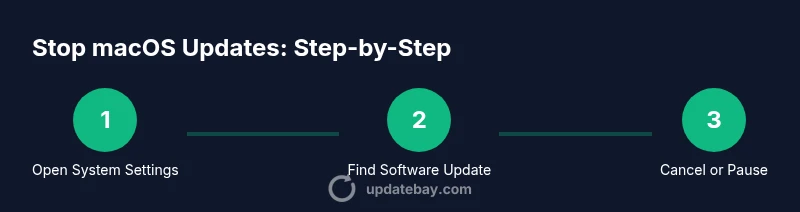
Open System Settings and locate Software Update
Navigate to System Settings (or Preferences on older macOS). Open General, then click Software Update to view the current download/install status. Identify whether a download is active or if an installer is running.
Tip: If you spot a cancellation option next to the update, use it to stop the in-progress download. - 2
Cancel the active download if possible
If a download is in progress, click the cancel or X button beside the progress indicator. This stops further data from downloading and prepares you for the next steps.
Tip: If no cancel button exists, force quitting the update pane and reopening may allow a cancellation on retry. - 3
Disable automatic downloads temporarily
In Advanced settings, turn off automatic download of updates. This prevents future updates from starting without your knowledge for a set period.
Tip: Note the window you choose to re-enable updates so you don’t forget. - 4
Consider using Terminal to schedule updates
If you are comfortable, run sudo softwareupdate --schedule OFF to disable automatic checks, then re-enable with --schedule ON when ready.
Tip: Only run Terminal commands you understand; incorrect usage can affect system behavior. - 5
Assess whether to stop an update mid-install
If the installer has already begun, assess risk. Stopping mid-install can leave the system in a non-bootable state. Prefer waiting or using official cancellation options when available.
Tip: Always have a backup before attempting to stop an install. - 6
Back up and verify before resuming
Backups validate you can recover if something goes wrong. After pausing, verify disk integrity and free space before resuming updates.
Tip: Ensure you have at least 15-20% free disk space before resuming. - 7
Re-enable updates on a planned maintenance window
When ready, re-enable automatic updates or schedule a manual update during low-impact hours. This ensures you stay current with security patches and features.
Tip: Set a reminder to re-check for updates within a defined window. - 8
Monitor outcome and keep notes
Watch for any prompts requiring restarts. If issues appear, consult official Apple support or the Update Bay guidance for troubleshooting steps.
Tip: Document any changes you make for future reference.
Frequently Asked Questions
Can I stop a macOS update after it has started installing?
Stopping an update after installation has begun is risky and may require recovery steps. If a cancel option exists, use it; otherwise, allow the installer to finish if it’s a critical security update, or seek official support.
Stopping an update after it starts installing is risky. If a cancel option exists, use it; otherwise follow official guidance to avoid system issues.
Will stopping an update damage my Mac?
Abruptly stopping an update can leave temporary files or partial installations that may cause boot or stability issues. Always back up first and prefer safe cancellation options when available.
Stopping an update can risk boot or stability issues. Back up first and use cancellation options when available.
How do I re-enable updates after stopping them?
Return to System Settings > General > Software Update and re-enable automatic checks or schedule updates. You may also use Terminal commands to re-enable schedule if you previously disabled it.
Go back to Software Update and re-enable automatic checks, or re-enable them via Terminal if you used commands to disable them.
Is there a permanent way to stop updates?
Permanently stopping updates is not recommended by Apple. You can disable automatic checks temporarily, but you should plan to re-enable updates to stay protected with security patches.
There isn't a recommended permanent stop. You can disable automatic checks temporarily, then re-enable for security.
What should I back up before stopping an update?
Perform a full backup using Time Machine or your preferred method. This ensures you can recover if something goes wrong during an interrupted update.
Back up with Time Machine or your chosen method before stopping an update to protect your data.
What if the update is a critical security patch?
For critical security updates, it's generally best to complete the update or consult official guidance before interrupting. Delays should be short and planned, as vulnerabilities may remain exposed.
If it's a critical security patch, complete the update or follow official guidance. Delays should be brief and planned.
Watch Video
What to Remember
- Pause or cancel downloads when possible to avoid partial installs
- Back up before making changes to OS updates
- Use System Settings to delay automatic updates
- Re-enable updates on a planned schedule to maintain security
- Avoid force quitting during an install unless you have a recovery plan