How to Stop Updates on iPad: A Practical Guide
Learn practical steps to stop automatic updates on iPad, manage OS and app updates, and safely re-enable updates when ready. Clear paths, safety notes, and best practices from Update Bay.


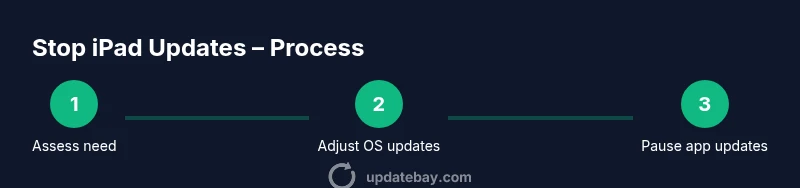
By following this guide you’ll learn how to stop automatic iPadOS updates and pause app updates on your iPad, while keeping control over when updates occur. You’ll find the exact Settings paths for OS and apps, plus how to remove a downloaded iPadOS update if needed. This covers OS and app updates, with tips on safely re-enabling updates later.
Why you might want to stop updates on iPad
There are legitimate reasons to pause or slow updates on an iPad. You may want to conserve data while on a limited plan, free up storage, avoid new bugs introduced by an unstable release, or maintain compatibility with essential apps that briefly break after an OS change. According to Update Bay, many users choose to pause automatic updates for a grace period to test stability before embracing new features. The decision should balance security, performance, and the apps you rely on daily. When you ask how to stop update on ipad, you’re really weighing control against the benefits of staying current with the latest fixes. This guide will walk you through OS and app update controls, how to temporarily suspend downloads, and best practices for re-enabling updates when you’re ready.
OS updates vs. app updates: what changes when you stop updates on iPad
System updates (iPadOS) bring security patches, new features, and bug fixes, but they can also introduce incompatibilities with some apps or workflows. App updates upgrade individual applications but do not require a full device reboot. If your priority is stability and predictability for critical tasks, you’ll want to understand the difference between stopping OS updates and stopping app updates. This distinction helps you apply the right controls without sacrificing all improvements. Update Bay’s guidance emphasizes clear separation between OS and app maintenance so you don’t miss important security patches while avoiding unwanted changes to everyday apps.
Step-by-step: disable automatic iPadOS updates (OS level)
If you want to stop the device from automatically installing iPadOS updates, you’ll need to adjust a couple of menu options. Open Settings, go to General, select Software Update, then tap Automatic Updates. Turn off the toggle for Automatic Updates, and if present, disable both Download iPadOS Updates and Install iPadOS Updates. This prevents automatic downloads and installations, giving you full control over when to update. Keep in mind you can still check for updates manually from Settings > General > Software Update when you’re ready.
Step-by-step: disable automatic app updates (apps level)
App updates can be controlled separately from OS updates. Open Settings, tap App Store, and switch off App Updates. If your device uses automatic downloads, you may also want to disable Automatic Downloads for Apps to ensure new apps don’t install without your consent. These settings help avoid unexpected feature changes in your apps while you focus on stability. You can still update apps manually when needed.
How to pause or remove a downloaded update (temporary pause)
If an OS update has been downloaded but not installed, you can remove it to pause the process. Go to Settings > General > iPad Storage, locate the update entry (e.g., “iPadOS 16.5 Update”), and delete it. This removes the pending update and stops installation until you choose to re-download it. Periodically recheck for updates to stay informed about security patches, then re-download at a convenient time.
When to re-enable updates and how to test changes
Re-enabling updates should be a planned decision, not an afterthought. When you’re ready, re‑enable OS updates by turning Automatic Updates back on and turning on Download and Install options as desired. Do the same for apps if you want future updates. After you re-enable, consider running a quick backup and a test update outside peak hours to confirm everything runs smoothly.
Safety, security, and best practices when updating (risks and precautions)
Delaying updates increases exposure to known vulnerabilities, so re‑enabling updates on a regular cadence is wise. Always back up before major OS updates, test critical apps after any update, and monitor battery health during installations. If you rely on a managed device in a work environment, consult your IT policy, as some organizations require timely updates for security reasons. Update Bay recommends balancing control with timely protection.
Practical alternatives to reduce update impact
If you want to reduce update disruption without permanently stopping updates, schedule notifications, create a reminder window for updates, and use a secondary Wi‑Fi network for testing. Keeping a storage buffer for updates and maintaining a clean device with less clutter can also help speed up installation when you do choose to update. This approach maintains security while giving you control over timing.
Tools & Materials
- iPad with charged battery(Keep at least 50% battery or plugged in during changes)
- Stable Wi‑Fi connection(Ensure reliable download speeds if you do re-enable updates)
- Access to Settings app(You’ll need to navigate to Software Update and App Store settings)
- A recent backup(Always back up before major OS changes)
Steps
Estimated time: 12-20 minutes
- 1
Decide update scope
Determine whether you want to stop OS updates, app updates, or both. This clarifies which menus you’ll adjust and prevents over-tweaking in one area.
Tip: Think about security needs and app compatibility before turning anything off. - 2
Open Settings and check OS updates
Open Settings > General > Software Update. Tap Automatic Updates, switch it off if available, and confirm that Download and Install options are disabled.
Tip: If the options aren’t visible, your iPadOS version may present updates as a single toggle. - 3
Disable app updates
Go to Settings > App Store and switch off App Updates. Consider turning off Automatic Downloads for Apps as well to prevent silent installs.
Tip: This protects you from unexpected app changes but keeps you in control for manual updates. - 4
Remove a downloaded iPadOS update
If an update file has been downloaded, go to Settings > General > iPad Storage, locate the update entry, and delete it to pause installation.
Tip: Deleting the update doesn’t affect existing apps or data. - 5
Plan re-enablement
When you’re ready, re-enable Automatic Updates for OS and Apps, preferably during a low‑traffic time, and monitor for any post-update issues.
Tip: Consider enabling updates for a small window first to confirm stability. - 6
Back up before updates
Before re-enabling updates or applying a major OS change, perform a fresh backup to iCloud or iTunes/Finder.
Tip: Backups protect you if something goes wrong during the update process. - 7
Verify device health after updates
After updates, check key apps and features to ensure everything runs smoothly and battery life is stable.
Tip: If issues arise, seek official support or roll back if possible.
Frequently Asked Questions
Can I completely stop updates on an iPad forever?
You can disable automatic updates, but Apple may push updates through later or require them for security fixes. It’s generally better to re-enable updates periodically. This approach balances control with ongoing protection.
You can disable automatic updates, but Apple may push updates later. Re-enable updates periodically for security.
Will turning off automatic updates affect device security?
Yes, delaying OS updates can leave vulnerabilities unpatched longer. Manual checks for critical security updates are recommended, and plan to re-enable updates within a reasonable window.
Delaying updates can leave vulnerabilities. Check for critical patches regularly and re-enable updates soon.
How do I prevent apps from updating automatically?
Go to Settings > App Store and toggle off App Updates. This stops automatic upgrades, but you can update apps manually when convenient.
Turn off App Updates in Settings to manage app versions manually.
Is there a way to pause a downloaded OS update temporarily?
Yes. If the update is downloaded but not installed, delete the update from Settings > General > iPad Storage to pause installation until you’re ready.
Delete the downloaded update in storage to pause installation.
What should I do after re-enabling updates?
Back up your device, then monitor for minor issues after the update, and recheck key apps for compatibility.
Back up first and monitor for any issues after re-enabling updates.
Can I update OS and apps at different times?
Yes. Re-enable updates for OS first, verify stability, then update apps as a separate step to isolate issues.
Update OS first, then apps to isolate issues.
Watch Video
What to Remember
- Decide OS vs apps update scope before changing settings
- Turn off Automatic Updates for OS and Apps to stop automatic updates
- Delete a downloaded OS update to pause installation
- Re-enable updates on a planned schedule and test