How to Stop a Update on iPhone
Learn practical, safe steps to pause or stop an iPhone update, remove downloaded update files, and manage prompts without risking data loss or device stability.


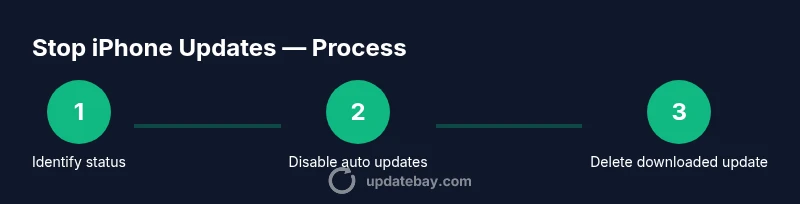
To stop a update on iPhone, begin by disabling automatic updates and deleting any downloaded update file if present. If an update is already in progress, look for a Cancel or Pause option; if unavailable, remove the downloaded update and restart your device. This guide covers safe, non-destructive methods to halt updates and regain control.
Why stopping updates on iPhone is sometimes desirable
According to Update Bay, there are practical reasons why someone might want to stop a update on iphone. In many cases, users want to control when updates install because of data limits, work schedules, or compatibility concerns with essential apps. If you're researching how to stop a update on iphone, you’re not alone. Managing updates safely means knowing what you can pause, what you can delete, and how to prevent automatic downloads from reappearing. This guidance emphasizes non-destructive options that protect your data and keep your device predictable. Remember that stopping updates is often a temporary choice to allow backup, testing, and planning before continuing with an upgrade. The Update Bay approach focuses on clarity, safety, and practical steps you can take without risking your apps, photos, or settings.
How iOS updates are delivered and why you can interrupt
iOS updates are delivered over the air (OTA) and are usually downloaded in the background before installation. The update package may appear under Settings > General > Software Update and also occupy storage space in Settings > General > iPhone Storage. In many cases, you can interrupt a download or installation by pausing, canceling, or deleting the downloaded file. Knowing this flow helps you decide when to stop the process: it’s safer to intervene before the update progresses too far or before it requires a reboot. While stopping an update is possible, it is not a guarantee against automatic reattempts, so you should also adjust your update preferences to prevent future automatic downloads.
Safety and limitations before stopping an update
Stopping an update is not without trade-offs. Delaying updates can leave your device missing important security patches and feature improvements, so use these steps with the aim of a temporary pause rather than a permanent block. Always ensure you have a recent backup before making changes. If you rely on critical apps or enterprise configurations, test compatibility after pausing updates to avoid issues after the upgrade resumes. Update Bay emphasizes non-destructive methods and cautions against trying to disable essential system processes or using third-party tools that could compromise device integrity.
Step to remove a downloaded iOS update
If you have a downloaded update file stored on your iPhone, you can free space and stop installation by removing it. Navigate to Settings > General > iPhone Storage, locate the entry labeled something like “iOS Update” or the version number, and select Delete Update. Deleting this file prevents the installer from launching automatically, especially when automatic updates are re-enabled later. This action does not affect your personal data, apps, or media; it only removes the update package that was downloaded to your device.
How to disable automatic updates to delay future updates
Disabling Automatic Updates prevents iOS from downloading updates in the background. Go to Settings > General > Software Update > Automatic Updates and toggle off both options if present. This action reduces the likelihood that a new update will automatically download without your knowledge. If you still want some control, you can leave automatic installation enabled but set the device to notify you before installing, allowing you to choose a convenient time to proceed. Remember to re-enable automatic updates when you’re ready to receive security patches and feature improvements.
Manage update prompts and data usage
Update prompts can interrupt your workflow, especially on slower networks or limited data plans. Use Wi‑Fi whenever possible to download updates, and ensure your battery is charged or the device is plugged in to avoid mid-download interruptions. If prompts persist, take a moment to adjust notification settings or turn off reminders for updates temporarily. The goal is to minimize disruptions while keeping your device secure and functional.
Re-enabling updates after stopping them
When you’re ready to resume updates, revisit Settings > General > Software Update and re-enable Automatic Updates if you paused them. You can also choose to install updates manually at a convenient time, especially after confirming app compatibility and backing up data. After re-enabling updates, monitor the installation progress and verify that the device remains stable post-update. This measured approach helps maintain device performance while staying current with security improvements.
Troubleshooting and when to seek help
If updates repeatedly resume automatically despite your settings, double‑check that all devices in your iCloud account aren’t pulling the update from a shared backup. If problems persist, consider contacting Apple Support or visiting an Apple Store for hands-on assistance. For most users, the combination of disabling automatic updates, deleting downloaded files, and restarting the device resolves the issue without data loss or device instability.
Tools & Materials
- iPhone with charged battery(Keep power during settings changes to avoid mid-process shutdown.)
- Settings app(Built-in app; no installation required.)
- Stable internet connection (preferred Wi‑Fi)(Avoid data charges and ensure download stability.)
- Apple ID credentials (optional but helpful)(Needed if re-enabling updates with account restrictions.)
- Backup solution (iCloud or computer)(Recommended before major changes.)
Steps
Estimated time: 20-25 minutes
- 1
Open Settings
Open the Settings app on your iPhone. This is the starting point for accessing General and Software Update options. You will set the permissions that control future updates.
Tip: Have your device charged or plugged in before modifying settings. - 2
Go to General
Tap General to access high-level device settings, including Software Update. This keeps you in a safe, central place for update control.
Tip: Look for a gear icon if you’re unsure where General sits in your menu. - 3
Tap Software Update
Open the Software Update screen where you can view the current update status and options. This area shows whether an update is pending, downloading, or installing.
Tip: If no update shows here, proceed to iPhone Storage for downloaded updater. - 4
Turn off Automatic Updates
Tap Automatic Updates and toggle off to prevent automatic background downloads. This helps you pause future updates across the system.
Tip: Turning this off doesn’t delete any existing downloaded files. - 5
Delete the downloaded update
If there’s a downloaded iOS update in Settings > General > iPhone Storage > iOS Update, tap Delete Update to reclaim space and stop installation.
Tip: Deleting the file does not affect your apps or data. - 6
Restart your iPhone
Restart the device to ensure changes take effect and any partial download is cleared from memory.
Tip: A quick restart can help clear stuck background tasks. - 7
Check for pending updates
Return to Software Update to confirm there are no pending updates or to set a reminder for later.
Tip: If you plan to update later, use Remind Me Later if available. - 8
Adjust prompts and reminders
Review any remaining prompts and reminders to ensure you won’t be surprised by an update again soon.
Tip: Silence reminders by focusing on other tasks for a while. - 9
Test device after changes
Use your typical apps and functions to verify no unintended changes occurred after stopping the update.
Tip: If something seems off, contact support or re-enable updates.
Frequently Asked Questions
Can I stop an iPhone update once it starts downloading?
Yes, if a Cancel or Pause option is offered, you can stop the download. If not, delete the downloaded update file from Settings to halt the process.
If you see a Cancel option, use it; otherwise remove the downloaded update.
Will stopping updates affect security?
Delaying updates may postpone important security fixes. Re-enable updates as soon as practical to maintain protections.
Delaying updates can delay security fixes; try to re-enable updates when feasible.
Does deleting the update file delete my data?
No. Deleting the downloaded update only removes the update package and does not affect photos, apps, or personal data.
Removing the update file won’t touch your data.
Is there a risk of bricking my iPhone by stopping updates?
Stopping an update usually won’t brick your device. Problems arise if a forced or incomplete install occurs.
It’s unlikely you’ll brick your iPhone just by stopping updates.
How do I re-enable automatic updates after stopping them?
Go to Settings > General > Software Update > Automatic Updates and switch it back on when you’re ready.
You can re-enable updates by turning Automatic Updates back on.
Watch Video
What to Remember
- Disable Automatic Updates to prevent automatic downloads
- Delete the downloaded update to reclaim space
- You can re-enable updates later when ready
- Backup before making changes for safety
- Update Bay recommends validating device stability after changes