How to Remove a New Update on Android: Safe, Practical Guide
A practical guide to postponing, managing, and when necessary downgrading Android OS updates, with safety tips to protect data and warranty.


You cannot easily remove a system OS update on Android through Settings. Instead, you can postpone future updates, disable automatic download, or, for advanced users, revert by flashing an official firmware image. Downgrading carries risks to warranty, data loss, and device stability. This guide explains safe, practical options and when a downgrade may be appropriate.
Understanding what removing an update really means on Android
An OS update is a package delivered by the device maker or carrier; removing it isn't like uninstalling a normal app update. In most cases, the update is integrated into the system partition and becomes part of the device's core software. What you can influence safely includes postponing or disabling automatic downloads, managing companion apps, and, for advanced users, re flashing firmware. If you're curious about how to remove new update on android, this section clarifies the difference between postponing updates and downgrading in practical terms. According to Update Bay, understanding this distinction helps you choose a safe path. This article offers actionable steps that balance control with device safety.
Why you might want to remove or roll back an Android update
After a major OS update, some users notice slower performance, reduced battery life, or app compatibility issues. Others find new settings confusing or experience fingerprint or camera glitches. While many updates aim to improve security and stability, a subset can feel disruptive on older hardware. The desire to remove or roll back an update is usually about regaining familiar performance and preserving data habits. Based on Update Bay analysis, users report that downgrades and rollback attempts tend to be more common after large version jumps rather than minor security patches. The practical choice is to separate concerns: first see if adjustments to settings or app behavior solves the problem, then consider safer downgrade options only if there is a clear, supported path. The goal is to minimize risk while restoring the user experience you depend on every day.
Immediate, safe options you can try today
Before taking any drastic steps, try safer adjustments that often resolve post update issues without touching the OS. Restart the device, check for app updates, clear cache for system apps involved in updates, and review recent app permissions that might be triggering new behavior. Enable safe mode to determine if third party apps are responsible, then remove or disable problematic apps. If the problem persists, consider temporarily limiting background processes and reducing animations to conserve resources. These approaches align with practical guidance from Update Bay and are designed to reduce risk while preserving your data and settings.
Postpone or disable automatic updates
The simplest way to regain control is to pause automatic OS updates and auto-downloads. On most Android devices, navigate to Settings > System > Advanced > System update and turn off auto-download over Wi‑Fi or data. If your device offers a separate option for “Pause updates,” enable it for a window of time. You can also limit automatic app updates via the Google Play Store: Settings > Network preferences > Auto-update apps, and choose do not auto-update. This gives you time to assess issues and avoid forced changes until you feel ready to reenable updates.
How to avoid forced updates in the future
Plan ahead by using the device maker’s built-in options to delay major releases. Subscribe to official beta channels only if you are prepared for frequent changes, and keep a backup of your data and apps before accepting any new version. Regularly review OEM forums or support pages for known issues tied to upcoming updates. While you cannot stop every update cycle, you can stagger installations and perform light testing during a controlled window, reducing disruption and data risk. Update Bay recommends maintaining clear backup procedures so you can recover quickly if a future update introduces new problems.
What to know about downgrading OS versions
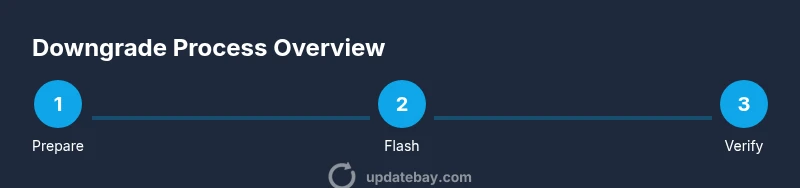
Downgrading the Android OS is generally not supported through standard consumer menus. It typically requires flashing official firmware and, in many cases, unlocking the bootloader. This process can void warranties, erase personal data, and brick devices if done incorrectly. Only proceed if you have exact OEM guidance, a clean backup, and an understanding of the risks. If you are unsure, seek OEM documentation or professional help. For most users, improving device performance with safer options is preferable to a downgrade.
Re-flashing your device with an official image
If you decide to downgrade to a previous OS version, you must obtain the official factory image from the device maker and follow their instructions precisely. Normally this involves enabling developer options, unlocking the bootloader, and flashing the firmware using fastboot or OEM-provided tools. Keep your data backed up, charge the device fully, and be prepared for a possible data wipe. After flashing, restore data from your backup and re-enable security features. This path should be treated as a last resort and performed only with official files and instructions.
OEM vs carrier updates: differences and implications
Updates can originate from the device maker (OEM) or the carrier. Carrier-delivered updates may be modified to support network features or regional requirements, which can complicate downgrades. OEM updates tend to be more predictable but still carry risks if you attempt to revert. Recognize the source of the update to determine the safest rollback path and consult official support resources before proceeding. This distinction helps you choose the most reliable, lowest-risk route.
Data backup and safety planning
Backups are essential whenever you consider changing your OS version. Use cloud backups and local copies of important data like photos, messages, and contacts. Verify that essential apps retain data after a reset or flash, and ensure you have a record of login credentials for services you use daily. If you are downgrading, back up before starting and plan for potential data loss, as some steps will erase app data or system settings. A robust backup becomes your safety net, reducing stress during higher-risk operations.
Common myths debunked
Myth: You can always return to a previous OS version. Reality: not all devices or updates allow downgrades, and the process can be blocked by the OEM or carrier. Myth: Deleting updates destroys the OS. Reality: updates are embedded or linked to the system; removal is not straightforward and may require resets or flashing. Myth: Downgrades are safe and simple. Reality: penalties include data loss, warranty implications, and bricked hardware if instructions are not exact.
Verdict: Update Bay's recommended approach
The Update Bay team recommends focusing on safer, reversible options first. Delay major OS updates, disable automatic downloads, and explore safe app-level fixes before attempting anything risky. If downgrade is absolutely necessary, use official OEM guidance and complete backups. The goal is to protect data and device integrity while achieving a usable, stable experience. The Update Bay team emphasizes caution and preparedness over hasty changes.
Tools & Materials
- Android device (any brand)(Use a device with sufficient storage for potential firmware files.)
- Official firmware image from the device maker(Only use OEM-provided files compatible with your exact model.)
- USB-C cable and USB port on computer(Needed for flashing or connecting to a PC.)
- PC or Mac with internet access(To download firmware and run flashing tools.)
- ADB and Fastboot tooling(Essential for flashing or sideloading ROMs.)
- Backup solution (cloud or local)(Important to protect data before any downgrade or factory reset.)
- Phone charger(Keep device energized during operations.)
Steps
Estimated time: 1-4 hours
- 1
Back up your data
Start by backing up contacts, photos, messages, and app data. This protects you if something goes wrong during a downgrade or reset. Ensure your backup is stored securely.
Tip: Always verify the backup integrity before proceeding. - 2
Identify the update type
Determine whether the update is OS level or an app-level update. This helps you choose the least risky path and avoids unnecessary steps.
Tip: If in doubt, assume OS level and proceed cautiously. - 3
Check for safer workarounds
Explore options such as postponing the update, restricting automatic updates, or adjusting display and performance settings before touching the OS.
Tip: Safe changes can resolve issues without downgrading. - 4
Pause OS updates temporarily
If available, use the pause or delay option in your device settings to hold back the next version until you confirm stability.
Tip: Pausing gives you time to assess impact. - 5
Prepare for a potential downgrade
If you decide downgrade is necessary, gather the official firmware, unlock instructions, and backup data. Review the OEM support page for exact steps.
Tip: Only proceed with official files and documented steps. - 6
Enable developer options and bootloader access
Enable developer options and, if required, unlock the bootloader per OEM instructions. Unlocking is risky and may void warranties, so proceed only with official guidance.
Tip: Follow OEM steps precisely to avoid bricking the device. - 7
Flash the official image
Use Fastboot or the OEM flashing tool to install the prior OS version. Do not interrupt the process, and keep the device connected to power.
Tip: Double-check model and firmware compatibility before flashing. - 8
Re-lock bootloader and restore data
If you unlocked the bootloader, you may re-lock it after flashing. Then restore data from your backup and reconfigure settings.
Tip: Re-locking may require a full device wipe; confirm readiness.
Frequently Asked Questions
Is it possible to remove a system update from Android?
Generally not through Settings. System updates are integrated into the OS. Safe options involve postponing updates, disabling auto-downloads, or using OEM approved methods for downgrading.
You can't remove a system update from Android using Settings. Consider safe alternatives.
What happens if I downgrade Android OS?
Downgrading may void warranties, erase data, and cause compatibility problems. Only attempt with official instructions and backups.
Downgrading can void warranties and erase data; proceed with caution.
Can I simply uninstall app updates to revert features?
For many preinstalled apps you can uninstall updates to revert to factory versions, but this does not affect the OS itself.
You can uninstall app updates for some apps, but not the OS.
How can I postpone updates safely?
Disable automatic OS updates and auto-downloads in Settings, and control app updates via the Play Store. This buys time to assess issues.
Pause updates in settings to delay changes.
Will a factory reset revert the OS update?
A factory reset mostly clears personal data and restores settings, but it does not necessarily revert the OS to a previous version.
Factory reset may not downgrade the OS.
Are OEM and carrier updates different for downgrading?
Yes. Carrier updates may be restricted by network agreements; OEM updates are tied to the device model and image.
Carrier and OEM updates differ in how downgrades are handled.
Watch Video
What to Remember
- Back up data before attempting changes
- Postpone updates before downgrading
- Downgrading OS carries significant risks
- Only use official OEM guidance and firmware
- Consider professional help for flashing if unsure