How to Update a Chromebook: Step-by-Step Guide for 2026
Learn how to update a Chromebook safely and efficiently. This guide covers automatic updates, manual methods, troubleshooting, and best practices to keep Chrome OS secure and fast in 2026.


By following these steps, you’ll safely update your Chromebook to the latest Chrome OS version. Ensure a stable internet connection, a charged battery, and access to your Google account. This quick guide covers automatic updates, manual checks, and common troubleshooting to keep your device secure and fast. It also outlines what to do if an update stalls and how to verify the new version.
Why Keeping a Chromebook Up-to-Date Matters
Keeping Chrome OS up-to-date is essential for security, performance, and access to the latest features. Updates patch vulnerabilities, improve power management, and tune battery efficiency. For everyday use, an up-to-date Chromebook loads apps faster, supports newer web standards, and reduces compatibility issues with Android apps and extensions. According to Update Bay, most security fixes are deployed through automatic updates, so enabling them minimizes risk and keeps your data safer. In 2026, updates increasingly focus on privacy protections and smoother app compatibility, making it worthwhile to maintain a regular update habit rather than waiting for problems to appear. Practically, a proactive approach reduces troubleshooting time and preserves user trust in the device ecosystem.
Check Your Chromebook Model and OS Version
Before updating, confirm your Chromebook’s model family and current Chrome OS version. This helps you anticipate update eligibility and any device-specific notes from Google. Open Settings, scroll to About Chrome OS, and note the version number and build. If you manage multiple devices, keeping a simple inventory (model, current version, and last update date) helps you plan maintenance windows and communicate with family or IT support. This upfront check saves time when updates are rolled out in waves, especially on devices with slower download speeds.
Prep: Backups and Prerequisites
Back up any locally stored files you care about, even though Chrome OS updates rarely affect local data. Use Google Drive or another cloud service to mirror important documents, photos, and settings. Charge the Chromebook to at least 50% or keep it plugged in during the update process to avoid power loss. Ensure you have a stable Wi‑Fi connection and that you know the Google account credentials used on the device. This preparation minimizes risk and ensures you can recover quickly if something goes wrong during the update.
Automatic Updates: How Chrome OS Updates Work
Chrome OS operates on an incremental update model. Most devices download updates in the background and apply them at reboot, often without user intervention. Automatic updates mean security patches arrive as soon as Google completes testing, improving safety without requiring manual checks. In practice, you’ll usually see a notification in the bottom-right corner when an update is ready to install. If the device is in use, the update may install at the next restart or during a scheduled maintenance window. Understanding this process helps you plan updates around work or school schedules.
Manual Update via Settings (When Automatic Update Isn’t Available)
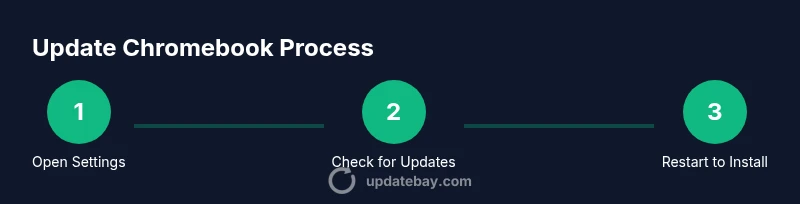
If automatic updates aren’t pushing through, you can manually trigger an update from Settings. Navigate to Settings > About Chrome OS > Check for updates. If an update is available, your Chromebook will begin downloading it automatically. After the download completes, you’ll be prompted to restart to apply the update. This manual path is useful when devices are offline for extended periods or when the update channel hasn’t reached your device yet. Remember to stay connected to power during this process.
What to Do If an Update Fails or Stalls
Update failures are often caused by connectivity issues, insufficient storage, or temporary server-side hiccups. Start by verifying your Wi-Fi, then reattempt the update. If storage is low, free up space by deleting or moving large files to the cloud. For stubborn failures, consider turning off VPNs or firewall rules that might interfere with downloading the update. In rare cases, you may need to restore network settings or, as a last resort, perform a Powerwash after backing up data. Always verify post-update that the device runs smoothly before resuming normal work.
Common Update Issues and Quick Fixes
Many update issues are resolved with simple steps: ensure a stable internet connection, verify power supply, and reboot the device. If you see a specific error code, search for that code in Google’s support pages or Update Bay’s guidance, which often points to known-good workarounds. Clearing browser data, re-authenticating your Google account, and updating related apps can also unblock the update flow. If updates continue to fail, document the error and contact Google support through your device’s Help Center.
Post-Update Checks: Verifying Version, Settings, and Performance
After updating, re-check the Chrome OS version in Settings > About Chrome OS. Confirm that critical apps and extensions still function as expected. Run a quick performance test by launching a few typical apps and browsers, then compare to your previous experience. If you notice slower wake times or increased battery drain, review battery and storage usage in Settings. Small adjustments, like disabling unused extensions, can improve post-update performance.
Keeping Chromebook Secure After Update
Post-update security practices help maximize the benefits of new patches. Enable automatic updates if not already on, review app permissions, and keep extensions limited to trusted sources. Regularly review app and extension updates in the Chrome Web Store and manage device access for family members. Staying aware of new security features (like improved sandboxing or memory protection) ensures you’re leveraging the full protection offered by Chrome OS.
When to Consider a Factory Reset (Powerwash) as a Last Resort
Powerwash erases local data and returns Chrome OS to a clean state. It should be reserved for persistent update failures or significant performance issues after updates. Before performing Powerwash, back up all essential files to the cloud or an external drive. After the reset, re-enroll or sign in with your Google account and re-install apps. This approach often resolves stubborn update loops and restores device responsiveness.
Maintenance Schedule: Regular Checks and Best Practices
Create a simple maintenance schedule that includes a quarterly update check, automatic update verification, and storage cleanup. Schedule reminders after school or work periods to reduce disruption. Consider establishing a small routine for reviewing installed extensions and apps every few months. Adopting these habits helps you stay ahead of issues and ensures your Chromebook remains secure and responsive.
Conclusion: What You’ll Take Away from This Guide
Regular updates keep your Chromebook secure, fast, and compatible with new apps and web standards. By understanding how Chrome OS updates work, you can troubleshoot common issues quickly and avoid data loss. The steps above provide a practical, repeatable process you can apply to multiple devices, ensuring a consistent maintenance routine across your family or classroom devices.
Tools & Materials
- Stable Internet connection (Wi-Fi)(Reliable connectivity prevents partial downloads and corrupted updates.)
- Chromebook battery charged to at least 50%(Keep plugged in during the update to avoid power loss.)
- Google account with access to the device(Needed for sign-in and update verification.)
- External backup (optional)(Back up important files to Google Drive or another cloud service.)
- Power adapter/charger(Ensure the charger is connected throughout the process.)
- Time for update (estimate 15-30 minutes)(Time depends on download size and network speed.)
Steps
Estimated time: 25-45 minutes
- 1
Open Settings
From the system tray (bottom-right), select the gear icon to open Settings in one clean action.
Tip: If the gear icon isn’t visible, use the search bar in the taskbar to locate Settings quickly. - 2
Navigate to About Chrome OS
In Settings, scroll to 'About Chrome OS' and click it to view your current version and build.
Tip: Note the exact version so you can confirm after updates install. - 3
Check for updates
Click 'Check for updates' to see if a newer Chrome OS version is available for your device.
Tip: If nothing appears, your device may already be up-to-date or on a staged release channel. - 4
Start update download
If an update is listed, initiate the download to begin applying the new OS files.
Tip: Keep the device plugged in and avoid interrupting the download. - 5
Wait for download to finish
Allow the download to complete; you’ll see progress in the update prompt or Settings.
Tip: Do not force close Settings during the download; it may corrupt the process. - 6
Restart to install
When prompted, choose 'Restart to update' to apply the new Chrome OS version.
Tip: If the device restarts during class or work, schedule a pause and resume later. - 7
Verify after reboot
After reboot, reopen Settings > About Chrome OS to confirm the new version is installed.
Tip: Take a quick note of the version and date for future reference. - 8
Check for extra updates
Sometimes updates include follow-on patches; re-check to ensure all components are current.
Tip: Repeat the check a few hours later if you’re in a busy network environment. - 9
Diagnose update issues
If an error occurs, review the error code, test network stability, and retry the update.
Tip: Restart your router if the connection seems unstable. - 10
Free up storage if needed
If space is tight, delete or move large files to cloud storage before retrying.
Tip: A few gigabytes free can prevent download failures due to space constraints. - 11
Powerwash as last resort
If updates consistently fail, back up data and perform a Powerwash to restore a clean state.
Tip: Only use Powerwash after exhausting other options; it wipes local data. - 12
Post-update performance check
Test common tasks (web, apps, extensions) and ensure settings stayed intact.
Tip: Disable unused extensions to improve responsiveness after updates.
Frequently Asked Questions
What happens if my Chromebook won’t update automatically?
If automatic updates aren’t appearing, you can trigger a manual update via Settings > About Chrome OS > Check for updates. Ensure a stable internet connection and sufficient battery life before retrying.
If auto updates don’t show up, try a manual update from Settings, and make sure you’re online with a charged device.
Can I update a Chromebook offline?
Chromebooks generally require an active internet connection to download updates. If you must update offline, you’ll need to create a recovery media USB drive on another computer and use it to reinstall the OS when you reconnect online.
Offline updates aren’t typically possible; use a connected computer to prepare recovery media if needed.
Will a Chrome OS update erase my data?
Updates themselves don’t erase local files, but a Powerwash will remove data. Always back up important files before major updates or resets.
The OS update usually won’t delete files, but a factory reset will, so back up first.
How long does an update typically take?
Download time varies with connection speed and update size. Plan for 15-45 minutes, plus additional time for a restart.
Most updates take about a quarter of an hour to an hour, depending on your network and device.
What should I do if I see a specific error code?
Note the error code and search Google or Update Bay guides for targeted fixes. Common steps include retrying, rebooting, and checking storage.
Record the error code and look it up for a precise fix; many issues have quick workarounds.
Is Powerwash really necessary after a failed update?
Powerwash is a last resort. Back up data first, then perform the reset and re-enroll your account to restore a clean environment.
Only consider Powerwash if other fixes fail, and remember to back up your data first.
Watch Video
What to Remember
- Update Chrome OS regularly for security and performance.
- Back up data before major updates to prevent loss.
- Automatic updates reduce manual effort and risk.
- If updates fail, diagnose network, storage, and policy issues promptly.
- Powerwash is a last-resort option after all other fixes.