How to Update Android Version: Step-by-Step Guide
Discover a practical approach to how to update android version, covering preparation, finding official updates, installing safely, and troubleshooting common issues.


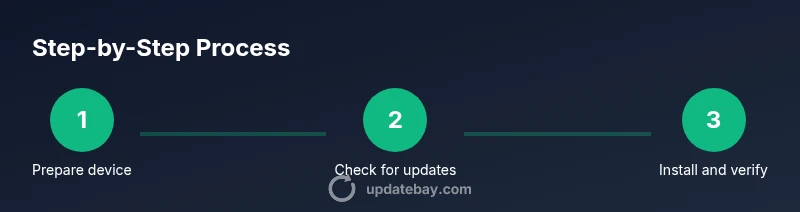
According to Update Bay, updating an Android version involves checking for official system updates and following prompts. Before you begin, charge your device, connect to reliable Wi‑Fi, and back up data. Steps usually follow Settings > System > Software update > Install, but exact paths vary by device and carrier. Make sure you have enough storage.
Why updating Android version matters
Keeping your Android device up to date is essential for security, performance, and access to new features. When you ask how to update android version, you’re asking to align your device with the latest fixes from Google and your device maker. Updates close security gaps, fix bugs that slow apps, and improve power management. In addition, newer versions sometimes optimize battery life and provide better compatibility with modern apps. The Update Bay team notes that staying current reduces exposure to known vulnerabilities and helps apps run more smoothly. However, not every device receives updates at the same time; upgrade availability depends on hardware, carrier policies, and software skews. If you want the best results, you should also review app permissions and storage usage to ensure the device can handle the update without disruption."
How Android update paths differ by device
Three main paths define how you get an Android version update. On Pixel devices with stock Android, Google pushes the update directly, often bringing the latest security patches first. Manufacturers such as Samsung, OnePlus, Xiaomi, and others apply their own skins and additional features, which can mean slightly later rollout and a customized experience. Carriers may add their own validation steps or delay updates due to network testing. Knowing your device model and update channel helps set realistic expectations for when an update arrives. If you’re unsure, visit the official support page for your device and note the exact version number and build type you want to install. The phrase how to update android version guides your understanding of these routes and timing.
Preparing to update safely
Before starting how to update android version, prepare by backing up important data, charging the device, and ensuring sufficient storage. Create a cloud backup or local copy of photos, messages, and app data. Enable a stable Wi‑Fi connection and plug in the charger if your battery level is low. Review any ongoing downloads or app updates that could interfere with the OS installation. Finally, read the release notes to understand what changes you can expect and what prerequisites the update requires.
Checking for updates on stock Android devices
If you’re using a stock Android experience (like Google Pixel), the path is usually Settings > System > Advanced > System update. Tap Check for update and, if available, Install. The device will download the update in the background and restart to complete the installation. You can monitor progress on the screen and wait until the device finishes rebooting. If no update is shown, be patient; updates may roll out in waves or require a carrier approval.
Manufacturer and carrier differences you should know
Different OEMs add their own features and may modify the update cadence. Some devices allow manual sideloading of updates via USB and a computer, while others rely entirely on OTA (over-the-air) delivery. Carrier networks can extend or constrain the update timeline due to testing or policy checks. If you’re using a locked device, check both the manufacturer’s support site and your carrier’s page for the correct build. This ensures you install the right version and avoid compatibility issues.
Troubleshooting common update issues
During an update, you may encounter errors such as download failure, insufficient storage, or a hung installation. Start by confirming a strong Wi‑Fi signal and available space. Reboot the device and retry the update. If the problem persists, try clearing the cache partition or using a different network. For persistent failures, consult the device maker’s support resources or consider waiting for the next maintenance release.
Post-update verification and tips
After a successful installation, verify the new Android version in Settings > System > About phone. Check core features such as the home screen, notifications, and camera apps to confirm everything runs smoothly. Re-authenticate apps that require new permissions and reconfigure widgets if needed. If you enabled backups, verify that your data restored correctly. Finally, review app updates and reset preferences that may have changed with the new OS.
Privacy and data considerations after update
OS updates can alter permission models and security policies. Review app permissions to ensure they align with your privacy goals. Pay attention to new features that access location, microphone, or contacts, and adjust settings accordingly. It’s also a good practice to review app store settings, consent prompts, and any new terms of service introduced with the update.
How to manage updates on older devices
If you own an older device, the official update cadence may be sparse or halted. In such cases, you can monitor for security patches, consider lightweight custom ROMs only if you understand the risks, or plan an upgrade when possible. Avoid installing beta software on daily drivers unless you’re prepared for instability. Always keep a backup strategy in place because older hardware can experience compatibility issues with newer apps.
Best practices to avoid failures
To minimize update failures, maintain regular backups, ensure ample storage, and keep the device charged during updates. Prefer stable Wi‑Fi and avoid closing apps mid‑update. Read release notes and back out of updates that are labeled as high risk for your device. By following these practices, you reduce the chances of bricking a device and improve after-update performance.
Tools & Materials
- Fully charged device (at least 60% battery)(Battery life reduces risk of mid-update shutdown.)
- Stable Wi-Fi connection(Prefer strong signal; updates can be large.)
- Backup method (Google Drive or local backup)(Back up photos, messages, and app data.)
- Sufficient storage space(Free space to download and install the update.)
- Optional: USB cable and computer(For sideloads or ADB-based updates.)
- Device model and current OS version info(Helps locate the correct update and notes.)
Steps
Estimated time: 30-60 minutes
- 1
Open Settings on your device
From the home screen, locate and open the Settings app. This is the hub for all system updates and device preferences. Knowing where Settings live helps you access the update path quickly.
Tip: If you can't find Settings, swipe down from the top and search for 'Settings' in the quick search bar. - 2
Navigate to System updates
Inside Settings, look for System or About phone, then tap on System updates or Software update. The exact labels vary by manufacturer, but the path is usually in the higher-level device controls.
Tip: On some devices you may need to choose Advanced before you see the update option. - 3
Check for updates
Tap Check for update or similar button to fetch the latest available version for your model. If an update is pending, you’ll see the release notes with improvements and requirements.
Tip: Be prepared for download size and potential data usage. - 4
Review details and prerequisites
Review the update details, including Android version, security patches, and any reboot requirements. Ensure you’ve backed up data and have storage available to complete installation.
Tip: If you see a warning about insufficient storage, free space before proceeding. - 5
Install the update
If an update is available, tap Install now and allow the device to restart. The installation may take several minutes, and the screen will be used for progress indicators.
Tip: Do not interrupt the process; avoid pressing power or home buttons during install. - 6
Complete the installation and reboot
After installation, the device will reboot automatically. Let it finish the startup sequence and return to the home screen before testing.
Tip: If you’re asked to enter credentials post-update, do so to restore security settings. - 7
Verify the update success
Open Settings > System > Software update to confirm the version reflects the new release. Check that critical apps launch normally and settings appear as expected.
Tip: Run a quick check of key apps and features to ensure stability. - 8
Restore from backup if needed
If you encounter issues after updating, consider restoring data from the backup you created before starting. Some apps may require re-authentication after an OS change.
Tip: Only perform restore if issues persist; avoid restoring incompatible app data.
Frequently Asked Questions
What happens if an update fails to install?
If an update fails, retry after checking storage and network. You may need to clear cache or restart the device, and consult the manufacturer’s support page for device-specific recovery steps.
If the update fails, retry with good Wi‑Fi, clear space, and restart. Check manufacturer support for device-specific recovery.
Can I update Android version on an old device?
Older devices may stop receiving updates. You can still check for available patches, or consider alternatives like custom ROMs only if you understand the risks.
Older devices may stop receiving updates; check for official patches or consider alternatives only if you’re comfortable with risks.
Will updating erase my apps or data?
A standard OS update should not erase data if the process completes successfully. Backups are still essential in case something goes wrong during installation.
OS updates typically don’t erase data, but always back up first in case something goes wrong.
Do I need Wi‑Fi or can I use mobile data?
Wi‑Fi is recommended because updates can be large and mobile data may incur charges or be slower. Some devices allow updates over mobile data with restrictions.
Wi‑Fi is recommended due to size and speed; some devices support mobile data with limits.
How long does an Android update take?
Install times vary, but plan for at least a half hour. The device may reboot several times during the process.
Updates can take about 30 minutes; rebooting occurs during installation.
Can I roll back to a previous version?
Rollback options depend on the device and OEM. In many cases you cannot revert once an update installs, unless a previous factory image is available and reinstallable.
Rollback is often not possible after a major OS update; check OEM options carefully.
Watch Video
What to Remember
- Back up data before updating
- Charge battery and use Wi‑Fi
- Follow official update path for your device
- Update availability varies by OEM and carrier
- Verify post-update functionality