How to Update My Android Phone: A Practical Guide
Learn practical, up-to-date steps to update your Android phone safely. This guide covers preparing your device, backups, Wi‑Fi considerations, and handling common update issues for better security and performance.


To update your Android phone, first charge to at least 50% and connect to a stable Wi‑Fi network. Open Settings > System > System update, then tap Check for update. If an update is available, install it and follow the prompts. If no update shows, your device may already be up to date or the rollout may be staggered by region or carrier.
Why updating matters
Keeping your Android device up to date is essential for security, performance, and new features. Updates patch known vulnerabilities, improve app compatibility, and can enhance battery efficiency. According to Update Bay, timely OS updates reduce exposure to emerging threats and help apps run more smoothly on newer Android versions. For the average user, maintaining current software minimizes the risk of data loss from exploits and keeps your device aligned with the latest privacy and usability improvements. When you decide to update my android phone, you are making a proactive choice to protect your information and enjoy a better overall experience with fewer crashes and glitches.
Beyond safety, updates can bring useful features such as improved notification controls, better multitasking, and refined accessibility options. They also help app developers optimize compatibility with the newest Android APIs, which means fewer forced app updates and fewer performance hiccups. If you manage a device ecosystem (family phones, school devices, or company phones), consistent updates reduce support overhead and provide a uniform user experience. In short: staying updated is a practical habit that pays off in security, reliability, and peace of mind. Update Bay analyses show that a well-maintained update cadence correlates with fewer security incidents and smoother app performance.
To begin, remember the core principle: updates are most effective when devices are prepared and protected, not rushed.
Preparation before you update
Before you chase the latest Android version, take a few practical steps that save time and prevent data loss. First, ensure your battery is charged or keep the phone plugged in during the update to avoid an abrupt shutdown. Next, back up your data. Use Google Drive or your preferred backup method to capture contacts, photos, documents, and app data. This protects you against any unexpected interruption or rollback needs. Also, verify there is enough storage space for the update; OS updates can require additional room for unpacking and installing files. You can free space by removing unused apps, clearing cache, or moving photos to the cloud or an SD card where available. Finally, review installed apps for compatibility. If you rely on specialized software or enterprise apps, check with the vendor for any known issues with the upcoming release. These steps create a smooth, low-risk update path and minimize post-update surprises.
Additionally, enable automatic updates if you prefer hands-off maintenance. Automatic updates ensure security patches arrive promptly, though you should still monitor device health after major upgrades. The goal is to create a reliable baseline: a backed-up, charged, and compatible device ready for the latest Android improvements.
If you face constraints (low storage, strict data limits, or a carrier-blocked rollout), plan for a staged update and maintain a restoration point so you can revert if needed.
How Android updates work
Android updates involve a few moving parts: the base OS, vendor/phone-specific tweaks, and carrier customizations. Updates are delivered via Over-the-Air (OTA) packages that the device downloads and installs, typically in a staged rollout. This means not every device receives the update at once; some users may see the update later due to regional scheduling, carrier validation, or hardware-specific compatibility. Understanding this helps manage expectations: you may need to wait or use alternative methods if your device isn’t immediately offered the latest version.
There are different flavors of updates: security patches, incremental OS updates, or larger feature releases. Security patches usually arrive more frequently and are critical for protecting against known vulnerabilities. Major OS upgrades bring new features and UI changes but can require more space and app compatibility checks. If you’re curious about the process, you’ll often see a brief installation screen, followed by a reboot sequence and optimization of apps in the background. Knowing these steps helps you plan: back up first, ensure ample space, and avoid interrupting the installation once it starts.
Carrier and OEM involvement matters. Some updates come directly from Google, while others depend on your device manufacturer and network operator for validation. In practice, this can affect rollout speed and availability. Staying informed about your device’s update path ensures you’re not surprised by delays, and it helps you determine the best moment to initiate an update when the timing is most convenient for you.
Step-by-step flow for a typical Android update
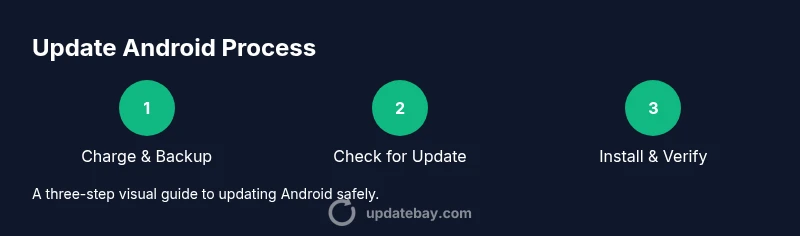
A standard Android update involves a sequence of coordinated steps designed to minimize downtime and protect your data. The flow usually starts with preparation (charging, backup, storage check) and ends with verification (post-update checks, reinstallation of apps, and restoration of preferences). In between, the actual download and installation occur, leveraging OTA mechanisms that validate the package and ensure integrity through cryptographic signatures. After installation, the system reboots, optimizes apps in the background, and prompts you to re-enter preferences or re-enable features that may have been disabled during the update.
The exact user experience varies by device and version, but the core actions are consistent: check for updates, start the installation, and complete post-update setup. If you encounter a stalled installation, a safe reboot and retry often resolves transient issues. In some cases, you may need to clear cache, free space, or temporarily disable certain battery-saving features to allow the update to progress. By following these steps, you’ll maximize the likelihood of a smooth transition to the newest Android experience.
Troubleshooting common update issues
Encountering a hiccup during an update is not unusual, but most problems have practical remedies. If the update never appears, confirm you’re connected to a stable Wi‑Fi network and that your device meets the minimum requirements for the new version. If the process starts but freezes, pause and retry after ensuring ample storage and disabling aggressive battery optimizers that might interrupt background tasks. If the installation completes but the phone behaves oddly afterward, perform a quick cache wipe of apps, reset network settings, or re-check app permissions. In persistent cases, consult the device manufacturer’s support page or the carrier’s guidance for a manual update method. A backup will still protect your data in case you need to restore to a prior state.
Throughout these steps, remember that software ecosystems evolve. New patches may tweak settings you rely on, and some features may require you to reconfigure defaults. Patience and careful follow-through typically lead to success. Based on Update Bay research, adopting a deliberate update routine minimizes disruption and helps you take full advantage of recent improvements without data loss.
If you’re updating a device that is managed by an organization, coordinate with your IT department to ensure policy compliance and to avoid compatibility issues during rollout.
Automatic updates and maintenance
Automatic updates are a practical habit for most users. They ensure security patches arrive promptly, reducing exposure to vulnerabilities and simplifying maintenance. To enable automatic updates, go to Settings > System > Advanced > System update and toggle on auto-download or auto-install where available. If you choose automatic updates, you’ll still want to perform periodic manual checks to verify the overall health of your device and to review newly added privacy controls or permissions granted during updates. Regular maintenance also includes periodic backups, clearing obsolete app data, and updating important apps to ensure compatibility with the latest system APIs. Keeping a routine ensures your Android phone remains secure, efficient, and able to run the newest apps with fewer issues.
Authoritative sources
For those who want to read official guidance or expert analyses on Android updates, consult these resources:
- Official Android security updates: https://www.android.com/security/
- NIST mobile security overview: https://www.nist.gov/topics/mobile-security
- CISA smartphone security guidance: https://www.cisa.gov
Tools & Materials
- Stable Wi-Fi connection(Prefer a reliable network (ideally 5 GHz) to avoid interruptions during download.)
- Phone charged or plugged in(Keep battery above 50% and connect to power if possible.)
- Backup method(Google Drive or local backup to protect data.)
- Sufficient storage space(Free up space by removing unused apps or moving media.)
- USB cable (optional)(Useful for direct computer backups or data transfer.)
Steps
Estimated time: 20-40 minutes
- 1
Charge & back up
Connect your phone to a charger and ensure it’s above half battery. Back up essential data to the cloud or a computer before starting the update to prevent data loss if something goes wrong.
Tip: Backups provide a safety net in case you need to revert. - 2
Check for updates
Open Settings, navigate to System, then System update. Tap Check for update and review the available version, size, and any notes from the manufacturer.
Tip: If you skip an update, you may miss critical security patches. - 3
Prepare the device
Close unnecessary apps, disable battery saver temporarily, and ensure there’s ample storage. If you rely on VPNs or work profiles, consider pausing them during the update.
Tip: Freeing RAM and space reduces installation errors. - 4
Install the update
Tap Install or Download and Install. Let the device reboot and complete the installation without interruptions.
Tip: Do not unplug or force stop the device during installation. - 5
Verify post-update health
After reboot, check the Android version, re-enable any disabled features, and confirm essential apps open correctly.
Tip: Run a quick data check to confirm successful backup restoration if needed. - 6
Troubleshoot if needed
If the update stalls, try a restart, clear cache, or attempt again. If problems persist, consult manufacturer support or perform a clean reinstall as advised.
Tip: Capture screenshots of error messages to aid support.
Frequently Asked Questions
Is updating my Android phone safe?
Yes, updates are designed to fix vulnerabilities and improve performance. Always back up data first and follow on-screen prompts carefully.
Updates are generally safe, but back up your data before starting and follow the prompts closely.
Do I need Wi‑Fi or can I use mobile data?
Wi‑Fi is preferred to avoid data charges and to ensure a stable download, especially for larger updates.
Wi‑Fi is best for updates, to avoid data costs and interruptions.
What if there are no updates available?
Some devices have delayed rollouts. Check again later, confirm region/carrier eligibility, and verify OEM support for your model.
If there are no updates, wait and check again later or verify compatibility with your device.
Will updating erase data or apps?
Updates should not erase data, but backups are essential in case something goes wrong or a rollback is needed.
Data is usually preserved, but back up first just in case.
How long does an update take?
Time varies by device and update size; most updates take 10 to 40 minutes, plus post-install optimization.
Most updates take several minutes up to around half an hour.
Should I enable automatic updates?
Enabling automatic updates keeps devices safer with less manual work, though you may want control over when upgrades occur.
Automatic updates are convenient for security and maintenance.
Watch Video
What to Remember
- Back up before updating
- Use Wi-Fi and keep the device charged
- Check for updates regularly
- Enable automatic updates when possible