How to Update to iPadOS on iPad: A Step-by-Step Guide
Learn how to update to iPadOS on iPad with a practical, step-by-step guide. This article covers compatibility checks, backups, OTA and computer-based installs, troubleshooting, and post-update checks, with practical tips from Update Bay.


Ready to update your iPad? This guide shows how to update to iPadOS on iPad, covering compatibility checks, backups, OTA and computer-based installs, and troubleshooting. You’ll need a supported iPad, a reliable Wi‑Fi network, and your Apple ID. According to Update Bay, keeping iPadOS up to date improves security, performance, and access to new features. Follow the steps to minimize downtime and data loss.
Why updating iPadOS matters
Keeping your iPad current with the latest iPadOS version matters for security, performance, battery efficiency, and access to new features. The Update Bay team found that many users see improved app stability and faster app launches after updating. When you stay current, you benefit from patches that address newly discovered vulnerabilities and compatibility tweaks that keep older apps functioning smoothly. In this guide you’ll learn how to update to iPadOS on iPad safely and efficiently, minimizing downtime while protecting your data. This is especially important if you rely on your device for work, education, or family tasks.
If you’re wondering how to update to ios on ipad, remember that Apple now labels platform updates for iPad as iPadOS rather than iOS. The overall process remains similar, but terminology and some screens may differ slightly from iPhone updates. Consistency across devices helps you manage updates with confidence.
Compatibility and prerequisites
Before you begin, confirm your iPad model supports the latest iPadOS. Apple publishes a compatibility list for each major release, and Update Bay recommends checking this list to avoid attempting an update your device cannot install. If your device is older, you may still update to a supported version, but some features may be limited. You’ll also want to ensure you have an Apple ID ready, and that you know your password in case the system asks you to verify your account during the install. By planning ahead, you reduce the risk of update interruptions and data loss. As you read, keep in mind that some features may not be available on older hardware, so review the notes for your specific model.
Prepare your device before updating
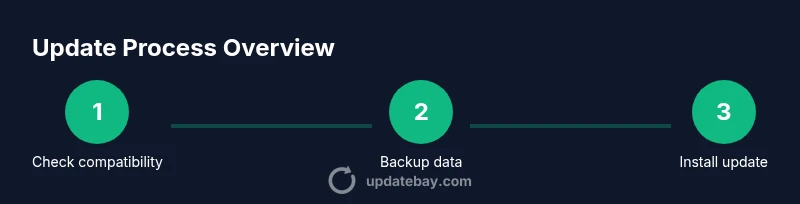
A smooth update starts with preparation. Charge your iPad or leave it connected to power during the process, and connect to a stable Wi‑Fi network rather than cellular data. Create a backup of your data in iCloud or on a computer so you can restore if something goes wrong. Free up storage by removing unused apps or media if necessary, but avoid deleting essential data. Also sign in with your Apple ID so the device can reauthenticate after the update. In short: power, network, backup, storage—these steps minimize the chance of a failed update and data loss.
Check your current iPadOS version
To determine if you’re ready for the latest update, go to Settings > General > About and look for the Software Version. If your version is older than the latest release, you’ll see an option to update under Settings > General > Software Update. If an update is available, you’ll see details about new features, security patches, and the file size. Knowing your current version helps you decide whether to perform the update over the air or via a computer. Pro tip: jot down your current version in case you need to reference it later.
Update methods: OTA vs. computer
There are two common paths to update: over‑the‑air (OTA) updates from Settings and updates via a computer using Finder (macOS) or iTunes (Windows). OTA updates are convenient and single-device focused, while using a computer can be more reliable for older iPads or when the update file is large. In both cases, ensure you have a recent backup and power connected. If you prefer hands-on control and want to verify the update package, a computer-based install can be a good option. Update Bay notes that choosing the method you trust reduces post-install surprises.
Over-the-air (OTA) update: what to expect
OTA updates are initiated from Settings > General > Software Update. The system will download the update package, verify it, and then prompt you to install. The process typically takes some time, and you should avoid using the device during installation to prevent failures. After the update finishes, the device will restart, and you’ll be guided through a brief setup experience. If you see a progress bar for a long period, do not unplug or interrupt the device; give it time to complete.
Troubleshooting common issues
If the update fails, start by checking your internet connection and ensuring your iPad has sufficient free storage. Restart the device and try again. If the problem persists, try updating using a computer with Finder or iTunes, which often bypasses minor OTA glitches. For persistent errors, sign out and back into your Apple ID or contact Apple Support. In some cases, you may need to reset settings rather than performing a full restore; always ensure you have a backup before making major changes.
After update: post-update checks and tips
After updating, verify your essential apps and services are functioning correctly, and update any apps that prompt you to download updates. Review new settings and permissions that come with the latest iPadOS; you may need to re-enable certain features. Check battery health and performance, and consider running a quick data backup again now that you’ve updated. If you use iCloud, ensure that backups resume automatically and that Photos, Notes, and Messages are syncing as expected.
AUTHORITY SOURCES
- CISA (Cybersecurity and Infrastructure Security Agency): https://www.cisa.gov
- NIST (National Institute of Standards and Technology): https://www.nist.gov
- The Verge technology updates: https://www.theverge.com
Tools & Materials
- iPad with charge or plugged in(Keep the device powered throughout the update to avoid a partial install.)
- Stable Wi‑Fi network(Avoid cellular hotspots or public networks during the download.)
- Apple ID and password(Needed to sign in and verify the update.)
- Backup destination (iCloud or computer)(A recent backup ensures you can restore if something goes wrong.)
- USB-C to USB-C or Lightning cable and computer (optional)(Use Finder (macOS) or iTunes (Windows) if updating via computer.)
- Sufficient storage space(Free up space by removing unused apps or media if needed.)
Steps
Estimated time: 30-60 minutes
- 1
Charge or connect the iPad
Plug your iPad into a power source or ensure it is connected to a charger before you start. This prevents a mid-update shutdown, which can corrupt the installation. Confirm the device remains powered on throughout the process.
Tip: Power during update is essential to avoid failures. - 2
Back up your data
Create a fresh backup to iCloud or your computer. A current backup helps you recover photos, messages, apps, and settings if something goes wrong during the update. Verify the backup completes before proceeding.
Tip: Backups are a safety net; don’t skip this step. - 3
Connect to a reliable Wi‑Fi network
Join a stable Wi‑Fi network. Updates can be sizable, and a strong connection reduces the chance of a failed download. Avoid public or shared networks when possible.
Tip: If your signal fluctuates, pause and reconnect to a stable network. - 4
Check device compatibility and space
Review Apple’s compatibility notes for the latest iPadOS version and confirm you have enough free storage. This helps you avoid a download that fails due to insufficient space or unsupported hardware.
Tip: Review the release notes for feature changes that may affect your apps. - 5
Begin the OTA update
Open Settings > General > Software Update and follow the prompts to download and install. Do not close the screen or press the home button while the update is in progress. Expect a restart when installation completes.
Tip: If the update prompt doesn’t appear, pull down in Settings to refresh. - 6
Monitor progress and do not interrupt
Let the device complete the installation and reboot. Interrupting can lead to a bricked device or incomplete software. After reboot, follow any on-screen setup steps.
Tip: Be patient; installations can take longer on older devices. - 7
If OTA fails, switch to a computer
If the wireless update fails, connect your iPad to a computer and update via Finder or iTunes. This method can bypass OTA-specific issues and finalize the installation.
Tip: Use the latest version of Finder or iTunes for compatibility. - 8
Finalize setup and verify
Complete any on-screen setup steps, sign back into apps, and confirm core services (Messages, Mail, iCloud) sync correctly. Update apps from the App Store to match the new OS.
Tip: Open Settings > General > About to confirm the iPadOS version.
Frequently Asked Questions
Can I update my iPad if it says update not available for my device?
Some older iPads may not support the latest iPadOS version. Check Apple’s compatibility list and consider updating to the latest supported version. If your device is eligible, try OTA again after ensuring enough storage and stable connectivity.
If your device isn’t compatible, you’ll need to use the latest supported version. Check the official list and try again later if needed.
Will updating erase my data?
A properly executed update should not erase your data. However, always back up before updating to protect against unexpected issues. If something goes wrong, you can restore from the backup.
Back up first, then update. If anything goes wrong, you can restore from the backup.
What if the update takes a long time or gets stuck?
If progress stalls, check your network connection, ensure power, and give it more time. If it remains stuck, restart the device and consider updating via a computer.
Give it time and check your connection. If it doesn’t finish, try a computer update.
Do I need to back up before updating?
Yes. Backing up ensures you can restore data if something goes wrong during the update. Use iCloud or a computer backup as you prefer.
Yes—back up first to keep your data safe.
Should I update apps after updating the OS?
Yes. After an OS update, apps may need updates too. Open the App Store to install any available updates to ensure compatibility.
Update your apps after the OS upgrade for best compatibility.
What should I do if the update keeps failing?
Try OTA again after a fresh restart and ensure ample storage. If persistent, use a computer-based update or contact Apple Support for guidance.
Reset and retry, or use a computer-based update if needed.
Watch Video
What to Remember
- Verify compatibility before updating.
- Back up your data first.
- Choose OTA or computer method based on device and reliability.
- Do not interrupt updates.
- Post-update, update apps and check settings.