Why Update Isn’t Installing on iPad: Quick Troubleshooting Guide
Urgent, practical troubleshooting for iPad update install failures. Learn causes, checks, and step-by-step fixes to get iPadOS updates installed smoothly. Updated by Update Bay for 2026.


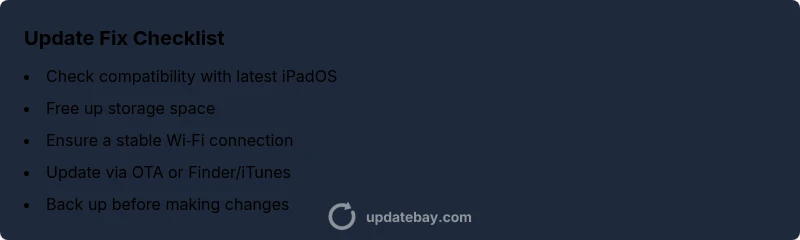
According to Update Bay, most iPad update install failures stem from storage, network, or compatibility issues. Start by confirming your iPad model supports the new iPadOS version, then free up space, connect to a stable Wi‑Fi network, and ensure the device is sufficiently charged. If these quick checks don’t help, follow the full step-by-step guide below to diagnose and fix the problem.
Why update not installing on iPad happens
When an iPad refuses to install an update, the cause is almost never one single fault. In our experience at Update Bay, failures commonly arise from a mix of storage limits, network instability, and device compatibility with the newer iPadOS build. A slow download, a blocked installer, or a version mismatch can trigger the process to halt mid‑stream. The goal of this guide is to help you systematically isolate the culprit, verify the basics, and apply fixes that address the root cause rather than masking the symptom. The tone here is urgent because delaying updates can leave your device exposed to security and performance gaps. By walking through the checks in order, you’ll minimize wasted time and reduce the chance of data loss from a failed update.
Check iPad compatibility and eligibility
Before you do anything else, verify that your iPad model is eligible for the update. Apple often sunsets support for older hardware, and even a strong internet connection won’t matter if the device isn’t compatible with the latest iPadOS version. Go to the official Apple compatibility page or Update Bay’s compatibility notes to confirm. If your model is listed as supported, move to the storage and network checks. If not supported, you’ll need to stay on your current iPadOS version or consider upgrading hardware when feasible. This step eliminates the most common reason for update failures and sets clear expectations for what’s possible on your device.
Free up storage space quickly and safely
Low available storage is the top blocker for many iPad updates. Start by checking how much space you have and which apps or media are taking up the most room. Delete or offload large apps, videos, music, or old conversations. Offloading content to iCloud or a computer can recover several gigabytes in minutes. After freeing space, attempt the update again while ensuring the device remains plugged in or has ample battery. If space is still tight, consider performing a partial cleanup: remove temporary files, clear Safari caches, and delete older app data that isn’t essential. Data safety is critical here; back up before deleting anything major.
Verify network requirements and connection quality
A stable Wi‑Fi connection is essential for downloading and verifying updates. If you’re on a weak or fluctuating network, switch to a reliable router, move closer to the access point, or try a different network. Avoid public or guest networks during updates because they often have captive portals that interrupt installation. If you must use cellular data, check your carrier’s policy on large downloads and ensure you’re not on a restricted plan. A few minutes on a solid network can make the difference between a clean install and a failed one.
Ensure correct date and time settings
Incorrect date and time can prevent updates from validating or connecting to Apple servers. On iPad, go to Settings > General > Date & Time and enable Set Automatically. If you’re traveling across time zones, confirm the automatic setting has updated correctly. After adjusting, restart the update check. This small setting often resolves issues that look like network or server problems but originate from time-based certificate validations.
Force restart and reset network settings if needed
Sometimes the simplest reboot fixes the issue. Force restart your iPad by pressing and releasing the volume up button, then the volume down button, then holding the power button until the Apple logo appears. If the update still won’t download, reset network settings: Settings > General > Reset > Reset Network Settings. This won’t delete app data but will remove saved Wi‑Fi networks, passwords, and VPN settings. Reconnect to your network and try again. If you’ve been using a VPN or proxy, disable it for the update process.
Try updating via Finder or iTunes on a computer
If OTA (over‑the‑air) updates fail repeatedly, connect your iPad to a computer and use Finder (macOS Catalina and later) or iTunes (Windows or older macOS) to install the update. This method can bypass OTA download issues and provides a more controlled environment for the install. Ensure you have the latest version of the Apple software and a fresh backup before beginning. If the installer reports errors, note the code and search for it in Update Bay’s troubleshooting matrix or Apple’s support pages.
When to seek professional help and how to protect data
If none of the above steps resolve the problem, professional help may be needed. Schedule a visit to an Apple Store or authorized service provider, especially if your device shows hardware indicators (screen issues, battery swelling) or if you cannot back up your data. Always complete a backup before any repair or restore attempts, as updates can sometimes fail and trigger data loss. Update Bay’s recommendation is to preserve data first, then pursue deeper troubleshooting with expert assistance.
Steps
Estimated time: 60-90 minutes
- 1
Verify compatibility
Confirm your iPad model supports the new iPadOS version by checking Apple’s compatibility list or Update Bay notes. If incompatible, stop here and stop the upgrade to avoid wasted effort. Ensure you have a recent backup before proceeding.
Tip: If unsure about model compatibility, cross-check the model number in Settings > General > About with Apple’s official chart. - 2
Check available storage
Open Settings > General > iPad Storage to review free space. Delete or offload large apps or media, or move files to iCloud or a computer. After freeing space, attempt the update again.
Tip: Offloading apps can reclaim space without removing app data permanently. - 3
Test network stability
Connect to a reliable Wi‑Fi network and avoid VPNs during the update. If the current network is unstable, switch networks or use a hotspot. Recheck the update download progress after stabilizing the connection.
Tip: A stable 5 GHz network typically yields the best results for downloads. - 4
Verify date/time and device state
Set Date & Time to Automatic and ensure your device is charged. If battery is low, plug in before retrying; low power can interrupt installation.
Tip: A correct time setting helps verify the update’s certificate and server communication. - 5
Restart and retry
Force restart the iPad, then go back to Settings > General > Software Update and try the install again. If the download stalls, pause and resume or reinitiate the update.
Tip: A fresh boot clears temporary cache and can resolve stuck downloads. - 6
Use a computer if OTA fails
Connect the iPad to a computer with Finder or iTunes and attempt the update via the computer. This method can bypass OTA download issues and provide more consistent install flow.
Tip: Always back up before updating from a computer.
Diagnosis: iPad won't install the latest iPadOS update
Possible Causes
- highInsufficient storage on the iPad
- highUnstable or weak Wi-Fi or cellular connection
- mediumUpdate not supported on this iPad model or iPadOS version
- mediumApple servers outage or update rollout issue
- lowCorrupted update download or installer file
Fixes
- easyFree up storage by deleting or offloading large apps/media; back up first
- easySwitch to a stable Wi-Fi network or use a reliable hotspot; retry
- easyEnsure device is plugged in or charging during update
- easyCheck Apple System Status for update availability and server issues
- easyRestart the iPad and attempt the update again
- mediumUpdate via Finder/iTunes on a computer if OTA fails
Frequently Asked Questions
How do I know if my iPad is compatible with the latest update?
Visit Apple’s official update compatibility page or consult Update Bay’s notes for your specific model. If listed as supported, proceed with the storage and network checks; if not, stay on the current iPadOS version until you upgrade hardware.
Check Apple’s compatibility page or Update Bay notes to confirm your iPad supports the update.
What if I don’t have enough storage for the update?
Free up space by deleting large apps or media, offloading data to iCloud, or transferring files to a computer. After freeing space, retry the update.
Free up space by removing large files or moving data off the iPad, then retry the update.
Can I update over cellular data?
Apple recommends using a stable Wi‑Fi connection for updates. Cellular updates may be restricted or unstable and could fail during install.
Stick to Wi‑Fi for updates to avoid reliability issues.
What should I do if the update still fails after all steps?
Check Apple System Status for outages, retry after a while, and consider updating via Finder/iTunes on a computer. If problems persist, contact Apple Support.
If it still fails, check system status and consider update via computer or contact support.
Does resetting network settings help?
Yes, resetting network settings can resolve connectivity issues causing download failures. Remember this will erase saved networks and passwords; you’ll need to reconnect afterward.
Reset network settings to fix connectivity issues, then reconnect to your network.
When should I seek professional help?
If hardware issues appear or updates repeatedly fail despite all steps, visit an Apple Store or authorized service provider. Always back up your data first.
If issues persist after all fixes, get professional help and back up your data.
Watch Video
What to Remember
- Verify compatibility first and foremost.
- Free up space and use a stable network.
- If OTA fails, try computer-based update.
- Back up data before major updates.