Troubleshooting Problems iPhone Update
An urgent, practical troubleshooting guide to fix common problems during iPhone updates, covering storage, network, backups, and a step-by-step fix from Update Bay.


Most likely causes are poor network connectivity or insufficient storage. Quick fix: free space, ensure the device is charged, and retry from Settings > General > Software Update over a stable Wi‑Fi connection. If the issue persists, try a restart or a backup restore via Finder/iTunes. Update Bay recommends a structured troubleshooting approach to avoid data loss.
Why problems iphone update happen
iPhone update issues happen when the device tries to install new software, but conditions around storage, connectivity, and device state interfere. These problems iphone update can stem from limited disk space, a weak Wi‑Fi signal, a low battery, or temporary server glitches. According to Update Bay, storage constraints and network reliability are the most common culprits, especially on older devices or if the user has many apps or large media libraries installed. Understanding the root cause helps you choose the right fix quickly.
Common culprits behind problems iphone update
- Insufficient storage: If your iPhone has little free space, the update package cannot download or expand, causing stalls or error messages.
- Unstable network: A drop in Wi‑Fi quality or switching networks mid‑update can abort the process.
- Battery health or charging: Updates require a steady power source; attempting to update on a low battery can fail.
- VPNs, profiles, or management: Some configurations block or interfere with the update flow.
- Apple server status: Rare outages or high demand can slow or interrupt updates.
Quick checks before you start
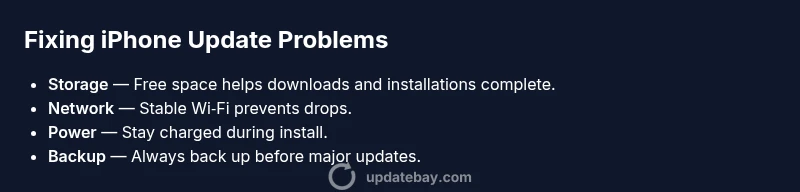
Before you begin, run through these basic checks. Free up storage by offloading unused apps, deleting old media, or moving large files to the cloud. Plug your iPhone into a charger and ensure it remains plugged in during the update. Connect to a stable Wi‑Fi network with a strong signal; avoid cellular data if possible. Verify the date and time are correct and that you’re on the latest eligible iOS version. These quick checks prevent most common failures and reduce the need for deeper troubleshooting.
Diagnostic flow you can follow
If you’re experiencing a problem with an iPhone update, start with the simplest checks and progress to more advanced steps. Symptom: The update starts but stops at a certain percentage or shows an error. Diagnosis: Usually storage or network issues. Solutions: Free up space; improve network; ensure charger is connected; reset network settings if needed. If the problem persists, move to the step-by-step fix for the most common cause and consider a backup restore if necessary.
Prevention and maintenance after update
Once you complete an update, take a moment to optimize your device to prevent future problems. Regularly review your storage usage and offload or delete unused apps. Maintain a stable Wi‑Fi connection during overnight updates and ensure your device remains plugged in when possible. Keep a recent backup and verify it periodically so you can recover quickly if something goes wrong again. Finally, monitor Apple’s server status during major releases to anticipate potential bottlenecks.
Additional considerations and caveats
If your device is older, some updates may require more free space than you expect due to expanded feature sets and security patches. Always back up before attempting major updates, and consider updating from a computer if the OTA method continues to fail. If you’re dealing with an enterprise-managed device or a device enrolled in a mobile device management (MDM) program, consult your administrator before changing network or profile settings.
Steps
Estimated time: 30-60 minutes
- 1
Check available storage
Open Settings > General > iPhone Storage and review free space. If space is under a few gigabytes, start freeing space by removing or offloading large apps and media. Use the Review Large Attachments tool to identify space hogs and consider cloud storage for photos and videos.
Tip: Back up important data before deleting anything. - 2
Free up storage
Offload or delete unused apps, move photos/videos to iCloud or a computer, and clear cached data where possible. Recheck available space after cleaning. This step is crucial to allow the update package to download and install without interruption.
Tip: Offloading preserves app data while reclaiming space. - 3
Connect to stable power and Wi‑Fi
Connect the iPhone to a reliable charger and join a strong Wi‑Fi network. Avoid switching networks during the update. If your home network is unstable, try a different router or use a hotspot from a known-good device.
Tip: A stable connection dramatically reduces update errors. - 4
Restart and retry the update
If the device becomes unresponsive or the progress stalls, force restart (side button + volume button on newer models) and then go back to Settings > General > Software Update to retry. Ensure the device remains on charge during the retry.
Tip: A clean restart clears temporary glitches. - 5
Try OTA update via computer
If OTA fails repeatedly, connect your iPhone to a Mac (Finder) or PC (iTunes) and attempt the update through the computer. This method can bypass OTA issues and leverage the computer’s network stability.
Tip: Always back up before updating from a computer. - 6
Reset network settings (if needed)
If you still see errors, reset network settings to remove conflicting Wi‑Fi passwords or VPN profiles. Then reconnect to your Wi‑Fi and retry the update.
Tip: Resetting network settings only affects network configs, not personal data. - 7
Last resort: DFU restore or Apple Support
As a final option, you can perform a DFU restore following official guides, or contact Apple Support if the update issue persists after all troubleshooting.
Tip: DFU restore erases all data; ensure a recent backup is available.
Diagnosis: iPhone won’t update or the update stalls and restarts
Possible Causes
- highInsufficient device storage
- highUnstable or weak Wi-Fi network
- mediumBattery health or charging issues
- lowVPNs, profiles, or management configurations
Fixes
- easyFree up storage by deleting apps/media or offload to iCloud; reattempt the update
- easySwitch to a stable Wi‑Fi network and keep the device plugged in during the update
- easyCharge the device to a healthy level (50-80%) and use a reliable charger; consider a forced restart if stuck
- mediumReset network settings or remove problematic VPNs/profiles that could block the update
- hardIf issues persist, update via Finder/iTunes on a computer or consider a DFU restore as a last resort
Frequently Asked Questions
Why won’t my iPhone update?
Common reasons are insufficient storage and unstable Wi‑Fi. Battery health, VPNs, and device age can also play a role. Following a structured troubleshooting flow helps identify the exact cause and apply the right fix.
Most updates fail due to storage or network issues; follow the guide to fix it.
How can I check available storage before updating?
Go to Settings > General > iPhone Storage to view free space and recommendations. If space is tight, delete or offload large apps and media, or move files to the cloud.
Check storage in Settings to see if you have enough space before updating.
Is it safe to update over cellular data?
Apple recommends updating over a stable Wi‑Fi connection to prevent interruptions. Large updates may not be available over cellular data; use Wi‑Fi when possible.
Updates are best done on Wi‑Fi; cellular updates can be slower or blocked.
What should I do if the update stalls at Preparing Update?
Wait a few minutes; if no progress, restart the device and retry the update. Check storage and network as described above.
If it stalls, restart and retry after checking storage and network.
Will resetting network settings erase my data?
Resetting only affects network configurations; it won’t erase apps or data, but you’ll need to rejoin Wi‑Fi networks.
Resetting network settings won’t erase data, but you’ll need to reconnect to Wi‑Fi.
When should I contact Apple Support?
If you’ve tried the full troubleshooting flow and the update still fails, Apple Support can help diagnose device-specific issues or provide firmware options.
If updates still fail after following steps, contact Apple Support.
Watch Video
What to Remember
- Back up before updating
- Free up storage before installing
- Use stable Wi‑Fi and power during update
- If the update fails, follow the step-by-step flow or contact support