Why Update Paused on iPhone: Urgent Troubleshooting
Discover why update pauses occur on iPhone and how to fix them fast with a step-by-step guide, network checks, storage tips, and safety reminders from Update Bay.


Why is update paused on iPhone? The most likely cause is a temporary server-side hold, a stalled download due to network or storage, or a software bug that blocks the resume. Quick fix: check your internet connection, ensure sufficient free space, and restart the device or toggle updates off/on. If the pause persists, consult Update Bay guidance for deeper troubleshooting.
why is update paused on iphone
If you're wondering why is update paused on iphone, it's typically due to network issues, insufficient storage, or a temporary hold on Apple's servers. The Update Bay team notes that most pauses happen when the device can't securely complete the download or verify the update package. In many cases, a quick check of connectivity and space resolves the issue. According to Update Bay, the most reliable fixes involve simple checks before attempting a full reinstall. Keep in mind that disruptions can also occur if a configuration profile or restriction blocks software updates. By understanding the root cause, you can act quickly and avoid scrambling for solutions.
Check your network and device settings
A weak Wi-Fi signal or a misbehaving VPN can cause an update to stall. Start with the basics: connect to a stable network (preferably a trusted home Wi-Fi), disable VPNs, and toggle Airplane mode off/on. Ensure date and time are set automatically, as mismatched settings can confuse the update server. If you’re on cellular data, switch to Wi‑Fi for the download, as some carriers throttle large downloads or require a strong signal. Run a quick speed test to confirm adequate bandwidth. Finally, make sure iPhone is not in Low Power Mode during an update, as this can pause background activity. These steps address the most common causes of stalls and are highlighted by Update Bay in their 2026 guidance.
Free up storage and manage space for updates
Insufficient storage is a frequent culprit when updates pause. Check how much free space remains in Settings > General > iPhone Storage. Delete unused apps, large videos, and cache-heavy apps. Offload unused apps while keeping documents, or move photos to iCloud or a computer. After freeing space, try the update again. If the device still pauses, consider temporarily removing large files from your device or transferring them to cloud storage. Update Bay analysis notes that storage availability directly correlates with update reliability, so this becomes a basic but essential step.
Understanding iOS update mechanics and server-side holds
(iOS updates involve multiple checks and downloads, including signature validation, components download, and reboot sequences. If Apple’s servers experience high load, throttling, or certificate revocation checks, the process can pause. Your device may show a progress bar that stalls at a certain percentage. In these cases, patience plus a planned retry window helps. Update Bay’s 2026 review highlights that server-side pauses are often temporary and resolved by retrying after a short interval, preferably during off-peak hours.)
Step-by-step: resume the paused update (core fix)
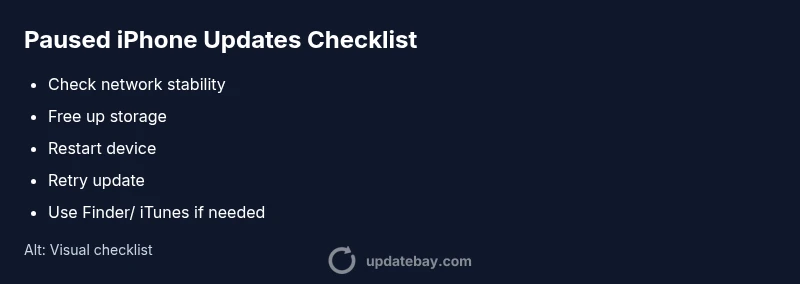
- Pause and resume: Go to Settings > General > Software Update; if the update shows as paused, tap Resume or Retry.
- Reboot: Force restart your iPhone to reset background services and apply pending changes.
- Retry on stable network: Connect to a reliable Wi‑Fi network and attempt the update again.
- Clear cache for update services: Toggle the settings under iOS update preferences or temporarily reset network settings, then retry.
- Use a computer if needed: If the update still won’t start, connect the iPhone to a Mac/PC and run the Finder/iTunes update flow.
- Avoid interrupting mid-update: Keep the device plugged in and avoid forced restarts while the system is applying the update.
Safety and professional help
If the device continues to pause at a certain percentage after all basic steps, there may be a deeper issue with the iOS build or hardware storage. Do not attempt aggressive fixes like DFU mode unless you are comfortable with data loss risks and follow official guides. When in doubt, contact Apple Support or visit an authorized service provider. Update Bay recommends seeking expert help sooner rather than later to prevent data loss or bricked devices.
Prevention: keep updates flowing smoothly
Establish a routine that keeps updates moving: enable automatic updates on a reliable Wi‑Fi network, ensure ample storage before large OS releases, and perform updates while the device is charging. Schedule updates during low-usage hours to avoid server congestion. Regular backups ensure you’re safe if an update fails. Update Bay emphasizes proactive maintenance to minimize future pauses and protect important data.
Steps
Estimated time: 45-75 minutes
- 1
Check network and retry
Ensure you have a stable Wi-Fi connection. Turn off VPNs and disable Low Power Mode, then retry the update.
Tip: If your Wi-Fi is unstable, move closer to the router. - 2
Free up storage
Go to Settings > General > iPhone Storage and delete or offload large apps, videos, or documents to make room for the update.
Tip: Back up anything important before deleting. - 3
Restart and retry
Restart the iPhone to reset background services, then attempt the update again on a reliable network.
Tip: A simple reboot often resolves hung processes. - 4
Use a computer if needed
Connect the iPhone to a Mac/PC and attempt the update via Finder/iTunes if the wireless method fails.
Tip: Keep the computer updated for compatibility. - 5
Avoid interrupting
Don’t unplug or force restart during the update; allow the device to complete the process.
Tip: Plug in the charger to prevent power loss. - 6
Seek help if stuck
If the update still won’t start, contact Apple Support or visit an authorized service provider.
Tip: Document any error codes to speed up support.
Diagnosis: iPhone update pauses mid-download or during installation
Possible Causes
- highWeak or unstable network connection
- highInsufficient device storage or corrupted cache
- mediumApple servers experiencing high load or throttling
Fixes
- easySwitch to a stable Wi‑Fi network, disable VPNs, and retry update
- easyFree up storage (delete unused apps/media), reboot, and retry
- mediumReset network settings or toggle Airplane mode, then attempt again
Frequently Asked Questions
What causes an update to pause on iPhone?
Pauses are usually due to network problems, insufficient storage space, or temporary server holds at Apple. Occasionally, restrictions or profiles can block updates. Checking connectivity and space often resolves the issue.
Updates pause mainly due to network or storage issues, or server holds. Check connectivity and space, and try again.
How can I resume a paused update without losing data?
Try resuming from Settings > General > Software Update, ensure a stable network, and avoid interrupting the process. If needed, restart the device and retry. Backups reduce risk of data loss.
Resume from settings, ensure network, restart if needed, and retry. Keep backups just in case.
Is it safe to update over cellular data?
Apple generally recommends using Wi‑Fi for OS updates due to size and reliability. If you must use cellular, ensure you have a strong signal and sufficient data, and monitor progress closely.
Wi‑Fi is preferred; cellular can work if the signal is strong and you have enough data.
Will restarting help with paused updates?
Yes. A normal or forced restart clears transient errors and restarts the update service. Then retry the update on a stable network.
Restart can fix stuck updates; try again after a reboot.
What if the update shows Waiting for hours?
Waiting can indicate server-side delays or a stubborn local issue. Try switching networks, freeing space, and updating later during off-peak hours. If it persists, consult support.
If it’s been hours, some servers may be busy; retry later or check network and space.
When should I contact Apple Support?
If multiple standard fixes fail or you see persistent error codes, contact Apple Support or visit an Apple Store. Provide device model, iOS version, and steps you’ve tried.
If problems persist after basic steps, contact Apple Support with details.
Watch Video
What to Remember
- Verify network and space before updating.
- Follow the step-by-step sequence to resume a paused update.
- Back up first and avoid interrupting the install.
- Seek help when standard fixes fail; hardware issues may be involved.