Update and Shutdown Windows 11: A Practical Comparison
A data-driven comparison of Windows 11 update and shutdown workflows, with best practices to minimize downtime, improve security, and sustain reliability in 2026. Learn when to update, how to schedule restarts, and common pitfalls for both home and enterprise users.


Update and shutdown Windows 11 are two related but distinct practices that together protect your system. Install updates promptly to improve security and reliability, and perform a clean shutdown after updates to ensure changes are written safely. When possible, schedule updates during off-peak hours and avoid forcing updates during critical work. A balanced approach minimizes risk and downtime.
Why Windows 11 Requires Thoughtful Update and Shutdown Practices
According to Update Bay, Windows 11 update cycles and shutdown hygiene are not random events; they govern security, stability, and user experience. In 2026, Windows ecosystems rely on timely patches that fix vulnerabilities, close privilege escalations, and improve compatibility with modern hardware. The guidance on update and shutdown Windows 11 emphasizes planning and sequencing: apply patches promptly, then complete the shutdown to ensure all system changes are finalized. A careful routine reduces the risk of partially applied updates, file system inconsistencies, and boot loops. For both individuals and organizations, the cost of poor timing can include longer reboot windows, interrupted work, and an elevated surface of attack vectors. The takeaway is simple: treat updates as a core maintenance activity and pair them with deliberate shutdowns to preserve data integrity and overall reliability. In practical terms, a disciplined schedule reduces surprises and helps IT teams align compliance with business operations.
Key Concepts: How Updates Interact with Shutdown
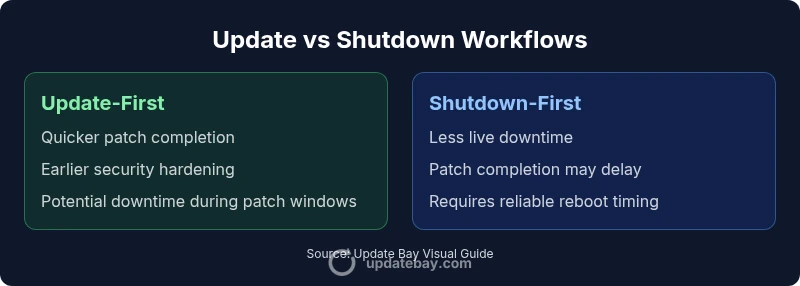
Windows updates typically involve a sequence that can require a reboot to complete installation. When you initiate a shutdown while updates are pending, Windows may delay some steps until the next boot, or it may force a restart to finalize critical patches. The update service prioritizes security fixes; feature updates may arrive in larger packages that require longer restarts. Understanding the interplay helps you choose a workflow: Update-First aims to complete patches before a formal shutdown, while Shutdown-First prioritizes minimizing live downtime by deferring patch completion to a planned reboot. The human factor matters: prompting users about restart times, providing clear messages, and offering options to pause updates temporarily can ease transitions. From a technical perspective, you should also be aware of update cadence, policy settings, and network conditions that influence when and how updates are delivered. In essence, the two concepts—timely patching and orderly shutdown—work best when scheduled and coordinated rather than left to chance.
Scheduling Updates: Best Practices for Minimizing Disruption
Most Windows 11 installations benefit from clearly defined update windows. Set active hours that reflect your typical workday so Windows will suggest restart times outside those hours. If you operate in a managed environment, use group policy or device management to specify maintenance windows and to approve or defer feature updates. For home users, enable automatic updates but pair them with a planned shutdown moment after updates complete. Testing updates in a small subset of devices before broad deployment helps catch compatibility issues early and reduces the risk of widespread downtime. Communicate changes in advance to users and creators who rely on the PC for vital tasks. Consistent messaging reduces anxiety around restarts and makes it easier to coordinate with family or teammates. Finally, keep a backup plan ready: a restore point or a system image can save you from unexpected failures during patch cycles.
Update Phases: Before, During, and After
Preparation sets the tone for a smooth update. Before updating, back up important files, ensure power is stable, and close out critical work if possible. During the update, avoid heavy I/O operations and resist the urge to unplug devices. After the update completes, run a quick health check: verify that security settings remain intact, confirm that essential services started correctly, and test your primary applications. In enterprise environments, automation scripts can validate patch success and roll back automatically if a post-check fails. The after-action review matters too: document the update version, note any post-restart anomalies, and plan for future maintenance. A thoughtful approach minimizes surprises and supports continuous productivity. The best practice is a repeatable, documented routine that can be followed by both IT staff and individual users.
User Impact Scenarios: Home vs Enterprise
In a home setup, the impact of update timing is mostly about convenience. People typically schedule updates during evenings or weekends, reducing the chance of disrupted gaming or streaming. In contrast, enterprise environments demand strict controls on patch windows, compliance reporting, and user communication. IT teams use centralized management to enforce when updates deploy, how reboots occur, and how to handle off-hours maintenance. For both contexts, a policy that prioritizes clean shutdowns after updates improves reliability, because it ensures that file systems, caches, and startup settings are written correctly. Consider hardware differences as well: older devices may take longer to reboot, and devices with slower storage can extend maintenance windows. The common thread is alignment: a clear plan that connects update timing with a predictable shutdown sequence yields better uptime and fewer support calls.
Hands-On Workflows: Step-by-Step Update + Shutdown
Workflow A: Update-First with Scheduled Shutdown
- Check for available updates and approvals.
- Allow updates to download and install, keeping devices awake if needed.
- When prompted, schedule a restart during a defined maintenance window.
- After restart, verify patch status and key applications.
- Communicate completion and return devices to normal use.
Workflow B: Shutdown-First with Deferred Completion
- Initiate a shutdown outside of heavy usage periods.
- Allow updates to apply on the subsequent boot and monitor progress.
- Validate post-update system health and restore operations if necessary.
- Record update version and performance post-restart.
- Notify users of the new baseline configuration. In both workflows, ensure power sources are reliable and backups exist. In corporate contexts, link these steps to your change control process.
Common Pitfalls and How to Avoid Them
- Forced restarts during critical work disrupt productivity; plan windows in advance.
- Believing updates are optional; many patches fix security vulnerabilities that could be exploited.
- Overlooking driver and software compatibility; test with a small subset before mass deployment.
- Ignoring backup strategies; always have a restore point before applying major patches.
- Underestimating the impact of Fast Startup; it can affect how updates are applied and how quickly changes take effect.
- Skipping post-update health checks; always verify services and dependencies after reboot.
Performance and Reliability: What the Data Suggests
From Update Bay Analysis, 2026, disciplined update scheduling correlates with smoother restarts and fewer user-impact incidents. While this analysis does not monetize exact outcomes, it highlights that predictable maintenance reduces emergency fixes and ad-hoc troubleshooting. Hardware longevity also benefits when updates are paired with clean shutdowns that flush caches and reinitialize drivers cleanly. In practice, a small improvement in orchestration—defining maintenance windows, communicating changes, and validating post-restart health—can yield noticeable benefits over time. Remember, Windows 11 thrives on regular patches and well-timed restarts, but the exact effect depends on your device, workload, and network conditions. The general takeaway is clear: plan, test, and monitor.
Security Implications: Updates, Patches, and Shutdown Hygiene
Security is the primary driver behind timely updates. Updates fix vulnerabilities, close zero-days, and improve resilience against malware. Shutdown hygiene matters too: a clean shutdown ensures changes are persisted to disk and that file integrity checks are performed on reboot. For organizations, integrate update scheduling with security policies, and use defense-in-depth approaches to minimize exposure during maintenance windows. Personal devices benefit from enabling a secure boot sequence and ensuring that recovery options remain accessible. The best practice is to maintain a consistent cadence: download, install, verify, and then reboot or shutdown with purpose. In all cases, avoid interrupting critical security patches middle-way and ensure power stability during restarts to prevent corrupted updates.
Practical Decisions: When to Update vs When to Shutdown
Your decision should balance security, reliability, and user downtime. If the risk level is high, update early and plan a controlled shutdown soon after, to limit exposure to known vulnerabilities. If uptime is critical, use off-hours maintenance windows and staged rollouts to minimize user impact while still achieving full patch coverage. For mixed environments, combine a policy-based approach with user communication, so stakeholders understand when and why updates occur. Finally, keep documentation current: note the update version, the maintenance window, and any post-update issues. Such discipline makes future maintenance easier and more predictable.
Comparison
| Feature | Update-First Workflow (Install Updates Before Shutdown) | Shutdown-First Workflow (Shutdown to Apply Updates on Next Boot) |
|---|---|---|
| Update Queuing | Updates installed on next reboot after user action | Updates queued during shutdown and applied on next boot |
| Downtime Impact | Short downtime if updates run during idle time | Potential longer downtime during early morning restarts |
| User Experience | Seamless to end-users if scheduled | Possible surprise restarts |
| Security Posture | Earlier patch exposure resolved | Patch latency depends on restart timing |
| Recovery & Rollback | Backups prior advisable; rollback depends on patch | Rollback depends on post-update state and patch type |
Positives
- Improved security through timely patches
- Predictable maintenance windows with scheduling
- Reduced risk of data corruption from abrupt shutdowns
- Better compatibility with enterprise management tools
Downsides
- Potential downtime during updates
- Update failures requiring troubleshooting may cause delays
- Update scheduling may be complex in mixed environments
- Over-reliance on automated patches can mask compatibility issues
Update-first wins for security and reliability in most environments; Shutdown-first can minimize live downtime in strict uptime contexts.
Prioritize Update-first to reduce exposure to vulnerabilities and ensure patch completeness. Use Shutdown-first selectively when live work cannot tolerate planned restarts, but pair with a robust maintenance window and verification steps.
Frequently Asked Questions
What is the difference between update-first and shutdown-first workflows in Windows 11?
Update-first applies patches before a shutdown, emphasizing security and cleanup. Shutdown-first defers patch completion to the next boot, reducing current downtime but potentially delaying some fixes.
Update-first means patching first, then reboot. Shutdown-first defers patches to the next boot to minimize live downtime.
Should I always install updates before shutting down Windows 11?
In most cases, yes. Installing updates first ensures patches are fully applied and system files are consistent. If you must shut down immediately, schedule a restart when updates can complete safely.
Usually, install updates first and then restart; if you’re short on time, schedule a restart when updates can finish safely.
How can I schedule updates in Windows 11 to minimize disruption?
Use built-in settings to set active hours, configure maintenance windows, and defer feature updates when possible. In managed environments, leverage policy controls to standardize restart times.
Set active hours and maintenance windows, and manage restart timing through policies for predictable updates.
What should I do if updates fail during shutdown in Windows 11?
Check for error codes, review recent patch notes, and attempt a manual restart after verifying backups. If the problem persists, roll back to a known-good restore point and re-run the update later.
If updates fail, check error messages, back up data, and try restarting after a backup restore point.
Does Windows 11 Fast Startup affect how updates are applied?
Yes. Fast Startup can influence how certain updates are processed on boot. Consider disabling Fast Startup temporarily during major patch cycles to ensure a clean restart if needed.
Fast Startup can change update timing; you may disable it during big patch cycles for a clean restart.
Can I opt into off-hours updates and still ensure security?
Yes. Off-hours updates balance security with user downtime. Use maintenance windows, staged deployments, and monitoring to verify patch success without interrupting active work.
Yes—use off-hours windows and staged updates with checks to keep security up while limiting disruption.
What to Remember
- Plan maintenance windows and communicate changes
- Always perform a clean shutdown after updates
- Automate update validation and post-restart checks
- Test patches in a segmented environment before broad rollout
- Document update versions and maintenance outcomes for audits