How Do Update My Phone? A Practical 2026 Guide
Learn how do update my phone safely with backups, prerequisites, and troubleshooting. This educational, step-by-step guide covers iPhone and Android updates to keep your device secure and performing at its best.


To update your phone, back up your data, ensure a stable Wi-Fi connection, and install the latest OS version. The exact steps vary by device, but typically you go to Settings > Software Update (iPhone) or Settings > System > Software Update (Android). Keep your phone plugged in and avoid interrupting the update to prevent data loss.
how do update my phone
If you're wondering how do update my phone, this guide provides a reliable, step-by-step approach to update
Why staying up-to-date matters
Device updates are more than cosmetic changes. They close security gaps, improve battery management, and ensure apps continue to run smoothly with the newest system APIs. For everyday users, timely updates translate to fewer crashes, faster wake times, and better compatibility with banking apps, messaging services, and photo editors. Update Bay’s analysis shows that devices with timely OS updates tend to experience fewer reported vulnerabilities and longer usable lifespans. While updating, you also gain access to new features that enhance usability and accessibility. This section sets the stage for a practical, device-agnostic approach that applies whether you own an
Plan and prerequisites before updating
Before you even tap Update, confirm you have a plan. Ensure you’re on a reliable Wi-Fi network, have enough storage space, and are ready to back up your data. Updates can take from several minutes to over an hour depending on the device and network conditions. Having a charger connected avoids mid-update outages. If you’re updating in a shared household, inform others and avoid starting during an important call or deadline. A prepared approach reduces the chance of post-update glitches and preserves your data.
What to expect during the update process
The update process typically downloads the new OS package, verifies integrity, and applies the changes. On first boot after installation, you may see processing screens and a restart. Some apps may briefly reload in the background as permissions are re-evaluated. Expect a short period of slower performance during the first use after update while caches rebuild. If a feature prompts you to review new settings, take a moment to understand and configure them to match your preferences.
Accessibility, safety, and privacy considerations
Updates often include privacy improvements and security settings changes. Review any new permissions prompts and adjust as needed. If you use device management profiles at work, verify that updates won’t conflict with corporate policies. Always install updates from reputable sources and avoid sideloading OS builds from untrusted sources, which can compromise security and stability.
Tools & Materials
- Fully charged device or plugged-in power(Keep the device charging during the update to prevent interruption.)
- Stable Wi‑Fi connection(Prefer an unmetered network with good speed; avoid public hotspots.)
- Backup of important data(Use iCloud/Google Drive or local backup on a computer before updating.)
- USB-C/Lightning cable (optional)(Only needed if updating via a computer or transferring data during setup.)
Steps
Estimated time: 30-60 minutes
- 1
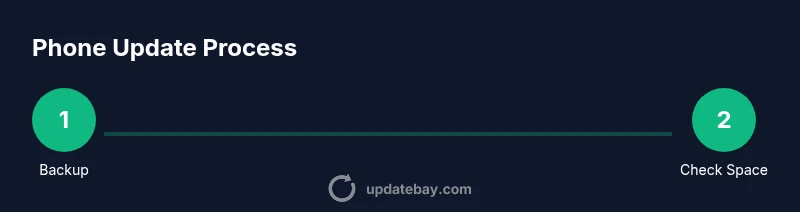
Back up your data
Start by creating a complete backup of your photos, contacts, messages, and app data. Use iCloud or Google Drive for wireless backups, or connect to a computer to perform a local backup. Verifying the backup helps ensure you can recover if something goes wrong.
Tip: Verify the backup by attempting a partial restore of a photo or document. - 2
Check available storage
Ensure there’s enough free space for the update file. If storage is tight, remove unused apps or offload media. Updates can require several gigabytes of space, depending on the device and the version.
Tip: Use a storage analyzer to identify large files you can remove or offload. - 3
Connect to power and a stable network
Plug the device into power and connect to a reliable Wi-Fi network. Updates can fail on battery power or spotty networks, risking incomplete installation.
Tip: If your battery is under 50%, plug in before starting. - 4
Open the update settings and check for updates
Navigate to Settings and locate Software Update (iPhone) or System > Software Update (Android). If an update is available, tap Download and Install. Read any on-screen notes to understand new features or requirements.
Tip: If you don’t see an update, your device may already be current or your model may not support the latest version. - 5
Download and install the update
Confirm the update and let the download complete. The device will restart automatically and apply changes. Do not interrupt the process; pause activities that could disrupt connectivity or power.
Tip: Keep the device near a charger during the entire install to prevent power loss. - 6
Verify installation and adjust settings
After the update finishes, verify the version is current in Settings and review essential settings (privacy, location, and notifications). Reinstall any apps that require updates and sign back into services if needed.
Tip: Take a few minutes to explore new features or settings introduced in this update.
Frequently Asked Questions
Should I update my phone even if it seems to be working fine?
Yes. Updates provide security patches, bug fixes, and feature improvements that reduce risk and improve usability. Delaying updates can expose you to vulnerabilities and compatibility issues with apps.
Yes, updates are important for security and smooth operation, even if everything appears to work fine.
What if the update fails to install?
If installation fails, restart the device, check storage, and retry. If it still fails, try again after a quick reboot or use a wired update if available. Contact support if problems persist.
If it fails, restart and try again. If it continues, check storage and consider support.
Will apps update automatically after an OS update?
Most apps update automatically after an OS update, but you can also manually update apps in the App Store or Google Play. It helps ensure compatibility with the new system.
Usually yes, but you can also check manually.
Do I need to back up before updating?
Backing up protects data in case something goes wrong during the update. It is highly recommended to back up before starting.
Yes, always back up before updating.
Can I turn off automatic updates to save data?
You can disable auto-updates, but this increases the risk of missing critical security patches. If you manage data limits, schedule updates to occur over Wi-Fi.
You can, but it's not advised for security reasons.
Do update steps differ between iPhone and Android?
Yes. Prompts and menu names vary between iOS and Android, and sometimes between manufacturers. Follow the on-screen instructions for your device.
Yes, it varies by device, but the general steps are similar.
Watch Video
What to Remember
- Back up before updating to protect data
- Ensure power and a strong network during update
- Follow device-specific prompts to complete the install
- Review new settings and privacy changes after update
- Enable automatic updates for ongoing protection