How to Update iPad iOS: A Practical Guide
Learn how to safely update your iPad to the latest iPadOS with step-by-step instructions, troubleshooting tips, and best practices from Update Bay.


By the end of this guide, you'll confidently update your iPad to the latest iPadOS version. Key requirements: a charged device, stable Wi‑Fi, a backed‑up iPad, and your Apple ID. According to Update Bay, keeping iPad iOS up to date reduces security risks and adds feature improvements.
Why updating iPad iOS matters
Updating iPad iOS is a foundational maintenance task for any iPad owner. Each release includes security patches that help shield you from new exploits and privacy threats, plus bug fixes that can eliminate nagging crashes. Beyond safety, updates often bring performance improvements, smoother animations, and better app compatibility with new features. For many users, a refreshed operating system also means better battery management and more responsive multitasking. While not every release introduces dramatic changes on older devices, staying current minimizes compatibility issues with popular apps and ensures you can use newer accessories or services without friction. Update Bay's 2026 analysis showed that devices left on outdated iPadOS versions are more prone to unexpected app quits and slower system performance after several months. Keep in mind that the goal is a smooth, reliable experience, not chasing every new feature at once. A timely backup before updating remains the safest guard against data loss.
How to check your current iPad iOS version
Open the Settings app, then tap General > About. Look for Software Version and compare it to the latest publicly released iPadOS version list from Apple. If your version matches the latest number, you do not need to update yet. If not, note the version and date, and prepare for a planned update window. You can also visit Apple’s support page to confirm compatibility with your device model and target release. When in doubt, perform a quick backup before proceeding. Knowing your current version helps you decide whether a feature update matters to you or if a bug fix is sufficient for your use case.
Prerequisites before updating
Before starting, ensure you have reliable power and network conditions. Charge the iPad to at least 50% and keep it plugged in during the update if possible. Connect to a stable Wi‑Fi network, preferably 5 GHz, to minimize interruptions. Back up your data with iCloud or a computer backup, so you can restore apps, settings, and documents if something goes astray. Sign in with your Apple ID and have it ready for authentication prompts. If you’re updating on an older model, verify you have enough free storage space (2–3 GB or more is a good target). Finally, decide whether you want to update over the air or use a computer-based method for a possible full installation.
Step-by-step: Update via Settings (OTA update)
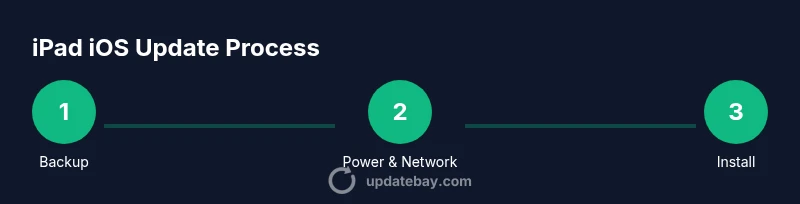
Navigate to Settings > General > Software Update and select Download and Install. Keep the device connected to power, and avoid using the iPad for heavy tasks during the process. The download may take several minutes, depending on your connection, and the installation can take longer. Do not interrupt the process or force close Settings. After installation, your iPad will restart and present a welcome screen with new features and settings to review. If prompted, enter your passcode to authorize the update and reauthenticate any services. Tip: enabling Low Power Mode during the download can help preserve battery, but disable it before installation to ensure a smooth update. See diagram references in the article for the flow of steps.
Step-by-step: Update via Finder/ iTunes (computer method)
Connect your iPad to a Mac (with Finder) or Windows PC (with iTunes) using a cable. In Finder or iTunes, select your device and choose Check for Update, then Download and Update. This method can be more reliable on slow networks or when the OTA route fails. You may need to temporarily disable or re‑enable security software on your computer to allow the update to proceed. After the update completes, the iPad will restart and re-sync apps as necessary. Verify the software version in Settings and sign back into services if required. If you backed up earlier, you can restore your data from the backup if needed. Reference the official Apple support documentation for exact steps.
Troubleshooting common issues during iPad iOS updates
Low storage is a frequent blocker—free up space by deleting unused apps or media, then retry. A flaky Wi‑Fi connection can cause download interruptions; try a different network or move closer to the router. If the update stalls, force restart the iPad or start the update again from Settings. For issues with authentication or Apple ID prompts, sign out and sign back in, then retry. If you see error codes, note them down and search Apple’s support site for specific guidance. In some cases, a computer-based update via Finder or iTunes resolves persistent OTA problems. Always ensure you have a fresh backup before attempting repeated updates.
Post-update best practices for performance and security
After updating, review privacy settings and app permissions to ensure you’re comfortable with new defaults. Check battery usage by looking at Settings > Battery, and identify any apps that drain power unusually after the update. Reinstall apps as needed and reconfigure widgets or home screen layouts if the update introduced changes. Enable automatic updates for future versions to reduce manual work. Finally, monitor device behavior for a day or two to catch any residual issues and report them if necessary. A proactive approach helps you gain the most from the update without surprises.
Tools & Materials
- iPad(Ensure it has sufficient free storage space and preferably is charged or plugged in.)
- Stable Wi‑Fi network(5 GHz preferred for reliability during downloads.)
- Apple ID credentials(Needed for authentication during update.)
- Backup method(iCloud or computer backup prior to update.)
- USB-C/Lightning cable(For computer-based updates if using Finder/iTunes.)
- Mac or Windows computer(Required only if performing a computer-based update.)
Steps
Estimated time: 45-60 minutes
- 1
Prepare and backup
Before you touch the update, back up your iPad to protect photos, documents, and app data. Verify you know your Apple ID credentials and ensure the device is connected to power. This reduces the risk of data loss if something goes wrong.
Tip: Back up using iCloud or Finder/iTunes, and confirm the backup completed before proceeding. - 2
Charge and connect to a reliable network
Plug the iPad into power and connect to a stable 5 GHz Wi‑Fi network. A stable connection prevents mid‑download interruptions that could corrupt the update.
Tip: If you can’t stay plugged in, schedule the update for a time when you can recharge. - 3
Open Settings to Software Update
Navigate to Settings > General > Software Update to check for the latest available version. If an update is shown, tap Download and Install and enter your passcode if prompted.
Tip: Keep the screen awake and avoid heavy usage during download. - 4
Download and install the update
Let the download complete, then follow prompts to install. The iPad will restart automatically. Do not unplug the device during installation.
Tip: If the install takes longer than expected, confirm the device remains powered and connected. - 5
Verify post-install prompts and settings
After reboot, review any new setup prompts and re-sign into services if required. Check that the version shows the new iPadOS in Settings > General > About.
Tip: Take a minute to re-enable any preferences you use frequently (widgets, notifications, etc.). - 6
Optional: update via computer if OTA fails
If the over‑the‑air update doesn’t complete, connect the iPad to a Mac (Finder) or Windows PC (iTunes) and use Check for Update. This can resolve network-related stalls.
Tip: Use only trusted networks and avoid bypassing warnings.
Frequently Asked Questions
Can I update iPad iOS without Wi‑Fi?
iPadOS updates require an internet connection; cellular data isn’t used for the actual install. If Wi‑Fi isn’t available, use a computer-based update when possible.
You need a network connection for the update. If Wi‑Fi isn’t available, try updating via a computer when you can.
How long does an iPad update take?
The duration varies by model and connection speed, typically between 20 minutes and about an hour, including download and installation. Plan for 45–60 minutes to be safe.
Most updates take around 45 minutes, but it can be shorter or longer depending on the device and connection.
What should I do if the update fails?
If an update fails, restart the iPad, recheck storage and network, and retry. If problems persist, update via Finder/iTunes or restore from backup using Apple’s guidance.
If the update fails, restart, check storage and network, then try again or use a computer-based update.
Is it safe to update immediately after release?
In general, updating soon after a release is safe, but review release notes for known issues and ensure your backup is current in case you need to roll back.
Yes, updating soon is usually safe, just back up first and read the release notes for any caveats.
Will updates erase my data?
System updates do not typically erase user data, but a backup protects against rare issues that could require restoration.
Updates don’t normally erase data, but backing up first is a smart precaution.
Can I downgrade to a previous iPadOS version?
Downgrades are generally not supported for consumer iPads after release. If you must, it’s limited and may require specialized tools and timing.
Downgrades aren’t typically supported for consumer iPads after an update.
Watch Video
What to Remember
- Back up before updating
- Use a stable network and power
- Do not interrupt installation
- Verify the new version after update
- Enable automatic updates afterward