How to Update to iOS 16: A Practical Guide
Learn how to update to iOS 16 safely with compatibility checks, backups, and post-update tips for a smooth upgrade on iPhone. Includes step-by-step actions and troubleshooting.


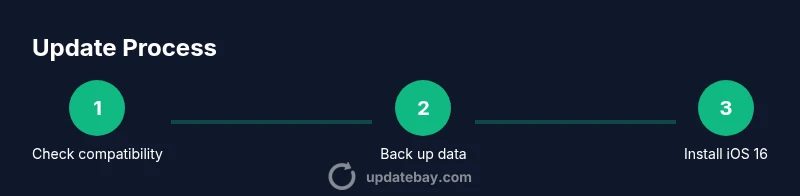
To update to iOS 16, verify your iPhone model is compatible, back up your data, plug in power, and connect to a reliable Wi‑Fi network. Then open Settings > General > Software Update and follow the on‑screen prompts. The upgrade may take 15–45 minutes depending on device and connection. Make sure you have enough storage space and a recent backup you can restore from if needed.
Compatibility and prerequisites
If you're planning to update to iOS 16, start by confirming your iPhone model is supported. Apple released iOS 16 for iPhone 8 and newer models, as well as iPhone SE (2nd generation) and newer. If you own an older device, you may need to stay on your current iOS version or upgrade hardware. According to Update Bay, compatibility is the most important gating factor because attempting an unsupported update can cause outages or data loss. Before you tap update, ensure your account is active and you can sign in to your Apple ID. Also note that some features may require hardware or region-specific services. If you’re unsure, check Apple’s official compatibility page or run a quick check in Settings > General > Software Update; if the button isn’t present, your device doesn’t support iOS 16.
Backing up and preparing your device
Backups are the safety net when updating iOS. You have two reliable options: iCloud backup and local backup to a computer. If you’re using iCloud, connect to Wi‑Fi and go to Settings > your name > iCloud > iCloud Backup, then choose Back Up Now. For a computer backup, connect your iPhone to a Mac or PC, open Finder or iTunes, and start an encrypted backup to capture passwords and Health data. Keep in mind that an encrypted backup requires your device passcode. Update Bay recommends performing a backup before any major OS change to enable easy restoration if something goes wrong. After backing up, make a rough plan for the update window so you’re not disrupted by calls or resets; a typical update session may require a stable connection and about 30–60 minutes, depending on data size and server load.
Storage and battery considerations
OS updates need free space and a stable power source. Check Settings > General > iPhone Storage to gauge available space. If you’re tight, remove unused apps or media and offload large files to iCloud. Charge your device to at least 50-70% before starting the update, and plug into a power source if you can. A fully charged battery reduces the risk of mid-update shutdowns, which can cause partial installations. If you anticipate a long session, disable mobile data to avoid interruptions (or switch to Wi‑Fi) and ensure a quiet environment. Update Bay’s analysis shows that updates tend to proceed smoothly on devices with ample storage and a consistent power supply.
How to perform the update
To start the installation, open Settings, then General, then Software Update. The system will check for an update and display iOS 16 with a brief overview of new features. Tap Download and Install to begin. Enter your passcode if prompted and agree to terms. The device will restart to complete the installation. If prompted, you may be asked to re-enter your Apple ID to enable features like iCloud or Find My. After the restart, the system will guide you through setup steps, including re-enabling preferences and logging back into apps. Stay patient; some devices show progress bars for longer than expected due to server load, caches, or post-install index rebuilding. A stable Wi‑Fi connection helps the process complete faster.
Troubleshooting update issues
Sometimes updates don’t appear or fail midway. If iOS 16 doesn’t show up in Settings, confirm again compatibility and network status. Restart your iPhone, then try again. If the update downloads but hangs at a percentage, pause and resume or cancel the download and reattempt during off-peak hours. For failed installations, use a wired backup and try updating via Finder or iTunes on a computer. Check for sufficient storage and disable VPNs during the update. If issues persist, contact Apple Support or visit an Apple Store. Update Bay recommends avoiding untrusted sources for firmware, as they can compromise security or brick the device.
What’s new in iOS 16
iOS 16 introduces several user-focused improvements and security enhancements. Expect refreshed customization options, new privacy features, and smoother interactions across apps. Messages privacy and editing options, improved Focus modes with more filters, and richer notifications can change daily workflows. These changes aim to improve accessibility and productivity while maintaining strong protections against malware and suspicious apps. As with any major OS release, some apps may behave differently until developers update compatibility. Stay informed about feature deprecations and new settings you may want to adjust after installation.
Post-update steps and maintenance
After updating, check that essential apps function correctly and that your data appears intact. Run a quick data check by opening Photos, Messages, and Mail; verify that health data and passwords are accessible via your password manager. Revisit Settings to re-establish preferences, notification settings, and privacy controls. If you enable iCloud, confirm backups are running as expected and consider enabling a backup schedule. Regular minor updates can improve stability and security; keep an eye out for subsequent patches. The Update Bay team recommends keeping your device up to date to maintain a safer and more efficient experience.
Tools & Materials
- iPhone compatible with iOS 16(Check model list (iPhone 8 or newer) and iOS version)
- Reliable Wi‑Fi connection(Stable network to download the update)
- Power source (charger or wall outlet)(Keep device charging throughout the install)
- Apple ID credentials(Needed for iCloud backup and sign-in)
- Backup method (iCloud or computer)(Backup to prevent data loss)
- Mac or PC with Finder/iTunes(Use if performing a computer-based update)
Steps
Estimated time: 60-90 minutes
- 1
Check compatibility
Verify your iPhone model supports iOS 16 and confirm the update availability in Settings. This prevents trying an unsupported upgrade and avoids wasted time.
Tip: Visit Apple’s official compatibility page for a definitive list. - 2
Back up your device
Create a full backup to protect photos, messages, app data, and settings. Choose iCloud Backup or a local encrypted backup on a computer.
Tip: Encrypted backups capture passwords and health data for a smoother restore. - 3
Charge and free space
Make sure the device is plugged in and has ample free storage before starting. Free space reduces the risk of a failed update.
Tip: If space is tight, offload large apps or media to iCloud temporarily. - 4
Connect to a stable Wi‑Fi network
Update downloads are large; a strong, stable Wi‑Fi connection speeds up the process and reduces interruption risk.
Tip: Avoid public networks; use a trusted home or office router. - 5
Install the update
Open Settings > General > Software Update, download and install iOS 16, and follow prompts. The device will restart to complete installation.
Tip: Keep device plugged in and stay patient during the restart. - 6
Verify installation
After reboot, confirm the update is listed in Settings > General > Software Update as Installed. Check core apps for basic functionality.
Tip: Test key features like Messages, Photos, and Battery usage. - 7
Troubleshoot if needed
If the update stalls or fails, retry late at night or use Finder/iTunes for a manual install. Check storage and network before retrying.
Tip: Avoid repeated failed attempts; instead, seek official support if persistent issues occur.
Frequently Asked Questions
Is my iPhone compatible with iOS 16?
iOS 16 supports iPhone 8 and newer models, as well as iPhone SE (2nd generation) and newer. If you’re unsure, check Settings > General > Software Update or Apple’s official compatibility page.
Most iPhones from the iPhone 8 onward can update to iOS 16. Check Settings or Apple’s site to confirm your model.
Will updating to iOS 16 erase my data?
A standard update should not erase data if backups were created first. Restoring from a recent backup is possible if something goes wrong during installation.
No, updates shouldn’t erase data if you backed up beforehand. You can restore from backup if needed.
Why isn't the update showing in Settings?
If you don’t see iOS 16, confirm compatibility and that you’re connected to a stable network. Sometimes waiting a few hours helps as Apple servers roll out to different regions.
If it isn’t showing, verify compatibility and a solid connection, then try again later.
How long does the update take on average?
Actual time varies with device and network. Plan for a window of about 30–60 minutes, including download and installation.
Most updates take about half an hour to an hour depending on your setup.
What should I do if the update fails to install?
If installation fails, restart the device and retry. If repeated, use Finder/iTunes for a manual install or contact Apple Support.
Restart and retry, or use a computer-based update if the issue persists.
Should I expect app compatibility issues after updating?
Some apps may need updates from their developers to work seamlessly with iOS 16. Check the App Store for updates and review release notes.
Some apps may require updates from developers to work properly on iOS 16.
Watch Video
What to Remember
- Verify compatibility before updating
- Back up your data first
- Update on Wi‑Fi with power connected
- Be patient during install and post‑update setup