Update Windows: Safe, Step-by-Step Guide for 2026
Learn to update Windows safely with backups, proper settings, and a reliable step-by-step process to keep your PC secure in 2026. Covers automatic vs manual updates, best practices, and post-update verification.


Goal: You will learn how to update Windows safely, back up data, and verify post-install health. This guide covers automatic and manual paths, common update types, and troubleshooting steps for a smoother experience. By following these steps you’ll keep your system secure and stable, while avoiding unexpected reboots or software conflicts during work or study. No prior experience required; we’ll guide you every step.
Why updating Windows matters
According to Update Bay, keeping your operating system current is one of the most practical ways to protect your digital life. Regular updates patch security holes, improve stability, and add features that enhance productivity. For the everyday user and tech enthusiast alike, a steady update cadence reduces the risk of malware and incompatibilities with new software. When you run update windows regularly, you also benefit from improved hardware support, better driver compatibility, and a smoother overall experience on your PC. This section explores why updates are not just optional chores but essential maintenance that sustains performance over time.
Prerequisites and safety considerations
Before you start updating Windows, prepare a safety buffer that minimizes risk. Create a current backup of important files to an external drive or trusted cloud storage, and ensure you have sufficient power—plug in a laptop or use an uninterruptible power supply (UPS) for desktops. Close non-essential applications to reduce the chance of conflicts during installation, and note any software you’ll need to reconfigure after updates. Verifying that you can reach Windows Update servers and that your device has a reliable internet connection is also critical. These precautions help ensure a smooth, trouble-free process and protect your data should something go wrong during the update.
Understanding update channels and types
Windows updates come in different flavors, including quality updates, feature updates, and driver updates. Automatic updates push security fixes and bug fixes as they’re released, while manual updates give you more control over timing. Enterprise and education editions may offer channel differences that slow or accelerate feature delivery. Update Bay analysis shows that understanding these channels helps you balance security with system stability. For many users, enabling automatic security updates and scheduling optional feature updates during off-hours provides the best balance between safety and usability.
How to approach updates on different Windows versions
Whether you’re on Windows 10 or Windows 11, the core principles are the same, but the navigation paths differ slightly. On Windows 10, you’ll typically find updates under Settings > Update & Security > Windows Update. On Windows 11, Settings > Windows Update remains the hub, but the layout emphasizes new features and cumulative updates. Consider your device’s role: a personal PC may benefit from more frequent feature updates, while a workstation or family computer may prioritize security fixes and stability. Always review pending updates before installation to catch any that may require a restart or pre-update steps.
Common issues and troubleshooting during updates
Update failures can happen for various reasons, from network hiccups to incompatible drivers. If an update stalls, check your internet connection, pause and resume updates, or run the Windows Update Troubleshooter. Some updates require a restart, which can interrupt work; plan accordingly by saving work and informing others who share the device. If a major update fails, you can use System Restore or a clean boot to isolate the cause. This section covers practical fixes and when to seek additional help, so you’re never left stuck.
Final guidance from Update Bay
The Update Bay team recommends adopting a predictable update routine and testing critical updates on a non-production device when possible. Always back up before large upgrades, and verify that essential software behaves as expected after install. Maintain a restore point as a rollback option, and avoid interrupting updates. By following these best practices, you’ll keep your system resilient and secure while minimizing downtime during work or study.
Tools & Materials
- Computer running Windows 10 or Windows 11(Ensure you have admin rights for installation and changes to update settings.)
- Backup drive or cloud storage(Use at least a second copy of critical files before updating.)
- Stable internet connection(Wired Ethernet is preferred for large updates.)
- Power source(Plug in laptops; avoid updates on battery power when possible.)
- Charger or UPS(Optional for desktops to prevent power loss during updates.)
- List of installed software (optional)(Helps you reconfigure settings after updates if needed.)
Steps
Estimated time: 30-60 minutes
- 1
Prepare and back up
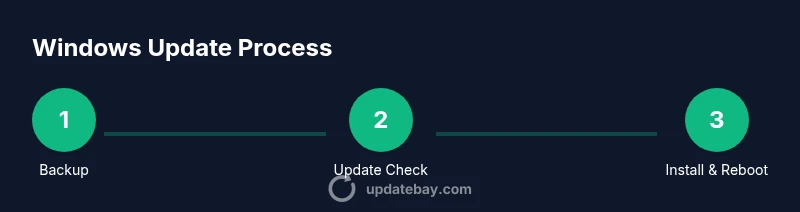
Save all work, close apps, and create a complete backup of important data. Verify that the backup completed successfully so you can restore files if something goes wrong during the update.
Tip: Use a separate drive or cloud backup to avoid conflicts with the system drive. - 2
Plug in and stabilize power
Connect the device to a reliable power source and ensure the battery is adequately charged to prevent mid-update shutdowns.
Tip: If you’re on a laptop, connect to AC power before you start. - 3
Open Windows Update settings
Navigate to Settings and locate Windows Update. Check for available updates and review any notes about feature upgrades or driver changes.
Tip: Review any optional updates separately to decide if you want them installed now. - 4
Check for updates and prepare
Click Check for updates and allow Windows to fetch the latest fixes. If prompted, read the release notes to understand what's changing.
Tip: If you see a driver update, consider whether it’s essential for your hardware before installing. - 5
Install updates and reboot
Install all selected updates and allow the system to reboot if required. Do not interrupt the process once it starts.
Tip: Pause heavy tasks and save work to minimize data loss during reboot. - 6
Verify success and test essentials
After boot, confirm that updates installed correctly and run key apps to ensure functionality. If issues arise, consult the troubleshooting steps or restore points.
Tip: Keep the backup accessible for at least 24–48 hours post-update.
Frequently Asked Questions
What should I do before updating Windows?
Always back up important files, ensure a stable power source, and review available updates. Note any critical applications that may need reconfiguration after the update.
Before updating, back up your files and ensure power stability. Review the updates to plan for any reconfigurations.
Is it safe to update Windows while using a VPN?
Yes, you can update Windows while connected to a VPN. Ensure the VPN remains stable and avoid unstable networks during large updates to prevent partial installations.
Updating over VPN is usually fine if the connection is stable; avoid flaky networks during updates.
How long does updating Windows typically take?
Update duration varies by device and update type. Most routine security updates complete within 15–45 minutes, while feature upgrades can take longer and may require a restart.
Most updates take 15 to 45 minutes, with longer feature upgrades possibly taking longer and requiring a restart.
What should I do if an update fails to install?
If an update fails, re-run the update check, run the Windows Update Troubleshooter, and review error codes. Consider using a restore point or a clean boot to isolate the issue.
If an update fails, re-check for updates, run the troubleshooter, and use a restore point if needed.
Should I install optional updates right away?
Optional updates can bring improvements but may introduce compatibility changes. Review notes and install only those you deem beneficial for your setup.
Review optional updates before installing; only pick those that help you without causing issues.
How can I verify that updates installed correctly?
Check the Windows Update history for successful installations and test critical apps. If problems occur, use a restore point to revert or roll back updates.
Check update history and test key apps; use a restore point if something goes wrong.
Watch Video
What to Remember
- Back up data before updating any Windows build.
- Choose the right update channel to balance security and features.
- Verify post-update functionality and keep a restore point ready.
- Automate security updates while reviewing optional upgrades carefully.