What Is Wrong With Windows Update? A Troubleshooting Guide
A practical, step-by-step guide to diagnose and fix Windows Update problems, from corrupted files to service hangs, with safe, proven methods for tech enthusiasts and everyday users.


The most common Windows Update problems come from corrupted update files, a hung Windows Update service, or unstable network connections. Start with quick checks: ensure a stable internet connection, temporarily disable VPNs, restart the Windows Update service, and run the built-in troubleshooter. If the issue persists, reset update components or perform a clean boot to isolate software conflicts.
Why Windows Update Problems Happen
According to Update Bay, Windows Update issues are often the result of a few predictable patterns: corrupted update packages, a service that gets stuck while trying to install or verify downloads, and inconsistent network conditions that interrupt the update flow. The question "what is wrong with Windows Update" is common among users who see errors or long pauses during installation. In practice, many failures arise from the update cache, partially downloaded files, or background processes competing for system resources. Understanding these dynamics helps you target the root cause quickly, rather than applying generic fixes. This section explains the typical failure ecology and helps you map symptoms to likely culprits, setting you up for a precise, efficient repair path.
Common Failure Modes You Should Know
Windows Update can fail in several recognizable ways that hint at underlying causes. Users may encounter stalled progress at 0% or 99%, repeated rebuilds of the same update, error codes that appear briefly, or messages saying updates cannot be installed due to compatibility issues. Some failures happen during the download phase, others during installation or verification. While the exact error message matters, most issues cluster around three broad categories: (1) corrupted or incomplete update files, (2) service or component misbehavior, and (3) external interference such as inconsistent network conditions or security software blocking the process. Knowing these modes helps you choose the right first step and avoid wasted attempts.
Quick checks to rule out common issues
Before diving into deeper fixes, run through a set of safe, low-effort checks. Confirm your internet connection is stable and not throttled by a VPN or metered plan. Verify the system clock is accurate, as time drift can block secure Windows Update communications. Temporarily disable antivirus or firewall rules that might block update traffic, then try the update again. Clear disk space if the drive housing Windows is nearly full, and ensure there’s no ongoing backup or sync that could compete for IO. Finally, run the built-in Windows Update troubleshooter to catch common configuration problems and repair registry keys or services that are out of balance.
Resetting Windows Update components safely
If basic checks don’t resolve the issue, you’ll often get results by resetting the Windows Update components. This involves stopping relevant services, renaming or clearing the SoftwareDistribution and Catroot2 folders, and restarting services to fetch fresh packages. The steps can be performed in elevated Command Prompt or PowerShell and typically include commands to stop the wuauserv, cryptSvc, bits, and msiserver services, followed by a restart and a retry of the update. The goal is to give Windows Update a clean slate, eliminating corrupted caches that prevent installation and verification from completing successfully.
When Safe Mode or Clean Boot helps
In some cases, third-party software or services can interfere with Windows Update. Booting into Safe Mode or performing a clean boot reduces the number of active background processes, allowing Windows Update to run with minimal interference. If updates succeed in Safe Mode or a clean boot, you’ve likely identified a software conflict. You can re-enable services gradually to pinpoint the offender, then address the conflict through uninstallations, updates, or configuration changes. Remember to document changes so you can restore normal operation after you’ve fixed the root cause.
Driver and software conflicts
Hardware drivers and recently installed software can conflict with Windows Update, especially on systems with older hardware or customized security policies. Check for recently installed drivers, firmware updates, or security suites that might block update traffic. If a specific driver is implicated, you can temporarily revert to a previous version or suspend automatic driver updates while you complete the Windows Update process. Also review software that hooks into Windows Update or system services, such as system optimizers or virtualization tools, and disable or uninstall as needed until updates complete.
Backups and data safety before updates
Always back up critical data before major Windows updates, particularly when performing resets or clean boots. While the steps are designed to be safe, updates can occasionally trigger unexpected reboots or configuration changes. Having a recent backup ensures you can recover documents, settings, and installed applications if something goes wrong. Consider creating a system restore point as an additional safeguard, and ensure OneDrive or other cloud backups are up to date so you can restore files if necessary.
How to avoid future issues: maintenance and monitoring
Preventing update problems is easier than repeatedly fixing them. Schedule regular maintenance windows for updates, keep drivers and firmware current, and monitor system health using built-in tools like Reliability Monitor and Event Viewer to catch issues early. Use a stable network connection and consider configuring a second PC or a virtual machine for testing major updates before applying them to your main device. Finally, enable the Windows Update service to perform checks during off-peak hours to reduce user impact and increase the likelihood of a smooth installation.
Professional help and escalation
If updates continue to fail after exhausting standard troubleshooting steps, it’s time to seek professional help. A technician can diagnose deeper issues such as corrupted user profiles, hardware faults, or complex policy configurations. Be prepared to share your Windows version, error messages, recent changes, and logs from the Windows Update Troubleshooter or Event Viewer. In many cases, professional support can expedite a resolution and prevent data loss, especially on business devices with sensitive data.
Steps
Estimated time: 45-60 minutes
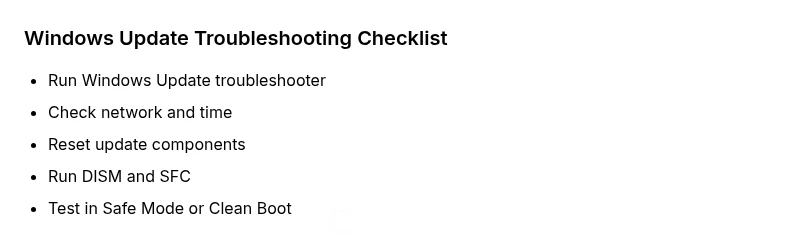
- 1
Open Update Troubleshooter
Navigate to Settings > System > Troubleshoot > Other troubleshooters, then run Windows Update. Follow on-screen prompts to apply fixes.
Tip: This is the safest first step; it often resolves misconfigurations. - 2
Check network and time
Ensure a stable network connection and verify the system clock is accurate. A wrong time can block secure communications with Windows Update servers.
Tip: Sync time automatically if possible. - 3
Restart services and clear cache
Open an elevated prompt and run: - net stop wuauserv - net stop cryptSvc - net stop bits - net stop msiserver Then rename the SoftwareDistribution folder and restart services.
Tip: Renaming the folder forces a fresh download of updates. - 4
Reset Windows Update components
If issues persist, run built-in commands to reset component states, then retry the update.
Tip: A clean slate reduces the chance of stuck components. - 5
Run DISM and SFC
Execute DISM /Online /Cleanup-Image /RestoreHealth and sfc /scannow to repair system files.
Tip: Corrupted system files can block updates from applying correctly. - 6
Try in Safe Mode or Clean Boot
Restart in Safe Mode or perform a clean boot to determine if third-party software is the culprit, then retry updates.
Tip: Progress in Safe Mode confirms software conflicts.
Diagnosis: Windows Update fails to install or complete updates
Possible Causes
- highPower/network issue
- highCorrupted update files
- mediumStuck Windows Update service
- lowInsufficient disk space
Fixes
- easyRun the built-in Windows Update troubleshooter and apply suggested fixes
- easyRestart update services (wuauserv, cryptSvc, bits, msiserver) and clear the SoftwareDistribution cache
- mediumReset Windows Update components and perform a clean boot if conflicts are detected
- mediumRun DISM and SFC; update device drivers and ensure network stability
Frequently Asked Questions
What is Windows Update and why is it important?
Windows Update is the built-in service that keeps Windows and installed software up to date with security and reliability improvements. Regular updates help protect your system, fix bugs, and add features. Running updates keeps devices safer and more stable over time.
Windows Update keeps your PC secure and stable by installing important fixes and features. Run updates regularly to stay protected.
Why won't Windows Update install on my PC?
Common reasons include corrupted update packages, a stuck update service, insufficient disk space, or network blocks. Checking connectivity, freeing space, and running the update troubleshooter often resolves the issue, followed by resetting update components if needed.
Causes include corrupted files, stuck services, and disks with little space. Start with basic checks and then reset components if necessary.
How can I fix Windows Update without losing data?
Use built-in troubleshooters and safe repair steps first. Avoid drastic operations on your data, and always back up important files before performing resets or clean boots. Most issues resolve without data loss when you follow a guided sequence.
Most fixes won’t affect your data, but backups are smart before major changes.
Is it safe to reset Windows Update components?
Resetting update components is a standard, safe troubleshooting step when update components are corrupted. It clears caches and re-establishes the update pipeline. If you have system backups, you can proceed with confidence.
Yes, when you have backups, resetting components is a routine, safe step.
When should I contact support for Windows Update issues?
If updates continue to fail after all standard steps, or if you’re dealing with business-critical systems, seek professional help. Gather error messages, recent changes, and log files to speed up support.
If problems persist after doing the guide, it’s time to get professional help.
Can a clean boot help with Windows Update problems?
A clean boot isolates third-party software by loading only essential services. If updates succeed in a clean boot, you’ve found a conflicting program or service that needs adjustment or removal.
Yes—clean boot can reveal software conflicts causing update failures.
Watch Video
What to Remember
- Identify root cause with a clear diagnostic flow
- Prioritize network and service checks first
- Back up data before major fixes
- Use Reset Windows Update components if needed
- Prevent issues with routine maintenance