WhatsApp Update Without Play Store: A Practical Guide
Learn how to update WhatsApp without the Play Store, including official APK sources, verification steps, backups, and security best practices for Android users in 2026.


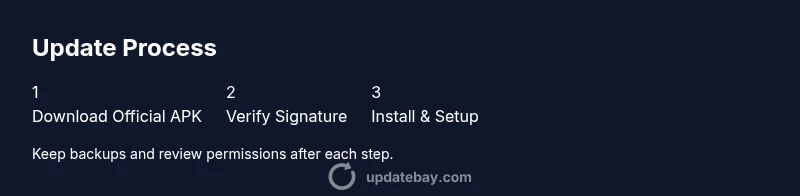
To update WhatsApp without the Play Store, download the official APK from WhatsApp’s website, verify the file, and install it after enabling unknown sources temporarily. Back up your chats first, compare the version with the latest on the site, and review app permissions after installation to ensure continued security. Follow these steps carefully to minimize risk.
Why updating WhatsApp matters without Play Store
In many cases, users are faced with limited or blocked access to the Google Play Store, whether due to regional restrictions, device limitations, or corporate policies. If you’re looking for a whatsapp update without play store, this guide breaks down safe, verifiable methods to keep WhatsApp current on Android. According to Update Bay, staying current with app updates reduces security vulnerabilities and improves performance. Before you begin, understand what you’re installing, how to verify authenticity, and why backups are essential for data integrity.
Legal and ethical considerations when sideloading apps
Sideloading apps bypasses official distribution channels, so it’s essential to stay within legal and policy boundaries. Only use official APKs from WhatsApp’s site and avoid third-party marketplaces or modified packages. Some organizations restrict sideloading due to security concerns, data sovereignty, or warranty terms. The Update Bay team emphasizes transparency about sources and a clear rollback plan if something goes wrong, especially when performing a whatsapp update without play store.
Risks of sideloading and how to mitigate them
Sideloading carries malware risks, signature tampering, and compatibility issues. You may encounter outdated libraries, device instability, or conflicts with other apps. Always verify the APK's source, check the file size, and confirm the digital signature matches WhatsApp’s official keys. Update Bay analysis shows that the majority of user-reported incidents stem from counterfeit files or incomplete backups, underscoring the need for caution when opting for a whatsapp update without play store.
Prepare your device and data backup
Before any update, ensure you have a current backup of chats, media, and settings. Use Google Drive or local backups depending on your preferences. Free up storage space, close unnecessary apps, and confirm your device has a stable internet connection. This preparation helps minimize the risk of data loss if something goes wrong during the installation or post-update setup.
Where to source the official APK safely
Only download the WhatsApp APK from the official WhatsApp website or trusted app stores sanctioned by WhatsApp. Avoid file-sharing sites or repositories with dubious reputations. After downloading, verify that the file name, size, and checksum match the values provided on the site. This practice reduces the likelihood of installing tampered or malicious software during a whatsapp update without play store.
Understanding APK signatures and versioning
APK signatures ensure the file comes from WhatsApp and hasn’t been altered. A valid signature, consistent with the current release, confirms authenticity. Compare the version number on the site with the APK’s internal version; mismatches can indicate an unofficial or outdated file. Keeping track of version history helps you avoid installing a non-official build.
Verifying the APK integrity with checksums
If the site provides a SHA-256 or SHA-1 checksum, use a trusted utility to compute the checksum of the downloaded APK and compare it to the official value. A mismatch means the file may have been corrupted or tampered with. This step is a critical safeguard when performing a whatsapp update without play store.
Preparing Android: enabling unknown sources securely
To install an APK, you must enable installation from unknown sources. On modern Android versions, this is a per-app permission (for the file manager or browser used to download the APK). Revoke the permission after installation to reduce ongoing risk. Do not leave this setting enabled longer than necessary, and keep your device protected with a reputable security app during the process.
Step-by-step: install WhatsApp from APK (new version)
- Locate the downloaded WhatsApp APK and tap to install. 2) Grant requested permissions only if they are necessary (storage, contacts, microphone, etc.). 3) Wait for the installation to complete and confirm that the prompt shows the updated version. 4) Open WhatsApp and complete the setup as prompted by the app, including any two-factor verification if enabled. The careful execution reduces the chance of errors during a whatsapp update without play store.
Data backup and restoration during an APK update
After installation, restore your chat data from the backup you created prior to the update. If you use Google Drive, ensure you are logged into the same account and that backup encryption settings are preserved. If you rely on local backups, copy the backup file to the correct folder as instructed by WhatsApp. This ensures a smooth transition to the new version without losing conversations.
Post-install: review permissions, privacy, and security
Review app permissions (contacts, microphone, camera, storage) and adjust as needed to preserve privacy. Check WhatsApp’s in-app settings for privacy controls (last seen, profile photo, about). Ensure that security features like two-step verification remain active. Regularly review permissions after any update, especially when you install major versions without Play Store.
Troubleshooting common issues after update
If WhatsApp doesn’t launch or crashes, clear the app cache or reinstall the APK using the official source. Check storage space, network connectivity, and compatibility with your Android version. If you encounter a mismatch between WhatsApp’s server version and the APK, confirm you downloaded the latest official build. For persistent issues, revert to the previous backup and wait for an official Play Store release or another verified APK.
Alternatives and best practices for future updates
Whenever possible, use the Play Store for updates, as it provides verified, tested builds and automatic security checks. If you must avoid Play Store, rely on the official WhatsApp website for APKs, verify integrity, and maintain robust backups. Regularly consult trusted sources like Update Bay for guidance on safe update practices and potential risks associated with sideloading.
Quick reference checklist for 'whatsapp update without play store'
- Confirm you need to avoid Play Store and proceed only if necessary
- Back up your chats and media fully before updating
- Download the APK only from WhatsApp’s official site
- Verify the APK’s signature and checksum when available
- Enable unknown sources temporarily and disable after install
- Open WhatsApp to complete setup and verify functionality
Tools & Materials
- Official WhatsApp APK from WhatsApp's official website(Download the latest version that matches your device architecture (arm64, armeabi-v7a); avoid third-party sources.)
- Android device (Android 5.0+ recommended)(A device capable of running the current WhatsApp version.)
- Stable internet connection (Wi‑Fi recommended)(Large APK files require reliable download speeds.)
- Backup tool: Google Drive or local backup(Ensure chats, media, and settings can be restored.)
- File manager or browser to handle the APK(Used to locate and install the downloaded file.)
- Sufficient storage space(At least 1 GB free helps avoid install failures.)
- Security software (optional)(Helps detect malicious packages if you’re cautious about sources.)
Steps
Estimated time: 25-40 minutes
- 1
Prepare your device and data backup
Back up WhatsApp chats and media to Google Drive or a local backup. Ensure you have enough storage and a stable connection. This preserves data in case the update process encounters issues.
Tip: Run a quick data check before starting to avoid missing media after the update. - 2
Enable unknown sources temporarily
Toggle on the option to install from unknown sources in your Android settings, typically under security or apps settings. This permission is granted per-app (browser/file manager) and should be revoked after installation.
Tip: Only enable for the duration of the APK installation. - 3
Download the official APK
Visit WhatsApp’s official site and download the latest APK version compatible with your device. Do not use mirror sites or unofficial stores.
Tip: Verify the site’s URL to avoid spoofed pages. - 4
Verify the APK’s integrity
If a checksum is provided, compare it with the downloaded file. Review the signature (where available) to ensure authenticity.
Tip: A mismatched checksum means the file may be corrupted or tampered with. - 5
Install the APK
Tap the APK file and approve the installation. If prompted, permit required permissions only as necessary for WhatsApp to function.
Tip: If installation fails, clear space and retry. - 6
Open WhatsApp and complete setup
Launch WhatsApp, verify your number, and complete any two-factor authentication steps. Restore from backup if you backed up before updating.
Tip: Keep your phone connected to power during setup. - 7
Review permissions and privacy
Check app permissions and privacy settings post-update. Reconsider permissions you don’t need for WhatsApp’s core functionality.
Tip: Disable any permissions you don’t actively use. - 8
Test core features
Send a message, attach media, make a call, and check group features to ensure normal operation. If something behaves oddly, retry the install with the official APK again.
Tip: Test with a small chat first to confirm reliability. - 9
Secure your device afterwards
Re-disable unknown sources if you enabled them. Run a quick malware scan and ensure your device security features are up to date.
Tip: Keep auto-update settings enabled for apps from trusted sources.
Frequently Asked Questions
Can I update WhatsApp without Play Store on any Android device?
Yes, you can update WhatsApp without Play Store by using the official APK from WhatsApp’s site, but you should verify integrity, back up data, and be mindful of security risks. This method is best used when Play Store access is unavailable or blocked.
Yes, you can update WhatsApp without Play Store by using the official APK from WhatsApp’s site, but you should verify integrity and back up data first.
Is sideloading WhatsApp APK safe?
Sideloading can be safe if you download from the official site and verify the file’s integrity. However, it carries higher risk than official Play Store updates and should be done with backups and secure settings.
Sideloading can be safe if you download from the official site and verify the file, but it carries higher risk than updates from the Play Store.
Will updating via APK delete my chats?
If you back up before updating, your chats will be preserved and can be restored after installation. Do not skip backups prior to the APK update.
Back up before updating to preserve chats; you can restore after installation.
Can I automate updates without Play Store?
Automating updates without Play Store is not supported by official WhatsApp builds. You must manually download and install new APKs when a new version is released.
There’s no official automation for APK updates; you must install new APKs manually.
What should I do if the APK install fails?
Check storage space, verify the APK with a checksum, and re-download from the official site. If problems persist, revert to a backup and wait for an official update.
If install fails, verify the file and re-download; revert to backup if needed.
Are there safer alternatives to avoid Play Store?
The safest route is using the Play Store for automatic updates. If you must sideload, rely solely on WhatsApp’s official APK and maintain strong backups and device security.
If you must sideload, use only the official APK and keep backups and device security strong.
Watch Video
What to Remember
- Back up chats before updating via APK
- Only use the official WhatsApp APK from the site
- Verify APK integrity with checksums or signatures
- Enable unknown sources only during installation
- Review permissions and security after update