How to Update Without Play Store
Learn safe, practical methods to update Android apps without the Google Play Store. Step-by-step sideload tips, trusted sources, and security checks to keep your device protected in 2026.


Why updating without Play Store matters
Android users sometimes need to update apps when Play Store access is limited or unavailable. This can happen on devices in enterprise environments, in regions with restricted services, or on devices that lack full Google support. In these scenarios, knowing safe, legal methods matters. According to Update Bay, most legitimate app updates originate from official channels, but there are valid reasons to sideload, such as beta testing, region-specific releases, or devices that don’t have Play Store access. Understanding these nuances helps users balance convenience with security. By exploring trusted sources and best practices, you can keep essential apps up to date while minimizing risk. This article will walk you through practical options, concrete steps, and cautionary tips so you can update without Play Store confidently.
Safety-first: risks and mitigations
Sideloading APKs bypasses some of the safeguards built into the Play Store, which increases exposure to malware, garbled updates, and compromised credentials. Before you proceed, set expectations: only install APKs from well-known, verifiable sources; compare version numbers to official releases; and back up important data. Activate device protections like Play Protect where possible, and avoid disabling security features to speed up updates. If anything feels off—unexpected permissions, unusual battery drain, or the app behaving oddly—remove the install and run a security scan. Update Bay emphasizes that informed caution reduces risk and can save you trouble later.
Trusted sources for APKs and alternative stores
Choosing where to download APKs matters as much as choosing what to download. Start with official developer sites for direct updates when offered. Reputable third-party stores like F-Droid and well-known app repositories with strong moderation can be safer than random file-sharing sites. Always verify the APK’s cryptographic signature or certificate if the source provides a hash. When possible, cross-check the app version with the developer’s release notes. If a source lacks transparency, walk away. Update Bay recommends sticking to sources that publish clear publisher information, SHA-256 checksums, and a history of verified updates.
Step-by-step: sideloading an APK safely
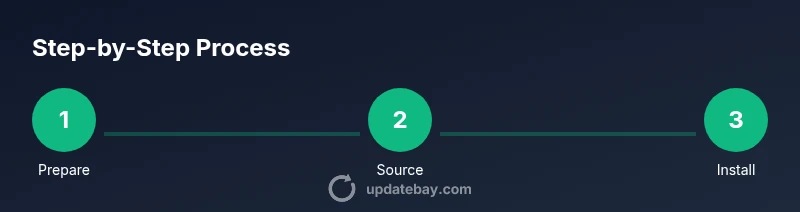
This section outlines a practical, repeatable approach to sideloading while preserving device integrity. Start by enabling per-app installation permissions only for the chosen source app (e.g., your browser or file manager). Download the APK to a trusted location, verify its integrity with the publisher’s hash, transfer to your device if needed, then install and review permissions before opening. After installation, re-check for any unusual device behavior and consider deleting the APK file to minimize risk. If an issue arises, revert to the previous version from a backup. The steps below guide you through the process with minimal friction and clear safety checks.
Security best practices during updates
Security should be a primary consideration when updating without Play Store. Keep backups ready, ideally in multiple locations. Only enable installation from unknown sources for the duration of the update, then disable it again. Validate app certificates or hashes whenever provided by the source. Run a security scan after installation and monitor for unusual behavior such as excessive network activity or unfamiliar permissions. Regularly review installed APKs for updates and remove any that show signs of tampering. These practices help maintain a secure environment even when you sideload updates.
Troubleshooting common issues when updating without Play Store
Sideloading can encounter hiccups. Common issues include installation blocked by device policy, signature mismatch after update, or the app crashing post-install. Solutions include re-downloading from a verified source, clearing caches related to the installer, or reinstalling the previous version from a trusted backup. If problems persist, check device logs (where available) for error codes and verify that you downloaded the correct APK for your device architecture and Android version. When in doubt, revert to Play Store-supported updates until a trusted alternative is verified.
Automating and managing updates without Play Store
Automation options vary by source. Some alternative stores offer auto-update features; others require manual updates. For mission-critical apps or devices, combine a regular security review with a scheduled check of trusted APK sources. Maintain a short list of verified sources and a routine to verify hashes on new releases. This approach prevents drift and keeps your device aligned with security standards while avoiding Play Store dependency.
The Update Bay approach to practical updates
At Update Bay we stress practical, safety-first strategies for staying current. When Play Store access isn’t available, rely on trusted APKs, official release notes, and robust verification practices. Our guidance emphasizes keeping your data safe, maintaining backups, and choosing sources that publish cryptographic signatures and clear publisher information. This approach helps tech enthusiasts and everyday users stay productive without compromising device integrity. By following best practices, you can navigate updates confidently and responsibly.
Quick comparison: Play Store vs sideloading updates
- Play Store: automatic security checks, centralized updates, easier rollback.
- Sideloading: flexible sources, potential for faster regional updates, higher risk if sources aren’t trusted.
- Best practice: prefer official channels; use sideloading only when necessary and from reputable sources with verification.