Why Updates Fail: An Urgent Troubleshooting Guide
Struggling with update failures? This urgent troubleshooting guide walks you through common causes, step-by-step fixes, and prevention tips to get software updates back on track.


If your device reports an update error or stalls during installation, start with the basics: check your network connection, verify enough free storage, and confirm the update source is accessible. According to Update Bay, most failures originate from connectivity issues or corrupted downloads. Try resetting your network, re-downloading the update, and retrying installation before moving to more complex steps.
Why Update Not Work: Understanding the Core Causes
Updating software or firmware is usually a straightforward process, but when it fails, the reasons are often predictable. The question "why does update not work" typically points to a few recurring culprits: unstable network connections, insufficient or fluctuating power, storage shortages, and corrupted update files. As highlighted by Update Bay, most failures begin with something as simple as a dropped connection or a blocked download cache. In this section we’ll map the most common patterns, explain how they derail progress, and outline a practical path from diagnosis to fix. Recognize that some failures are systemic (server-side or vendor outages), while others are local (your device or network). By separating the symptoms (error codes, stalls, or incomplete installs) from the underlying causes, you can apply targeted fixes rather than trial-and-error resets. Expect a flow that moves from quick checks to deeper diagnostics, with safety steps built in to protect your data and device.
Check Your Network and Server Status
Connectivity remains the top reason updates fail. Begin by confirming your device is online, ideally with a stable wired or high-quality Wi‑Fi connection. If you’re on Wi‑Fi, run a speed test and try a different network if possible to exclude local network issues. Disable VPNs or proxies temporarily to see if they are interfering with the update source. Sometimes the problem isn’t on your end but with the vendor’s servers; check vendor status pages or outage notices for any ongoing distributions. If the server is fine, proceed to verify that your device can reach the update server without DNS or routing blocks. Document any error codes you see, as they guide the next steps and can be referenced when seeking support.
Verify Your Device and Software Compatibility
Update failures can occur when your device or its operating system is not compatible with the new version. Review the update’s minimum requirements, including RAM, storage, and firmware version. If your device is old or has custom firmware, you may encounter incompatibilities that prevent installation. In some ecosystems, updates also require a certain vendor app version or a security patch level. Before you retry, ensure your device meets all prerequisites and that you aren’t trying to install a build intended for a different model or region. If in doubt, consult official compatibility lists and release notes rather than guessing.
Common Update Failures and Quick Fixes
Several failure patterns recur across devices and platforms: error codes during download, installation hangs, rollback loops, and permission-denied errors. A practical approach is to isolate whether the problem is download-related, installation-related, or caused by storage constraints. Quick failures often resolve with measures such as clearing cached update data, restarting the device, or freeing up space. If the problem persists, reset network settings or re-download the update package in a controlled environment. In many cases, temporary file corruption can be resolved by deleting the incomplete update and starting a fresh download from a trusted source.
Step-by-Step: Re-trying the Update Process
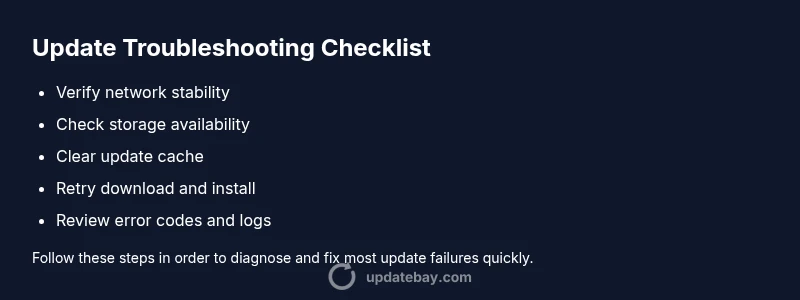
When a simple retry solves the issue, you’ll know the root cause was transient. Start by backing up important data, then:
- Verify network reliability and switch networks if possible.
- Clear cache or download folders related to updates.
- Free up acceptable storage space by removing unused files or apps.
- Reboot and attempt the update again, preferably during a period of low network traffic.
- If available, install in safe mode or with minimal running apps to avoid conflicts.
- Review log files after a failed attempt to identify recurring errors and inform support if needed.
Safety, Backups, and Preventive Measures
Never skip backups before applying updates. A failed update can sometimes corrupt data or leave the device in an unusable state, especially on mobile devices or embedded systems. Maintain a regular backup routine and enable automatic backups if possible. Keep a rollback or recovery plan ready, including access to a restore point or a clean installation image. Preventive practices include keeping the device plugged in during installation, updating during a stable power supply, and ensuring that anti-malware tools do not interfere with the update process. Regularly check for cumulative patches, avoid late-night patches on critical devices, and document each update attempt for future troubleshooting.
When to Seek Professional Help and How to Prepare
If you consistently encounter update failures after attempting the steps above, it’s time to escalate. Gather the device model, OS version, update version, error codes, timestamps, and the exact steps you’ve taken. Contact vendor support or a certified technician with this information to reduce back-and-forth. For business-critical systems, consider a staged rollout or maintenance window to minimize disruption. In all cases, professional help should be sought if you encounter hardware malfunctions, persistent boot loops after updates, or suspected firmware corruption that you cannot resolve locally.
Steps
Estimated time: 40-60 minutes
- 1
Back up important data
Before attempting fixes, back up your critical data to prevent loss from failed installs or rollbacks. Use multiple locations if possible (cloud and local storage). This keeps you safe even if the update process goes awry.
Tip: Verify the backup integrity by attempting a quick restore test on a non-critical file. - 2
Check network stability
Run a speed test and try a different network if you can. Ensure there’s minimal packet loss and that the connection remains steady during the download phase. Disable VPNs temporarily if they might be interfering.
Tip: Pause other bandwidth-heavy activities during the update. - 3
Clear update caches and retry
Clear any cached update data and reboot the device. Then initiate the download again from the official source. A fresh cache avoids issues caused by partial or corrupted files.
Tip: Delete only update-related cache folders to avoid data loss in other apps. - 4
Free up storage
Delete unnecessary apps, large media files, and temporary system files to reach at least the recommended free space. Some updates require a buffer beyond the reported size to install safely.
Tip: Move large files to external storage if available. - 5
Attempt the update again
Run the update in a controlled environment, ideally with no heavy background tasks. If the device offers “safe mode” or a minimal- apps mode, use it to reduce conflicts.
Tip: If you encounter the same error code, search the vendor’s docs for that code. - 6
Review logs and escalate if needed
If the update fails again, collect any error messages and logs. Compare with known issues and reach out to support with your findings. Prepare your device model, OS version, and update package details.
Tip: Share logs in a reproducible format to speed up troubleshooting.
Diagnosis: Update won’t install or completes with an error
Possible Causes
- highNetwork connectivity issues or unstable internet
- mediumServer-side outage or update distribution problem
- mediumInsufficient storage or permissions block
- lowCorrupted download or cache data
- lowIncompatibility with hardware/firmware version
Fixes
- easyTest a stable network, switch networks if needed, and retry the download from a trusted source
- easyCheck vendor/status pages for outages and wait for service recovery if necessary
- easyFree up storage and ensure you have adequate permissions for the update
- easyClear caches, re-download the update, and retry installation
- mediumReview logs to identify specific error codes and consult official docs or support
Frequently Asked Questions
What are the most common reasons updates fail?
The most common reasons are network connectivity issues, server outages, insufficient storage, and corrupted update files. Verifying each area step-by-step helps you pinpoint the root cause quickly.
Common reasons include network issues, server outages, not enough storage, or corrupted update files. Check these areas one by one to locate the cause.
How can I tell if the update source is the problem?
Check if other devices on the same network experience similar update failures. Look for official status pages or outage notices from the vendor. If others succeed but yours doesn’t, the issue more likely lies with your device or configuration.
If other devices fail too, it’s likely the source. If only yours fails, focus on your device and settings.
Is it safe to update manually?
Manual updates can be safe when you obtain the correct official package for your device and install it following vendor instructions. Avoid third-party sources, which may contain malware or incompatible builds. Always verify checksums if provided.
Manual updates can be safe if you use the official package and follow the vendor’s steps carefully.
What should I do if I run out of storage?
Free up space by deleting nonessential apps and media, or move data to external storage. Some devices also allow cleaning caches or removing temporary files to reclaim space for the update.
If you’re out of space, delete unneeded files or move data elsewhere to free up room for the update.
When should I contact support?
If you’ve exhausted basic troubleshooting, encountered persistent error codes, or dealing with device-specific firmware issues, reach vendor support with logs, device model, OS version, and update package details.
Contact support after you’ve tried the basic steps and have error codes and device details ready.
Can updates be prevented from failing in the future?
Yes. Maintain regular backups, monitor storage, apply updates during stable power, and keep a clean environment by avoiding conflicting apps. Checking for known issues before updating and performing backups can greatly reduce the risk of future failures.
You can prevent future failures by backing up, keeping storage ample, and updating during stable conditions.
Watch Video
What to Remember
- Back up data before updates
- Ensure stable network and adequate storage
- Clear caches and re-download updates
- Escalate with logs if unresolved