Why Do Updates Fail to Install: A Hands-On Troubleshooting Guide
Urgent guide to diagnose and fix why updates fail to install. Learn common causes, step-by-step fixes, diagnostics, and prevention tips to keep devices current and secure. Update Bay analyzes frequent failure modes to help you recover quickly.


Why updates fail to install most often comes down to corrupted installer files, a blocked service, or insufficient disk space. According to Update Bay, start with a quick reset: pause updates, reboot, free disk space, and retry. Verify network stability, run built-in troubleshooters, and check error codes for targeted fixes.
Understanding why updates fail to install
When people ask, “why do updates fail to install,” the answer almost always falls into a few reliable categories: corruption in the update package, conflicts with other software, insufficient disk space, or blocked services that prevent the installation from completing. This issue isn’t limited to a single platform; Windows, macOS, and mobile operating systems all show familiar failure patterns such as stuck progress wheels, cryptic error codes, and rollbacks to pre-update states. By framing the problem around the most common failure modes, you can quickly triage and apply fixes that restore update flow without resorting to drastic measures. In practice, most failures are transient and fixable with a methodical approach. Update Bay has analyzed thousands of update events and consistently sees these patterns drive the majority of install failures across consumer devices.
Common culprits behind failed updates
The first thing most users want to know is what causes updates to fail. The usual suspects include a corrupted download or cache, insufficient disk space, or a misbehaving security tool that blocks the installer. Other frequent causes are incorrect system time settings, unstable network connectivity during download, and conflicting background processes that interrupt installation. Some enterprise environments also encounter group policy settings or endpoint protection configurations that purposely block certain update batches. Recognizing these patterns helps you apply the right fix without guesswork. Remember to note any error codes, as they often point to the exact component failing (e.g., download cache vs. installer package vs. service).
Environment checks you should perform first
Before diving into fixes, verify the basics. Ensure the device is plugged into power or has a reliable battery level, and that there is ample free storage for the update. Check your internet connection (prefer a stable, wired connection if possible), and pause any VPNs or proxies that could interfere with the update stream. Confirm the date and time are correct, as skewed clocks can cause security checks to fail. Temporarily disable non-essential antivirus or firewall rules that might block the updater, then re-enable them after the update completes. Finally, run any built-in maintenance tools (like disk cleanup or temporary file purging) to clear space and reset caches that could be causing the installer to crash.
Diagnostic flow: symptom to solution in minutes
A structured diagnostic approach yields fast results. Start with symptoms (e.g., “stuck at 0%,” “error code xxxxx,” or “rollback after install”). Map the symptom to a likely cause (network, cache, or permissions), then apply the simplest fix first (e.g., restart the updater, free space, or flush caches). If the problem persists, escalate to more detailed steps such as checking service status, reviewing log files, or running a safe-mode/clean boot. This flow minimizes guesswork and prioritizes user-safe, reversible steps. Across platforms, the same logic applies: isolate the variable with two quick tests (connection and cache), then retry under the cleanest conditions possible.
Step-by-step fixes for the most common causes
-
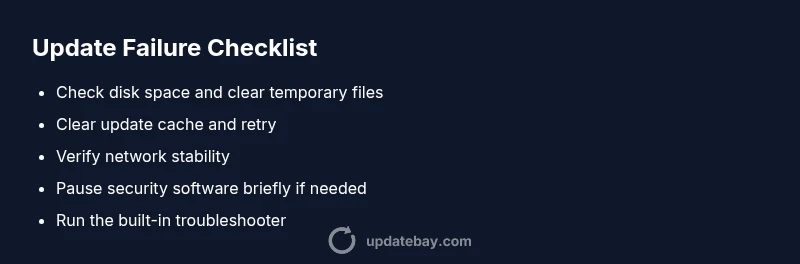
Free up disk space and retry. Remove temporary files and uninstall unused apps to reclaim space that the updater needs to unpack packages.
-
Clear the update cache. On Windows, stop the Windows Update service, delete the software distribution folder contents, then restart the service. On macOS, reset the Software Update cache through terminal commands.
-
Check your network. Try a wired connection or a different network. If a corporate proxy is in use, ensure it isn’t blocking updater traffic and verify DNS resolution.
-
Disable conflicting software. Temporarily turn off antivirus or security suites that might block installation; re-enable after the update completes to maintain protection.
-
Run the built-in troubleshooter. Use platform-specific tools to detect and fix common update problems, then retry the update. If these steps fail, proceed to advanced fixes or professional support.
Prevention tips to avoid future failures
- Enable automatic maintenance windows so updates run during predictable times and aren’t interrupted by user activity.
- Keep disk space ahead of the minimum requirements for major updates.
- Regularly reboot devices to reset stuck services and apply updates cleanly.
- Create a restore point or backup before major updates so you can recover quickly if something goes wrong.
When to escalate to professional help
If updates still fail after performing the standard fixes, the issue could involve deeper OS corruption, driver conflicts, or hardware faults. In such cases, contact official support or a qualified technician. Document error codes, recent changes, and steps you’ve already tried to accelerate the diagnosis.
Quick-references to remember
- Most failures are caused by cache corruption or network interruptions.
- Always back up before major updates.
- Use official troubleshooters first, then move to advanced steps if needed.
Steps
Estimated time: 20-40 minutes
- 1
Back up and prepare
Create a current backup of important data and ensure you have a recovery path in case something goes wrong during the update process. Prepare a note of the current system state and installed programs.
Tip: Keep the backup on a separate drive or cloud storage in case you need a clean restore. - 2
Pause updates and restart
Pause automatic updates if possible, then restart the device to clear transient states that can block installations. A fresh boot often resolves minor service lockups.
Tip: After restart, attempt the update again before making any changes. - 3
Check space and network
Verify there is enough disk space for the update and confirm a stable network connection. If you’re on Wi-Fi, switch to a wired connection to reduce dropouts.
Tip: Use a network status indicator to confirm steady throughput during download. - 4
Clear caches and retry
Clear updater caches or temporary files that could be corrupted. Then retry the update to ensure the installer uses a fresh package.
Tip: Always stop the updater service before clearing caches to avoid partial writes. - 5
If needed, run advanced troubleshooters
Run the platform’s built-in troubleshooter or safe mode to isolate software conflicts. If problems persist, consider a repair install or OS reinstall as last resort.
Tip: Document any error codes you see during troubleshooting for faster support.
Diagnosis: Update fails to install with errors or stalls during download/installation
Possible Causes
- highPoor or unstable network connection
- highCorrupted update package or cache
- mediumInsufficient disk space
- lowSoftware security tools blocking the updater
Fixes
- easyCheck internet connection and switch to a wired network if possible
- easyClear update cache and retry the install
- easyFree up disk space and run disk cleanup
- easyTemporarily disable antivirus/firewall then retry
- mediumRun built-in troubleshooter or safe mode for a clean environment
Frequently Asked Questions
What are the most common error codes for update failures?
Many update failures show codes that point to download, cache, or integrity problems. Typical causes include corrupted packages and blocked services. Check the specific error code in system logs or the update log to identify the exact failure mode and apply the corresponding fix.
Common update error codes help you identify whether the issue is with the download, cache, or service, so check the logs and apply the right fix.
Should I disable antivirus to fix updates?
Temporarily disabling antivirus or firewall can help determine if security software is blocking the installer. If you must disable, do so briefly and re-enable immediately after the update process completes or when you finish testing. Use trusted sources when re-enabling protections.
You can temporarily disable security software to test, but re-enable it right after the update to stay protected.
Can hardware issues cause updates to fail?
Yes. Faulty RAM, storage problems, or failing disks can cause updates to fail during installation. Run hardware diagnostics if software fixes don’t resolve the issue, and back up data before performing any repairs.
Hardware problems can interrupt updates; run diagnostics and back up data before you proceed.
Is an internet speed affect installation success?
While not usually the sole cause, unstable or slow connections can cause download corruption or timeouts during the update download phase. Use a stable connection and retry the download if you see interruptions.
A stable connection helps the download complete without corruption, so check connectivity before retries.
What should I do if updates still fail after following steps?
If issues persist after standard troubleshooting, consider performing a repair install or OS reinstall as a last resort, or contact support with your logs and error codes for deeper analysis.
If problems persist, seek professional help with logs and error codes ready.
When is professional help necessary?
If you routinely rely on updates for security and functionality, ongoing failures can leave you exposed. A professional can assess hardware, software configurations, and policy settings to provide a lasting fix.
Persistent failures deserve expert help to diagnose hardware or deep OS issues that aren’t fixable with basic steps.
Watch Video
What to Remember
- Diagnose with a flow: cache, then network, then space.
- Back up before major updates and use official troubleshooters first.
- If unresolved, escalate to professional help with documented error codes.