Why Is My Update Paused? Practical Troubleshooting Guide
Facing an update that won't finish? This guide explains why updates pause, how to diagnose the reason, and step-by-step fixes to resume quickly across Windows, macOS, Android, and apps.


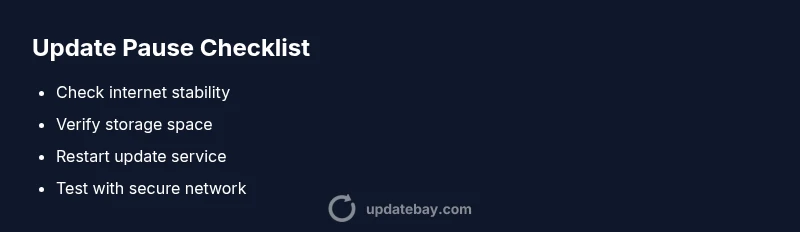
Pauses are usually caused by a flaky network, low storage, or a paused update service. Start by checking your internet, freeing disk space, and resuming the update. If it stays paused, restart the device and review error logs for specific codes to guide the next steps.
Why updates pause: a quick, practical overview
According to Update Bay, a paused update is often a symptom rather than a failure. In many cases, the system is waiting for a reliable network or sufficient storage to complete the installation. The Update Bay team found that most pauses are temporary protections, designed to prevent incomplete installs from harming your device. Understanding the common culprits helps you act quickly without resorting to guesswork.
In this guide, we’ll walk through the typical scenarios, what to check first, and a safe, proven path to resume updates. You’ll learn the exact signals to watch for and how to interpret error messages, so you can move from frustration to a concrete plan of action.
Common triggers that cause an update to pause
There are several frequent reasons updates stop mid-progress. Start with the simplest checks and then escalate if needed:
- Unstable or slow internet connection
- Metered or restricted network settings
- Not enough free disk space on the device
- Background services or the update agent paused or stopped
- Antivirus or firewall blocking the update process
Each trigger has a straightforward remedy, and many pauses can be resolved with quick tweaks rather than a full reinstall.
How to verify update status and read error codes
Before taking action, capture the exact status and any error codes shown by your device. On Windows, check the Update history and the Windows Services panel to identify the paused state. On macOS, inspect Software Update logs; on Android and iOS, view the update status and any notification banners. Writing down codes like 0x80073701 or similar can guide you to the correct fix. Even when there’s no code, a clear symptom (pause after 20% progress, sudden halt during download, etc.) narrows the field.
Quick checks you can do right now (no tools required)
- Confirm you’re connected to a stable network (prefer a wired or strong Wi‑Fi connection). If using a VPN, pause it temporarily to test.
- Ensure the device has at least a few gigabytes of free storage; clear temporary files if needed.
- Make sure the device clock is accurate; time drift can cause certificate validations to fail during updates.
- Temporarily disable antivirus/firewall temporarily and test, then re-enable with appropriate exceptions if updates fail due to blocking.
- Try a full restart of the device and re-run the update after a short wait.
Step-by-step path to resume updates safely
- Reconnect to a reliable network and retry the update.
- If it still pauses, pause and resume the update service or app that handles the update.
- Free up space and restart the device, then run the update again.
- Check for and install any pending prerequisite updates or patches that could block the newer one.
- If persistent, reset the update components (careful with device-specific steps) or contact support for guided help.
Platform nuances: Windows, macOS, Android, and iOS
Windows users often see the Update Service pause due to service hiccups or driver conflicts; macOS users may encounter pauses when a software catalog is out of date; Android and iOS devices can pause due to data saver modes or app permissions. Tailor the steps above to your platform: re-check permissions, verify app store settings, and confirm system software versions are current.
Steps
Estimated time: 30-60 minutes
- 1
Check network and connectivity
Ensure you have a stable connection. If possible, switch to a wired Ethernet, or move closer to the router. Disable high-bandwidth VPNs temporarily to test if the update resumes.
Tip: A quick speed test can confirm stability; aim for steady low jitter. - 2
Free up storage and retry
Delete cache and unused apps or files to free space. Then retry the update from the settings panel and watch for any progress indicators.
Tip: Even a small amount of extra space can unblock large updates. - 3
Restart update services
On desktops, restart the update service or the app handling the update. Sign out and back in if required, then launch the update again.
Tip: A full restart of the device often clears transient blocks. - 4
Check security software and network controls
Temporarily disable antivirus or firewall rules that may block the update. Re-enable with explicit exceptions after testing.
Tip: Always re-enable security features after testing; do not leave them off. - 5
Review time settings and certificates
Make sure the device clock matches real time; resync time if needed. Check for certificate errors in the update log and retry.
Tip: A misconfigured clock is a common, easily fixable cause. - 6
If still stuck, reset update components
Follow official platform-specific steps to reset update components. This is a more involved fix and may require reattempts.
Tip: Document each step so you can reverse changes if needed.
Diagnosis: Update pauses during download or installation
Possible Causes
- highUnstable or blocked internet connection
- highInsufficient free disk space
- highUpdate service/components paused or disabled
- mediumAntivirus/firewall or VPN interfering with the update
- lowIncorrect system date/time or certificate issues
Fixes
- easyTest and stabilize the internet connection; switch to wired if possible
- easyFree up disk space and clean temporary files
- easyRestart or re-enable the update service; clear caches related to updates
- easyTemporarily disable antivirus/firewall or add an update exception
- easyVerify and correct date/time settings; re-sync certificates if needed
- mediumIf the issue persists, reset update components or seek support
Frequently Asked Questions
What does it mean when an update is paused?
A paused update means the installation has halted, typically to prevent incomplete installs. It requires user action or automatic recovery to resume. Check logs or error codes to identify the exact cause and apply the appropriate fix.
Updates pause to protect your device; check logs and resume steps to continue.
How long can an update stay paused?
There is no universal timeout; pauses can last minutes to hours depending on platform, settings, and when the issue is resolved. If it persists, follow the diagnostic steps to determine the cause and resume.
Pauses can last a while depending on the cause; follow troubleshooting steps to resume.
Why is my update paused on Windows?
Common Windows pause causes include service hiccups, insufficient disk space, or a blocked update agent. Checking services, freeing space, and resetting update components usually resolves the issue.
Windows pauses are often due to services or space; reset components if needed.
Can antivirus software cause updates to pause?
Yes. Security software can block update processes. Temporarily disabling protections or adding exceptions for the update components often clears the pause. Remember to re-enable protections afterward.
Security software can block updates; test with a temporary exception and re-enable protections.
Should I disable metered connections to fix paused updates?
Metered connections can throttle or pause updates. If possible, switch to an unmetered network during the update, then revert once complete.
Metered networks can pause updates; use an unmetered network if you can.
Is it safe to manually resume updates?
Manual resumption is generally safe if you’ve identified and addressed the likely cause. Follow official reset steps for your platform and monitor progress closely.
Resuming manually is okay after you’ve checked the cause and followed proper steps.
Watch Video
What to Remember
- Diagnose pauses with a structured flow
- Prioritize simple fixes first (network, storage, services)
- Use platform-specific steps to resume updates
- Engage support when hardware or OS-level issues persist