Windows Update Troubleshooter: Quick Fixes & Step-by-Step
An urgent, practical guide to diagnose and fix Windows Update problems using the built-in troubleshooter, component resets, system file repairs, and safe maintenance steps.


The most likely cause is a stuck Windows Update service or corrupted update components. Start with simple checks like restarting your PC, running the built-in Windows Update Troubleshooter, and ensuring you have a stable internet connection. If issues persist, proceed through the guided steps to reset Windows Update components, repair needed services, and complete updates without a full reinstall.
Why Windows Update Troubleshooter Matters
Keeping Windows up to date is essential for security, stability, and access to the latest features. When updates fail, systems become exposed to vulnerabilities and software may run with missing patches. The built-in Windows Update Troubleshooter is designed to quickly diagnose common problems, surface actionable fixes, and steer you toward safe, validated steps. For most users, this tool reduces guesswork and avoids more disruptive interventions. Update Bay consistently finds that starting with the troubleshooter saves time and minimizes downtime in urgent scenarios.
In practice, the troubleshooter evaluates services, component stores, and network paths in a guided flow. It can correct misconfigurations, repair damaged files, and reconfigure dependent services automatically. If the tool identifies issues that require manual intervention, it presents follow-up steps clearly and safely. For tech enthusiasts, this means you can reliably triage update problems without jumping straight to reinstall options.
Common Causes of Update Failures
Update failures usually fall into a few broad categories: corrupted update components, service misconfigurations, network or DNS issues, insufficient disk space, and clock drift. Antivirus software or third‑party security tools can block update processes, while faulty device drivers or recent system changes may conflict with the update pipeline. Power interruptions during an update, bad storage sectors, and a cluttered update cache are also frequent culprits. Recognizing the pattern helps you choose the right fix without wasting time.
Another frequent factor is a stale software image store or a damaged component store. When Windows cannot assemble the necessary files for an update, installation halts with error codes that look cryptic but map to concrete remediation steps. While each case is unique, the underlying causes tend to cluster around configuration, storage, and integrity of system files.
How the Troubleshooter Works (Overview)
Microsoft’s Windows Update Troubleshooter runs a lightweight diagnostic routine that checks the update service status, network accessibility, and key file stores. It compares current conditions against expected baselines, flags anomalies, and suggests or applies automated fixes where possible. If it cannot complete a repair, it offers curated next steps and links to more advanced recovery options. For most users, the tool resolves the majority of common failures in just a few clicks.
Understanding this flow helps you stay confident during troubleshooting. You’ll know which steps are automatically handled by the tool and where you’ll need to take manual action—reducing frustration and preventing unnecessary changes to your system.
Quick Checks You Can Do Right Now
Before launching deeper repairs, perform these quick checks to rule out low-effort causes:
- Ensure a stable internet connection and verify that Windows Update is allowed through any firewall or security software.
- Check that the system clock is correct; time drift can cause certificate validation to fail.
- Temporarily disable VPNs or proxy services that might interfere with update delivery.
- Make sure there is enough free disk space for the update and for the update cache to grow.
- Run the troubleshooter with Administrator rights to ensure it can read, modify, and restart necessary services.
If these checks don’t help, proceed with the guided fixes in the recommended sequence. This keeps risk low and preserves your data while addressing the most common blockers.
Step-by-Step Diagnosis Pathway
This section is a practical roadmap you can follow in order. Each step builds on the previous one, so don’t skip ahead.
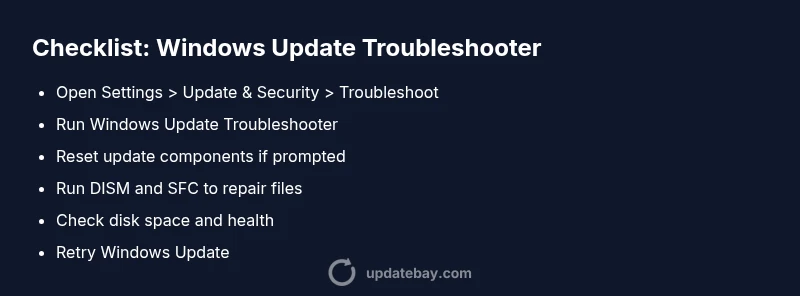
- Run the Windows Update Troubleshooter and follow on-screen prompts. Look for any reported issues and apply recommended fixes.
- If issues persist, reset Windows Update components to clear corrupt caches and reset services. Retry the update after a system restart.
- Run DISM and SFC to repair system files that may block updates. This helps repair component stores and corrupted files safely.
- Check disk health and space; run Disk Cleanup and, if needed, a surface check to detect bad sectors.
- Review update error codes in the Event Viewer or Windows Update logs to pinpoint a specific cause and apply targeted fixes.
- If updates still fail, consider more advanced options like an in-place upgrade repair install to preserve data while correcting system state. Always back up first.
Prevention and Maintenance
Preventive practices reduce the chance of repeated update failures:
- Schedule regular system maintenance and disk cleanup to keep the drive healthy.
- Keep drivers in sync with Windows updates, especially for storage controllers and network adapters.
- Monitor security software settings to ensure they don’t block legitimate update traffic.
- Create periodic restore points before major updates so you can revert if something goes wrong.
- Store critical data off the system drive or enable File History/Backups to minimize data loss risk during troubleshooting.
What to Do Next if Problems Persist
If you reach a dead end after all the checks and fixes, you should escalate to safer recovery options. An in-place repair (in-place upgrade) preserves your data while repairing Windows components, but it should be performed with an up-to-date backup. For business environments or complex configurations, consult your IT administrator or a trusted support professional. The key is to stop at a safe point where you can recover data and escalate appropriately.
Steps
Estimated time: 45-60 minutes
- 1
Open Windows Update Troubleshooter
Navigate to Settings > Update & Security > Troubleshoot > Additional troubleshooters, then select Windows Update and run the tool. follow the prompts, applying any recommended fixes. This step often resolves misconfigurations quickly.
Tip: Run as administrator to ensure full access to services. - 2
Reset Update Components
Stop the update-related services, rename or clear the SoftwareDistribution and Catroot2 folders, then restart services. This clears corrupted cache and forces a fresh update attempt.
Tip: Perform on a maintenance window to avoid disrupting other tasks. - 3
Run DISM and SFC
Open an elevated command prompt or PowerShell and run DISM to repair the component store, followed by SFC to repair system files. Reboot after each major command run.
Tip: Ensure you have internet access for DISM to fetch files. - 4
Check Disk Space & Health
Verify there is adequate free space on the system drive and run a quick disk check for errors. Free space helps the update process download, cache, and install files.
Tip: If disk errors appear, back up data and run a full disk check before proceeding. - 5
Review Error Codes & Logs
Look up error codes from Windows Update logs or Event Viewer to identify targeted fixes. Use official Microsoft documentation or Update Bay insights for mapping codes to actions.
Tip: Document codes before making changes for future reference. - 6
Consider In-Place Repair
If updates still fail, perform an in-place upgrade repair to fix core Windows components while preserving user data. Back up important files first.
Tip: This is a safe, higher-coverage fix when other steps fail.
Diagnosis: Windows Update fails to install or shows error codes (e.g., 0x80080005, 0x8024a105)
Possible Causes
- highCorrupted Windows Update components or cache
- highWindows Update service not running or blocked by security software
- mediumOutdated or corrupted system files/component store
- lowInsufficient disk space or disk errors
Fixes
- easyRun the built-in Windows Update Troubleshooter and follow on-screen prompts.
- mediumReset Windows Update components (BITS, cryptographic, MSI) and restart the services.
- mediumRun DISM /Online /Cleanup-Image /RestoreHealth and SFC /Scannow to repair system files.
- easyFree up disk space and run Disk Cleanup; ensure storage health.
- hardIf needed, perform an in-place upgrade repair to preserve data.
Frequently Asked Questions
What is the Windows Update Troubleshooter?
The Windows Update Troubleshooter is a built-in tool that detects and fixes common update problems, reducing manual troubleshooting time.
The Windows Update Troubleshooter is a built-in tool that detects and fixes common update problems, saving you time.
Does the troubleshooter work on Windows 10 and Windows 11?
Yes, it applies to supported Windows versions with slightly different UI paths. The workflow remains the same across versions.
Yes, it works on Windows 10 and Windows 11; the steps are similar.
What if the troubleshooter can't fix the problem?
If it cannot resolve the issue, proceed with DISM/SFC, reset components, and consider an in-place repair as a last resort.
If it can’t fix it, try the more advanced steps in this guide.
Will resetting update components remove my files?
Resetting components does not delete personal files, but updates may re-download after the reset.
Resetting components won’t erase your personal files.
Can I use this guide if Windows won't boot?
For non-booting systems, use offline repair options or bootable media to access recovery tools.
If Windows won’t boot, use offline repair methods accessible from recovery media.
Watch Video
What to Remember
- Run the troubleshooter first for quick wins
- Reset update components to clear corrupt caches
- Use DISM and SFC to repair system files
- Check disk space and health to avoid blocking updates
- Escalate to a repair install only if all fixes fail