Why is Windows Update Not Working
Learn why Windows Update isn’t working and follow our step-by-step troubleshooting plan to fix common issues, reset components, and prevent future update failures. Quick, expert guidance from Update Bay.


Most Windows Update failures come from service issues, corrupted update components, or network problems. Start by checking your internet connection, confirming the Windows Update service is running, and running the built-in troubleshooter. If needed, reset Windows Update components and perform a repair install to restore functionality. These steps resolve most common errors and prevent recurring failures.
Why Windows Update Fails: Common Causes
If you're asking why is windows update not working, you're not alone. In most cases, failures arise from service configuration issues, corrupted update components, insufficient disk space, date/time drift, or network problems. Understanding these causes helps you apply the right fix quickly.
- Service issues: The Windows Update service (wuauserv) may be stopped or blocked by other software, preventing updates from being downloaded or installed.
- Corrupted components: System files or update packages can become damaged, triggering errors during installation.
- Disk space: Low storage can halt downloads and installations.
- Date and time: Incorrect system time can cause certificate problems and prevent updates from validating.
- Network restrictions: Proxies, VPNs, or firewall rules can block update traffic.
By recognizing these threats, you can target the repair steps that matter most when why is windows update not working arises.
Quick Fixes You Can Try Right Now
Most issues respond to quick, straightforward actions. Start with the simplest checks to rule out obvious causes before moving to deeper fixes.
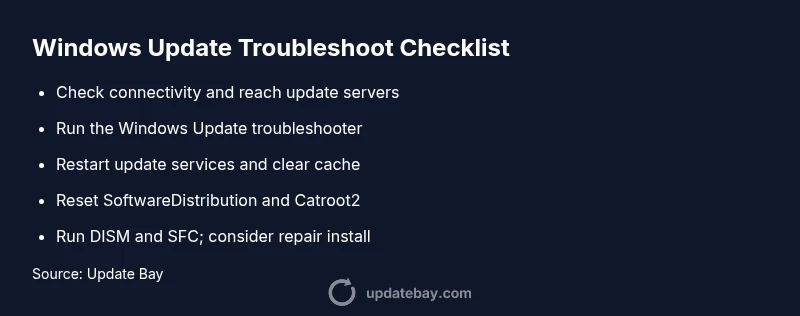
- Check that you have a stable internet connection and can reach update servers.
- Run the Windows Update troubleshooter (Settings > Update & Security > Troubleshoot) and apply any recommended fixes.
- Restart the Windows Update service: open Services, find wuauserv, stop, then start it again. Clear the SoftwareDistribution cache by stopping the service and deleting the contents of C:\Windows\SoftwareDistribution, then restarting the service.
- Run DISM and SFC: DISM /Online /Cleanup-Image /RestoreHealth followed by sfc /scannow to repair corrupted system files.
If these steps don’t resolve the problem, proceed to the next sections to check system time, disk space, and network settings, or consider resetting update components.
Check System Time, Disk Space, and Network Settings
A mismatched clock or insufficient disk space are common, easy-to-mix causes of update failures. First, verify that your system clock is synchronized with a reliable time source and that your time zone is correct. Then, ensure there is ample disk space (preferably several gigabytes free). Next, review network settings: temporarily disable VPNs or proxies that might block update traffic, and confirm your firewall isn’t restricting Windows Update. Finally, confirm Windows Update is not paused in Settings.
Using the Windows Update Troubleshooter and Known Issues
The built-in troubleshooter can automatically diagnose and fix many update problems. Run it and review the results; it can repair misconfigured services, reset the update cache, and resolve registry-related quirks. If you see messages about known outages or version mismatches, check the official Microsoft advisories and your update history for context. These sources help you determine whether the issue is local or related to a broader outage.
Resetting Windows Update Components and Beyond
If the simple fixes fail, a deeper reset is warranted. Stop the Windows Update service and rename the SoftwareDistribution and Catroot2 folders to reset the update cache. Then, restart services and try updating again. In many cases, a repair install (in-place upgrade) restores Windows to a healthy state while preserving your apps and data. This is a safe, proven approach when update failures persist after component resets.
When to Seek Professional Help and How to Prepare
Some Windows Update issues require advanced repair steps or a clean OS install. If you’re not comfortable editing services, registry keys, or performing a repair install, back up your data and contact Microsoft Support or a trusted technician. Before any major repair, create a recovery drive and ensure you have your product key and license information handy. A professional assessment can prevent data loss and ensure a timely resolution.
Steps
Estimated time: 45-60 minutes
- 1
Open Windows Update settings
Navigate to Settings > Update & Security > Windows Update. Review the status, check for updates, and run the built-in troubleshooter. This step often reveals misconfigurations that block updates.
Tip: Run as administrator if prompted to ensure full access. - 2
Verify network and time
Confirm your internet connection is stable and that the system clock is synchronized with a reliable time source. Update failures frequently stem from time-sensitive certificates.
Tip: Disable VPNs temporarily to test if they’re causing interference. - 3
Restart update services
Open Services, locate the Windows Update service (wuauserv), restart it, and try updating again. This resets stuck update processes.
Tip: If the service won’t start, check for dependent services and permissions. - 4
Reset update components
Stop Windows Update, rename the SoftwareDistribution and Catroot2 folders, then restart the services. This clears cached data that can block new updates.
Tip: Renaming folders is safer when performed from a non-root user with admin rights. - 5
Run system file checks
Execute DISM and SFC to repair corrupted files that might prevent updates from applying correctly.
Tip: Ensure you have an active internet connection during DISM repairs. - 6
Consider a repair install
If updates still fail, perform an in-place upgrade (repair install) to refresh Windows without affecting your apps. This is a robust last-resort fix.
Tip: Back up data before major repairs.
Diagnosis: Windows Update fails to install updates or keeps stopping at 0% or 99%
Possible Causes
- highWindows Update service is not running or blocked by security software
- highCorrupted update components or system files
- mediumInsufficient disk space
- lowIncorrect Date/Time or region settings
- lowNetwork issues or VPN/proxy blocking update traffic
Fixes
- easyRestart the Windows Update service and clear update cache
- easyRun DISM and SFC to repair system files
- mediumReset Windows Update components (SoftwareDistribution, Catroot2)
- easyEnsure adequate disk space and correct date/time settings
- easyCheck network settings or disable VPN/proxy temporarily
- hardIf all else fails, perform an in-place upgrade repair
Frequently Asked Questions
What is the first thing I should do when Windows Update won’t work?
Start by checking your internet connection and running the Windows Update troubleshooter. Verify the Windows Update service is running and look for any error messages.
First, check your connection, run the built-in troubleshooter, and confirm the update service is active.
Can a simple restart fix Windows Update problems?
Sometimes a reboot clears temporary hiccups, and restarting the update service helps. If issues persist, proceed with deeper steps.
A restart can help, but you may need to retry with more fixes if it continues.
Is it safe to reset Windows Update components?
Resetting update components can fix corrupted caches. Follow official steps and back up data before making changes.
Resetting components is safe when done carefully and with backups.
What if updates still fail after these steps?
If updates continue to fail, consider an in-place upgrade repair or contacting Microsoft Support for assistance.
If it still fails, a repair install or expert help is advised.
Can antivirus software block Windows Update?
Yes, some security software can interfere. Temporarily disable it to test, then re-enable after testing.
Some security software can block updates; test with it disabled briefly.
When should I seek professional help?
If you’re unsure about system changes or risk data loss, contact support or a technician before proceeding.
If you’re not comfortable with advanced repairs, get help from a pro.
Watch Video
What to Remember
- Rule out basic issues first
- Use the built-in troubleshooter for fast wins
- Reset components if caches are corrupted
- Perform a repair install as a last resort