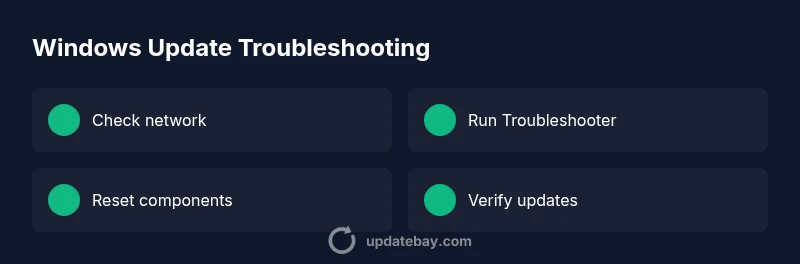
Windows Won't Update: Quick Troubleshoot & Fix
Urgent, practical guide to diagnose and fix Windows update failures with a step-by-step plan, safety tips, and prevention tactics from Update Bay.


Most likely cause is a stalled Windows Update service or flaky internet connection. Start by checking your network, then run the built‑in Windows Update Troubleshooter and restart the PC. If the issue persists, reset the Windows Update components and temporarily disable conflicting antivirus. This quick sequence often restores normal update behavior without data loss.
Why Windows update failures happen
According to Update Bay, Windows update failures are commonly caused by service glitches and connectivity issues. When the OS can't reach Microsoft servers or the update service can't process patches, you see error codes or stalled progress. In practice, most problems stem from a few root causes: the Windows Update service, network constraints, or corrupted update data. Understanding these roots helps you pick the right fix quickly, rather than chasing random settings. The failure might also appear if the device clock is off or if background processes are heavily consuming CPU, delaying update checks. By starting with the simplest checks and aligning your environment, you can unlock a faster path to success.
Quick checks you can do now
Before you dive deeper, verify the basics. Ensure you’re online with a stable connection, ideally wired or strong Wi‑Fi. Check that the system clock and time zone are correct—time drift can cause signature validation errors. Run the built‑in Update Troubleshooter (Settings > Update & Security > Troubleshoot) and apply any recommended fixes. If you see a specific error code, jot it down for reference. Update Bay research shows that connectivity issues and a faulty update service are the two most common culprits.
Common culprits and quick fixes
Here are the top suspects and fast actions:
- Internet connectivity: switch networks or reset your router; test downloads again.
- Windows Update service: ensure the service is running and set to automatic.
- Cached data: clear the SoftwareDistribution cache to force a fresh download.
- Antivirus/firewall: temporarily disable conflicting security software.
- Disk space: ensure enough free space for updates. A clean disk helps the process complete. Update Bay analysis emphasizes fixing the service state and ensuring reliable downloads as the fastest path to a working update loop.
Prepare your environment: backups and safety
Back up your important files before making system changes. Create a system restore point if permitted, so you can revert to a stable state if something goes wrong. Note that some fixes touch critical components, so having a recovery option minimizes risk. Consider creating a Bare‑bones verification plan to test updates after each change.
Advanced fixes you may need (rare) and when to call support
If common fixes fail, you may need to reset update components, run SFC/DISM, or perform a repair install. These steps are more involved and can affect installed apps. If you’re unsure or the PC is mission‑critical, contact Microsoft Support or a qualified technician. Ensure you have a recent backup before proceeding.
How to verify updates once installations complete
After updates install, check the Update History to confirm success and watch for any failed entries. Reboot if prompted and re‑check for updates to ensure the cycle completes cleanly. Keep an eye on performance or new error codes in the Event Viewer that could indicate lingering problems.
Steps
Estimated time: 25-45 minutes
- 1
Open Windows Settings and navigate to Update & Security
Click the Start menu, choose Settings, then select Update & Security. This is where you’ll access troubleshooting tools and update history. Ensure you’re logged in with an administrator account to apply fixes.
Tip: Use Windows keyboard shortcut Win + I to open Settings quickly. - 2
Run the Windows Update Troubleshooter
In Update & Security > Troubleshoot, run the Windows Update troubleshooter. Let it detect and apply suggested fixes automatically. Note any error codes it provides for reference in later steps.
Tip: If it finds issues but cannot fix them, copy the error code for targeted searching. - 3
Check your network and time settings
Verify your internet connection is stable. If using Wi‑Fi, try a wired connection. Check the date/time settings; incorrect settings can cause signature validation errors during update checks.
Tip: Set time automatically to avoid drift. - 4
Stop Windows Update service and clear caches
Open Services.msc, stop the Windows Update service, then rename the SoftwareDistribution and DataStore folders in C:\Windows. This forces Windows to re‑download update data on the next check.
Tip: Restart the service after renaming folders and try updates again. - 5
Run SFC and DISM scans
Open Command Prompt as admin and run sfc /scannow followed by: dism /online /cleanup-image /restorehealth. These commands repair corrupted system files that can block updates.
Tip: Do not interrupt the scans; they can take time to complete. - 6
Retry updates and review the results
Return to Settings > Update & Security > Windows Update and click Check for updates. If updates install, review the history for any failed entries.
Tip: If a specific update repeatedly fails, note the KB number for targeted research. - 7
Consider a repair install or professional help
If updates still fail after these steps, a repair install (in‑place upgrade) or professional support may be required to preserve files while refreshing system components.
Tip: Backup important data before proceeding with repair installs. - 8
Reboot and verify long‑term stability
After a successful update, reboot your device, then monitor for any recurring errors or performance issues over the next 24–72 hours.
Tip: Enable automatic updates to reduce future disruption.
Diagnosis: Windows won't update
Possible Causes
- highNo or limited internet connectivity preventing update checks
- highCorrupted Windows Update components (service, catroot2, SoftwareDistribution)
- mediumInterference from third-party antivirus or firewall blocking update downloads
- lowOutdated system clock or incorrect time settings causing signature validation errors
Fixes
- easyRun the Windows Update Troubleshooter and follow on‑screen recommendations
- easyRestart the Windows Update service and clear the SoftwareDistribution cache
- mediumReset Windows Update components (stop services, rename SoftwareDistribution/DataStore, re‑start services)
- easyTemporarily disable antivirus/firewall to test updates (re-enable after testing)
- easyEnsure correct date/time and regional settings; fix any clock drift
Frequently Asked Questions
Why won't Windows update install after I download it?
Common causes include a corrupted update package, service issues, or insufficient disk space. Start with the Windows Update Troubleshooter and review error codes for targeted fixes.
Most failures come from a corrupted update or service problem. Run the built‑in troubleshooter first to start fixing it.
Can I update Windows without an internet connection?
Windows updates require connectivity to download files. You can download updates on a device with internet access and transfer them, but this is not recommended for regular updates.
No—updates need internet to fetch files, though you can use offline methods for specific contexts.
How long should I wait for updates to install after applying fixes?
Install times vary by update size and system performance. If a large update is stuck beyond 60 minutes, use the Troubleshooter again or perform a targeted fix, like resetting update components.
It varies, but if you’re stuck long enough, re-run the troubleshooter or reset the update components.
What should I do if the update keeps failing after trying fixes?
Note the error codes, review Windows Update history, and consider a repair install if several fixes fail. Seek professional help if the device is business‑critical.
If fixes don’t work after multiple tries, consider a repair install or professional help.
Does Windows Update require admin rights?
Yes. Installing updates generally requires administrator privileges to modify system components and protect security. Ensure you’re logged in as an admin during fixes.
You’ll need admin rights to apply updates and run repair steps.
Are there risks updating during a low battery scenario?
Updating on battery power can interrupt processes and cause failures. Plug in your device or ensure a reliable power source before starting updates.
It’s best to plug in your device before updating to avoid interruptions.
Watch Video
What to Remember
- Act quickly with built‑in troubleshooters
- Verify network and time settings first
- Back up before major fixes
- Reset update components only if needed
- Run SFC/DISM to repair system files