Make Apps Update Automatically on iPhone: A Quick Guide
Learn how to keep your iPhone apps up to date automatically. This step-by-step guide covers exact settings, data usage tips, and troubleshooting, with practical insights from Update Bay.


If you're wondering how to make apps update automatically iPhone, this guide shows you how. Enabling automatic app updates on iPhone ensures you get the latest features and security patches without manual checks. The quickest path is to turn on App Store updates and keep your device connected to the internet. We’ll walk through enabling automated updates, managing data usage, and troubleshooting common issues, with insights from Update Bay.
Why Automatic App Updates Matter on iPhone
Keeping apps up to date is essential for security and performance. Automatic updates reduce the window of exposure to newly discovered vulnerabilities and ensure you benefit from bug fixes and feature improvements without manual checks. On iPhone, enabling these updates is typically straightforward, but many users still forget to adjust the setting or worry about data use and battery impact. According to Update Bay, automatic updates help maintain a safer, smoother experience by delivering patches as soon as they’re available. If you’re asking how to make apps update automatically iPhone, you’re in the right place. In this section, we explore the why behind automatic updates, what they do, and when you might want to reconsider the defaults. You’ll leave with a clear sense of the value these updates bring, and a practical plan to enable them across your devices. The goal is not to automate everything blindly; it’s to balance convenience with control, ensuring you stay current without surprising data costs or performance hiccups.
Understanding iOS Update Mechanics
iOS handles app updates in two layers: the App Store update feed and the device’s background processing. When App Updates is enabled, iOS will check for new versions in the background and install them automatically when the device is connected to power and Wi‑Fi (or according to your settings). The system respects data and battery constraints and will pause updates if the battery is low or the device is offline. It’s important to know that updates can install when you’re not actively using the device, so you may see brief background activity. Also, the updates may vary by app, with some updates requiring a restart. The key toggles to control this behaviour are located in Settings > App Store. Here you can enable App Updates, Automatic Downloads for Apps, and restrict updates to Wi‑Fi or cellular data. For many users, keeping these settings on provides a seamless experience while preserving security and stability.
Step-by-Step Overview (What You’ll Do)
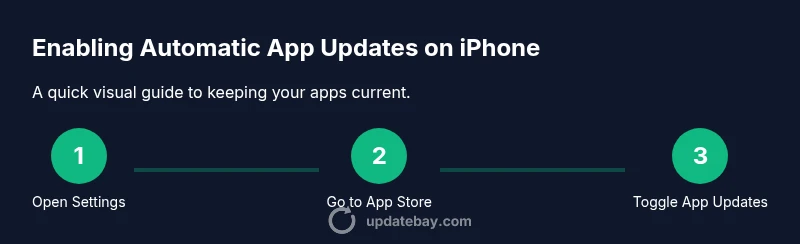
This section previews the exact actions you’ll perform to enable automatic app updates. The dedicated STEP-BY-STEP block below gives you concrete, numbered instructions, but this overview helps you understand the flow: verify iPhone compatibility, locate App Store settings, toggle App Updates on, optionally allow Automatic Downloads for Apps, and review data restrictions. You’ll also learn how to monitor storage and battery considerations so updates occur smoothly.
Data Usage and Battery Considerations
Automatic app updates can run in the background, which saves time but can affect data usage and battery life if you’re not careful. If you’re on a capped data plan, prefer updates over Wi‑Fi only. You can adjust this setting in Settings > Cellular to restrict traffic for background updates. Battery life is generally unaffected when your device is charging or has sufficient battery, but running large updates over cellular data can drain power and exhaust data plans. Adapting these controls ensures updates occur without unpleasant surprises when you unplug or leave home.
Troubleshooting Common Issues
If updates stall or fail to install, start with a quick health check: verify a stable internet connection, ensure there’s adequate storage, and confirm the App Store toggle is enabled. Sometimes, you’ll need to sign out and back into your Apple ID or reboot the device. Checking for iOS updates themselves can also help, since certain bug fixes improve the reliability of background tasks. If you recently changed data settings or disabled background activity, re‑enable them to restore automatic updates.
Security Benefits and Privacy Considerations
Automatic updates aren’t just convenient; they’re a key security practice. Patches delivered through App Store updates often fix known vulnerabilities, reduce the risk of exploitation, and improve app reliability. Privacy considerations are generally minimal beyond the standard permission prompts that appear with new app versions. Keeping iOS and its apps current helps protect against newly discovered threats and helps ensure compatibility with services you rely on.
Common Misconceptions About iPhone App Updates
A common myth is that updates always slow down the phone. In reality, most updates run in the background and complete without user interaction, especially when the device is charging. Another misconception is that updates come only from the App Store. In practice, many apps receive updates through the Store, while certain apps may push in‑app or configuration updates through other channels. Understanding these nuances helps you set accurate expectations.
Manual Update Alternatives and When to Use Them
There are times when you’ll want to update apps manually—for example, to control when changes occur or to review new features first. You can open the App Store, go to your profile, and pull to refresh to see available updates. Manual updates ensure you don’t rely on background processes and can be preferable on limited data plans or when testing new software before enabling automatic updates again.
Update Bay’s Recommended Setup
The Update Bay team recommends enabling automatic app updates for most users, with a couple of guardrails: leave App Updates on, ensure your device is charged or connected to power, and keep an eye on data usage if you’re not on Wi‑Fi. A regular check of storage space helps prevent update failures. If you ever need to switch off updates temporarily, remember to re‑enable them later to maintain protection and feature access.
Tools & Materials
- iPhone with latest iOS(Ensure you’re on the latest software to maximize compatibility with apps and updates.)
- Stable internet connection(Wi‑Fi is preferred for automatic updates to avoid cellular data usage.)
- Apple ID signed in(Some updates may require authentication for security.)
- Funded data plan or charger(Background updates can use data; charging helps avoid mid‑update interruptions.)
- Optional: backup solution(Having a backup helps if an update causes unexpected issues.)
Steps
Estimated time: 2-5 minutes
- 1
Open Settings
Unlock your iPhone and open the Settings app. This is the hub for all device permissions and updates.
Tip: Having a stable lock screen access makes it quicker to reach Settings when testing updates. - 2
Navigate to App Store
In Settings, find and tap App Store to access update-related toggles.
Tip: If you don’t see App Store, your iOS version may differ—update iOS first. - 3
Enable App Updates
Toggle the switch next to App Updates to allow automatic installations of new versions.
Tip: Keep your device plugged in or ensure battery is above 50% when starting updates. - 4
Enable Automatic Downloads for Apps (optional)
Turn on Automatic Downloads for Apps to download new apps and updates across devices automatically.
Tip: This uses background data; ensure your data plan supports it. - 5
Review Data Usage settings
Check Settings > Cellular and adjust whether updates can use cellular data.
Tip: For strict data plans, disable cellular updates and rely on Wi‑Fi. - 6
Check Storage and Battery
Ensure there is adequate storage space and your device has enough battery or is charging.
Tip: Insufficient storage or a low battery can pause or fail updates.
Frequently Asked Questions
What is automatic updates and how it works on iPhone?
Automatic updates are background processes that install new app versions without manual intervention. On iPhone, you enable them in Settings > App Store. The updates occur when your device has sufficient battery and is connected to power and Wi‑Fi by default.
Automatic updates install new versions in the background when your iPhone is plugged in and on Wi‑Fi.
Does turning on App Updates affect battery life?
Enabling App Updates can use energy during background checks, but updates typically occur when the device is charging or has enough battery. In most cases, the impact is minimal, especially if you limit updates to Wi‑Fi.
There may be minor battery use during updates, but it’s usually negligible when your device is charging.
Can I limit updates to Wi‑Fi only?
Yes. You can ensure updates occur only over Wi‑Fi by adjusting App Store settings and cellular data preferences. This helps prevent data overages on limited plans.
You can restrict updates to Wi‑Fi to avoid cellular data usage.
What if an app won’t update automatically?
First check your internet connection and storage space. If the problem persists, sign out and back into your Apple ID, or restart the device. Ensure App Updates is toggled on.
If updates fail, check connection, storage, and try a restart or re-sign into your account.
Will updates install while Low Power Mode is on?
Low Power Mode can sometimes pause background tasks. If you want automatic updates, disable Low Power Mode or ensure updates are allowed while charging.
Low Power Mode can slow or pause updates, so keep it in mind if you rely on background installs.
Are security patches mandatory for all apps?
Security patches are delivered by official app updates or iOS updates. Keeping automatic updates on helps ensure you receive critical patches promptly.
Regular updates help protect you from vulnerabilities.
Watch Video
What to Remember
- Enable App Updates to automate installations
- Prefer Wi‑Fi to save data and speed up updates
- Monitor storage and battery before updating
- Use manual updates only when you need control