Can Android Update Be Reversed? A Practical Guide
Learn whether you can reverse an Android OS update, when downgrades are possible, risks, and best practices from Update Bay's expert team.


According to Update Bay, reversing an Android update is sometimes possible, but depends on device, OEM policy, and whether the bootloader can be downgraded. In many cases you’ll need official firmware and a supported flashing method. Be aware that downgrading can void warranties and may expose you to security risks if you skip updates.
What reversing an Android update really means
In practice, reversing an Android update means returning the device to a previous Android version or firmware state. This is not the same as a simple factory reset, which only erases user data but leaves the system version intact. A true reversal requires obtaining the exact stock image for your device, unlocking the device for flashing if the OEM allows it, and flashing that image in a controlled environment. The Update Bay team emphasizes that success depends on device support, official firmware availability, and whether security policies permit downgrades. Always treat reversals as advanced procedures and proceed with caution to protect data and device integrity.
Factors that influence reversibility
Reversibility depends on several interrelated factors:
- Device and OEM policy: Some manufacturers forbid downgrades or require official service channels.
- Bootloader state: If the bootloader is locked, you may need to unlock it legally via OEM guidelines.
- Firmware availability: An approved stock image for the target version must exist for your exact model and region.
- Security updates: Newer security patches can complicate or block downgrades.
- Warranty considerations: Downgrades can affect warranty terms, so review your coverage before you proceed.
According to Update Bay, understanding these constraints up front saves you from costly missteps and bricked devices.
How to check if your device can be downgraded
Start with the basics: identify your exact device model, region, and current Android version. Then visit the OEM support site to see if a stock image for the older version is offered for download. Check user forums and official developer guides for model-specific downgrade methods. If the OEM explicitly prohibits downgrades, you should not attempt them. If the stock image and tools are available, proceed with caution and follow official instructions.
Preparing to downgrade safely
Before touching the device, back up all data—photos, messages, and app data—since flashing typically involves data loss. Ensure your battery is charged to at least 50% and have a reliable USB cable and computer ready. Gather the official firmware file, flashing tools, and any OEM unlocking credentials needed. Create a restore plan in case something goes wrong, including a means to re-lock the bootloader if required by the OEM.
Common methods used to revert updates
Downgrading generally involves flashing an official stock image or firmware, rather than performing a random ROM install. For many OEMs, this means using a computer to flash the device via fastboot or a vendor-specific tool, then performing any required wipes. In some cases, a straightforward OTA rollback is offered by the device, but this is not universal. Always follow the official downgrade flow for your model to minimize risks.
Risks and warranty considerations
Downgrading can brick a device if performed incorrectly, and it may void warranties or disable certain security features. You could lose access to biometrics, rely on downgraded security patches, or encounter compatibility issues with apps. Some devices also require you to relock the bootloader after flashing, which can revert some unlock benefits. Consider these factors carefully before proceeding.
Data backup and recovery planning
A robust backup plan reduces anxiety around a downgrade. Use Google Backup for app data and settings, plus local backups of media. If possible, copy important files to an external drive. After flashing, you may need to reinstall apps and reauthenticate services, so have login credentials handy. Having a tested recovery pathway saves time and pain if the downgrade does not go as planned.
OEM-specific guidance and official resources
Downgrading steps vary by manufacturer. Pixel users may use Google’s official factory images and flash tools; Samsung devices often require the Odin/Heimdall workflow combined with the stock ROM; OnePlus and other brands have their own tooling. Always start at the OEM’s official support page for model-specific downgrade instructions. If in doubt, contact customer support before proceeding.
Alternatives to downgrading that might help
If downgrading isn’t feasible, consider alternatives such as waiting for the next software patch that addresses issues, sideloading a factory image for a clean reinstallation, or adjusting the device’s settings to minimize the impact of the update. You can also isolate problematic features by disabling or rolling back problem-causing apps within the current version, while staying protected with the latest security updates.
Tools & Materials
- Official firmware image for your device(Download from the OEM's support page, in your exact model, region, and variant.)
- USB cable(Good quality, data-capable cable for flashing.)
- Computer with flashing tools(Windows/macOS/Linux with proper drivers and adb/fastboot installed.)
- ADB/fastboot drivers installed(Ensure your PC can communicate with the device in fastboot/bootloader mode.)
- Data backup storage(External drive or cloud storage for photos, messages, apps data.)
- Battery charger or reliable power source(Keep device charged above 50% during flashing.)
- OEM unlocking credentials(Needed only if the OEM requires unlocking.)
- Clear recovery plan(Documentation of steps to restore if flashing fails.)
Steps
Estimated time: 60-180 minutes
- 1
Verify device firmware availability
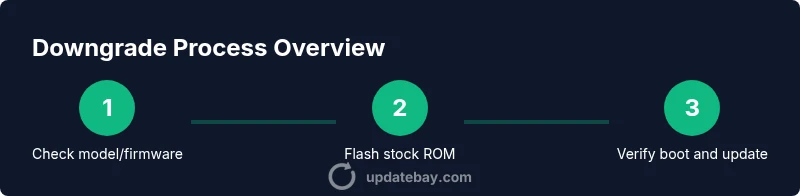
Identify your exact device model and region, then confirm that an official older firmware image exists. Check OEM support pages and trusted community forums for model-specific notes. This step avoids chasing the wrong ROM and reduces the risk of a failed flash.
Tip: Double-check the build number and region to prevent bricking the device. - 2
Back up data
Back up contacts, photos, app data, and messages. Use both cloud backups and local copies where possible. Confirm that you can restore after the downgrade.
Tip: Test a small restore first to verify backup integrity. - 3
Enable developer options and unlock if required
Enable OEM unlocking in developer options if the OEM requires it for flashing. Note that enabling may erase some data on some devices. Follow OEM instructions precisely to avoid missteps.
Tip: Do not attempt unlock unless you have official guidance for your model. - 4
Unlock the bootloader (if needed)
If your device requires unlocking, perform it using the OEM's official method. This step is device-specific and can void warranties; proceed only if the OEM supports it.
Tip: Keep a copy of your unlock status in case you need to re-lock later. - 5
Prepare the flashing environment
Install the necessary flashing tools and drivers on your computer. Connect your device in bootloader/fastboot mode and verify the device is recognized by the flash tool.
Tip: Use a wired connection to minimize disconnects during flashing. - 6
Flash the stock firmware
Load the official stock image and begin the flashing procedure per OEM instructions. Do not interrupt the process once it starts; any interruption can brick the device.
Tip: Perform a small test flash if this is your first time. - 7
Wipe data if required by the OEM flow
Some downgrades require a data wipe after flashing to ensure a clean system state. Follow the exact steps prescribed by the OEM to avoid data loss.
Tip: Back up encrypted data beforehand; re-encryption may occur after downgrade. - 8
Relock bootloader if advised
Some OEMs recommend relocking the bootloader after flashing to restore system integrity. This may disable benefits of unlocked devices, so follow official guidance.
Tip: Document the relock outcome and boot state. - 9
First boot and verify version
Boot into the device and verify the Android version and security patch level. Check that critical services run normally and that apps update correctly.
Tip: Take notes of any stability issues or apps failing to run. - 10
Restore data and reinstall apps
Restore backed-up data and reinstall apps. Confirm that sensitive data is intact and re-authenticate accounts as needed.
Tip: Avoid restoring untrusted apps that could carry bring-your-own issues. - 11
Install latest security updates
After downgrading, apply the latest official security patches when available. This reduces exposure to known vulnerabilities in older builds.
Tip: Automate updates if the OEM supports it to stay protected. - 12
Document the process for future reference
Keep notes about the downgrade path you took, firmware versions used, and any quirks observed. This helps future maintenance or when seeking official support.
Tip: Store the notes with the device profile for quick reference.
Frequently Asked Questions
Can Android updates be reversed on any device?
No. Reversibility depends on device support, OEM policies, and the availability of an official downgrade path for your model. Some devices cannot be downgraded at all.
Reversibility isn’t universal. It depends on your device and OEM rules.
Will downgrading void my warranty?
Downgrading can void warranties or affect service terms, depending on the manufacturer and region. Always check the OEM’s policy before proceeding.
It can affect warranty terms, so verify with the OEM first.
What are the main risks of downgrading Android?
Risks include bricking the device, data loss, loss of security patches, and potential incompatibilities with apps. Follow official steps precisely to minimize these risks.
Bricking, data loss, and security gaps are key risks; follow official steps.
Do I always need to unlock the bootloader to downgrade?
Not always, but many downgrades require bootloader unlocking per OEM guidelines. If unlocking isn’t supported, downgrades may be impossible.
Often you’ll need a bootloader unlock per the OEM, but it varies.
What if there’s no official downgrade available for my model?
If no official downgrade exists, avoid unofficial ROMs that could harm device security. Consider waiting for an official update or using official recovery options.
If there’s no official downgrade, avoid risky ROMs and seek official options.
Can downgrading affect apps and data beyond the backup?
Some apps may require re-authentication or reinstallation after a downgrade. Data formats may also change with certain versions, so plan accordingly.
Expect some apps to need re-authentication and possible data adjustments.
Watch Video
What to Remember
- Downgrades are device-specific and not universally supported.
- Always back up data before attempting a downgrade.
- Follow official OEM instructions to reduce risk.
- Downgrades can affect warranty and security posture.
- Prepare a clear recovery plan in case flashing fails.