Can You Unupdate Your Phone? A Practical Guide to Reverting OS Updates
Learn how to revert a phone OS update safely. This step-by-step guide covers Android and iPhone options, backup considerations, risks, and safer alternatives. Update Bay analyzes rollback options for common devices in 2026.


Can you un update your phone? Context and definitions
If you’re reading this, you’re likely asking can you un update your phone. The short answer is: it depends on the device, the operating system, and whether the older version remains available from the manufacturer. In 2026, most phones do not offer a simple one-click downgrade in Settings, but there are legitimate paths for a careful rollback when supported by official tools. This article from Update Bay explains what to expect, how to prepare, and the safest steps to try for Android and iPhone users. The goal is to help you recover stability without risking data loss or brick failures. Remember, the feasibility of a rollback hinges on signing status, region, and the device model.
To start, think about the exact problem you’re trying to solve and whether a rollback is truly necessary. In many cases, updating again or applying a targeted bug fix from the developer can fix issues without reverting the entire system. The phrase can you un update your phone appears frequently in support forums, but the practical path is usually clear: verify official options, back up, and proceed cautiously.
This guide uses the exact keyword can you un update your phone to reflect common user questions and to help you find a precise, device-specific answer quickly. Use this as a starting point; the next sections dive into the realities of rollback on Android and iOS.
OS-level constraints that affect rollback
Downgrading a phone OS is not merely a software choice; it is a hardware and security decision. Many manufacturers lock the flashing process behind signed firmware, meaning you can only install versions that the vendor has officially signed for your exact model and carrier. If a downgrade is not signed for your device or region, the rollback attempt will fail at the flashing stage, or worse, render the device unbootable. This is a critical reason why can you un update your phone is not a universal option—some devices simply can’t be downgraded via official channels. OEMs and carriers may also enforce restrictions to protect security, prevent fragmentation, and ensure compatibility with networks and safety updates.
Another constraint is support timing. Even when a previous version exists, it may no longer be offered once the manufacturer has moved on to the next update cycle. In some cases, a rollback is supported only for a narrow window after release, and only on certain hardware revisions. If you’re hoping to reverse recent changes, check the official support page for your make and model to confirm whether a signed image or rollback tool is available.
If you feel stuck, reassess your goal: is the issue truly tied to a specific update, or is there a broader performance problem? Sometimes, a targeted fix or a clean cache wipe can resolve symptoms without a full OS rollback. In short, can you un update your phone depends on signing, region, and device family; proceed only with official guidance and verified files.
Android rollback options by manufacturer and version
Android’s openness means rollback options vary widely by device. Some OEMs provide an official downgrade path through their support portal or via a dedicated flashing tool, while others explicitly prohibit downgrades to protect users from security risks. The most reliable route is to check the manufacturer’s official documentation for your exact device model and regional variant. If an official downgrade is offered, you’ll typically need to download a signed factory image or IPSW-like package, verify the build ID, and follow step-by-step flashing instructions. Carriers may introduce additional restrictions, limiting rollback availability to certain SKUs or regions.
In practice, many Android phones do not support downgrades after a certain software milestone. If you discover that your device is not eligible for a downgrade, you still have options to stabilize performance: performing a factory reset to the current version while preserving a backup, or applying a fresh system image provided by the OEM where allowed. Always confirm compatibility and avoid unofficial ROMs, which can brick your device or void warranties.
If you pursue a downgrade, prepare by backing up all data first and ensuring the exact model number, region, and bootloader state match the official file you intend to flash. Precision matters here; even a small mismatch can cause a non-booting device.
iPhone rollback options and Apple’s signing window
Apple’s approach to downgrades is notably different from many Android devices. Apple typically signs older iOS versions for only a limited time, giving a narrow window for downgrades after a new release. Once the signing window closes, downgrades are no longer possible through official channels. This makes can you un update your phone a situation that often hinges on whether Apple is still signing the desired older version for your device. If you do have a signed IPSW and a compatible device, you can perform a downgrade using iTunes or Finder on a supported computer, following exact steps.
If you’re considering a downgrade, verify iOS signing status on Apple’s official portal or through trusted support resources. Avoid unauthorized tools or jailbreaking methods, as these void warranties, threaten security, and can permanently damage hardware. The safest choice is to rely on official Apple options and perform a full backup before any attempt.
In many cases, users discover that downgrading is not feasible due to Apple’s signing schedule. When that happens, exploring stability improvements through updates, app reinstallation, or device reset can offer relief without risking device integrity.
Data backup prerequisites before attempting rollback
Before any rollback attempt, robust backups are non-negotiable. A downgrade involves restoring the system image or reinstalling software, which can erase personal data, settings, and some app data. To minimize risk, perform a full backup of photos, messages, contacts, app data, and important documents. Use multiple backup modalities if possible—cloud backups (iCloud for iPhone, Google One for Android) plus a local backup to a computer. This ensures you can recover essential information if the rollback process fails or if you decide to revert to the current version afterward.
During backup, verify the restore process to ensure downloaded backups are usable. If you rely on cloud backups, make sure you have a stable internet connection and sufficient storage. Keep sensitive data secured with strong passwords and, when possible, enable two-factor authentication on backup services. A thorough backup makes can you un update your phone less daunting because you can restore critical data if something goes wrong.
Lastly, document the planned rollback steps and keep the backup timestamps visible. This helps you coordinate with support if you need assistance and ensures you know exactly what data is recoverable post-flash.
Step-by-step conceptual flow (without commands) of rollback
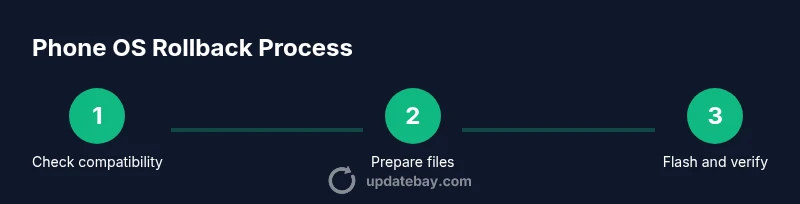
A rollback is a structured sequence of checks and actions rather than a single button press. Conceptually, you start by confirming device compatibility, then gather the correct signed file, prepare the flashing environment, and perform the installation while monitoring for integrity. After the flash completes, you boot the device, verify the OS version, and restore data from the backup. Each OEM will provide a slightly different flow, so always follow official guidance closely. The core idea is to minimize risk by maintaining backups, using official firmware, and avoiding unverified tools.
In practice, you’d typically verify the target version, prepare your PC or Mac with the manufacturer’s software, connect the device via a wired cable, enter recovery or DFU mode as required, run the installer, and then complete a post-flash verification. If any step fails, stop immediately and seek official support. This high-level view helps you understand what to expect without getting lost in vendor-specific terminology.
Your goal should be to achieve a clean boot with a stable version, not to push through a downgrade at any cost. If you encounter roadblocks, re-check the signed status, model matching, and region compatibility before trying again.
Risks and caveats you should know
Downgrading a phone OS carries multiple risks that can surprise users who jump into the process without full preparation. Data loss, bricked devices, warranty issues, and security gaps are all legitimate concerns. Even when a downgrade is technically possible, there is a real chance of encountering post-flash instability, failed boot loops, or missing features introduced in newer updates. A misstep—such as flashing the wrong build ID or interrupting the process—can leave the device unusable.
Additionally, downgrades may affect network compatibility, eSIM profiles, or premium features tied to newer software. Some apps rely on current OS-level libraries; reverting can cause incompatibilities or reduced performance. It’s essential to weigh these risks against the potential benefits and to proceed only with official, signed firmware and vendor-recommended procedures. If you’re unsure, seek professional guidance rather than risking permanent damage.
Safer alternatives to full rollback
If a full OS rollback feels risky or is not officially supported, there are safer alternatives to address the issues you’re facing. Start with a targeted approach: clear caches and app data for problematic apps, uninstall and reinstall apps, or reset network settings to fix connectivity bugs without touching the core OS. A factory reset on the current version is sometimes recommended to restore system stability, but back up first as this will erase data. Consider a clean reinstallation of the latest supported version with a verified image if the OEM offers it as a repair option.
Another safe option is to monitor for official bug fix patches and performance improvements through subsequent updates. Manufacturers and carriers often release minor follow-up updates to address reported issues, and these can improve behavior without rolling back. The key is to stay within the officially supported repair paths and avoid third-party tools that could compromise security.
If you rely heavily on device stability for work or safety-critical tasks, consult official support channels before attempting any rollback, and document your steps so you or a technician can reproduce the scenario later.
What to do after rollback or alternative fixes
After completing a rollback or implementing a safer alternative fix, take deliberate steps to ensure long-term stability. Reconfigure essential settings, reinstall preferred apps, and restore data from backups carefully. Run common tasks—calls, messaging, camera use, and mobile data modes—to confirm normal operation. Check for compatibility issues with accessories like earbuds, car kits, and wearable devices. Finally, enable automatic updates or set a maintenance window for future updates to prevent surprises.
Keep an eye on battery health, storage capacity, and app performance during the first days after the change. If any issues recur, consult official support resources or the OEM’s knowledge base for recommended troubleshooting steps. This mindful approach helps you avoid future downgrades while keeping your device secure and functional.
Quick checklists after rollback or alternative fixes
- Confirm OS version stability and security patch level.
- Restore data carefully and verify app functionality.
- Keep an official backup strategy in place for future updates.
- Document the process for future reference or support.